My Tasks
Overview
My Tasks is designed to look like a natural part of your SharePoint site and not like a foreign element. It takes its colors and its font from the site, it adapts to the width of the place where it is put, and its interface speaks the language of each user. None of this needs to be configured in the web part: there are no theme, font or language settings in the property pane.
This article explains how the web part inherits the theme and the font, how the layout behaves on narrow screens, which 50 interface languages are supported, and which parts of the list are translated and which are not.
Themes
My Tasks uses the theme of the SharePoint site it is placed on. The colors of the text, the background, the links, the buttons, the menus, the panels and the list rows are taken from the theme and applied to the web part, so these cases look consistent without any work from the page author:
- Light theme - the default look of the site.
- Dark theme - the web part switches to the dark colors together with the site.
- Custom theme - the brand colors defined for your site (for example, in Change the look) appear in the buttons, the links, the selected row and the panels.
When the site theme changes, the web part follows it. The same applies in Microsoft Teams, where the web part takes the colors of the Teams theme; see KB10301. How to Add My Tasks to Microsoft Teams.

The overdue state is the one exception to theming: in the Due Date column an overdue date is shown in red, whatever the theme, so that it stays noticeable. The state is described in KB10292. My Tasks: Due Date Column, Overdue Highlighting and Quick Filters.
💡 Tip
To give My Tasks the colors of your brand, you do not edit the web part. Change the theme of the site and all web parts, My Tasks among them, change together.
Fonts
The web part uses the font configured for the site. If a custom font is set for the site, the list, the command bar and the panels use it. Otherwise My Tasks uses the standard SharePoint font, Segoe UI. There is no separate font setting in the property pane; to change the font, change it for the site.
Responsive layout
The web part adapts to the available width. It works in a full-width section, in a narrow column next to other web parts, in a Microsoft Teams tab and on a phone. The list stays readable in a narrow place, and the panels for the details and for the filter open at the side of the page. If you need more room on a small screen, show fewer columns, as described in KB10294. My Tasks: Choosing and Arranging Columns, or turn on Compact List in the property pane.

Language support
The interface of My Tasks is translated into 50 languages. It is shown in the language of the user: the interface language of the user in SharePoint and Microsoft 365, and not a language chosen in the web part.
| Language (locale) | Language (locale) | Language (locale) |
|---|---|---|
| العربية, السعودية (ar-SA) | العربية, الإمارات (ar-AE) | العربية, البحرين (ar-BH) |
| العربية, مصر (ar-EG) | العربية, الكويت (ar-KW) | العربية, عُمان (ar-OM) |
| العربية, قطر (ar-QA) | Български (bg-BG) | Čeština (cs-CZ) |
| Dansk (da-DK) | Deutsch (de-DE) | Ελληνικά (el-GR) |
| English (en-US) | Español (es-ES) | Eesti (et-EE) |
| Euskara (eu-ES) | Suomi (fi-FI) | Français (fr-FR) |
| Galego (gl-ES) | עברית (he-IL) | हिन्दी (hi-IN) |
| Hrvatski (hr-HR) | Magyar (hu-HU) | Bahasa Indonesia (id-ID) |
| Italiano (it-IT) | 日本語 (ja-JP) | Қазақ тілі (kk-KZ) |
| 한국어 (ko-KR) | Lietuvių (lt-LT) | Latviešu (lv-LV) |
| Bahasa Melayu (ms-MY) | Norsk bokmål (nb-NO) | Nederlands (nl-NL) |
| Polski (pl-PL) | Português, Brasil (pt-BR) | Português, Portugal (pt-PT) |
| Română (ro-RO) | Русский (ru-RU) | Slovenčina (sk-SK) |
| Slovenščina (sl-SI) | Srpski, latinica (sr-Latn-RS) | Svenska (sv-SE) |
| ไทย (th-TH) | Türkçe (tr-TR) | Українська (uk-UA) |
| Tiếng Việt (vi-VN) | 简体中文 (zh-CN) | |
| Cymraeg (cy-GB) | Gaeilge (ga-IE) | Македонски (mk-MK) |
❗ Important
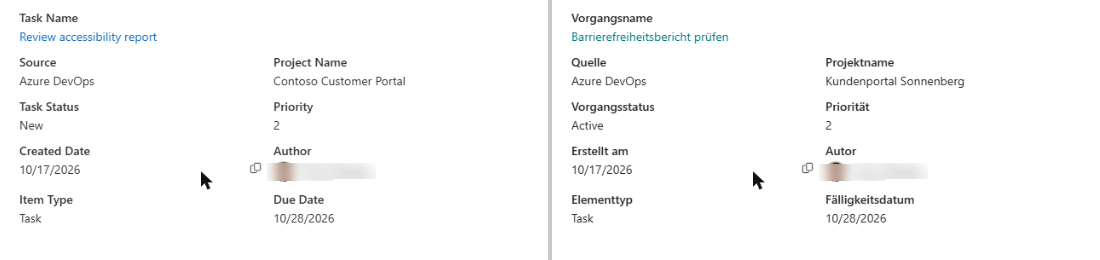
The language is taken from the user, so two colleagues who look at the same page can see different languages. There is no language switch in the web part. To see the list in another language, change the display language in the user's Microsoft 365 or SharePoint settings.
What is translated and what is not
The following is shown in the language of the user:
- the command bar, the menus and the buttons, for example Refresh, Due Date and Export To Excel;
- the column headers, the names of the filter groups and the messages of the panels;
- the headers of the exported file; see KB10296. How to Export My Tasks to Excel;
- the settings of the property pane for the page author.
The content of the tasks is not translated by My Tasks. The task titles, the project and plan names, the descriptions, the tags and the names of people are shown exactly as they are stored in Planner, To Do, SharePoint or another source. The statuses of SharePoint tasks are shown as they are in the SharePoint list, and the states of Azure DevOps work items as they are defined in the process of the project.
📝 Note
Because status names come from the sources, the value to type into Excluded Statuses (comma separated) is the caption that you see in the Task Status column. See KB10298. My Tasks: Excluding Statuses and Limiting the Task List.
Dates and numbers
Dates, such as Created Date and Due Date, are shown in the date format of the user's browser, which usually follows the regional settings of the operating system. A user in the United States and a user in Germany therefore see the same date in their habitual form. The same applies to the dates in the exported file.
For the whole picture of the web part, start with KB10288. My Tasks. Solution Overview.
Learn more about the product: https://vitextra.com/en/products/my-tasks