
Password Vault
Password Vault is a powerful tool for securely storing, managing, and sharing passwords within your organization. Enhance security and simplify password management with Password Vault.
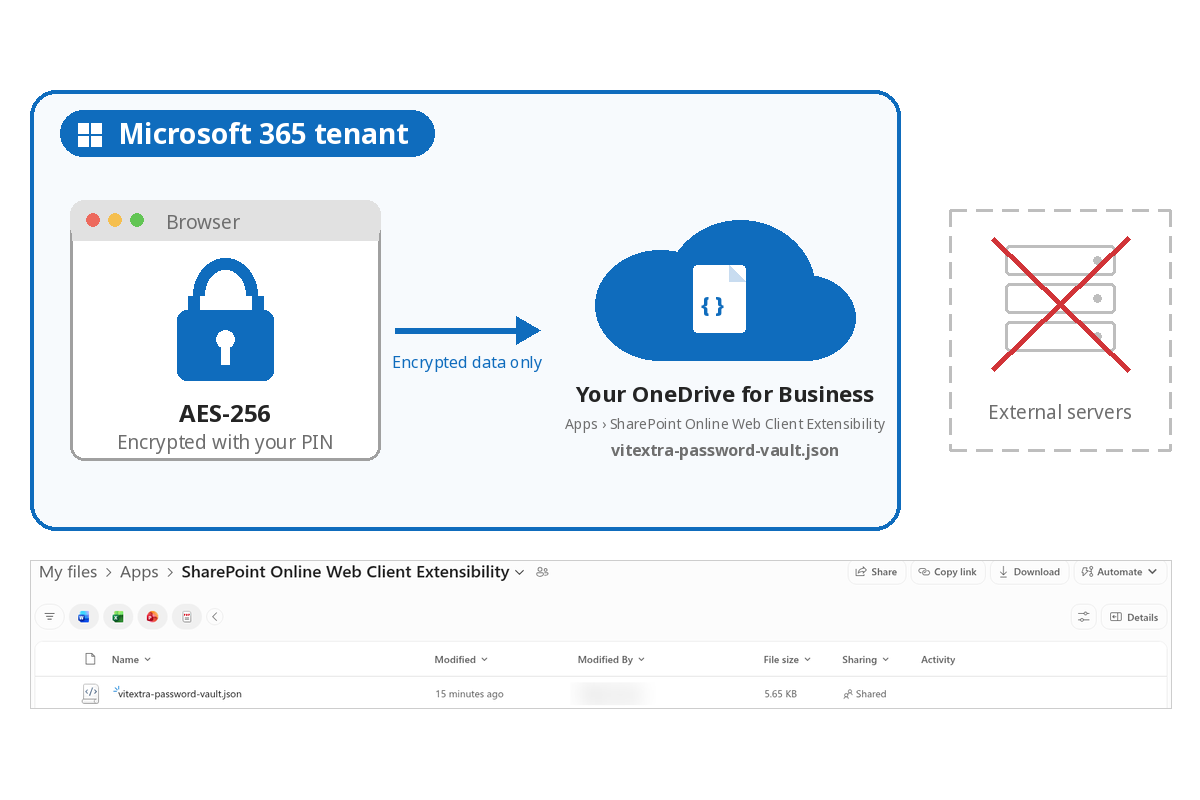
Password Vault helps you securely store and manage an unlimited number of passwords directly in SharePoint Online and Microsoft Teams. Every entry is encrypted with AES-256 in your browser before anything is transmitted, and the encrypted data is kept in your own OneDrive for Business — so sensitive credentials never leave your Microsoft 365 tenant.
- AES-256 encryption performed in the browser
- PIN-protected access — only you hold the key
- Data stored in your own OneDrive for Business
- Auto-sync across devices
- Unlimited passwords
- SharePoint Brand Center support
Overview
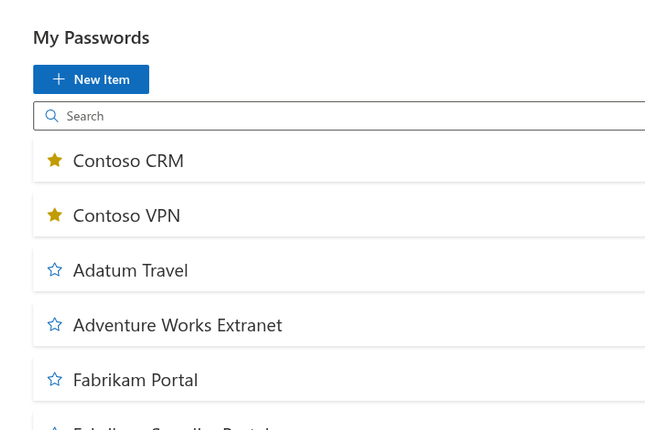
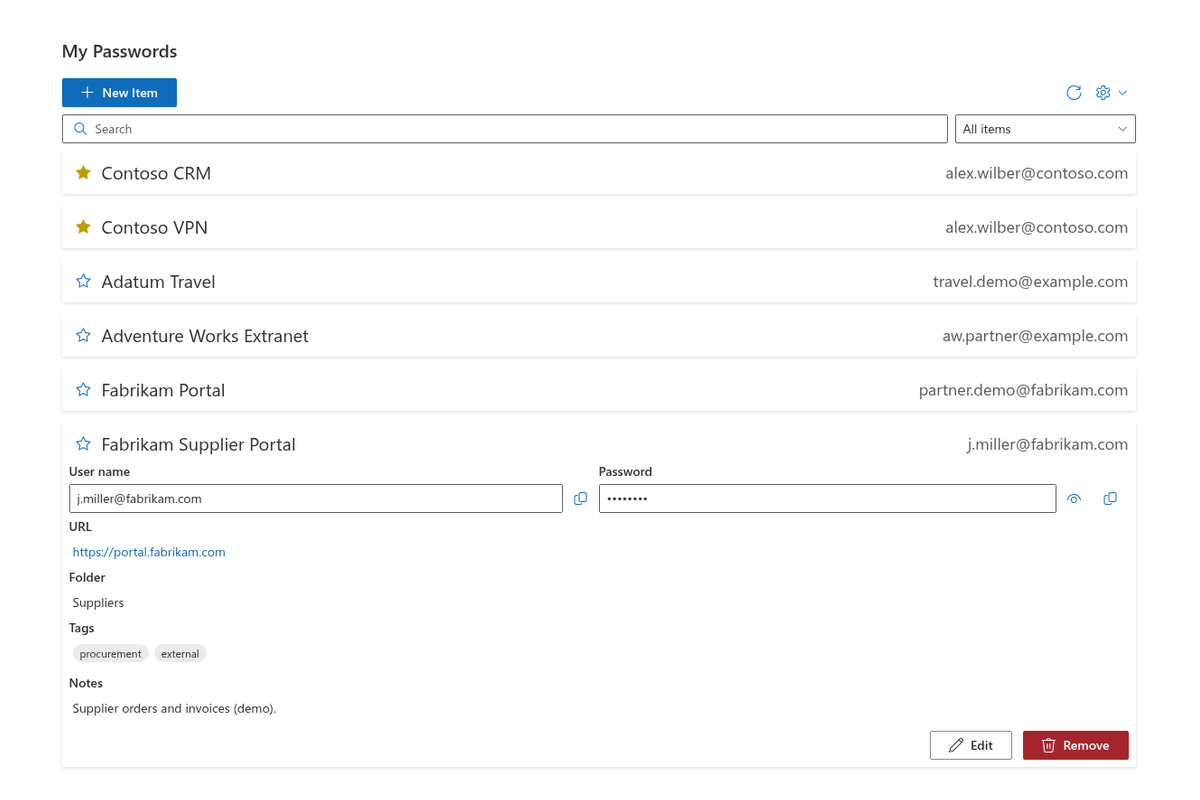
Password Vault gives everyone in your organization a personal, secure place to keep credentials — available wherever they work, in SharePoint Online or Microsoft Teams. Store as many passwords as you need and find them in seconds, without spreadsheets, sticky notes, or third-party password managers.
Security is built into the architecture, not added on top. Every record is encrypted with the AES-256 algorithm right in your browser before it is transmitted, and the encrypted data is stored in your own OneDrive for Business. There are no external servers and no third-party storage: your credentials never leave your Microsoft 365 tenant.
Works Where You Work
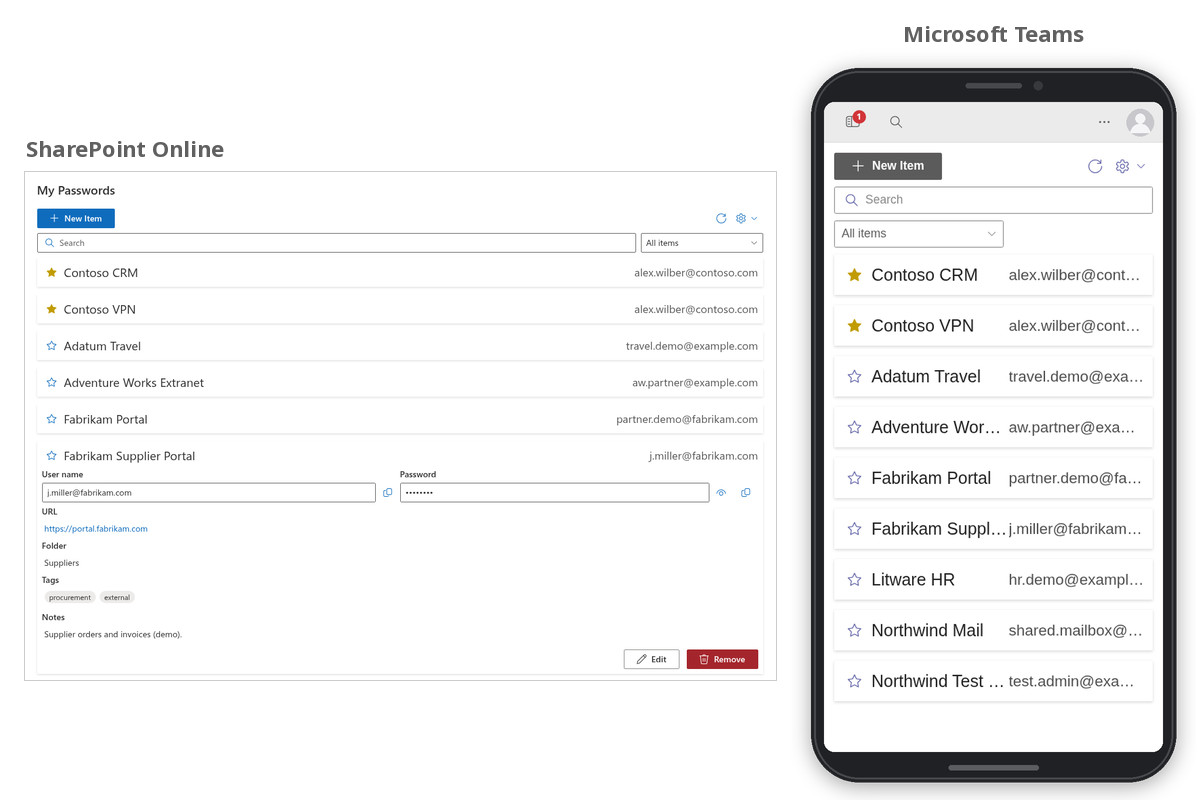
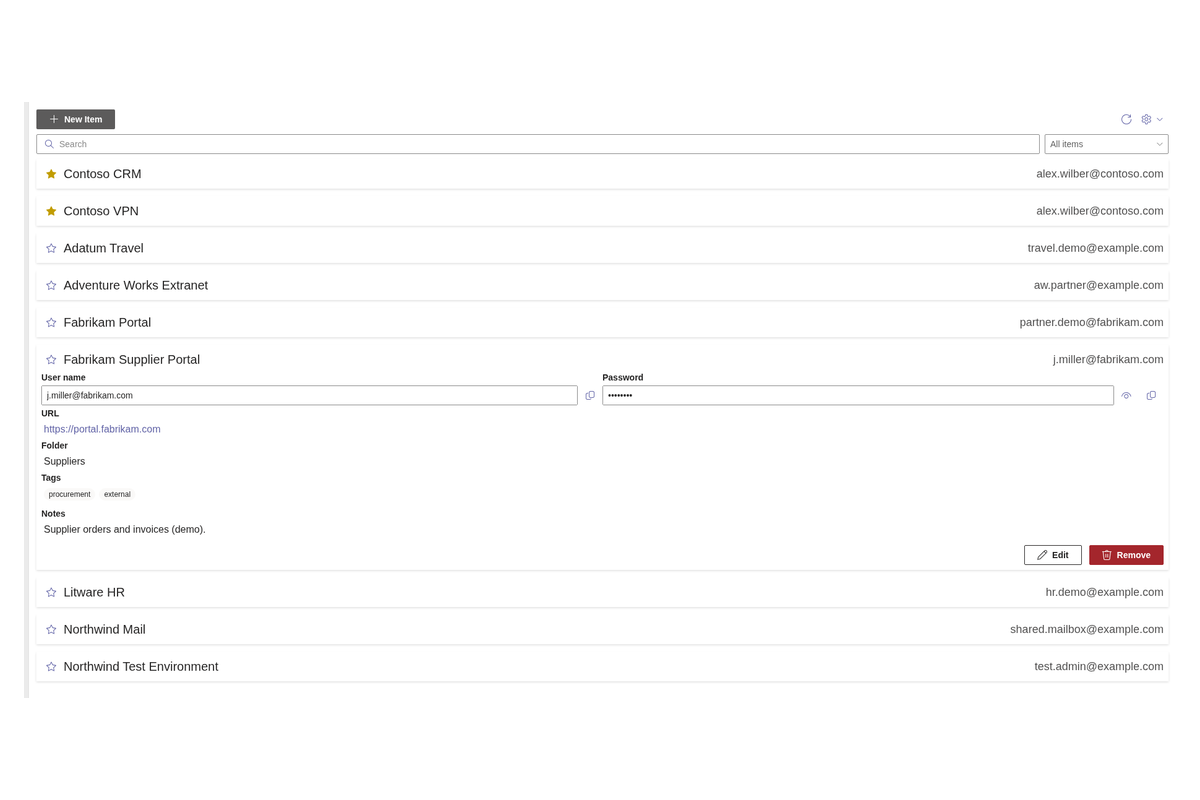
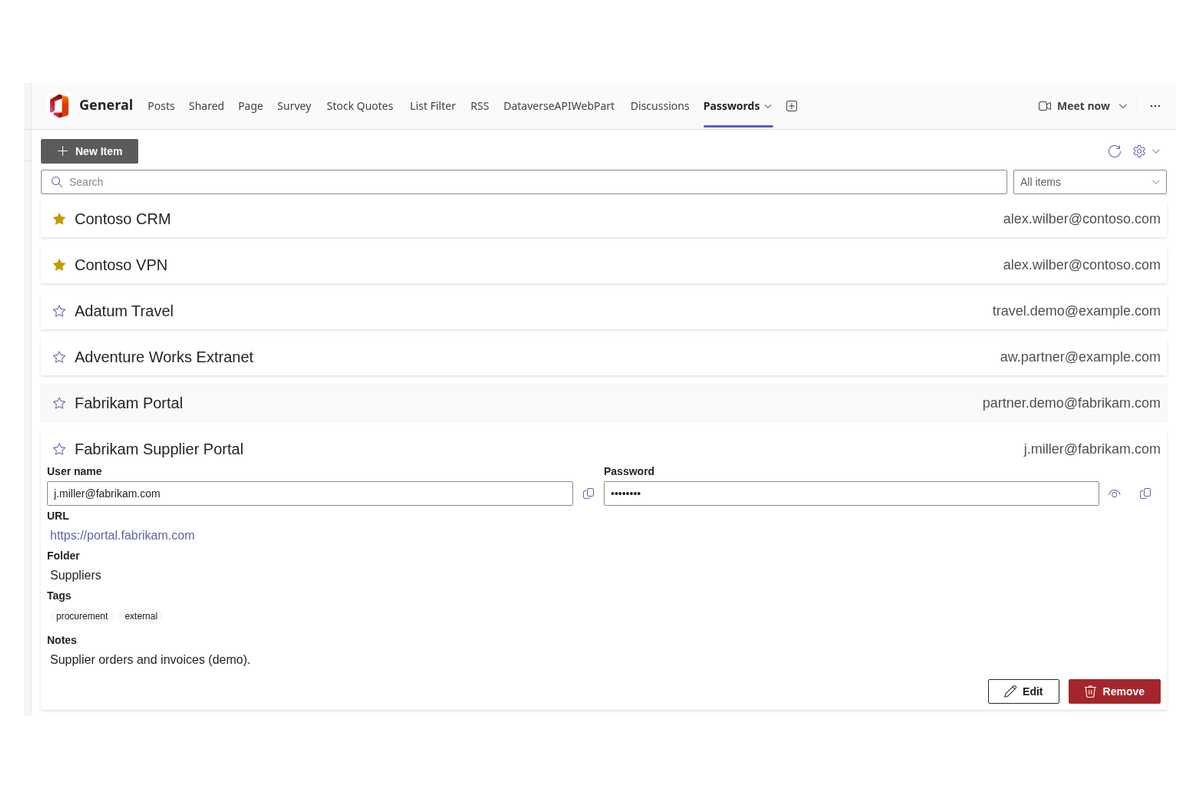
Password Vault integrates seamlessly with SharePoint Online and Microsoft Teams, so you can look up and manage credentials inside the tools you already use every day — including the Teams mobile app. No switching between applications, no breaking focus: your passwords are one click away from your intranet page or Teams workspace.
Encrypted Before It Ever Leaves Your Browser
Password Vault applies AES-256 encryption on the client side — directly in your browser — before any data is transmitted or written to storage. Logins, passwords, and other sensitive fields are never sent or stored in plain text at any point.
AES-256 is the industry-standard symmetric encryption algorithm trusted for protecting highly sensitive data, giving your credentials strong protection against unauthorized access.
Your Data Never Leaves Your Tenant
All encrypted data lives in a dedicated application folder in your personal OneDrive for Business. There is no Vitextra cloud and no external database — storage, backup, and compliance follow the Microsoft 365 policies your organization already has in place.
Because the vault resides in your own tenant, your credentials are covered by the same governance, retention, and security controls as the rest of your Microsoft 365 data.
Only You Hold the Key
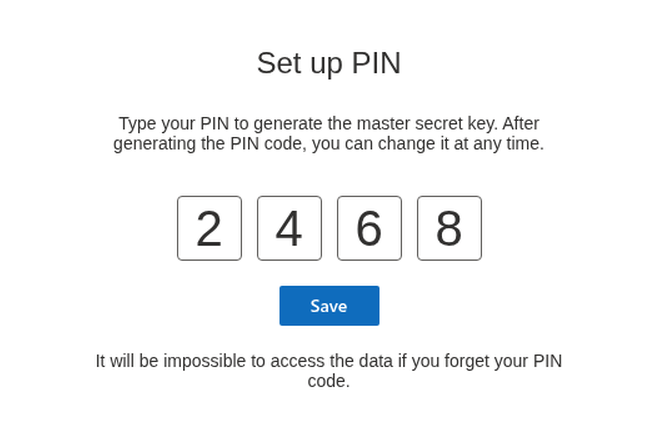
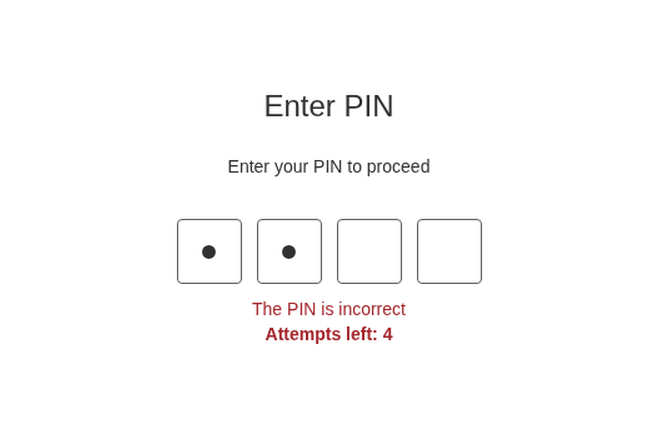
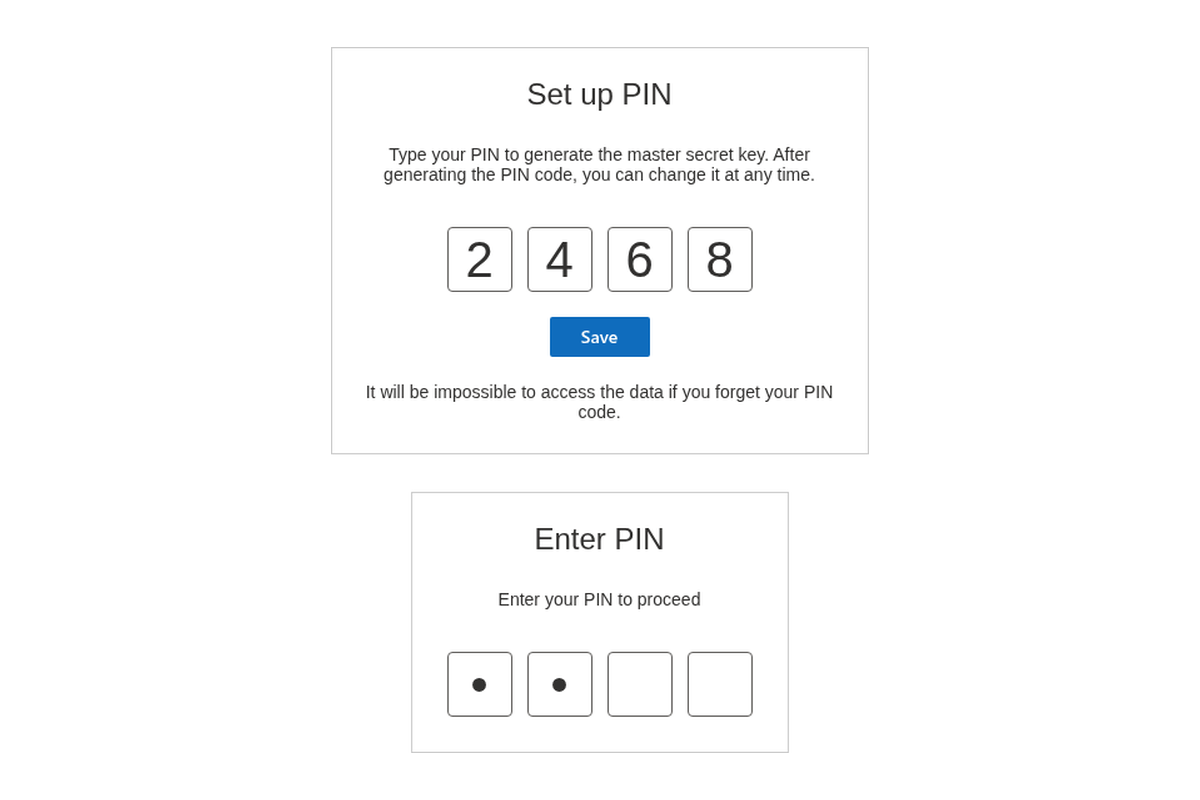
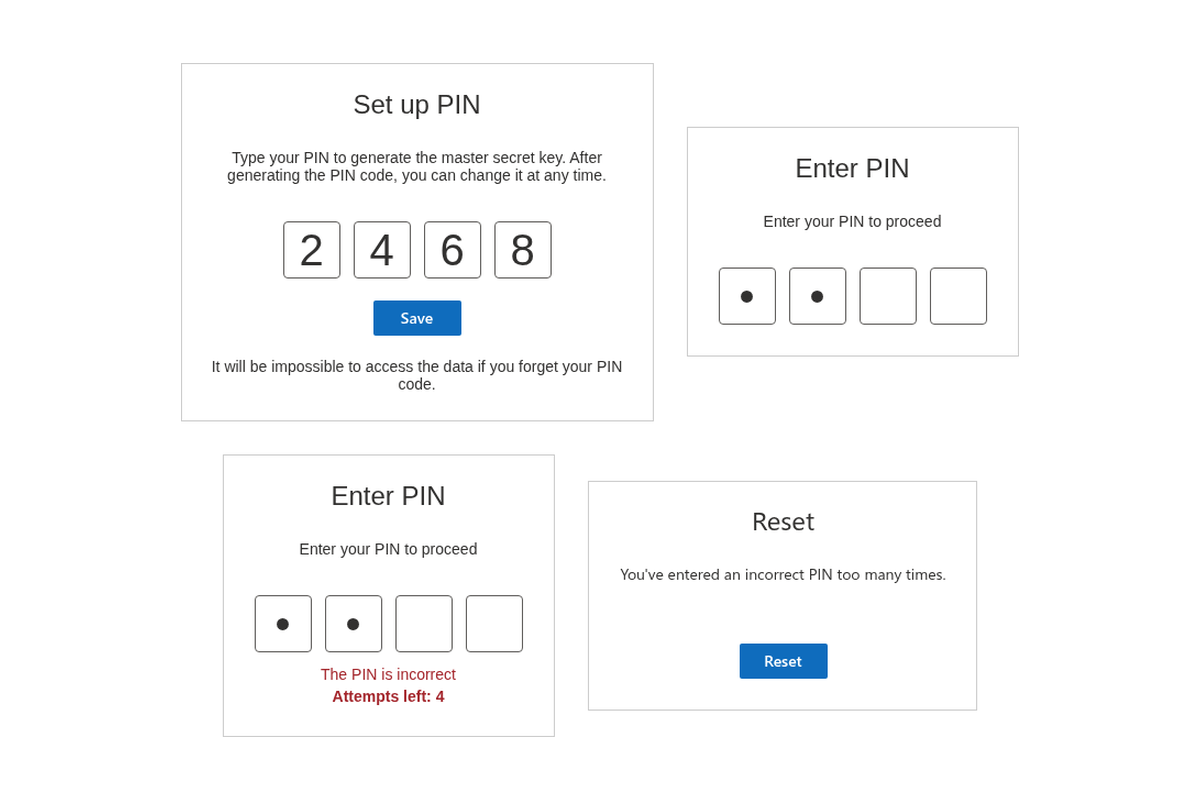
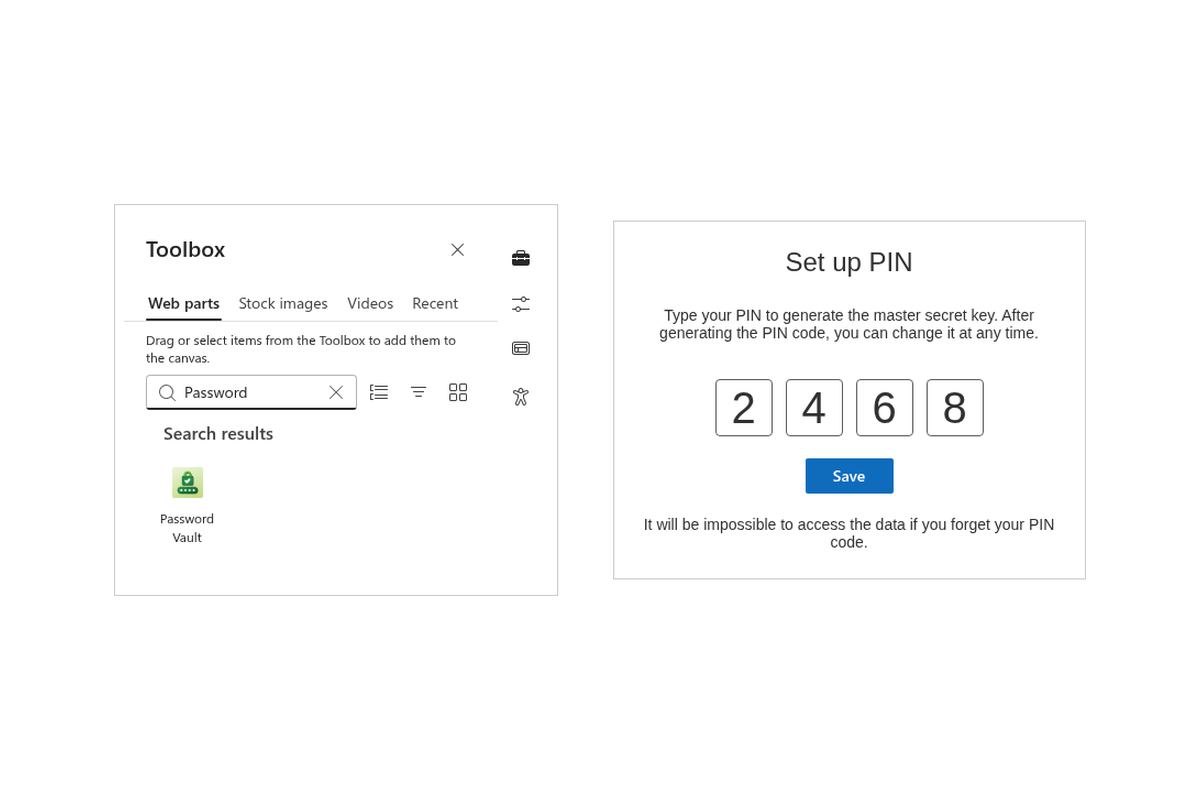
Access to the vault is protected by a personal PIN, and that PIN acts as the decryption key. Reading your data requires both knowing the PIN and having access to your OneDrive — so even tenant administrators cannot see your stored passwords.
The result is true end-to-end privacy: what you put in the vault can be read by you, and only you.
Always in Sync, on Every Device
Your vault synchronizes automatically across devices. Add or update an entry at your desk and it is instantly available on your laptop, tablet, or phone — anywhere you sign in to SharePoint Online or Microsoft Teams.
There is no limit on the number of passwords you can store, so a single vault comfortably covers everything from rarely used service accounts to everyday logins.
On-Brand with SharePoint Brand Center
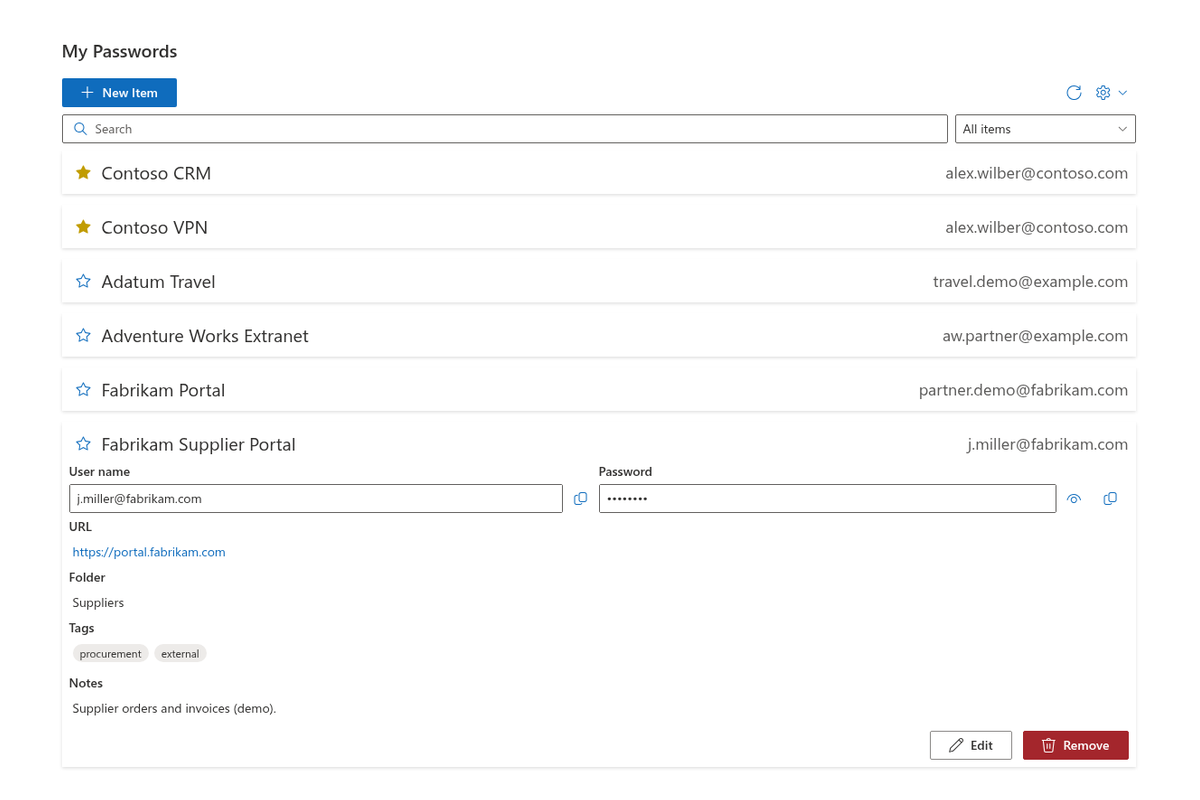
Password Vault fully supports the SharePoint Brand Center, so the web part automatically carries your organization's colors, typography, and visual identity. It looks like a native part of your intranet — with no extra configuration required.

Knowledge Base
Read articles related to Password Vault
Password Vault vs. Browser Password Managers and Enterprise Password Managers: Which to Choose
A fair comparison of the Vitextra Password Vault web part with the password managers built into web browsers and with dedicated enterprise password managers: where the data is stored, autofill, sharing, administration and recovery, deployment effort, and which scenarios each kind of tool fits best.
How Password Vault Protects Your Data: Encryption, PIN and Storage
How the Vitextra Password Vault web part for SharePoint Online and Microsoft Teams protects personal credentials: Microsoft 365 sign-in and OneDrive access control, AES encryption of entry fields in the browser with a key derived from the PIN (PBKDF2), the locked vault, automatic lock, the five-attempt limit, what is and is not encrypted, the limits of a 4-digit PIN, and what Password Vault is designed for.
How to View and Copy a Password or User Name in Password Vault
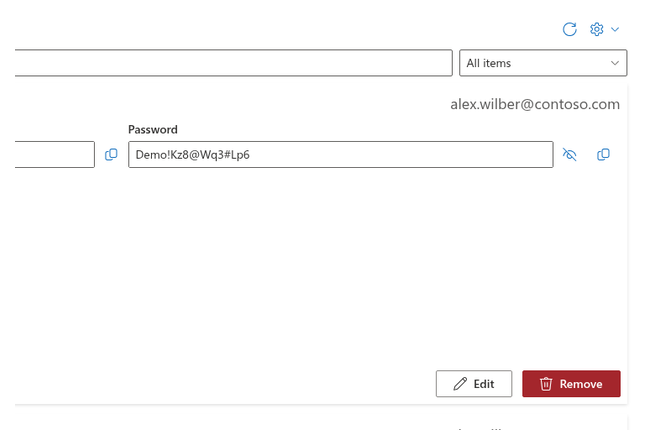
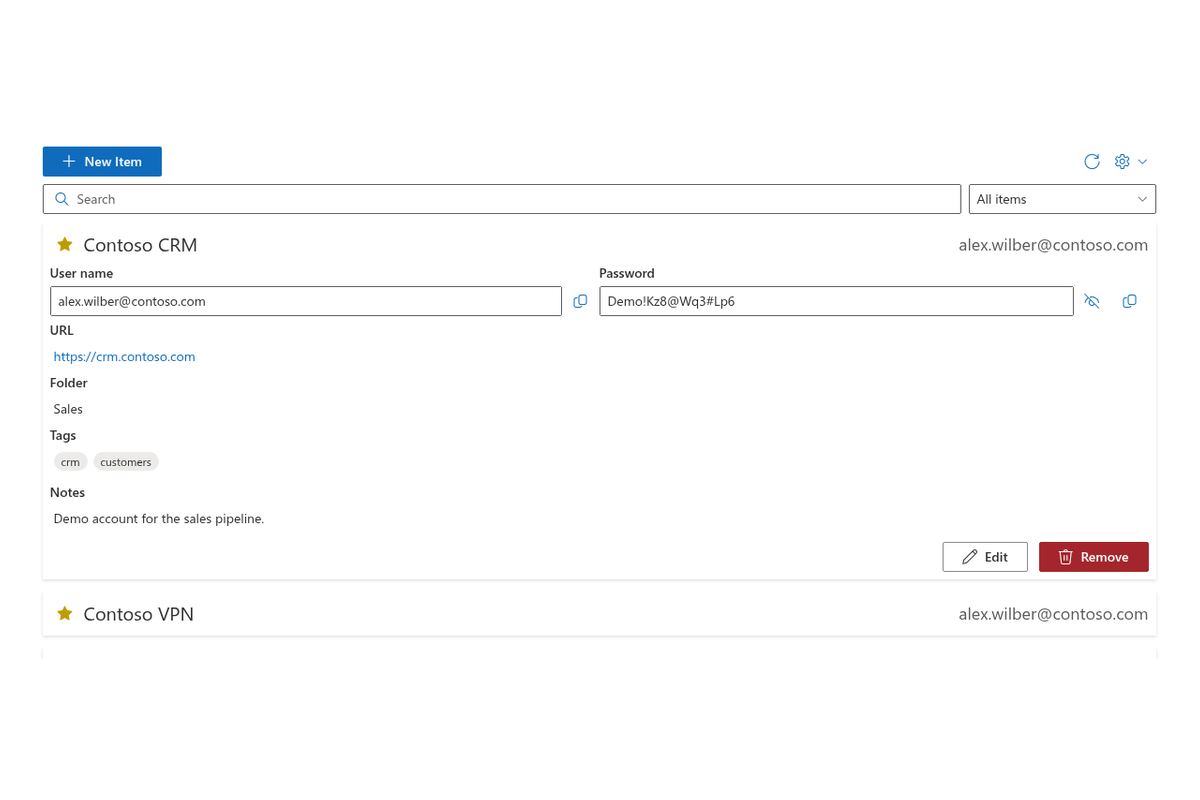
How to use stored credentials in Password Vault for SharePoint Online and Microsoft Teams: expanding an entry, showing and hiding the password with the eye button, copying the password or user name with Copy to Clipboard, when the PIN is needed, the Copied label and how the URL link works.
Favorites in Password Vault: Keeping Frequently Used Entries at the Top
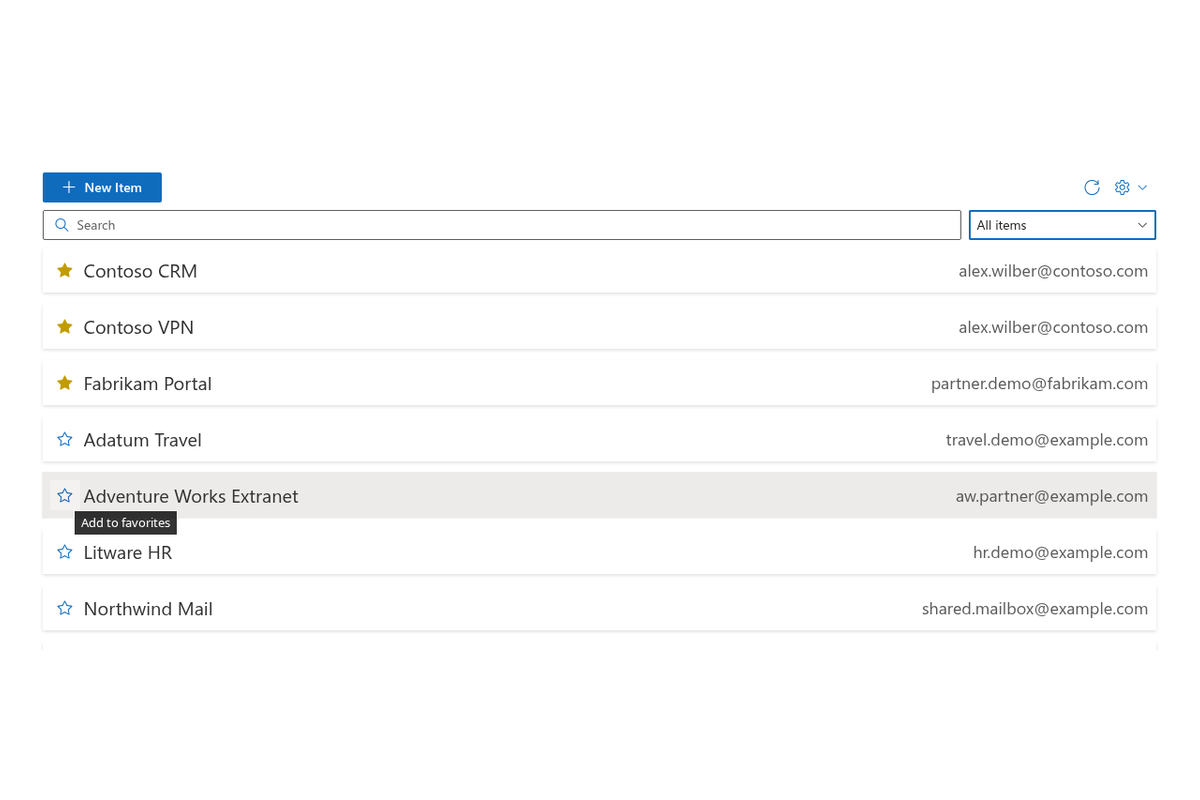
How to mark entries as favorites in the Vitextra Password Vault web part for SharePoint Online and Microsoft Teams: the star button, which is available while the vault is unlocked, how favorites are sorted at the top of the list, the Favorites filter, and how favorites behave across pages, devices and Teams.
Password Vault: Frequently Asked Questions
Short answers to common questions about the Vitextra Password Vault web part for SharePoint Online and Microsoft Teams: where passwords are stored, sharing, what administrators and Vitextra can see, a forgotten PIN, incorrect PIN attempts, several devices, Teams, automatic lock, license expiry, limits, languages, export and import.
How to Change Your PIN in Password Vault
How to change the four-digit PIN in Password Vault: unlock the vault, enter a new PIN, save the change and update other open sessions.
Customer Questions
Some common questions about Password Vault
Where are my passwords stored and who can see them?
Secrets are encrypted in your browser with AES-256 before they are sent anywhere and are stored in a dedicated application folder in your own OneDrive for Business. Your PIN is the decryption key, so neither administrators nor Vitextra can read your stored passwords. Nothing is stored on Vitextra servers. See the product page.
Can I use Password Vault in Microsoft Teams and on several devices?
Yes. Password Vault works in SharePoint Online and as a Microsoft Teams app, and because the encrypted data lives in your OneDrive it is synchronized automatically across all your devices. There is no limit on the number of stored passwords.
What happens if I forget my PIN?
The PIN is the encryption key and is never transmitted or stored by Vitextra, so it cannot be recovered or reset by an administrator — this is what guarantees that only you can read your secrets. Keep your PIN in a safe place; if it is lost, the encrypted data cannot be decrypted.
What are the requirements for using Password Vault?
Each user needs a Microsoft 365 account with OneDrive for Business, which is where the encrypted vault is stored. The app is deployed as an SPFx package to the tenant App Catalog like other Vitextra cloud products — see Installing a Cloud-based Product. SharePoint Server on-premises is not supported.
Does Password Vault follow my SharePoint branding?
Yes. Password Vault supports the SharePoint Brand Center and inherits the theme of the hosting site or Teams client. The interface is localized into several languages, including English, German, Dutch, Lithuanian, Arabic and Chinese (Simplified).
Reviews
No reviews yet
Supported Languages
Platforms
Recent Changes
- v26.11.3 #
🐛 Fixes
- Fixed localization errors.
- v26.11.2 #
Minor localization fixes to improve the clarity and consistency of interface text.
- v26.11.1 #
🚀 New Features
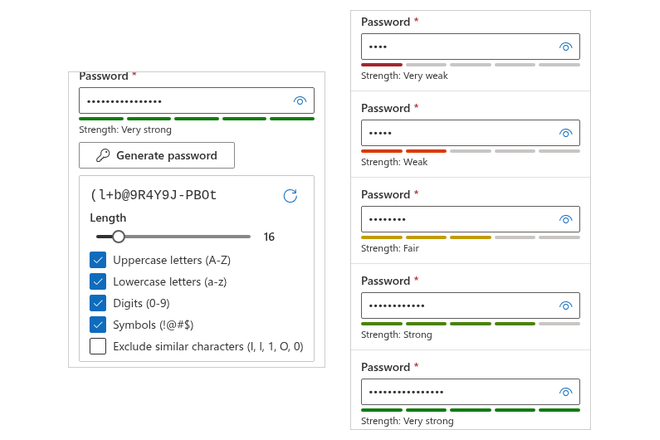
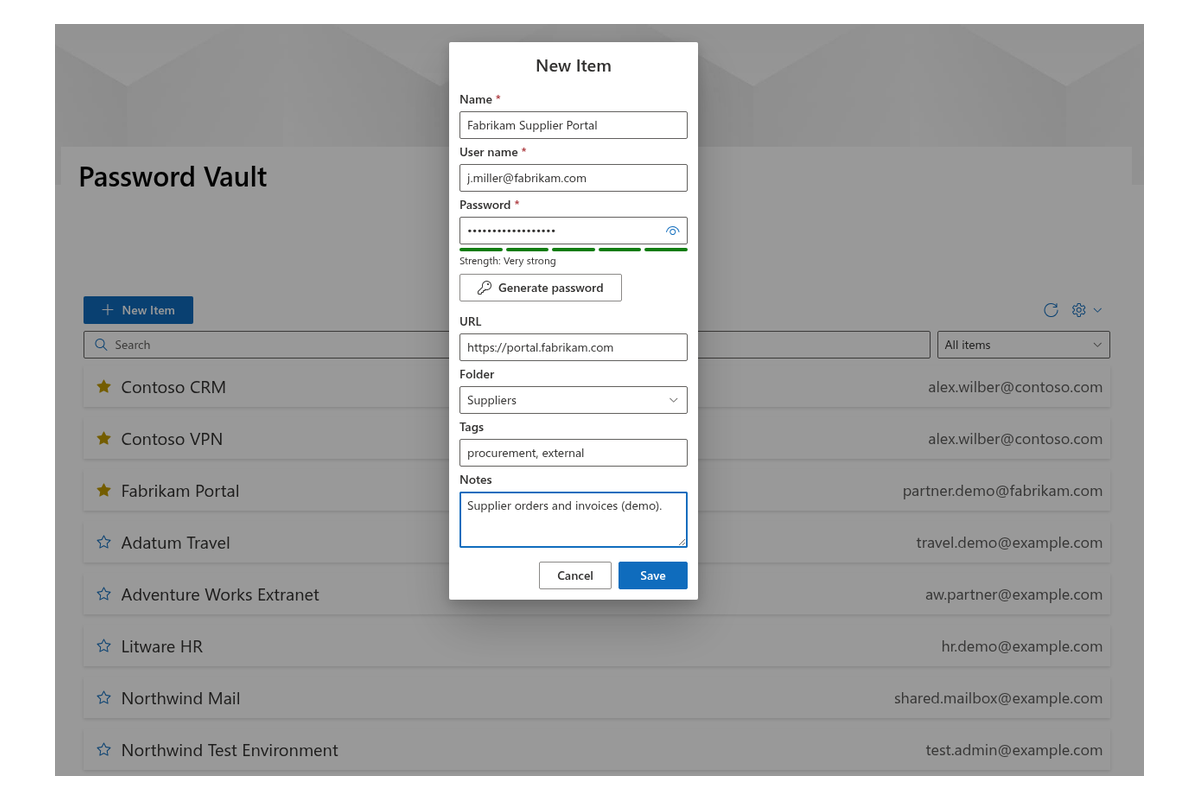
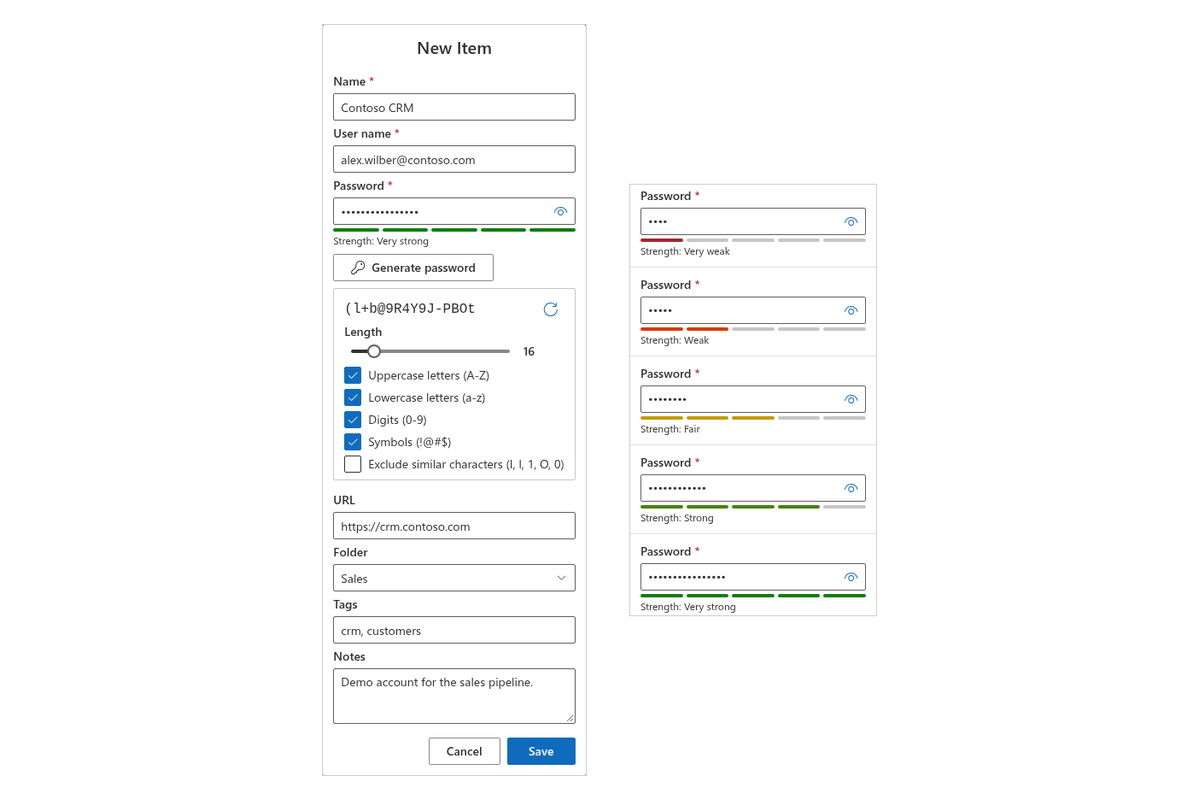
- Password Generator: The item dialog now has a “Generate password” button. It creates a random password of the length you choose (8–64 characters) and uses only the character types you select: uppercase letters, lowercase letters, digits and symbols. Characters that are easy to confuse can be left out.
- Password Strength: A strength bar under the password field shows how strong the password is, from “Very weak” to “Very strong”.
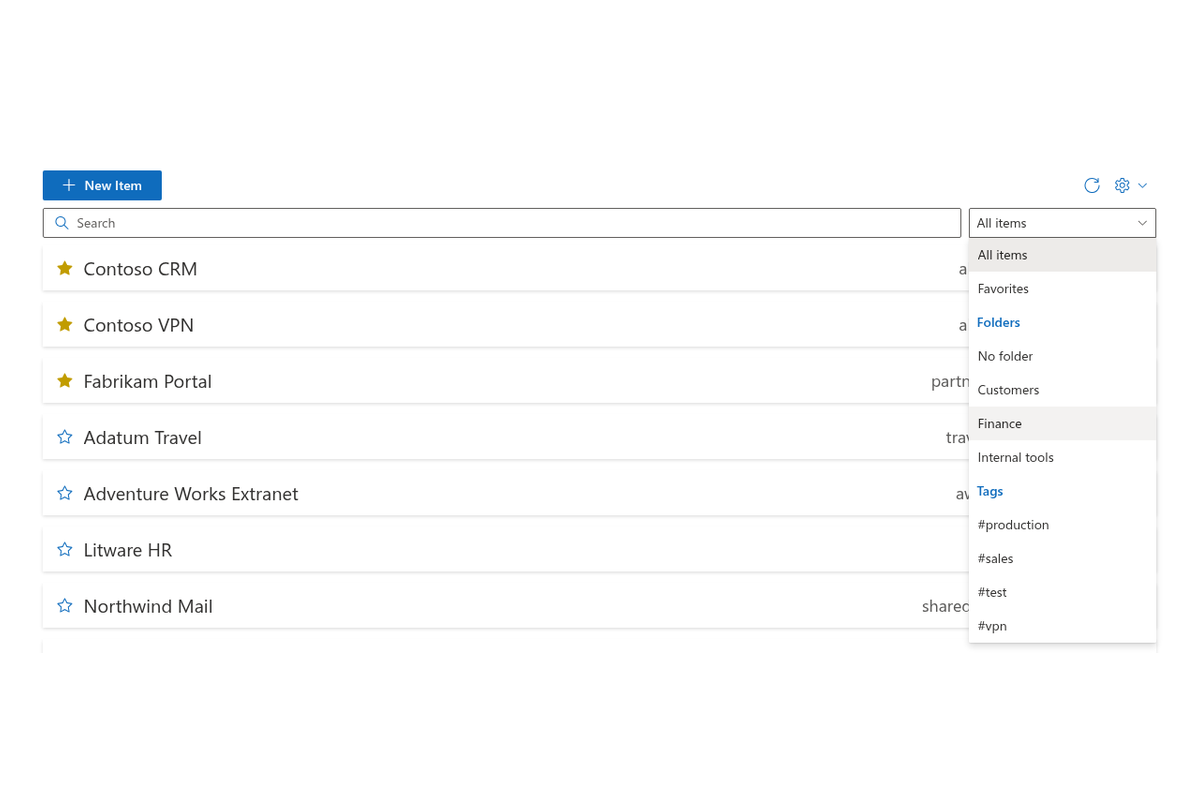
- Search: Find items by name, user name, URL, folder, tags or notes.
- Folders and Tags: Put items into folders and add tags to them, then filter the list by folder or tag. Folders and tags are stored encrypted, like all other item data.
- Favorites: Mark important items with a star. Favorites are listed first, and you can show only them with the “Favorites” filter.
- Automatic Lock: After 5 minutes without activity the vault locks, and you need to enter the PIN again to view or change passwords.
- v1.3.7 #
This update brings exciting new features and enhancements to improve your experience:
🎨 SharePoint Branding Center Support
Tailor the Password Vault interface to match your organization's branding.🚀 Performance Boosts
Experience faster and more efficient search operations. - v1.3.1 #
Minor bug fixes and performance improvements
Available in bundles
Get this product together with others and save.
Productivity Pack
Vitextra 365 All Access
Discover more apps
Suggested apps
Share
Send feedback
We would love to hear from you! Please take a moment to let us know about your experience.