This article describes how to activate Vitextra products offline.
Introduction
All Vitextra on-premises products for SharePoint Server include a free 14-day trial with full functionality. After the trial, you need to activate the product to keep using it. There are two ways to activate:
- Online activation - when your SharePoint server has an internet connection.
- Offline activation - for servers with no internet connection.
This article describes the offline activation process.
Activation Code
To activate a product offline, you need an activation code. To generate it, provide the activation key of the purchased product and the identifier of your SharePoint farm.
Product Key
Open the My Products page and sign in to view your purchased products and their activation keys.

Copy any product key that hasn't been activated yet.
Farm ID
To find your SharePoint farm ID, sign in to any server in your farm, open the SharePoint Management Shell, and run the following command:
Get-SPFarm | Select ID
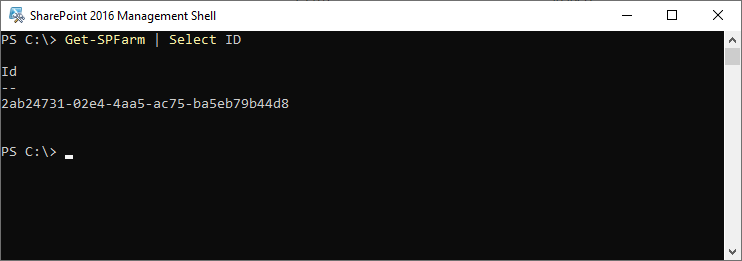
Copy the Farm ID.
Generate Activation Code
Open the Offline Activation page, paste the Product Key and Farm ID into the corresponding fields, and click Get An Activation Code.
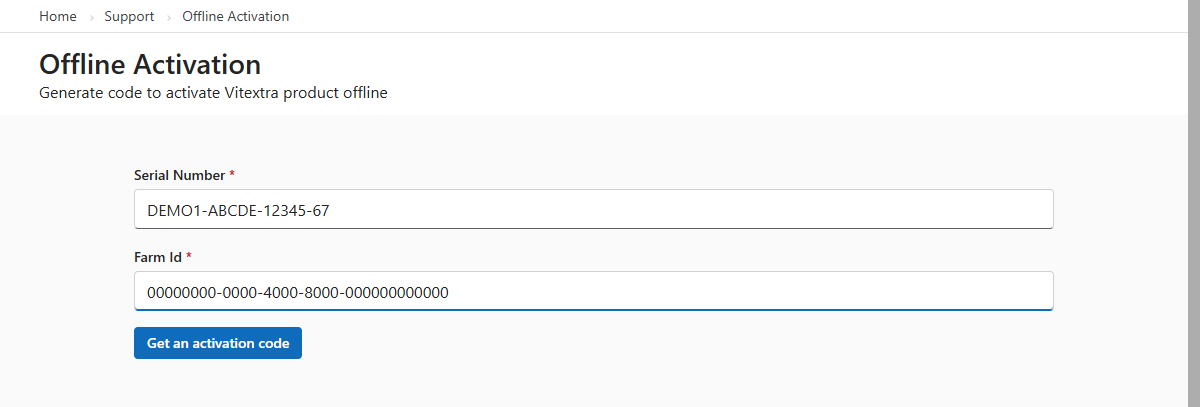
Copy the generated activation code.
Activate Product
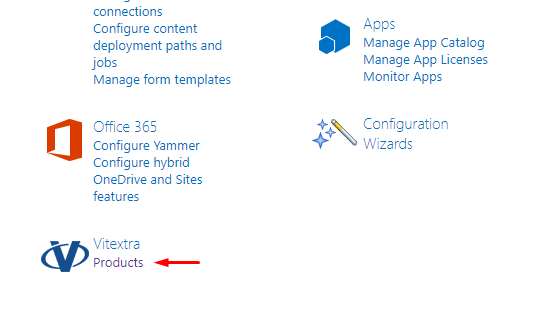
Open SharePoint Central Administration and click Products under the Vitextra heading.
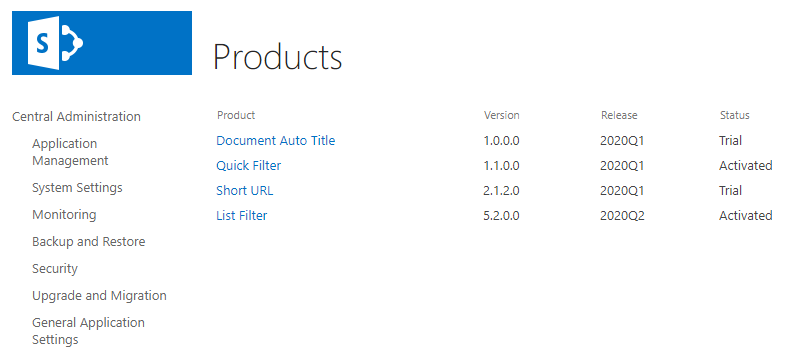
In the list of installed products, select the product you want to activate:
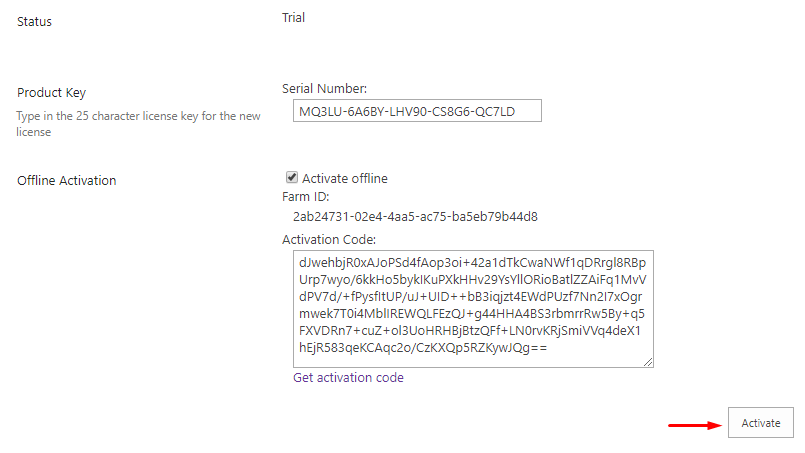
On the product page:
- Paste the product key into the Product Key field.
- Select Activate Offline.
- Paste the generated activation code into the Activation Code field.
- Click Activate.
If activation is successful, the product status automatically changes to Activated.