Number Generator
This article describes how to apply formatting in a numbering scheme definition.
Introduction
The Vitextra Number Generator automatically generates a column value based on other columns and sequences.
Supported Column Types
Number Generator supports the following SharePoint column types:
- Date and Time
- Number
- Counter
- Integer
📝 Note
The formatting rules are the same for the Number, Counter, and Integer types.
Define Formatting
To apply formatting, use the following syntax:
[DateColumn:format]
DateTime Column Formatting
DateTime formatting can be applied only to the Date and Time column type. Some common format values are:
| Specifier | Description | Value | Output |
|---|---|---|---|
| yyyy | The year as a four-digit number | 4/12/1986 9:15:00 | 1986 |
| yy | The year, from 00 to 99 | 4/12/1986 9:15:00 | 86 |
| MM | The month, from 01 through 12 | 4/12/1986 9:15:00 | 04 |
| MMM | The abbreviated name of the month | 4/12/1986 9:15:00 | Apr |
| MMMM | The full name of the month | 4/12/1986 9:15:00 | April |
| d | The day of the month, from 1 through 31 | 4/2/1986 9:15:00 | 2 |
| dd | The day of the month, from 01 through 31 | 4/2/1986 9:15:00 | 02 |
| ddd | The abbreviated name of the day of the week | 4/12/1986 9:15:00 | Sat |
| dddd | The full name of the day of the week | 4/12/1986 9:15:00 | Saturday |
| h | The hour, using a 12-hour clock from 1 to 12 | 4/12/1986 9:15:00 | 9 |
| hh | The hour, using a 12-hour clock from 01 to 12 | 4/12/1986 9:15:00 | 09 |
| H | The hour, using a 24-hour clock from 0 to 23 | 4/12/1986 9:15:00 | 9 |
| HH | The hour, using a 24-hour clock from 00 to 23 | 4/12/1986 9:15:00 PM | 21 |
| m | The minute, from 0 through 59 | 4/12/1986 9:05:00 | 5 |
| mm | The minute, from 00 through 59 | 4/12/1986 9:05:00 | 05 |
| tt | The AM/PM designator | 4/12/1986 23:15:00 | PM |
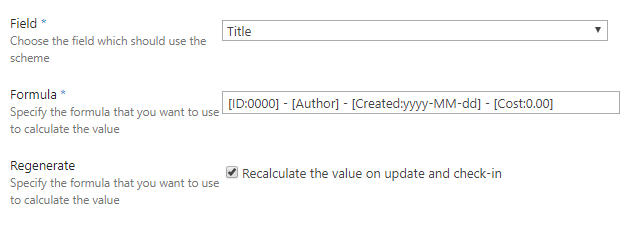
The column reference and the format, separated by a colon, must be enclosed in square brackets.
For example, to format the Created column in a numbering scheme:
[Created:yyyy-MM-dd]
For the value 2/10/2020 11:00 AM, the output is 2020-02-10.
📝 Note
The culture used to format the date value is determined by the site where the list or library is located.
Number Column Formatting
Number formatting can be applied to number column types and to sequences.
The following table describes the numeric format specifiers.
| Specifier | Description | Value | Format | Output |
|---|---|---|---|---|
| 0 | Replaces the zero with the corresponding digit if one is present | 235 | 00000 | 00235 |
| # | Replaces the # symbol with the corresponding digit if one is present | 235 | ##### | 235 |
| . | Determines the location of the decimal separator in the result string | 23.5 | #.00 | 23.50 |
| , | Determines the location of the group separator in the result string | 1235 | #,# | 1,235 |
📝 Note
Use 0 to display insignificant zeros: when a number has fewer digits than there are zeros in the format, the zeros appear in the result string.