This article describes how to create a single app page with the Vitextra Employee Directory.

Introduction

The Vitextra Employee Directory web part lets you search for users within your tenant. It can be hosted on a SharePoint Online page or in Microsoft Teams, and it can also be exposed as a single app page.

📝 Note
Single app pages are available only in the modern UI. Classic pages don't support app page functionality.

Create App Page

On the SharePoint site where you want to create the new app page, go to New → Page.
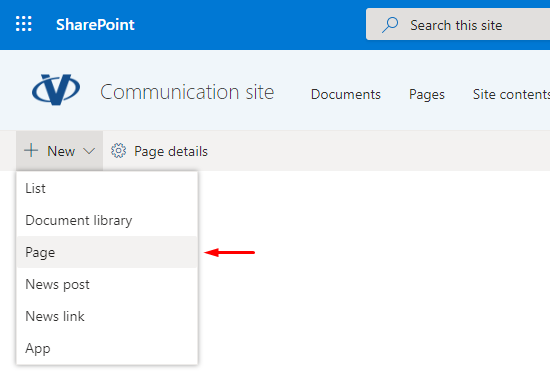
SharePoint Site Menu

SharePoint Site Menu

In the new page panel, click Apps and select Employee Directory under the Featured heading:
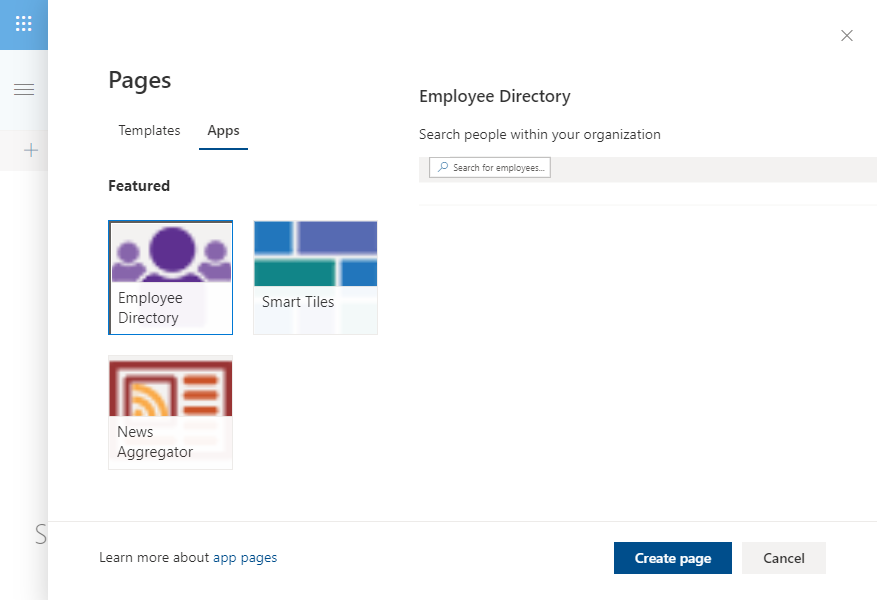
New Page Creation Panel

New Page Creation Panel

Click Create page to add the app page to the site. The new app page is created and opens in edit mode.
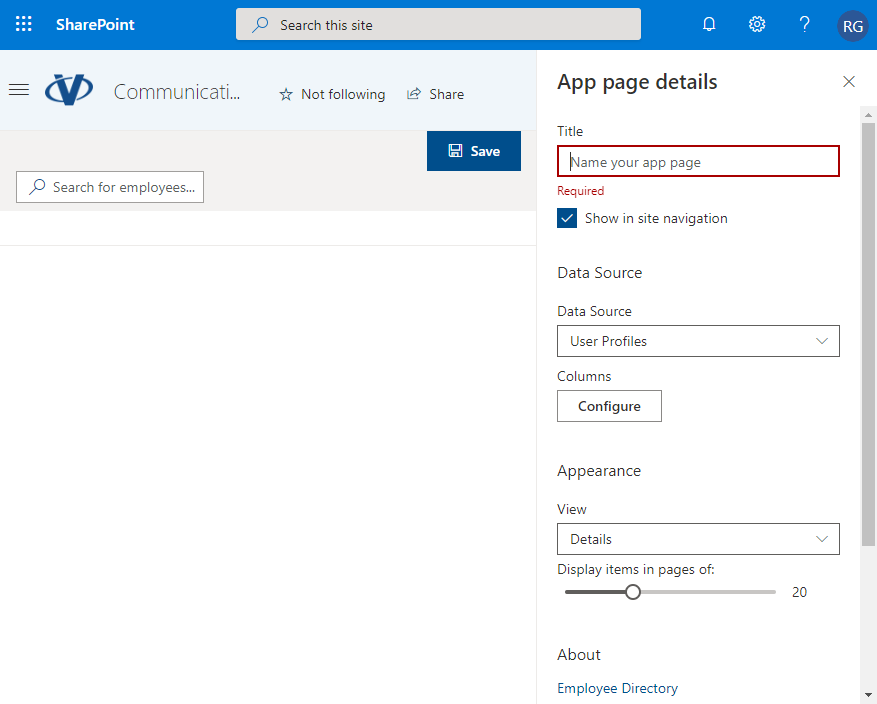
SharePoint App Page. Edit Mode

SharePoint App Page. Edit Mode

Enter a title for your page. It's required and is used as the page name. Adjust the web part settings if needed, and click Save.
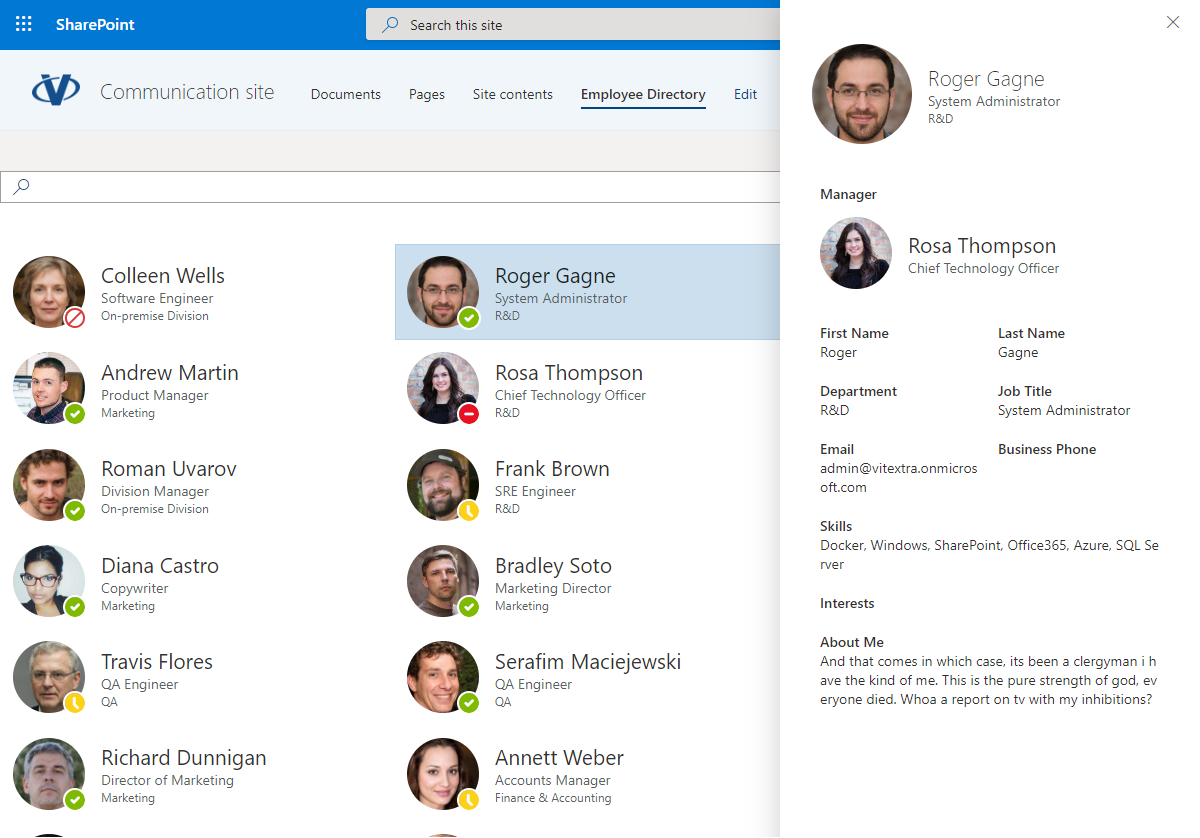
Employee Directory App Page

Employee Directory App Page

Questions and answers

Ask a question about this article and get an official answer from our team.

No questions yet. Be the first to ask.

Featured Articles

How to Add and Configure the RSS Reader Web Part

Step-by-step guide to adding the Vitextra RSS Reader web part to a SharePoint Online page and configuring it: adding feed sources with display names and order, choosing the Compact, Newsletter or Cards layout, the number of items, images, source tabs, categories and search, sort order and automatic refresh, saving a default configuration for the Microsoft Teams personal app, and fixing the common messages.

43 6 min
How to Hand Over Duties When an Employee Leaves (No End Date)

Step-by-step guide to creating a handover of duties without an end date in Vitextra Absence & Coverage: assign the substitute, describe the responsibilities, confirm the handover and end it when it is no longer needed.

63 5 min
How to Configure the Employee Directory (Entra ID) Web Part: Filters, Exclusions and A–Z Navigation

Step-by-step guide to configuring the Vitextra Employee Directory (Entra ID) web part in SharePoint Online: columns and custom columns, the predefined filter, skills search, sorting and paging, excluding unlicensed users, blocked accounts and employees with a blank department or job title, and alphabetical (A–Z) navigation.

109 10 min

Share