Highly rated Many readers found this article helpful.

The Vitextra Employee Directory lets you export search results - the list of employees - to a Microsoft Excel spreadsheet.

This article describes how to enable and set up this feature.

❗ Important
The export to Microsoft Excel feature is available only in Employee Directory version 4.0.0 and higher.

Web Part Settings

Open the Employee Directory web part settings, scroll down to the Export section, and turn on the Microsoft Excel toggle:
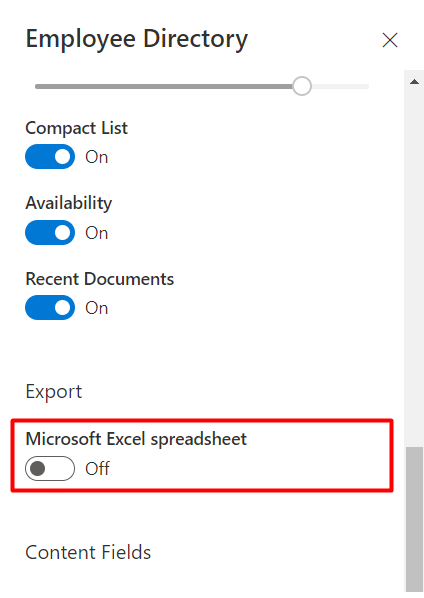
Employee Directory Web Part Settings

Employee Directory Web Part Settings

📝 Note
Both the Employee Directory and Employee Directory (Entra ID) web parts have similar settings for custom user properties.

Columns

To choose which attributes appear in the exported spreadsheet, open the Columns options and mark the attributes as visible:
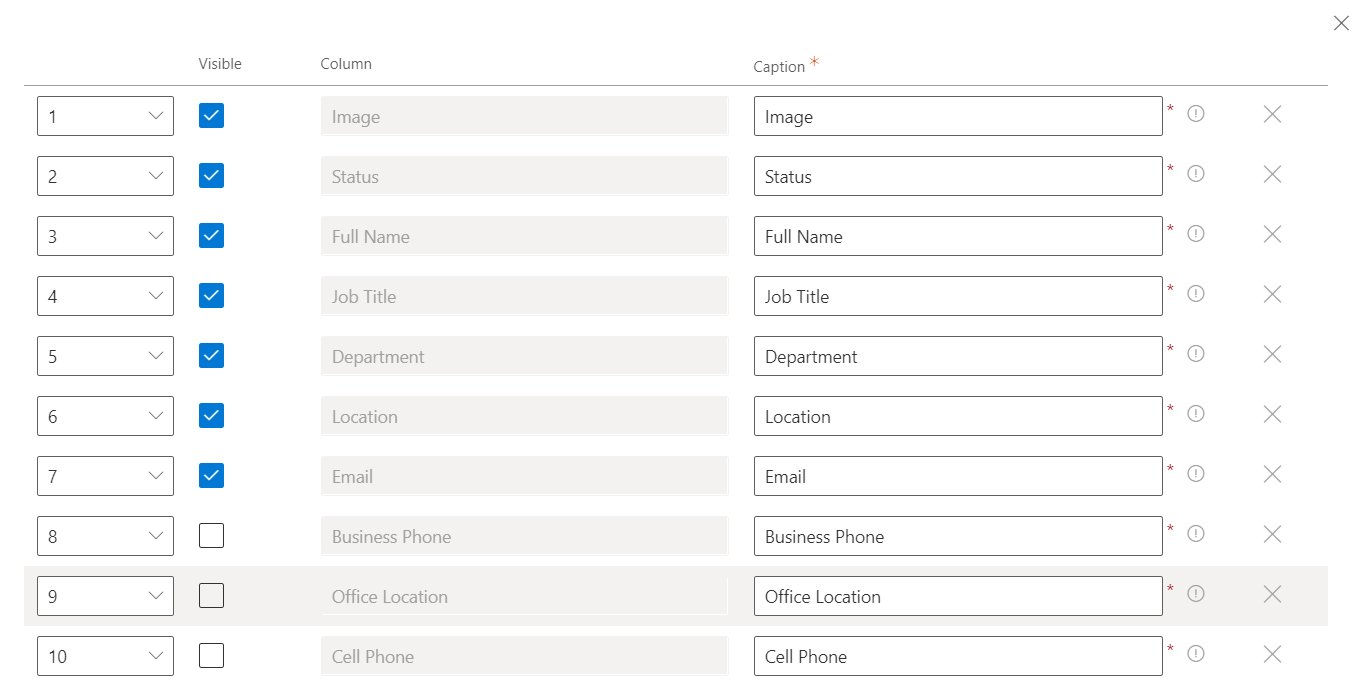
Columns Settings

Columns Settings

The column order in the exported Excel file matches the column order specified in the web part settings. Custom attributes are also supported and appear after the built-in attributes.

📝 Note
The columns in the exported spreadsheet are the same as those shown in the details view, except for User Picture and Presence Status, which are ignored during export.

Close the web part configuration pane and save your changes.

Export to Excel

The export action link appears under the search box:

Export to Excel action link

Export to Excel action link

The Employee Directory can export data to Excel from both the User Profiles and Entra ID data sources.

For large result sets, the Employee Directory retrieves all records page by page and then generates the Excel file.
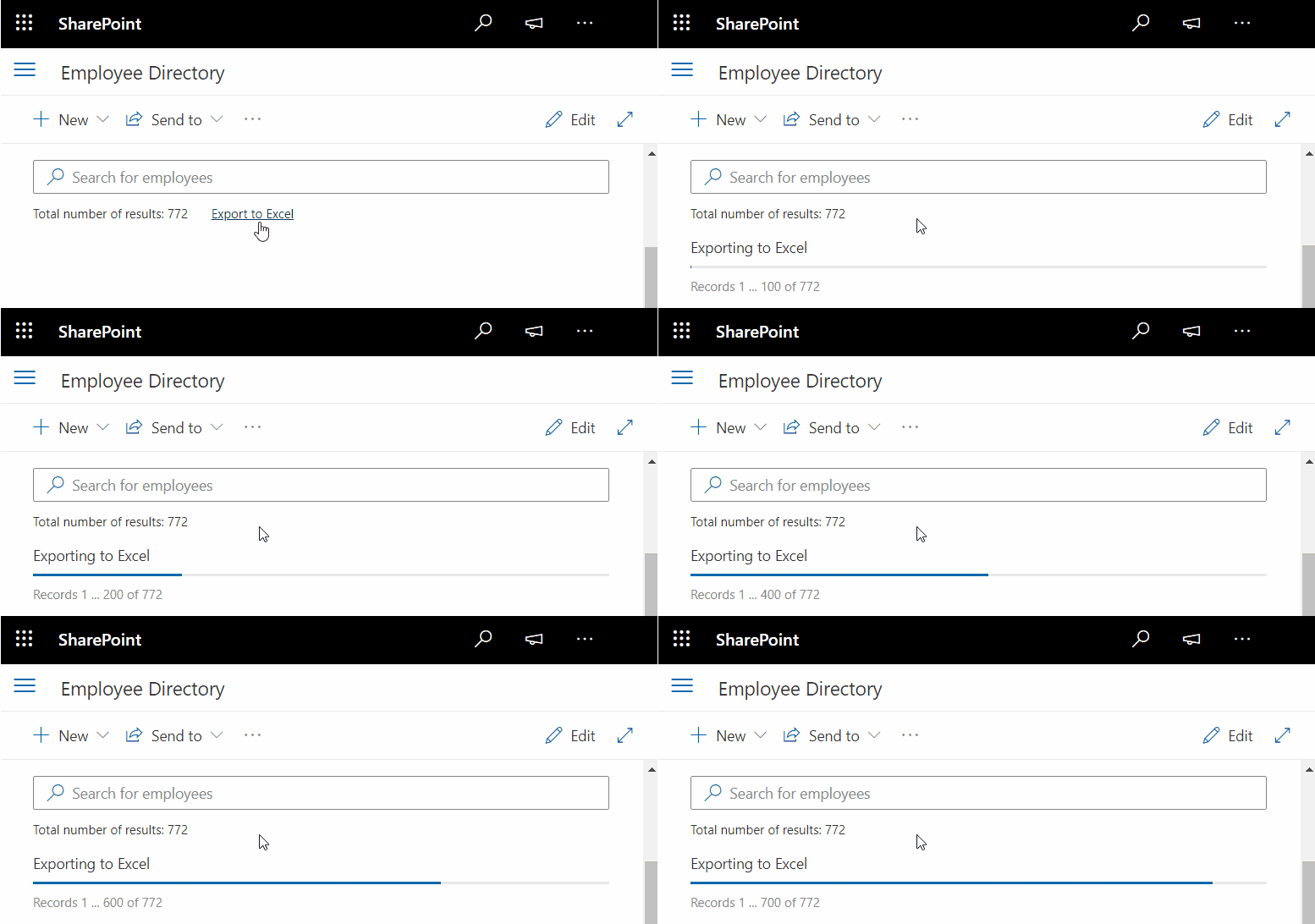
Export large number of records

Export large number of records

The exported Excel file contains plain data, with no links back to the original data source.
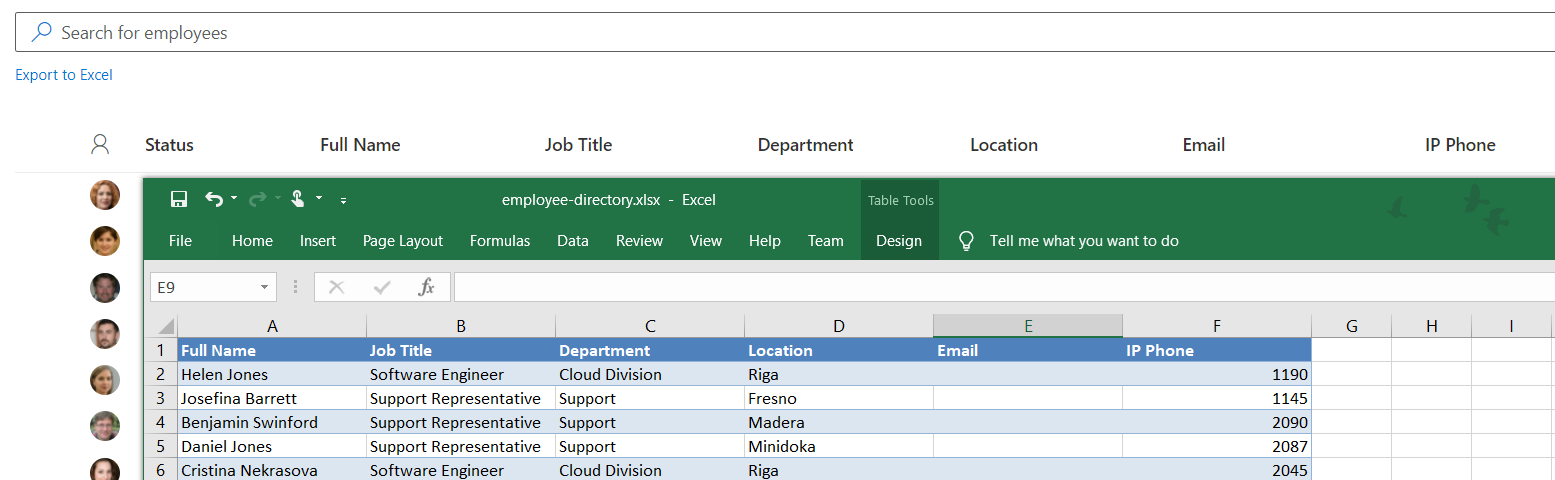
Exported list of Employees

Exported list of Employees

📝 Note
The export has a few limitations:

  • The column widths in the exported spreadsheet are fixed.
  • The table style is always Blue, Table Style Medium 2 and cannot be changed.

Questions and answers

Ask a question about this article and get an official answer from our team.

No questions yet. Be the first to ask.

Featured Articles

How to Add and Configure the Discussions Web Part

Step-by-step guide to adding the Vitextra Discussions web part to a modern SharePoint Online page, creating or selecting a board on first run, understanding the lists created on the site, and tuning the default view, paging, categories, counters and search in the property pane.

30 7 min
API Permissions and Admin Consent for Discussions

Reference for SharePoint administrators and security reviewers: the Vitextra Discussions package requests no Microsoft Graph or other API permissions, needs no admin consent and no Microsoft Entra app registration, and works entirely through the SharePoint APIs (REST and CSOM) of SharePoint sites in the context of the signed-in user. What appears in the App Catalog and on the API access page, what the Teams app declares, what is sent to Vitextra, and where the e-mail permission of the optional Power Automate flow lives.

24 6 min
Announcements Carousel: Features and Capabilities of the SharePoint Web Part

Detailed overview of the Vitextra Announcements Carousel web part for SharePoint Online: native announcements list as data source, card display, navigation, autoplay, appearance, filtering and ordering, accessibility, theming, localization, property pane settings and licensing.

102 6 min

Share