Employee Directory
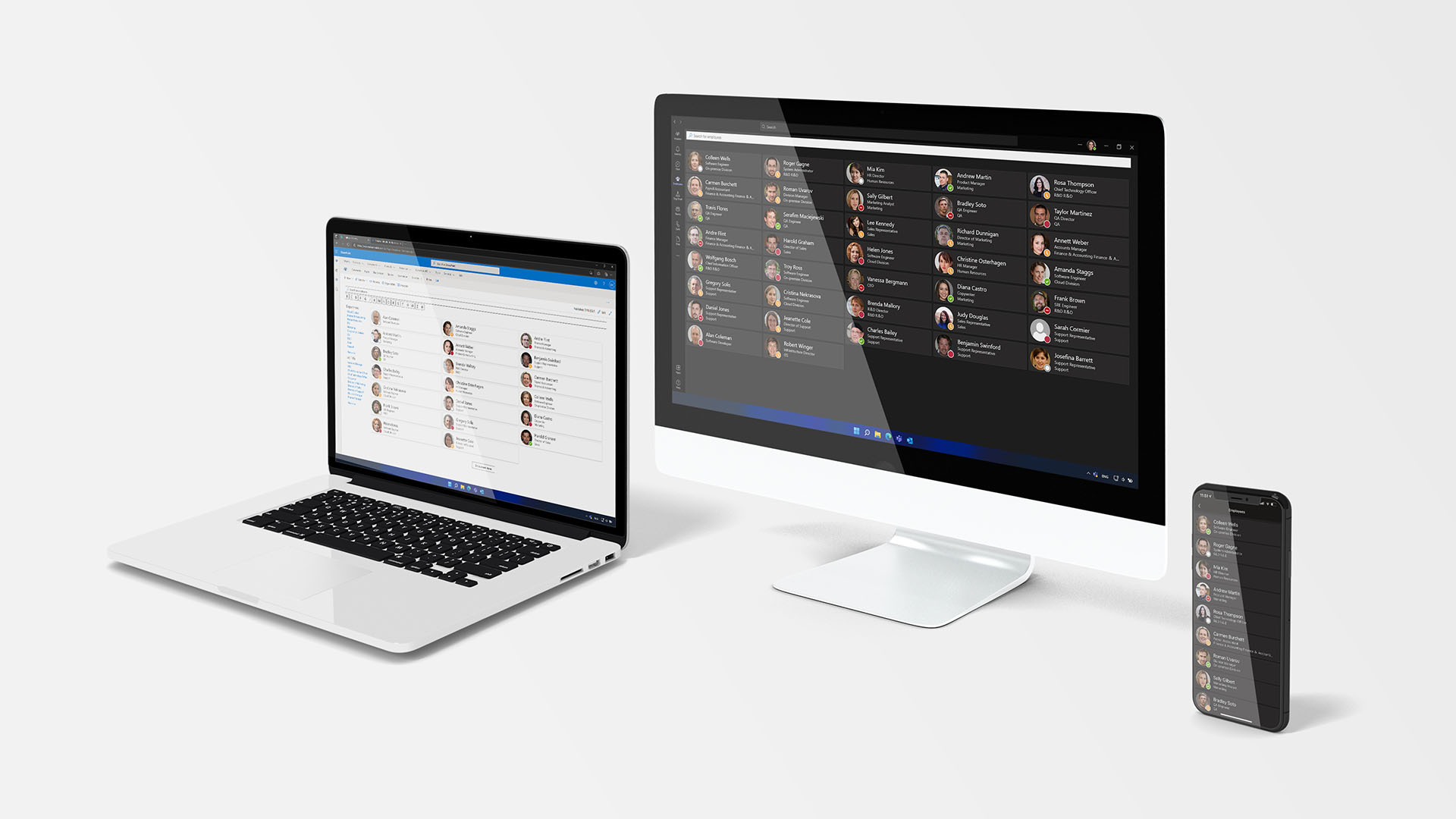
The Vitextra Employee Directory solution includes three web parts:
Together, these web parts extend SharePoint and Microsoft Teams with rich employee information and powerful search.
This article walks through the main features of each web part.
💡 Tip
Related articles:
SharePoint Framework
The Employee Directory app is built on the SharePoint Framework (SPFx), so you can host it on SharePoint modern and classic pages as well as in Microsoft Teams. The same app works across all of these platforms without restrictions.
Like any SPFx solution, the app runs in the browser under the current user's account.
📝 Note
SPFx web parts can never exceed the permissions already granted to the current user in Entra ID.
For more details, see the Data Protection when using the Vitextra Application blog post.
Microsoft Graph
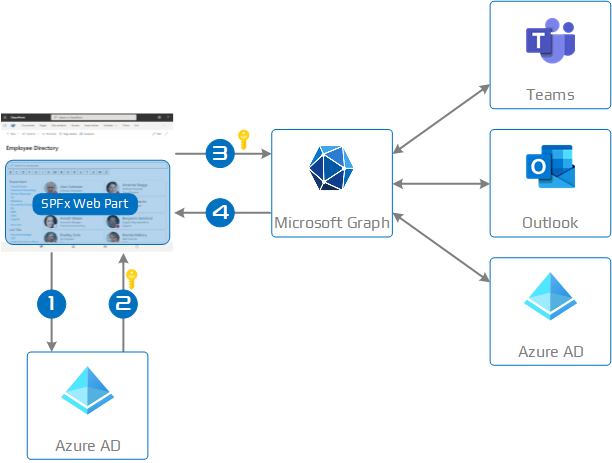
The Employee Directory web parts use the Microsoft Graph API to retrieve user details, presence status in Teams, and schedules from Outlook. Communication with Microsoft Graph goes through the native client built into the SharePoint Framework.
Data is retrieved in the following sequence:
- A web part requests a token from Entra ID to access Microsoft Graph.
- Entra ID issues a token based on the permissions granted to the solution.
- The web part requests data from Microsoft Graph.
- Microsoft Graph returns the requested data.
❗ Important
Before the web parts can call Microsoft Graph, you must approve the required API permissions for your solution in the SharePoint Admin Center.
The Employee Directory app requires the following permissions:
- Directory.Read.All
- User.Read.All
- Presence.Read.All
- Calendars.Read
- People.Read
Together, they let the web parts access user information, manager and subordinate relationships, calendar data and the people you work with:
- Directory.Read.All and User.Read.All retrieve user details along with manager and subordinate relationships.
- Presence.Read.All reads a user's current presence status in Microsoft Teams.
- Calendars.Read provides access to a user's calendar data, used for the schedule and free/busy information.
- People.Read reads the list of people most relevant to the current user and powers the People I work with quick filter.
📝 Note
These permissions must be approved in the SharePoint Admin Center.
📝 Note
The Employee Directory only reads data from Microsoft Graph; it never modifies it.
Web Parts
Employee Directory
The Employee Directory web part is the central hub for searching and browsing employee information across your organization.
Data Source
The Employee Directory web part can use either Microsoft Entra ID (Microsoft Graph) or User Profiles as its data source. With User Profiles, the web part retrieves information through the SharePoint Search Service.
Custom Columns
Both data sources support custom attributes. For User Profiles, you first need to define those attributes in the SharePoint search schema. For step-by-step instructions, see the KB10049. How to Add Custom User Profile Attributes to the Employee Directory Web Part article (User Profiles) and the KB10060. How to Display Custom Entra ID Attributes in the Employee Directory Web Part article (Microsoft Entra ID).
💡 Tip
You can surface any custom attribute as a column in the web part.
Layout
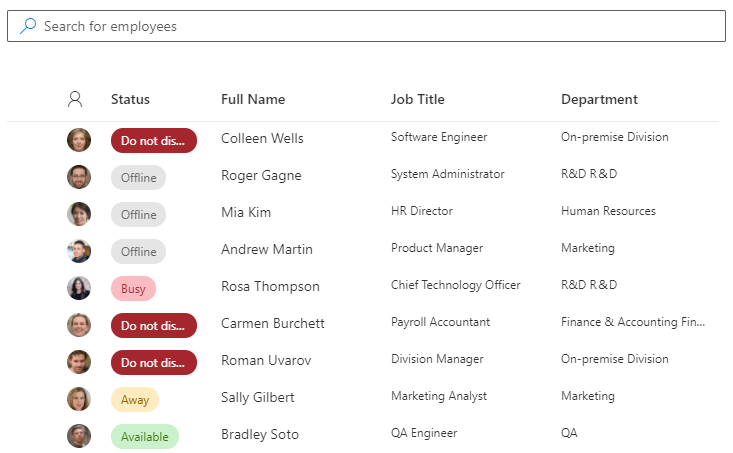
The web part offers two ways to display search results: Contact and Details.
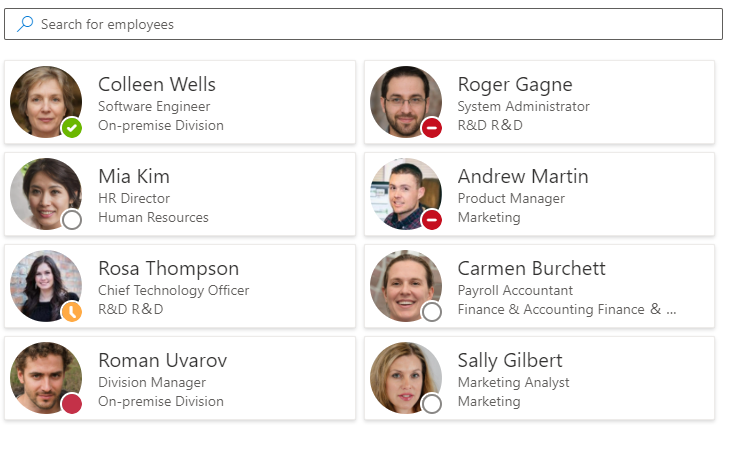
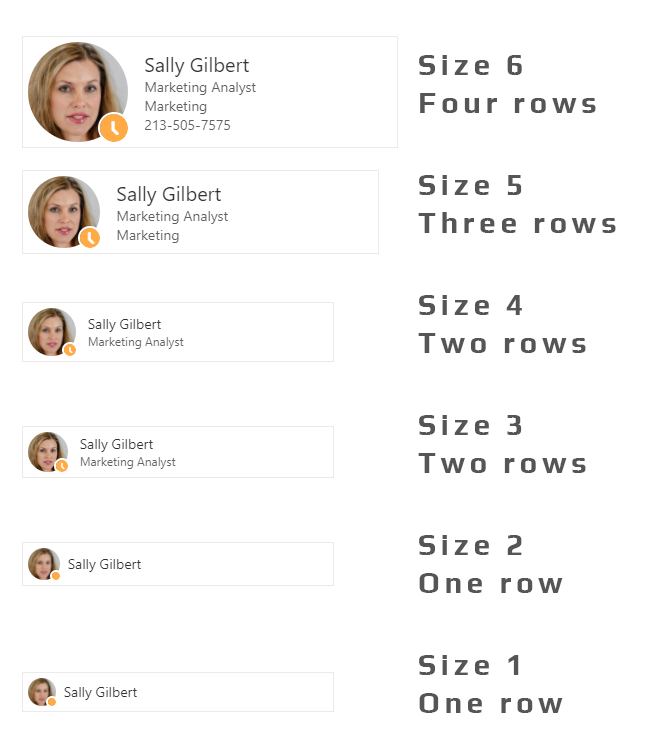
In Contact mode, each employee is shown as a card. You choose which fields appear on the card; the number of fields depends on the card size set in the web part settings, up to a maximum of four per card.
In Details mode, you can choose which fields appear as columns and in what order. Every column except the image and status columns is collapsible: when the web part runs low on space, these columns are hidden automatically. This prevents horizontal scrolling and lets the web part adapt dynamically to the space available.
💡 Tip
The Employee Directory lets you customize which attributes are displayed in both the Contact and Details views.
With the Group by option, you can group the results by an attribute, for example by department. For details on layouts, card size, card fields and grouping, see KB10314. Employee Directory Layouts: Details and Cards, Card Size, Card Fields and Group By.
Quick Filters and Favorites
The quick-filter bar above the results narrows the directory in a single click: My department, My team, People I work with and Favorites. Users mark colleagues as favorites with the star on their card. Favorites are stored in the browser, so they are kept between sessions on the same device and browser profile. See KB10214. Employee Directory Quick Filters: My Department, My Team, People I Work With, Favorites.
Skills Search
When Search by skills is enabled, people can find colleagues by the skills listed in their Microsoft Entra ID profile; matching skills are shown first in the Skills column. See KB10316. How to Search Employees by Skills in Employee Directory.
Details Pane
Selecting an employee in the search results opens a detailed profile. It includes the documents the employee has recently edited, the employee's local time (with the offset from your time zone and whether they are within working hours), and today's schedule with free/busy information for both the employee and you.

From the card and its context menu, users can start a Teams chat, call, send an email, copy the email address, schedule a meeting or download a contact card (vCard). Administrators decide which actions are available.
💡 Tip
For more information, see KB10315. Employee Actions in Employee Directory: Chat, Call, Email, Copy Email, Schedule a Meeting and vCard and KB10317. Employee Directory: Local Time, Working Hours and Availability.
Theme Variants
Every web part in the Employee Directory solution automatically inherits the theme of the site it lives on. Web parts also support the color variants you can assign to a section on a modern page. The figure below shows the web part in four color variants across two different SharePoint site themes.
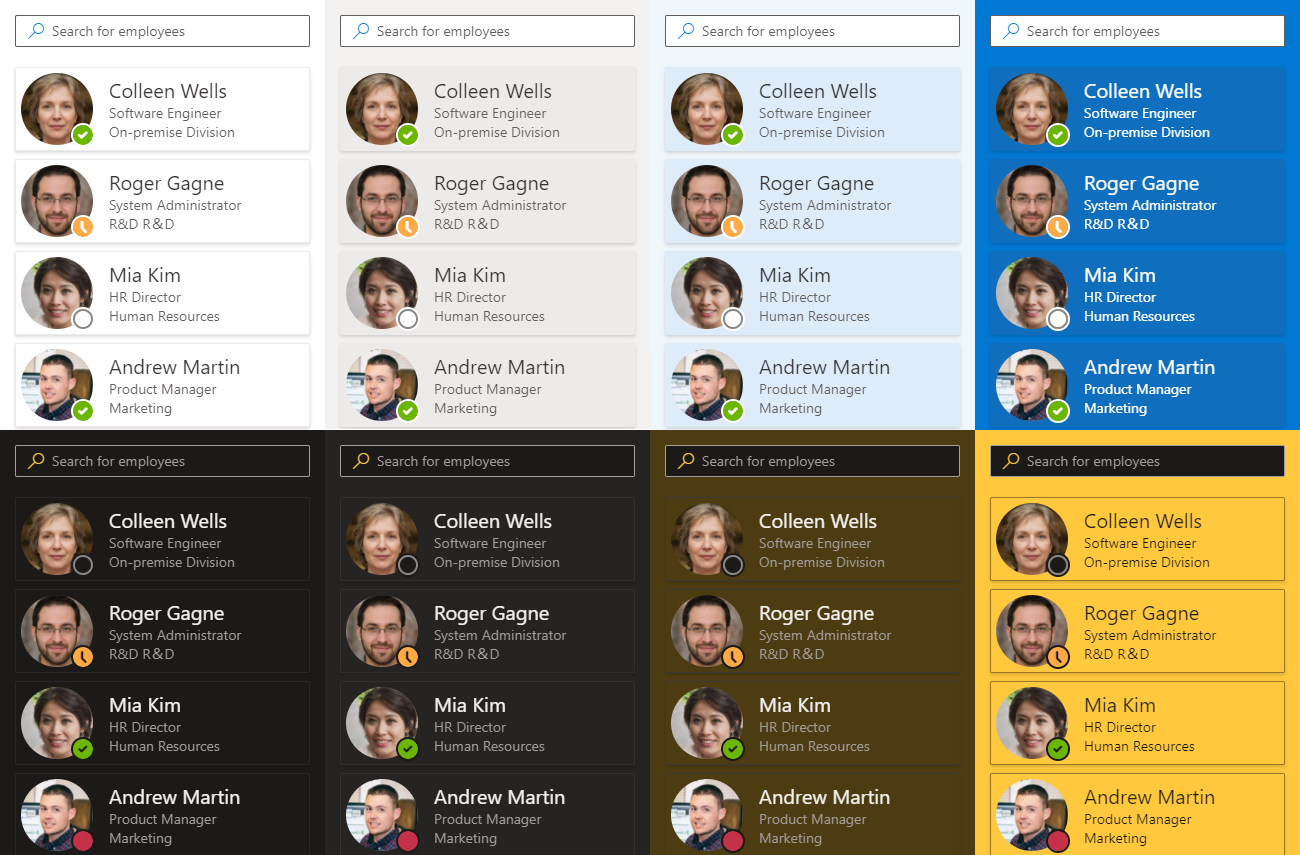
In Microsoft Teams, the Employee Directory web part additionally supports the Default and Dark themes.
Refinement Panel
The refinement panel lets you filter search results by selected fields. It is powered by the SharePoint Search Service and is therefore available only when User Profiles is the data source.
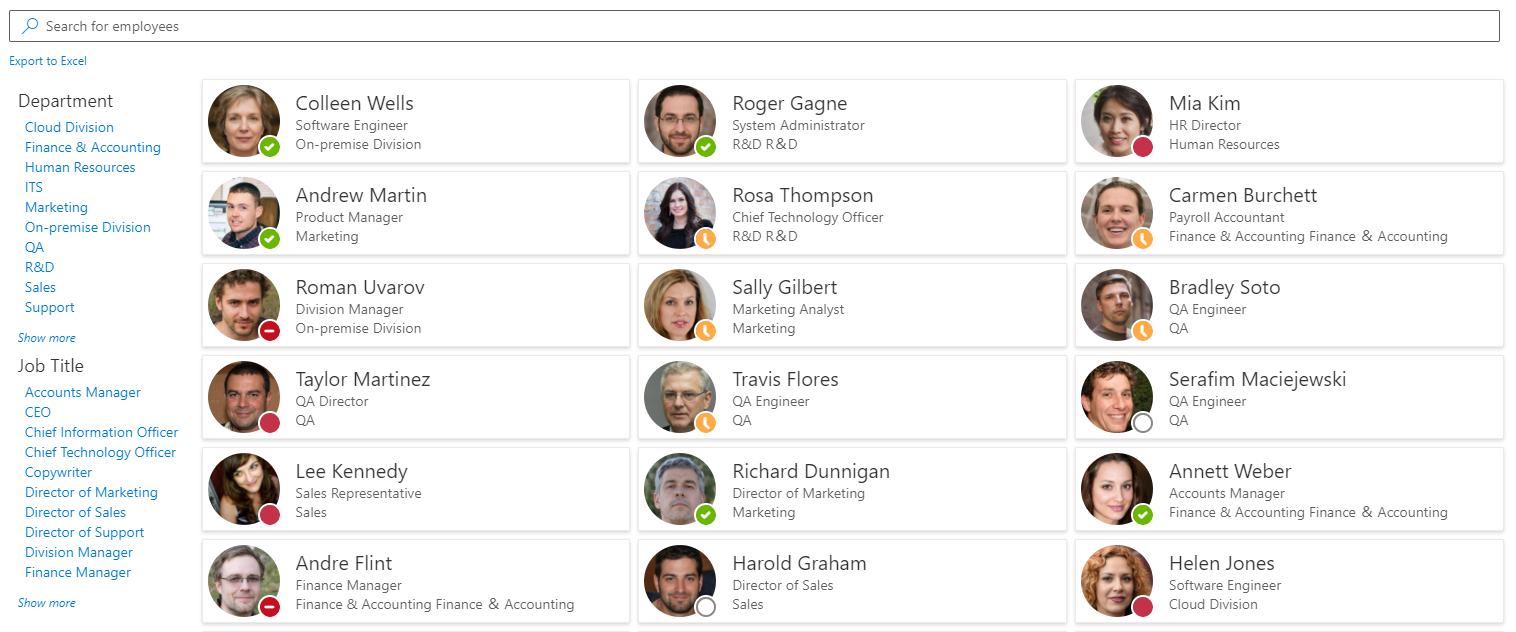
The panel offers a range of configuration options:
- The order in which fields are displayed
- The number of matches shown for each value
- Sorting by name or by number of results
- The position of the panel (left, right, or top)
💡 Tip
The Employee Directory supports custom User Profile attributes in the refinement panel.
Export to Excel
You can export the current search results to an Excel file. See the Export Employee List into Excel spreadsheet article for details.

📝 Note
The export has a few limitations:
- The column widths in the exported spreadsheet are fixed.
- The table style cannot be changed and is always set to Blue, Table Style Medium 2.
Employee Directory (Entra ID)
This is a dedicated version of the Employee Directory web part that uses Microsoft Entra ID as its only data source. It is designed to provide full-featured search across users in Microsoft Entra ID. Its appearance and result layout are fully customizable and match those of the standard Employee Directory web part.
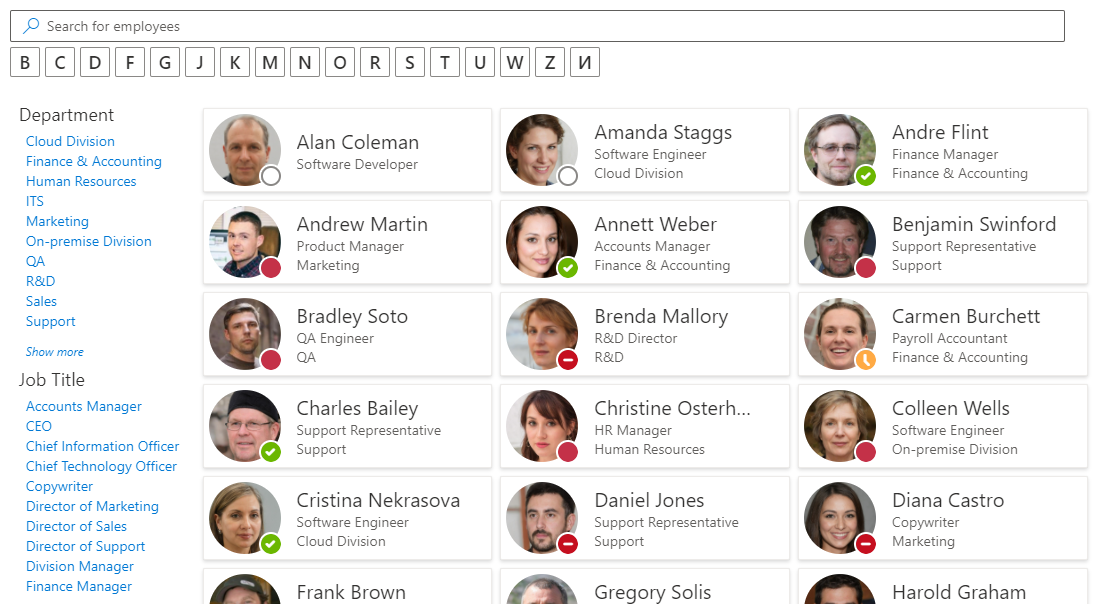
Behavior & Features
The Employee Directory (Entra ID) web part builds its search by first retrieving the full list of users from Microsoft Entra ID. This approach enables the following features:
- Exclusions: Exclude unlicensed users, blocked accounts, and employees with a blank department or job title from the search results.
- Selecting searchable fields: Choose which attributes are used to search for employees. These attributes can be hidden when displaying the results.
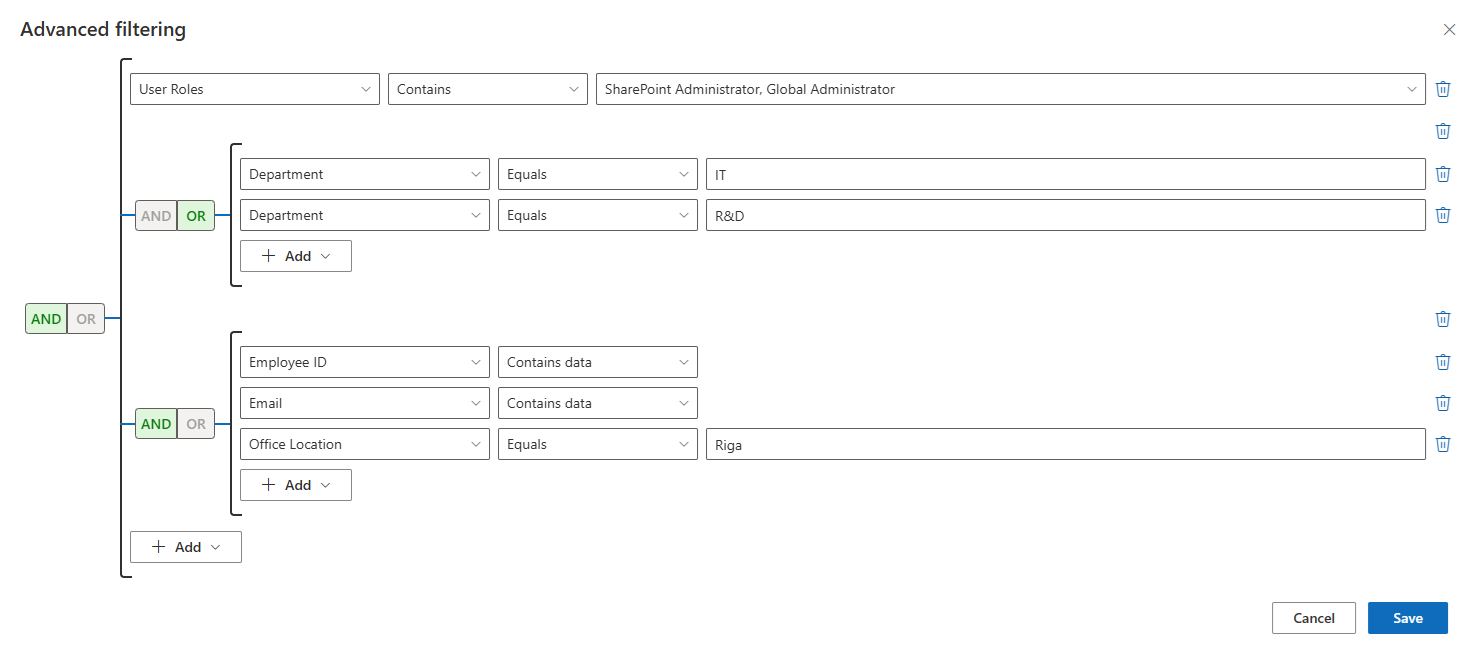
- Predefined filter: Define a filter in the web part's settings to limit the search scope. The filter is always applied and cannot be overridden by users.
You configure the predefined filter with the filter editor in the web part's property pane. Under Filter, the property pane shows a text preview of the current filter (or No filter applied), and the Edit Filter button opens the Advanced filtering panel. There you combine conditions and groups of conditions with AND / OR. A condition can use any built-in or custom attribute with operators such as equals, begins with, contains or contains data; the Account Status and User Roles conditions are also available. No knowledge of query languages is required.
💡 Tip
The Employee Directory (Entra ID) lets you build filters from any available attribute, including custom attributes. For a full description of conditions and operators, see KB10312. Employee Directory (Entra ID): Filter Editor Reference.
Alphabetical Navigation: Alphabetical navigation is generated automatically from user data in Microsoft Entra ID. The first letter of each employee's last name is used to build the list of letters.
Refinement Panel: The Employee Directory (Entra ID) lets you build a refinement panel from a variety of employee attributes.
❗ Important
If your Microsoft Entra ID tenant has more than 2,000 active users, the web part may take longer than a second to initialize on the page.
New Employees
The New Employees web part displays a list of users who were recently created in Microsoft Entra ID.
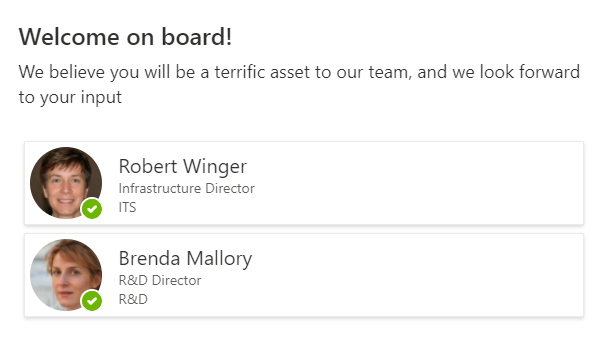
In the web part settings, you can specify how many employees to show (1–10) and the look-back period with Show users created for last months (1–6 months, 3 by default). You can also narrow the list with the same filter editor and choose which actions are available on the cards and in the context menu. See KB10207. How to Showcase New Hires with the New Employees Web Part.
📝 Note
The details pane is not currently available for the New Employees web part.
Conclusion
The Vitextra Employee Directory brings employee search and profile information directly into SharePoint and Microsoft Teams. Built on the SharePoint Framework and the Microsoft Graph API, it integrates natively with your environment and reads data securely from Microsoft Entra ID under each user's own permissions.
With customizable views, quick filters and favorites, skills search, theme variants, refinement panels, and Excel export, the solution adapts to the way your organization works and helps people find colleagues and connect faster.