Quick Poll
 What is Quick Poll
Vitextra Quick Poll is a web part for SharePoint Online and Microsoft Teams that lets you create and publish an interactive poll directly on a SharePoint page in a matter of minutes. It is designed for quickly gathering feedback, opinions and preferences from your team — from choosing an activity for a corporate event to rating a company initiative.
A poll is created without a single line of code and without help from an administrator: a page editor adds the web part, types a question and answer options, and the poll is immediately available to page visitors. Results update in real time and are shown as a clear, interactive chart.
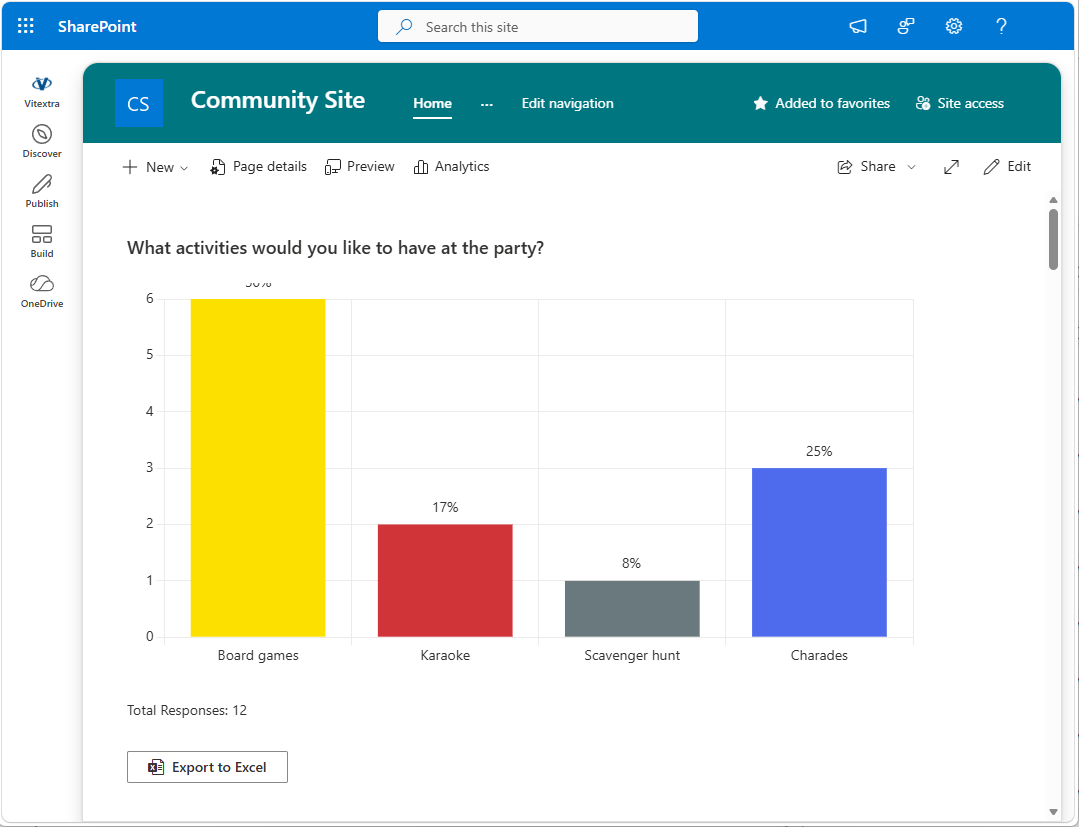
Quick Poll is built around three principles:
- Simplicity — a poll is created in a short form of a few fields, and taking part in the vote takes only seconds.
- Clarity — five chart types, a legend, percentages and smooth animation; the appearance inherits the theme of the SharePoint site.
- Privacy — all data is stored in SharePoint lists on your own site and never leaves your organization's tenant.
Creating a poll
After the web part is added to a page, the editor sees the poll creation form. Two modes are available: Create poll (a brand-new poll) and Select existing (reuse a poll that already exists on this site — for example, to show the same poll on several pages).
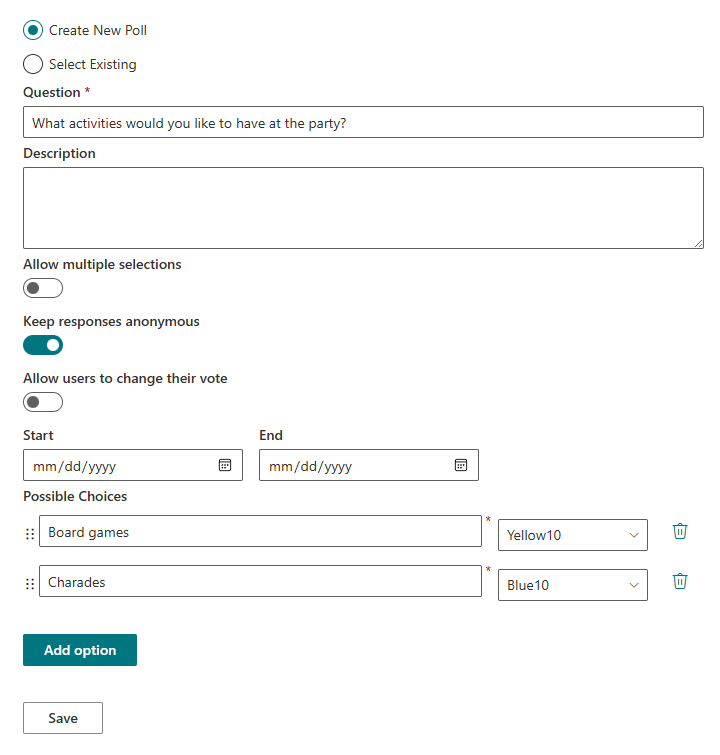
The new-poll form includes a question, an optional description, a set of behavior toggles (multiple choice, anonymous responses, allow changing the vote), an optional start/end schedule, and the list of answer options. Each option can be added, removed, reordered by dragging, and assigned a color from the Fluent palette — that color is used to represent the option on the results chart.
The form validates the data: the question and every option must not be empty, and the end date cannot be earlier than the start date.
Voting
A page visitor sees the question, the description and the answer options — radio buttons for single choice, or checkboxes when multiple selection is enabled. If the poll is anonymous, a note "Your response is anonymous" appears under the options.
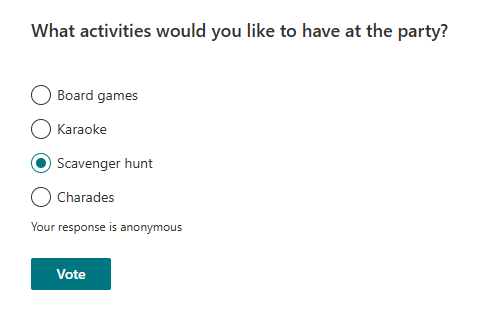
After submitting a response, the participant sees a thank-you message (customizable in the web part properties) followed by the results chart. Each participant can vote only once; repeated voting is blocked for both named and anonymous polls.
📝 Note
By default, results are visible only after voting. Use the Show results before voting option if you want participants to preview the current results without casting a vote.
If the Allow users to change their vote setting is enabled, a voter can withdraw their response with a Change vote button and vote again while the poll is open. This works for anonymous polls too.
Real-time results
Poll results are displayed as a chart and refresh automatically every 10 seconds, so participants watch votes arrive without reloading the page. To avoid unnecessary load, the refresh pauses while the browser tab is hidden and resumes the moment the user returns to it.
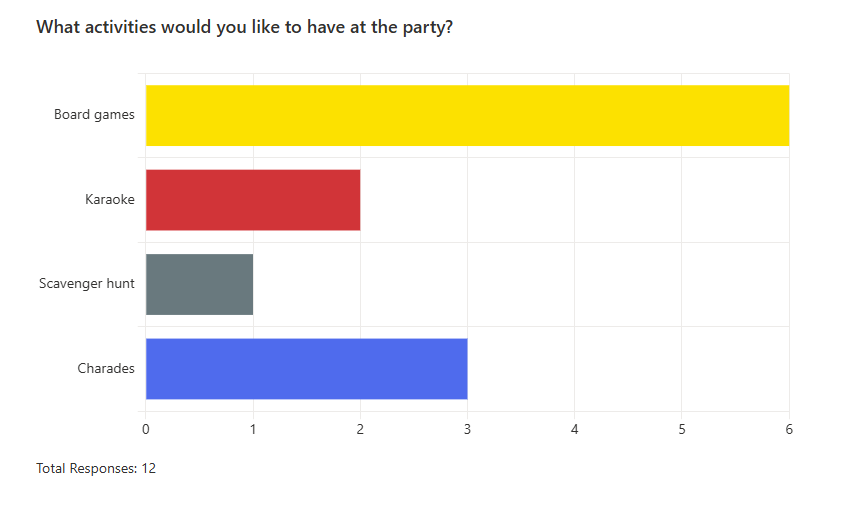
The results view is highly configurable. There are five chart types — Bar, Column, Doughnut, Pie and Radar — and a set of display options: show the vote share as a percentage directly on the chart, show a legend and choose its position (for pie and doughnut charts), and set the animation duration. The chart uses the colors assigned to the options when the poll was created and inherits the fonts and colors of the SharePoint site theme, including dark and branded themes.
By default, results are visible only after voting. If the Show results before voting option is enabled, participants who have not voted yet get a View Results button: they can look at the current results and return to the voting form at any time.
Scheduling a poll
A poll can be given optional Start and End dates (both boundary days are inclusive voting days):
- before the start date, visitors see the message "The poll has not started yet";
- during the period, the poll is open for voting;
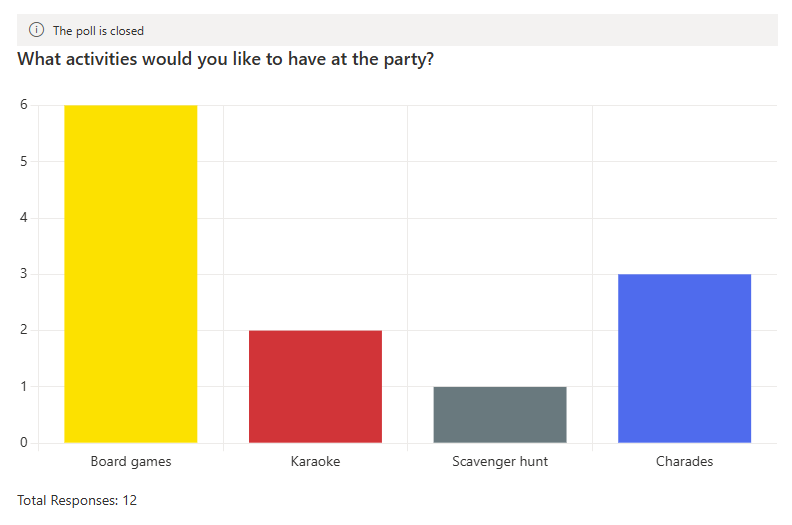
- after the end date, the poll closes automatically: the page shows the results with a "The poll is closed" notice, and voting is no longer available.
Managing a poll
While the page is in edit mode, the poll owner gets a management toolbar:
- Close poll — ends voting immediately; visitors see the final results.
- Reopen poll — resumes a poll that was closed or has not started yet.
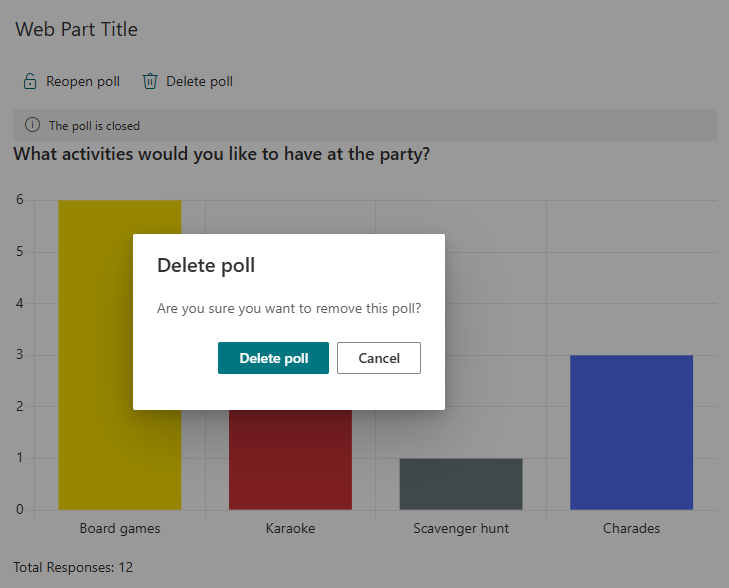
- Delete poll — removes the poll after a confirmation; the web part returns to the new-poll creation form.
Export to Excel
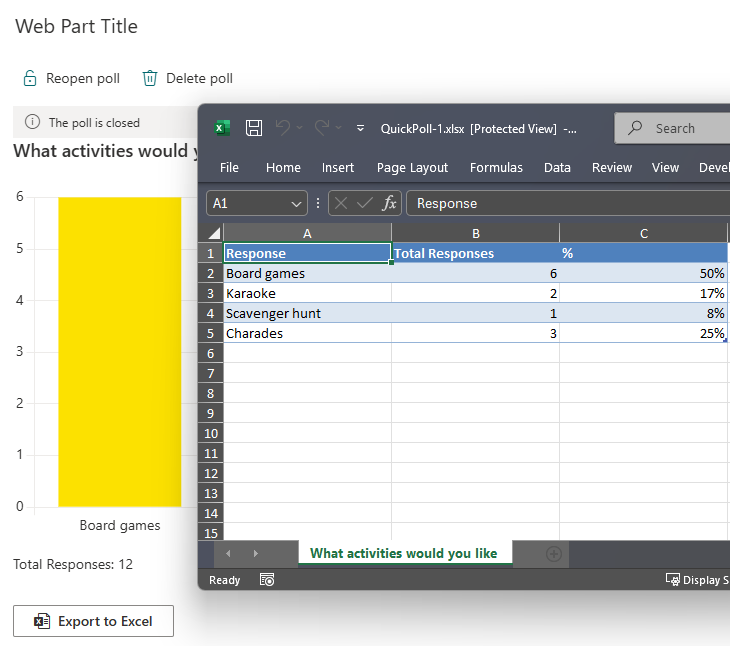
When the Export to Excel option is enabled, an export button appears under the results chart. It generates an Excel workbook with a summary sheet (option, number of votes and percentage share, formatted as an Excel table) and, for non-anonymous polls, a responses sheet (who voted, which option they chose and when). The file is generated right in the browser and downloaded immediately — no data is sent to any external service.
Data storage and privacy
Quick Poll does not use external servers to store data. The first time the web part is added, two SharePoint lists are created automatically on the site:
- Vitextra Quick Poll Questions — poll questions, options, colors, settings and schedule;
- Vitextra Quick Poll Responses — participant responses.
❗ Important
These two lists are created automatically — you do not need to add them manually. All poll data stays inside your SharePoint site and is never sent to any external service.
Because the data lives in ordinary SharePoint lists, it is subject to your Microsoft 365 tenant's security, retention and compliance policies; access is managed with standard SharePoint permissions; and you can connect to the results with familiar tools such as Excel, Power BI and Power Automate.
For anonymous polls, a response is stored without a reference to the user's profile: a technical key is used instead, which prevents repeat voting but does not reveal the participant in the response list. The "Created by" / "Modified by" system fields are also hidden in the response list.
Localization and platform support
Quick Poll ships with 44 interface languages — including English, Russian, German and Latvian — and the language is selected automatically from the SharePoint site or Teams client language. It runs on SharePoint Online modern pages with full theme support (including dark themes) and full-width layout, and in Microsoft Teams, where a poll can be pinned as a channel tab.
System requirements
| Platform | SharePoint Online (Microsoft 365) |
| Clients | SharePoint modern pages, Microsoft Teams (desktop and mobile) |
| Installation | SPFx package (.sppkg) via the tenant App Catalog |
| Permissions | No additional API permissions required |
💡 Tip
To deploy the web part in your environment, see the KB10035. Installing Cloud-based Product article.
Learn more about the product: https://vitextra.com/en/products/quick-poll