Questions & Answers
Overview
All content shown by the Questions and Answers web part lives in an ordinary SharePoint list on your site. You create and edit questions with the standard SharePoint list tools - the grid, the item form, bulk actions and version history - and the web part reflects those changes. This article describes each column and the recommended draft-and-publish workflow.
📝 Note
If you have not connected a list yet, add and configure the web part first - see KB10218. How to Add and Configure the Questions and Answers Web Part.
Opening the list
The fastest way to reach the content is from the web part itself: open the property pane and, in the Data Source group, use the Open List link. It opens the connected list in a new tab. You can also open it from Site contents, where it appears under the name you gave it during setup.
Adding a question
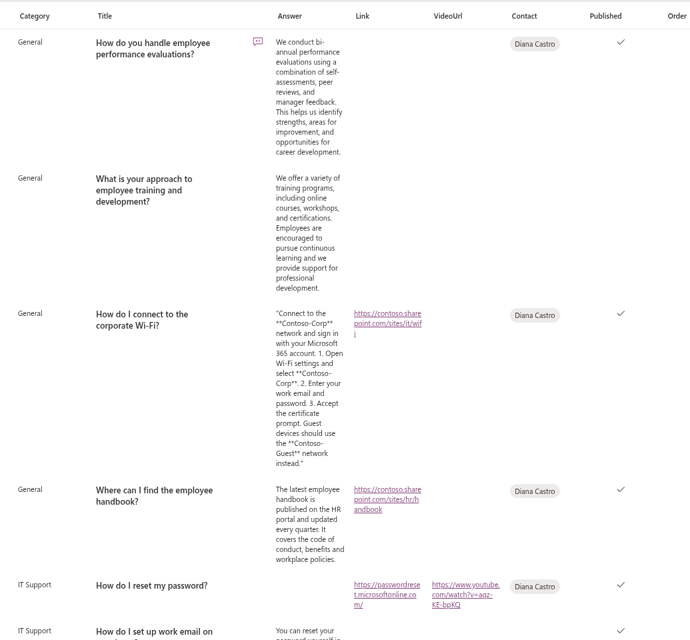
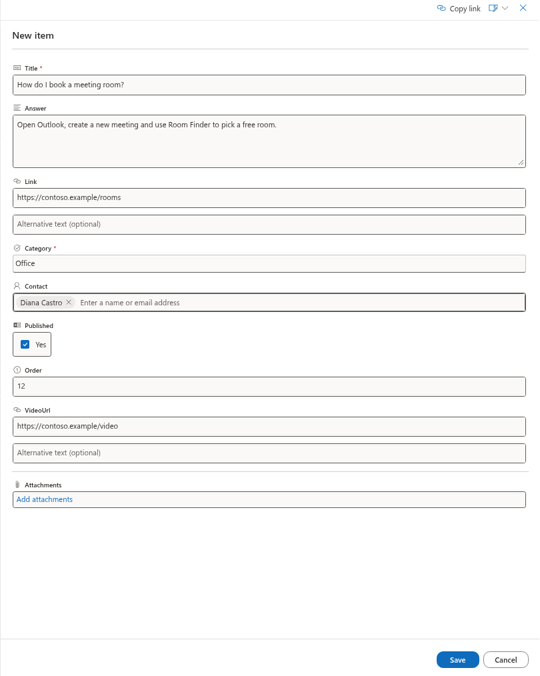
Lists created by the web part use the following columns. Their names and requirements are described below. The list uses the built-in title field (internal name Title) for the question. The web part provisions the custom column names Answer, Category, Order, Link, VideoUrl, Contact and Published in English; interface translations do not rename these list columns.
- Title - the question text shown in the accordion header. This is a required field.
- Answer - the full answer. It supports Markdown, so you can add lists, emphasis and links (see below).
- Category - a required choice column used for grouping and category filtering. The initial General choice is localized; fill-in values are allowed.
- Order - a number that sets the position of the question when the web part is sorted by Question Order.
- Link - an optional URL shown as a More Details link under the answer (a page, policy or article).
- VideoUrl - an optional link to a video that is embedded in the answer: YouTube and Vimeo play in a player, MP4/WebM/OGG/OGV/M4V use the HTML5 player, other links appear as a hyperlink.
- Contact - an optional person. A profile card is available when the shared SharePoint component loads and the contact has a usable login; otherwise a static person display is used.
- Published - a Yes/No flag that controls whether readers see the question (see the workflow below).
To add files to a question - instructions, forms, templates - use the Attachments command on the item; they appear in the answer as file cards.
Formatting answers with Markdown
Enter Markdown as plain text. Although the provisioned Answer column is a rich-text column, the web part does not render stored rich HTML as formatted answer content. Use plain-text input or change the column to plain text if the form’s formatting toolbar produces HTML. The Answer column is rendered as Markdown, which keeps long answers readable. Common syntax:
**bold**and*italic*for emphasis;- lines starting with
-for a bulleted list, or1.for a numbered list; [link text](https://example.com)for a hyperlink;#and##for headings.
Write the Markdown directly in the multi-line Answer field; the web part converts it to formatted HTML when the answer is expanded.
📝 Note
Keep answers focused: put the short, direct answer in the Answer field and link to a longer resource with the Link field or a VideoUrl when more depth is needed.
The draft-and-publish workflow
The Published column decides visibility. Readers only see questions where Published = Yes; anything set to No stays hidden from the web part and behaves as a draft.
This drives a simple editorial flow:
- In lists created by this web part, the Published column defaults to No. On existing lists, check the configured default; the submission request sends only Title.
- An editor writes or refines the answer, sets the category, order and any extras.
- When the answer is ready, the editor sets Published = Yes, and the question appears in the knowledge base.
❗ Important
The web part’s question dialog sends only the question text as Title. Whether the item is unpublished initially depends on the connected list: lists created by the web part default Published to No, but an existing list can have another default. Check the list item and Published value after submission. The web part does not notify or route submissions to editors automatically; editors must monitor the list or use a separately configured process. KB10220. Letting Employees Ask Questions in Questions and Answers.
Ordering questions
The order of questions in the web part is controlled by its Sort by setting (Name, Question Order or Created). To arrange questions manually, sort the web part by Question Order and set the Order number on each item - smaller numbers appear first when sorting is ascending (A→Z). Leave sorting on Created if you prefer newest-first or oldest-first chronological order instead.
Editing and bulk operations
Because the content is a standard SharePoint list, you can edit it efficiently: Lists created by the web part have grid editing disabled. Before using Edit in grid view, enable grid editing in the list’s advanced settings. Version history is available only if versioning has been enabled for that list.
- switch the list to Edit in grid view to change many questions inline, for example to reassign categories or toggle Published;
- use version history to review or restore previous answer text;
- apply column formatting, views and filters to manage a large knowledge base.
Changes take effect the next time the page loads the web part.
💡 Tip
Give related questions the same Category so you can group them or filter by topic on the page - see the category features in KB10217. Questions and Answers. Solution Overview.
Learn more about the product: https://vitextra.com/en/products/questions-and-answers