Employee Details
 Introduction
The Vitextra Employee Details page is a personal page of an employee in SharePoint Online. It collects in one place what you need to know about a colleague — contacts, position, manager and team, skills, languages, documents — and shows whether this is a good moment to reach out. On your own page, it also lets you keep your information up to date. This guide walks end users through the page; no administrator rights are needed.
📝 Note
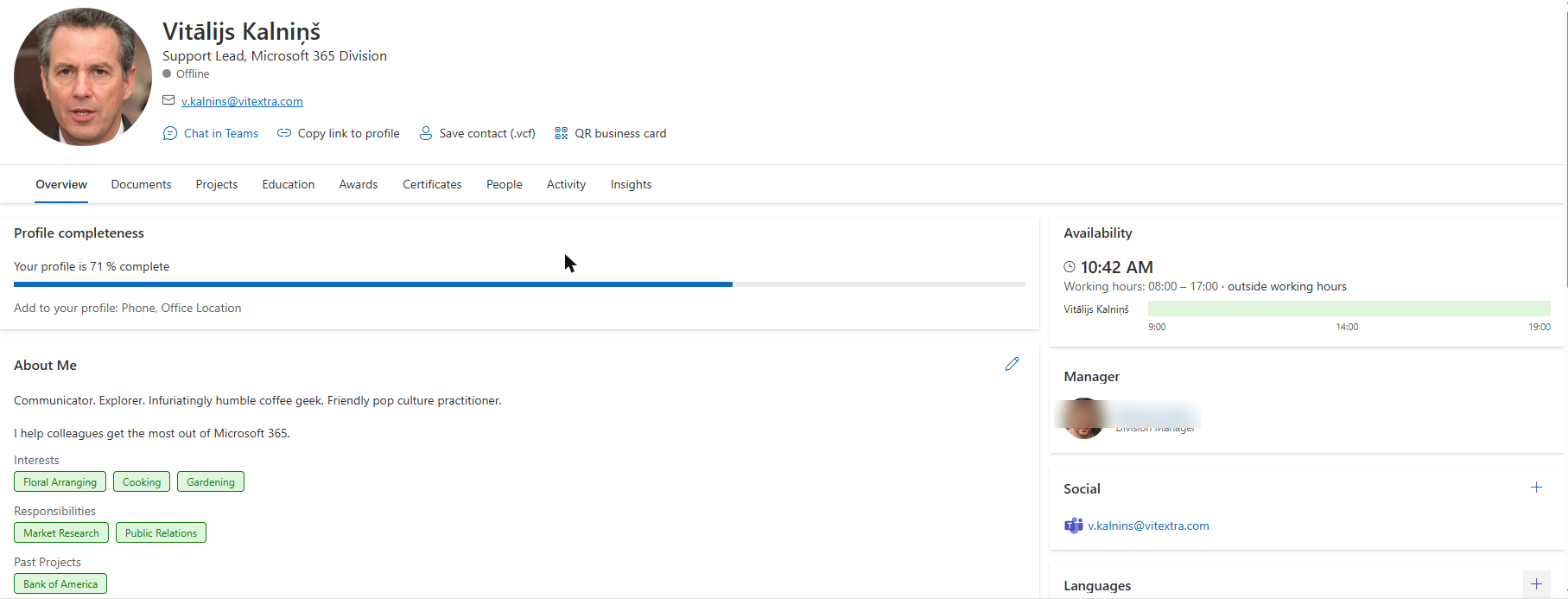
An administrator decides which elements, cards and tabs are shown, so your page may look slightly different from the screenshots in this article. If a button described here is missing, it has probably been turned off for your organization.
Opening a profile
How you get to a profile depends on how the page was set up:
- On a personal page, the web part shows your own profile.
- On a profile page for the whole organization, you arrive from a link, for example from a colleague's message, a news post or Employee Directory. The address of such a link ends with
?user=and the e-mail address of the employee. - From any profile you can move to another person by clicking the name of their manager, one of their direct reports or a colleague.
If the page shows The employee is not specified, the web part has not been given an employee to show; ask the page owner to configure it. If it shows Could not find the Employee, the person from the link does not exist or the address contains a mistake.
The header and quick actions
The header shows the photo, the name, the job title and the contact details. Next to the photo you can see:
- The colored dot on the photo is the presence of the person in Microsoft Teams: Available, Busy, Do not disturb, Away or Offline.
- An Out of office banner with the person's message appears while they are away.
- Badges show the number of years with the company and the days left to the work anniversary and the birthday.
The buttons under the name let you act right away:
| Button | What it does |
|---|---|
| Chat in Teams | Opens a chat with the person in Microsoft Teams. |
| Copy link to profile | Copies the address of this page to the clipboard, so you can paste it into a message. |
| Save contact (.vcf) | Downloads a contact card that you can open in Outlook or on your phone. |
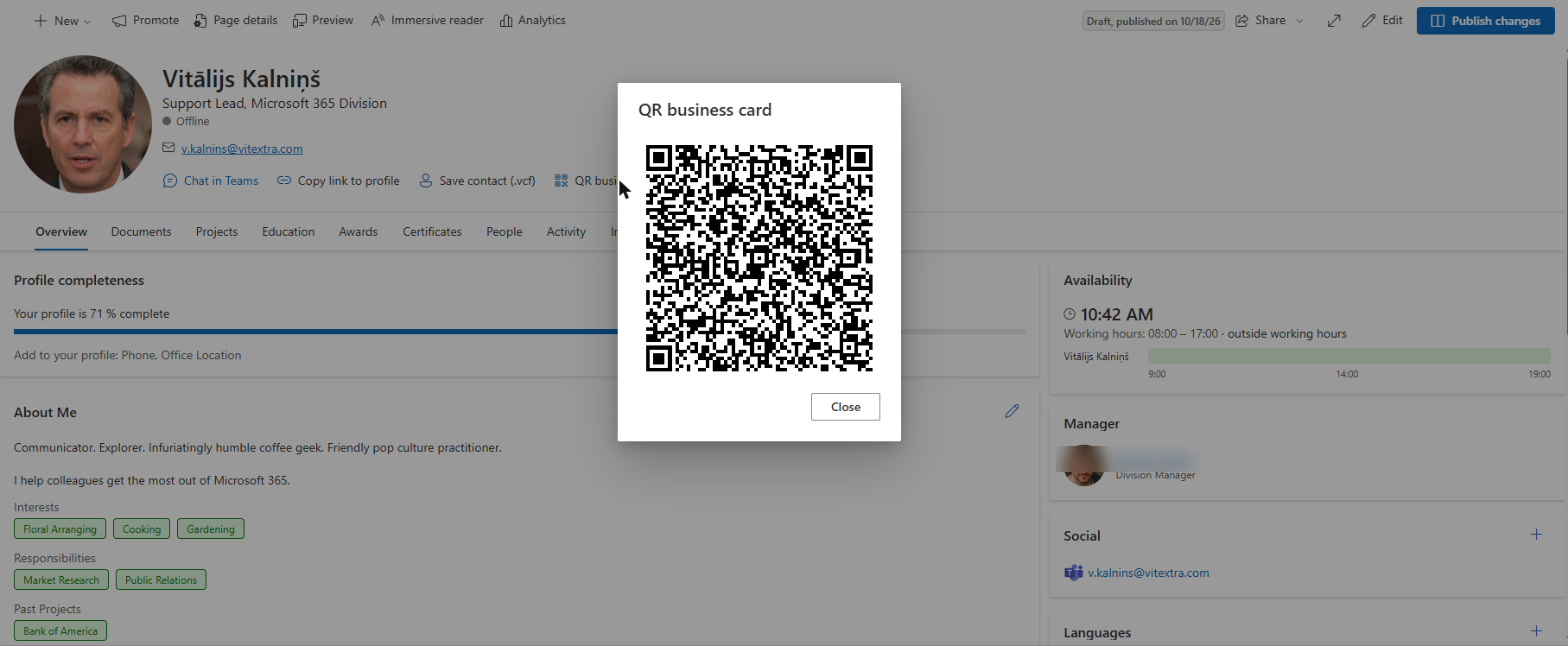
| QR business card | Shows a QR code. Scan it with your phone camera to add the contact to your phone. |
| Open Employee Directory | Opens the company directory. |
| Back | Returns to the previous person after you moved from one profile to another. |
Reading the Overview tab
The Overview tab is divided into cards.
- About Me — a short text about the person and, below it, interests, responsibilities, past projects and schools.
- Details — the position and contact data: company, department, job title, employee ID, hire date, birthday, phones, address and other attributes chosen by the administrator. Phone numbers and e-mail addresses are links: click them to call or write. If you see a small Copy icon next to a value, click it to copy the value to the clipboard.
- Skills — the skills of the person as tags.
- Manager and Direct reports — the reporting line. Click a name to open that person's page.
- Social Media — links to the person's accounts on Facebook, GitHub, Instagram, LinkedIn, Telegram, X (Twitter) and YouTube.
- Languages — the languages the person speaks and the level of reading, speaking and writing.
Cards with no data are not shown.
Local time and availability
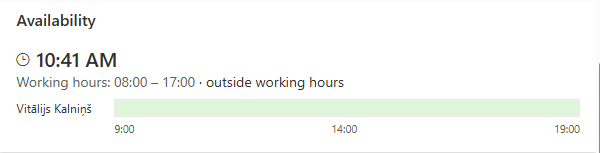
The Availability card helps you find a suitable time to talk.
- Local time shows what time it is for the person now. Next to it you see the difference with your own time zone — for example, 3 h ahead of you, 2 h behind you or same time zone.
- Working hours show the person's workday. If the person is not at work now, the card adds outside working hours.
- The free/busy strips show the person's calendar for today and your own below it (the row marked Me) in the statuses Free, Tentative, Busy, Out of office and Working elsewhere. You see only the status, never the details of a meeting.
- Click Schedule a meeting to open a new Microsoft Teams meeting in a new browser tab, with the person already added as an attendee. The button is not shown on your own page.
📝 Note
Local time and working hours come from the person's Outlook settings, and free/busy comes from their calendar. If the person has no mailbox, or the calendar is not shared, the card shows less information or is not shown at all.
Other tabs
The tabs next to Overview show more about the person:
- Documents — the documents that the person authored most recently. Click a document to open it; use the buttons on a row to open the containing folder or copy a link to the file. Click See more to load more.
- Projects, Education, Awards and Certificates — the professional background of the person. Where an entry has a link, you can open it.
- People — the Colleagues the person works with and their External Communications.
- Activity — the SharePoint pages the person edited recently.
- Insights — Shared Documents, Trending documents and the documents the person Used.
If a tab is empty for a colleague, it is not shown to you.
Moving between people
On a profile, names in the Manager, Direct reports and People sections are links. Click a name to open that person's page without leaving the SharePoint page. To return, click Back in the header. The address in the browser changes together with the person, so you can copy it at any moment and send a link to the profile you are looking at.
Updating your own profile
On your own page you can change the information about yourself. On the cards and tabs that you can edit, an icon appears in the header of the card: a pencil (Update) to edit and a plus (Add) to add an item.
Skills, languages and social accounts
- Click the pencil in the Skills card, or the plus in the Languages or Social Media card.
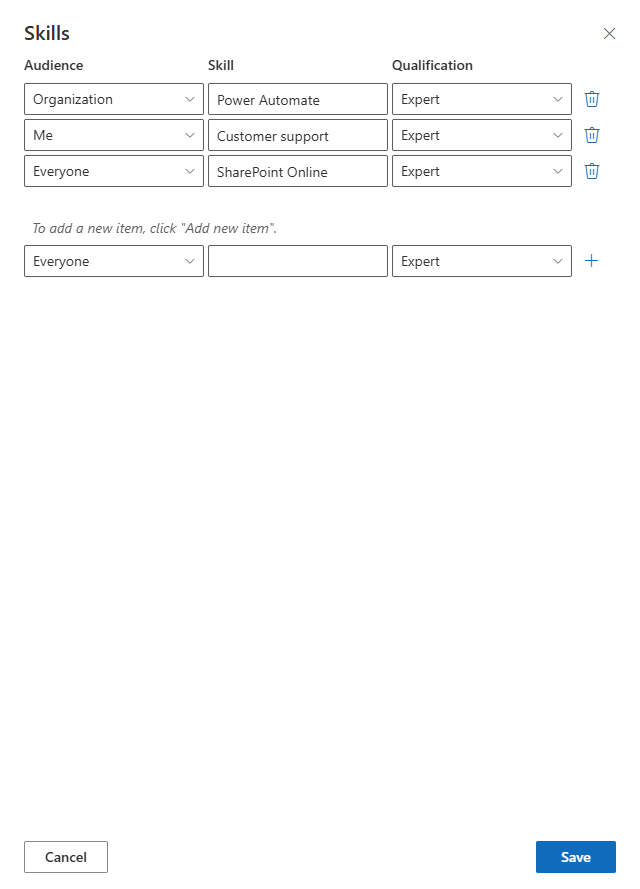
- In the panel on the right, add or change items. For a skill, enter the name and choose the level of proficiency: Elementary, Limited Working, General Professional, Advanced Professional or Expert. For a language, choose the language and the level of reading, speaking and writing (from Conversational to Native or Bilingual). For a social account, choose the service and enter your user name. To remove a skill, click the Delete Row icon.
- For every item, choose the Audience: Me (only you), Organization (colleagues in your organization) or Everyone.
- Click Save.
📝 Note
Some items cannot be changed here. Skills, languages and accounts that come from other sources, such as the SharePoint user profile or Microsoft Entra ID, are shown with a lock or in a different style and are read-only in this web part.
About me, interests and other lists
Click the pencil in the About Me card. Write a short text about yourself, and fill in the lists of Interests, Responsibilities, Past Projects and Schools — one item per line. The text is shown as plain text, without formatting. Click Save when you are done.
Projects, education, awards and certificates
Open the tab, click the plus (Add), fill in the fields — for example the name, the organization, the role, the dates and a description — and click Save. To change an entry, click the pencil next to it; to remove it, open it and click Delete, then confirm. Your empty tabs stay visible to you so you can add the first entry, but colleagues do not see them until they contain something.
Job title, department and other core data
Core properties such as the job title, department, office, phone numbers and address are managed by your administrator, so you cannot edit them directly. If your organization has set up approval, the Details card has a Request a change icon.
- Click the icon.
- Choose the Property to change. The Current value is shown for reference.
- Enter the New value and, if you wish, a Comment.
- Click Send. The request goes to approval, together with your manager's data. The message The request is sent for approval confirms that it has been sent.
Profile completeness
On your own page, the Profile completeness card shows how complete your profile is — for example, Your profile is 71 % complete — and what to add. Seven things count, each of the same weight: a photo, the About me text, at least three skills, at least one language, at least one social account, a phone number (mobile or business) and the office location. Only you see this card.
💡 Tip
Add your skills with an honest proficiency level. Colleagues use them to find the right person for a question, and a complete profile makes you easier to find and to contact.
Getting help
If something does not work — a tab fails to load, or your changes are not saved — click Try again or refresh the page. If the problem persists, contact your administrator.
💡 Tip
For an overview of the product and its features, see KB10279. Employee Details. Solution Overview. Administrators will find setup instructions in KB50029. How To Add and Configure the Employee Details Web Part.