My Tasks
 Overview
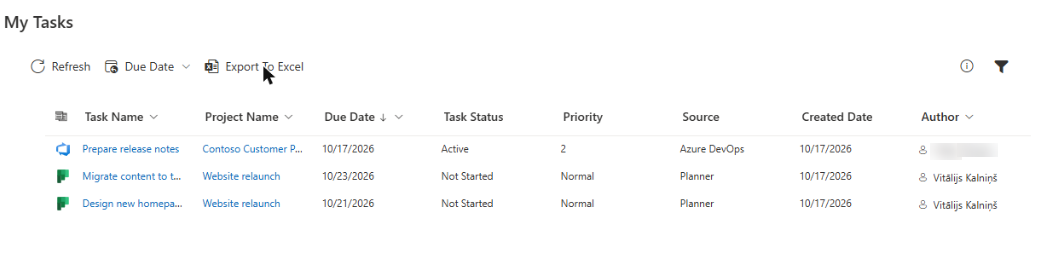
Vitextra My Tasks collects all of your tasks from Microsoft 365 and beyond into a single list on a SharePoint Online page or in Microsoft Teams. Instead of checking Planner, Microsoft To Do, flagged e-mails, project sites and Azure DevOps one by one, an employee opens one page and sees everything that is assigned to them, with a common sort order, filters and due dates.
The solution is built on the SharePoint Framework (SPFx). It runs in the browser in the context of the signed-in user, so every person sees only their own tasks. Vitextra does not store your tasks on its servers. You can try the product for free before you buy a subscription.
Learn more about the product: Vitextra My Tasks.
What is in the solution
One solution package contains two web parts:
| Web part | Name in the web part picker | Purpose |
|---|---|---|
| My Tasks | My Tasks | A personal list of tasks assigned to the current user from several sources at once. |
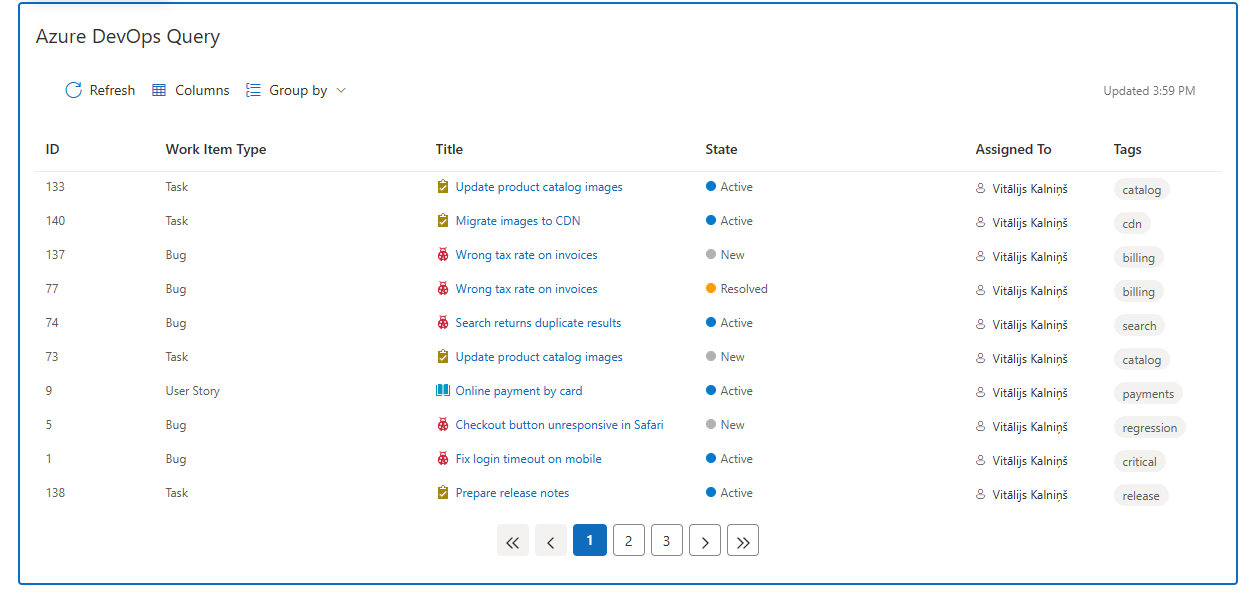
| Azure DevOps Query Viewer | Azure DevOps Query | Shows the result of a saved Azure DevOps query on a page, with tabs, grouping and optional quick actions. |
Both web parts can be placed on a SharePoint page. The My Tasks web part can also be added to Microsoft Teams as a personal app or as a tab. See KB10289. How to Add and Configure the My Tasks Web Part for the first configuration.
Task sources
Each source is switched on or off independently in the web part settings:
- Planner: tasks from your plans that are assigned to you and not yet completed.
- To Do: tasks from your Microsoft To Do lists.
- Outlook: e-mails you have flagged.
- SharePoint: items of SharePoint task lists where you are the assignee.
- Project: tasks from Project Online or Project Server sites.
- Azure DevOps: work items assigned to you in an Azure DevOps organization.
Every task shows a recognizable source icon and a link to the original item, which opens in its own application. The details of each source, its requirements and limits are described in KB10290. My Tasks Data Sources: Planner, To Do, Outlook, SharePoint, Project Online and Azure DevOps.
Key capabilities
- One list for all sources. Tasks from every enabled source are merged, sorted and filtered together.
- Due Date column and quick filters. The due date is shown for tasks from any source, overdue tasks are highlighted in red, and the Due Date menu in the command bar narrows the list to overdue tasks, tasks due today or this week.
- Filter panel. Filter by project, source, status, priority and author. The values are collected automatically from the loaded tasks.
- Personal view settings. Each user's sorting, due date filter and filter selections are remembered in their browser.
- Configurable columns. Choose which columns are shown and drag them into the order you need.
- Task details panel. Select a task and open the Details panel to read its description and properties without leaving the page.
- Export to Excel. The Export To Excel button saves the current list as a CSV file that opens in Excel.
- Paging and row limit. Show 5 to 50 tasks per page with page navigation.
- Excluded statuses. An administrator can hide statuses such as Completed for everyone.
- Instant loading and auto refresh. The last loaded list is shown immediately and refreshed in the background; optional auto refresh updates the list every 60 seconds.
- Themes, fonts and 47 languages. The web part follows the theme and the font of the site and the language of the user.
Microsoft Teams
The My Tasks web part works in Microsoft Teams as a personal app and as a channel tab. The layout is responsive, so the same list is comfortable in a narrow column and on a phone.
Security and privacy
My Tasks reads data on behalf of the signed-in user through Microsoft Graph, SharePoint Search and the Azure DevOps API. It uses a limited set of API permissions that a tenant administrator approves once in the SharePoint admin center. The web part only reads tasks; it does not create or change them. Personal view settings are kept in the browser of the user.
📝 Note
The Azure DevOps Query Viewer web part can change work items only if the administrator turns on Quick actions. Every change is made as the signed-in user, so the user needs the corresponding rights in Azure DevOps.
❗ Important
The solution must be installed in the SharePoint App Catalog and its API permission requests must be approved by a tenant administrator before the web parts can read your data. Without this approval the sources that depend on it show no tasks.
Free trial and licensing
You can use My Tasks free of charge during the trial period. The license status (trial, active, expired and so on) is shown in the About group of the web part settings. When the trial ends, the web part shows a message that invites you to buy a subscription.
Where to go next
- Install the solution: KB10035. How to Install a Vitextra Product in SharePoint Online.
- Add the web part to a page and configure it: KB10289. How to Add and Configure the My Tasks Web Part.
- Learn what each data source needs: KB10290. My Tasks Data Sources: Planner, To Do, Outlook, SharePoint, Project Online and Azure DevOps.