My Tasks
 Overview
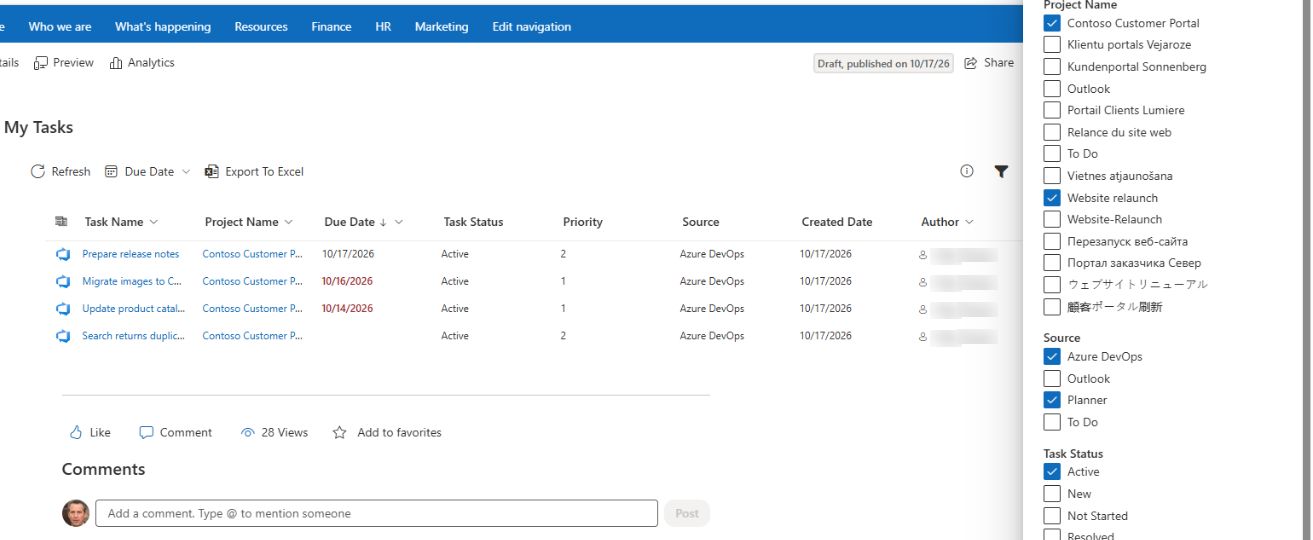
The My Tasks web part can combine up to six sources in one list. Each source has its own toggle in the Data Source group of the property pane. This article describes what each source loads, what it requires and how its data is shown in the columns Project Name, Task Status and Priority.
For all sources the same rules apply:
- Only tasks assigned to the signed-in user are shown.
- A source whose request fails is skipped silently and the other sources are still shown.
- The web part reads tasks and never creates or changes them.
- A switched-off source is not queried. If all sources are off, the list is empty.
Sources at a glance
| Source (toggle) | What is loaded | Requirements | Limit |
|---|---|---|---|
| Planner | Planner tasks assigned to you that are not 100% complete | Microsoft Graph permission Tasks.ReadWrite | No limit stated |
| To Do | Tasks from all your Microsoft To Do lists except Flagged email; completed tasks are excluded | Tasks.ReadWrite; a mailbox with To Do | No limit stated |
| Outlook | Flagged e-mails (the To Do list Flagged email); completed are excluded | Tasks.ReadWrite; your own mailbox (shared mailboxes are not included) | No limit stated |
| SharePoint | Items of SharePoint task lists (content type Task) assigned to you | SharePoint Search must index the site | Up to 100 tasks |
| Project | Tasks from Project Online or Project Server sites assigned to you | Project Online site templates; SharePoint Search | Up to 100 tasks |
| Azure DevOps | Work items assigned to you across the organization | user_impersonation for Azure DevOps; the Organization name | All assigned items |
Planner
Loads the Planner tasks assigned to you through Microsoft Graph, without tasks that are already 100% complete.
- Project Name: the title of the plan. If the plan is not accessible, the value is empty.
- Task Status: calculated from the task. If the task has a checklist, it is Not Started while all checklist items are open, In Progress when some are done and Completed when all are done. Without a checklist the percentage is used: below 50% is Not Started, from 50% to 99% is In Progress.
- Priority: Planner priority is converted to Urgent (urgent), High (important), Normal (medium) or Low.
- Author: the name of the task creator. The names are resolved through Microsoft Graph, which requires the User.ReadBasic.All permission.
- A click on the task name opens the task in the new Planner.
- Only tasks assigned to you are shown, not every task of the plans you belong to.
To Do and Outlook
Both sources use Microsoft To Do through Microsoft Graph. To Do loads the tasks from all your lists except the system list Flagged email. Outlook loads the flagged e-mails from that list. Completed items are not loaded.
- Project Name is To Do for the tasks and Outlook for the flagged e-mails.
- Author is empty for both sources by design.
- Task Status for To Do tasks: Not Started, or the state reported by Microsoft To Do for other open tasks. Priority: Low, Normal or High, from the importance of the task.
- Flagged e-mails require a mailbox with To Do enabled. Shared mailboxes are not included.
SharePoint
Loads the items of SharePoint task lists (the content type Task) where you are listed in the Assigned To column. The query goes through SharePoint Search in your context, so permissions are respected and you never see items that you cannot open.
- Project Name: the title of the site that contains the list.
- Task Status and Priority: the values of the Task Status and Priority columns of the list, as they are shown in SharePoint, including the language of the site.
- Up to 100 tasks are loaded from this source.
- Because the data comes from search, a newly created or changed item appears after the search crawl has processed it.
- Sites or lists that are excluded from search results are not found.
Project
Loads tasks from Project Online or Project Server sites in the same way as the SharePoint source: through SharePoint Search, for items assigned to you, up to 100 tasks. The SharePoint source does not include tasks from these project sites, so the tasks are not duplicated. The mapping of the fields is the same as for SharePoint.
Azure DevOps
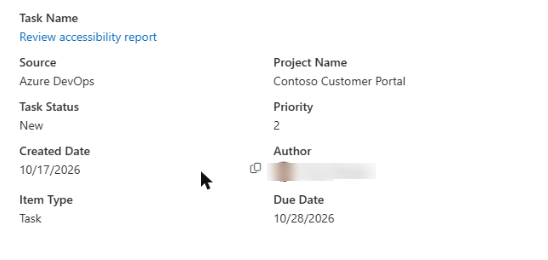
Loads the work items that are assigned to you in the whole Azure DevOps organization, the same list as the My work page of Azure DevOps. The call is made with your own identity, so you see only what you can already see in Azure DevOps.
- Enter the Organization: the name from the address
dev.azure.com/<organization>. - Project Name: the Azure DevOps team project.
- Task Status: the state of the work item, for example New, Active, Resolved or Closed.
- Priority: the numeric priority of the work item (1 to 4).
- Due Date: shown if the process of the project has the due date field.
- Tags: the tags of the work item. The type of the work item (Bug, Task and so on) is shown in the Details panel.
- A click on the task name opens the work item in Azure DevOps.
📝 Note
To display the result of a saved query instead of your assigned work items, use the second web part. See KB10304. Azure DevOps Query Viewer: Setup and Connecting a Query and KB10209. How to Install and Configure the Azure DevOps Query Viewer Web Part.
Statuses and priorities
| Source | Task Status | Priority |
|---|---|---|
| Planner | Not Started, In Progress, Completed (from checklist or percentage) | Urgent, High, Normal, Low |
| To Do | Not Started or the state reported by To Do | Low, Normal, High |
| Outlook | Not Started or the state reported by To Do | Low, Normal, High |
| SharePoint, Project | Value of the Task Status column of the list | Value of the Priority column of the list |
| Azure DevOps | State of the work item | Number 1 to 4 |
Use the status names from this table in Excluded Statuses (comma separated) to hide them; see KB10298. My Tasks: Excluding Statuses and Limiting the Task List.
Permissions at a glance
| Source | Permission or access |
|---|---|
| Planner, To Do, Outlook | Microsoft Graph Tasks.ReadWrite, User.Read, User.ReadBasic.All |
| SharePoint, Project | SharePoint Search in the user's context (security trimming) |
| Azure DevOps | Azure DevOps user_impersonation |
The permissions are approved once by a tenant administrator. Details are in KB10303. My Tasks: Required Permissions, Privacy and Security.
❗ Important
The permission name Tasks.ReadWrite is required by Microsoft Graph for Planner and To Do tasks, but the web part uses it only to read tasks. It does not create, edit or delete tasks.
💡 Tip
If a source shows no tasks, check its requirements in the table above and then see KB10307. Why Are My Tasks Missing or Not Loading?. To switch sources on or off, see KB10289. How to Add and Configure the My Tasks Web Part.