My Tasks
 Overview
My Tasks shows all the tasks that are assigned to you in one list on a SharePoint page or in Microsoft Teams. Instead of opening Planner, To Do, Outlook, SharePoint task lists and other tools one by one, you see everything in one place, with the same columns, the same filters and the same sorting.
This article is a quick guide for people who only use the web part. It explains how to read the list, open a task, find the tasks you need and what the web part can and cannot do. Administrators who set up the web part should start with KB10289. How to Add and Configure the My Tasks Web Part.
Where your tasks come from
The list can contain tasks from several sources. Which sources are used on a page is decided by the administrator who configured the web part. The Source icon at the start of each row shows where the task lives:
| Source | What you see in the list |
|---|---|
| Planner | Planner tasks assigned to you that are not yet 100% complete |
| To Do | Tasks from your Microsoft To Do lists (except the flagged e-mail list); completed tasks are not shown |
| Outlook | E-mails that you have flagged for follow-up; completed ones are not shown |
| SharePoint | Items of SharePoint task lists where you are in the Assigned To column |
| Project | Tasks assigned to you in Project Online / Project Server sites |
| Azure DevOps | Work items assigned to you in Azure DevOps |
You always see only your own tasks. Other people's tasks are not shown to you, and yours are not shown to them. For details about every source, see KB10290. My Tasks Data Sources: Planner, To Do, Outlook, SharePoint, Project Online and Azure DevOps.
Reading the list
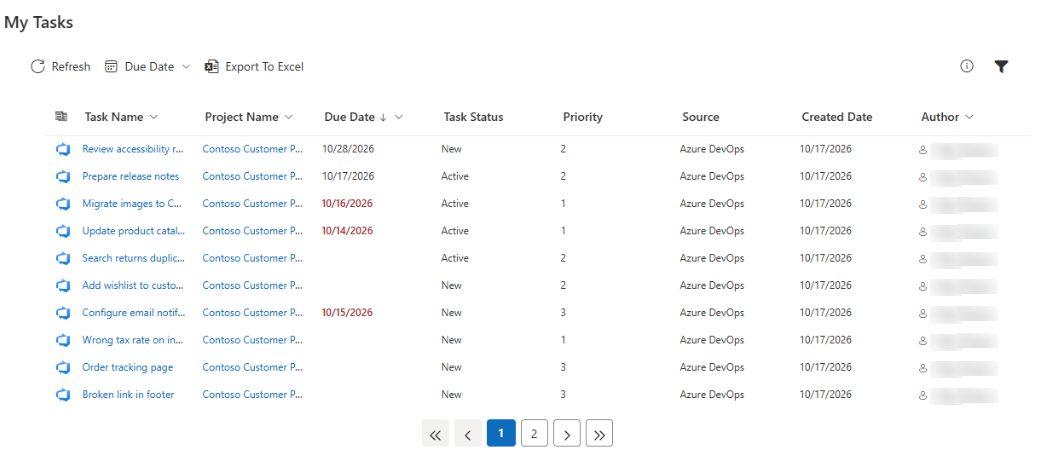
Each row is one task. By default the list has these columns: the source icon, Task Name, Project Name, Created Date, Due Date, Author, Task Status and Priority. The administrator can hide some columns or add others, such as attachments, comments, Source or Tags, so your page can look a little different. See KB10294. My Tasks: Choosing and Arranging Columns.
- The task name and the project name are links when the source provides an address. Click the name to open the task in its own application.
- A Due Date shown in red means that the task is overdue. See KB10292. My Tasks: Due Date Column, Overdue Highlighting and Quick Filters.
- The Author column is empty for To Do and Outlook tasks by design.
- If you have many tasks, the list is split into pages and a page navigator appears below it.
Opening a task
You can open a task in three ways:
- Click the link in the Task Name column.
- Double-click the row, or select it and press Enter.
- Select the row and click Open in New Tab in the command bar, or right-click the row and choose Open in New Tab.
The task always opens in a new browser tab in the application where it is stored, for example in Planner or in Azure DevOps, so you stay on your page.
The command bar
The command bar above the list contains the following commands:
| Command | What it does |
|---|---|
| Refresh | Loads your tasks again from all sources |
| Due Date | Shows only overdue tasks, tasks due today or tasks due this week |
| Export To Excel | Saves the visible tasks to a file that opens in Excel |
| Open in New Tab | Appears when a task is selected; opens that task |
| Details (info icon, right side) | Opens the details of the selected task in a side panel |
| Filter (funnel icon, right side) | Opens the filter panel; the icon is filled when a filter is applied |
To select a task, click its row once. A check box appears when you point at the row.

Seeing the details of a task
Select a task and click the Details icon. The Task Details panel opens on the side and shows the task name, source, project, status, priority, creation date, author and the due date, if there is one. When the source provides a description, it is shown as well. For some sources more data is shown, such as the item type of an Azure DevOps work item. Close the panel to return to the list. More about the panel: KB10295. My Tasks: Viewing Task Details Without Leaving the Page.
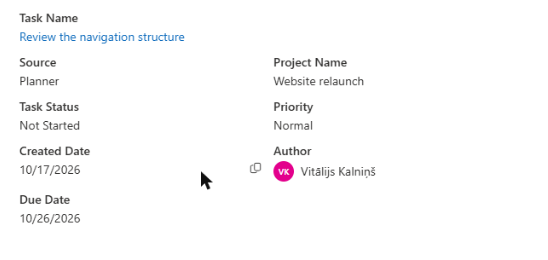
Finding the tasks you need
- Use the Due Date menu to see what needs attention now: Overdue, Today or This week. Choose All dates to go back to the full list.
- Click the Filter icon and tick values in the groups Project Name, Source, Task Status, Priority and Author.
- Click a column header and choose Sort A to Z or Sort Z to A.
Your choices are remembered for the next visit, in the same browser. Details are in KB10293. My Tasks: Filtering, Sorting and Personal View Settings.
Exporting your tasks
Click Export To Excel to save the tasks that you currently see, after your filters and sorting, to a file named my-tasks-<date>.csv. All pages are exported, not only the current one. See KB10296. How to Export My Tasks to Excel.
What you can and cannot do
- You can read, sort, filter, open and export your tasks.
- You cannot create a task, change its status or complete it in My Tasks. Do this in the application where the task is stored; use Open in New Tab to get there quickly.
- You cannot see tasks of other people.
- Your changes to the view (filters, sorting) affect only you. They do not change the page for other users.
📝 Note
The list may not change immediately after you complete or create a task elsewhere. The web part shows the last loaded list at once and refreshes it in the background, and some pages refresh automatically once a minute. Click Refresh to load the current data. Tasks of SharePoint lists can appear with a delay, because they are found through SharePoint search.
❗ Important
If the list is empty or shorter than you expect, check first whether a filter is applied: the Filter icon is filled, or the Due Date menu is not set to All dates. Then see KB10307. Why Are My Tasks Missing or Not Loading?.
💡 Tip
Start your day with Due Date > This week and Sort A to Z on the Due Date column: the tasks with the earliest dates come first. To learn what the solution can do, read KB10288. My Tasks. Solution Overview.