My Tasks
 Overview
The My Tasks web part gathers tasks from several sources into one list, so the list can become long. This article describes the settings and the built-in behaviour that keep it manageable and fast: the number of tasks per page, the pager, a denser layout, automatic refreshing, the short-lived cache that makes the web part appear instantly, and the limits that apply to the data sources.
The settings are in the web part property pane. To open it, edit the page and click the Edit web part icon (pencil) next to the web part. For the full setup procedure, see KB10289. How to Add and Configure the My Tasks Web Part.
Settings at a glance
| Setting | Property pane group | Values | What it does |
|---|---|---|---|
| Total number of results | Row Limit | slider, 5–50 | Number of tasks shown on one page |
| Enable Paging | Row Limit | on / off | Paging switch in the property pane (see the section below) |
| Compact List | Appearance | on / off | Denser rows, more tasks on the screen |
| Auto refresh | Miscellaneous | on / off | Reloads the tasks every 60 seconds |
Page size and the pager
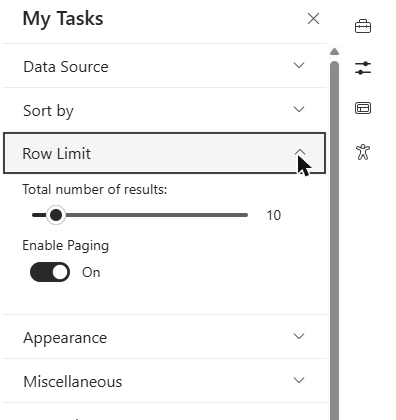
The slider Total number of results in the Row Limit group defines how many tasks are displayed on one page. The range is from 5 to 50. When the value has never been changed, the slider shows 20; a web part that you add to a page from the toolbox is preconfigured with 10.
When the number of tasks that match the current filters is greater than the page size, a pager appears under the list. It contains the buttons for the first and the previous page, the page numbers, and the buttons for the next page and the last page. When all tasks fit on one page, the pager is not shown.
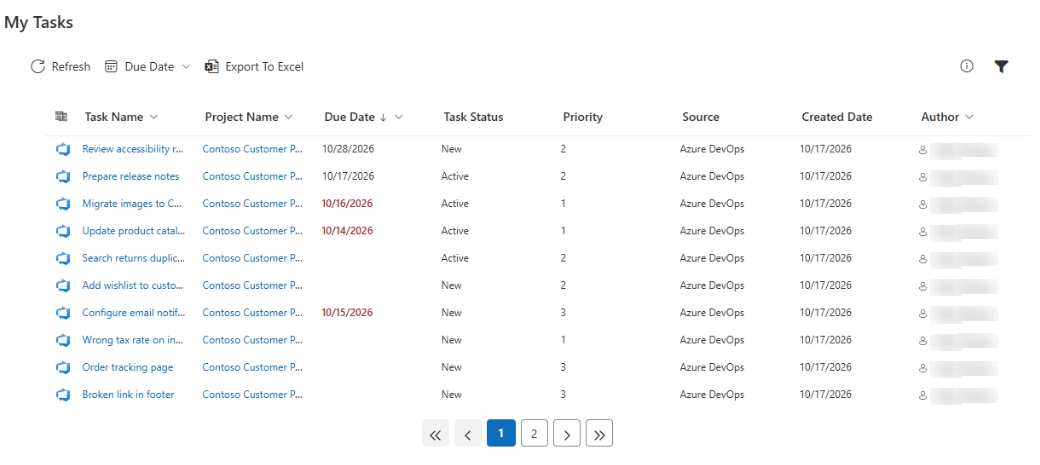
The pager works on the tasks that remain after the filters:
- The number of pages is calculated from the filtered list, that is, after the Due Date quick filter and the filter panel are applied.
- When a user changes the Due Date quick filter or the filter selection, the list goes back to the first page.
- Sorting is applied to the whole list before it is divided into pages, so page 2 continues exactly where page 1 ends.
- A silent refresh does not change the current page.
📝 Note
Despite its label, the slider sets the number of tasks per page, not the total number of tasks that the web part loads. Tasks that do not fit on the first page are available through the pager. The largest page size is 50.
The Enable Paging toggle
The Row Limit group also contains the Enable Paging toggle, which is on by default. When it is on, the pager appears below the list whenever the filtered list is longer than one page, and users move between pages. When it is off, the pager is hidden and only the first page is shown: the list is limited to the number of tasks set by the slider, and the rest are not displayed. Sorting still applies first, so users see the top tasks of the sorted list.
❗ Important
Switch Enable Paging off only when you want a short, fixed-size list, for example a “top tasks” view on a home page. Users cannot reach the tasks beyond the first page, but they can narrow the list with the filters and the Due Date menu. To keep the list short without hiding tasks, limit what is loaded instead; see KB10298. My Tasks: Excluding Statuses and Limiting the Task List.
Compact List
The Compact List toggle in the Appearance group reduces the height of the rows. More tasks are visible without scrolling, which is convenient for narrow columns and for pages with several web parts. The setting is the same for all users of the page.
Auto refresh
When the Auto refresh toggle in the Miscellaneous group is on, the web part reloads the tasks from all enabled sources every 60 seconds, as long as the page stays open. The interval is fixed and cannot be changed.
- The refresh is silent: while the list already contains tasks, no loading indicator is shown and the rows are replaced when the new data arrives.
- Sorting, filters and the Due Date quick filter chosen by the user are kept.
- Users can also click Refresh on the command bar at any time.
💡 Tip
Turn Auto refresh on for a task board that stays open all day, for example on a team intranet page or in a Teams tab. For a page that people open occasionally it is not needed: the list is reloaded every time the page opens.
Instant loading: the session cache
To make the web part appear without waiting, My Tasks remembers the last loaded list in the browser:
- When the page opens, the web part checks whether the browser tab holds a saved list for this web part.
- If it does, the list is shown immediately.
- At the same moment the web part reloads the data from the sources in the background and replaces the list when the new data is ready.
The saved list is used only if all these conditions are met:
- it was saved less than 15 minutes ago;
- the data-source settings are unchanged since it was saved — the enabled sources, the Azure DevOps organization and the Excluded Statuses value;
- it is the same browser tab session. The data is kept in the session storage of the browser and is not shared with other tabs or other devices.
If a source setting changes, the new settings are applied immediately without reloading the page, and the saved list is ignored.
📝 Note
Because of the cache, a user may briefly see the list from the previous visit. It is replaced within a few seconds by the current data. Nothing is sent to Vitextra servers; the cache stays in the user's browser.
Limits of the data sources
| Source | Tasks loaded |
|---|---|
| SharePoint | up to 100 tasks |
| Project | up to 100 tasks |
| Azure DevOps, Planner, To Do, Outlook | no fixed limit in the web part |
The limit of 100 applies to each of the two sources separately. The SharePoint and Project sources are search-based, so the newest tasks may appear only after the next search crawl. The user's own filters and the pager then work on top of what was loaded.
For details of each source, see KB10290. My Tasks Data Sources: Planner, To Do, Outlook, SharePoint, Project Online and Azure DevOps. If a list looks incomplete or stale, see KB10307. Why Are My Tasks Missing or Not Loading?.