My Tasks
 Overview
By default My Tasks shows every task that is assigned to the user in each enabled source. In a busy tenant this can include tasks that nobody needs to see any more: finished, cancelled or parked items. This article shows how to reduce the list. There are two levels:
- for everyone — the page editor hides statuses with Excluded Statuses (comma separated) or switches off sources the team does not use;
- for one user only — each person narrows the list with the Due Date quick filter and the filter panel. These choices do not affect other people.
Before you start
You need permission to edit the page. Open the page, click Edit, then click the Edit web part icon next to the My Tasks web part to open the property pane. If the web part is not on the page yet, see KB10289. How to Add and Configure the My Tasks Web Part.
Exclude statuses for everyone
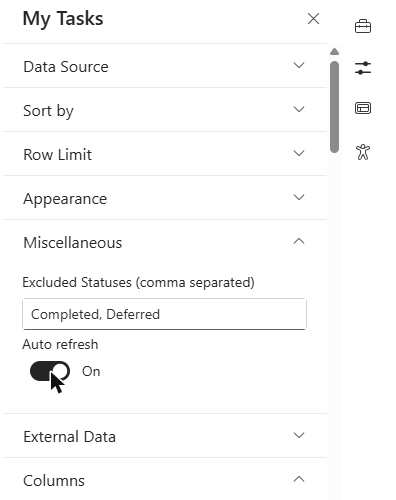
- In the property pane, expand the Miscellaneous group.
- In the Excluded Statuses (comma separated) field, enter the status names that should be hidden, separated by commas, for example
Completed, Deferred. - Press Enter or click outside the field. The list is reloaded immediately; you do not have to reload the page.
- Save or republish the page.
How the matching works
| Rule | Meaning |
|---|---|
| Separator | A comma. Spaces around each name are ignored. |
| Comparison | The name must be exactly the text that the Task Status column shows, including the letter case. completed does not match Completed. |
| Scope | All enabled sources, for all users of the page. |
| When | After the tasks are loaded. The hidden tasks are not shown, not counted by the pager and not exported to Excel. |
The status names depend on the source:
| Source | Status names |
|---|---|
| Planner, To Do | Not Started, In Progress, Completed (shown in the language of the user interface) |
| SharePoint, Project | the value of the Status column of the task list, as it is displayed |
| Azure DevOps | the state of the work item, for example New, Active, Resolved, Closed, Done |
Examples
| Value in the field | Result |
|---|---|
Completed | Hides tasks whose status is Completed (for example from SharePoint lists). |
Completed, Deferred | Hides Completed and Deferred tasks. |
Closed, Done | Hides closed and finished Azure DevOps work items. |
Deferred, Completed | Hides tasks from a SharePoint list that uses a custom status Deferred, and the completed ones. |
| (empty) | Nothing is hidden. |
📝 Note
Planner shows only tasks that are not 100 % complete, and To Do and Outlook (flagged e-mails) show only tasks that are not completed. Entering Completed therefore matters mainly for SharePoint, Project and Azure DevOps tasks.
❗ Important
Check the spelling against the Task Status column of a real task. Because the comparison is exact and case-sensitive, a misspelled name hides nothing and gives no error. Do not leave a comma at the end of the value (Completed,): the empty item after it may hide tasks that have no status at all.
Switch off the sources that you do not need
The most effective way to limit the list is to load fewer sources:
- In the property pane, open the Data Source group.
- Switch off the toggles for the sources that your team does not use, for example Outlook or To Do.
Switching a source off removes its tasks from the list immediately. When all toggles are off, the list is empty. SharePoint and Project sources load at most 100 tasks each. See KB10297. My Tasks: Paging, Row Limit, Auto Refresh and Instant Loading for the limits and the page size, and KB10290. My Tasks Data Sources: Planner, To Do, Outlook, SharePoint, Project Online and Azure DevOps for the sources.
What every user can do on their own
Each user can narrow the list further. These choices are personal: they are stored in the browser of that user, for that web part, and do not change what other people see.
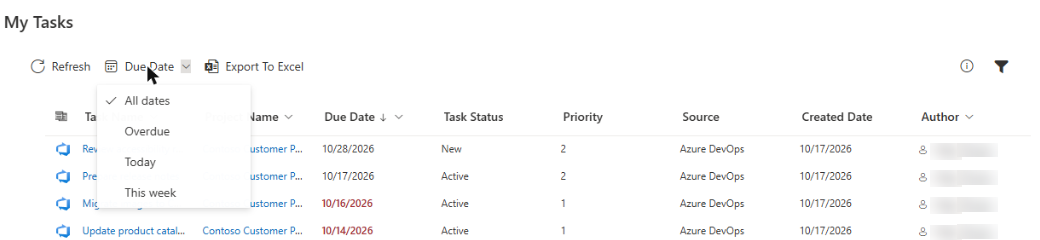
- Due Date menu on the command bar: All dates, Overdue, Today or This week (the next 7 days, including today).
- Filter button: the Edit Filter Criteria panel with the groups Project Name, Source, Task Status, Priority and Author. Several values in one group are combined with OR; the groups are combined with AND.
When a filter is active, the Filter icon is filled. To see all tasks again, choose All dates and clear the selections in the panel.
💡 Tip
Use Excluded Statuses for rules that apply to the whole team (for example, never show completed tasks) and leave everything else to the personal filters. If a user says that tasks are missing, ask them to check the Filter icon and the Due Date menu first; details are in KB10293. My Tasks: Filtering, Sorting and Personal View Settings and KB10307. Why Are My Tasks Missing or Not Loading?.