My Tasks
 Overview
The Azure DevOps Query web part of Vitextra My Tasks shows the result of saved Azure DevOps queries as a list. Beyond the basic list it offers several features for everyday work: up to four queries on tabs, a command bar to refresh the data, choose the columns and group the rows, sorting by a column header, and an expandable hierarchy for tree queries. This article describes each of them and explains what is remembered for you and what is not.
If the web part is not yet connected to a query, start with KB10304. Azure DevOps Query Viewer: Setup and Connecting a Query.
Query tabs
In the property pane, the group Data Source contains the drop-downs Additional query 1, Additional query 2 and Additional query 3. Each offers (none) and the saved queries of the same project. Together with the main Query you can show up to four queries.
- When more than one query is selected, their names appear as tabs above the command bar. A tab is named after the query. When only one query is selected, there are no tabs.
- If the same query is chosen twice, it is shown only once.
- Switching to a tab loads that query. Each tab has its own columns and grouping (see below).
- If you remove the query of the selected tab in the property pane, the web part switches to the first query.

The command bar
The command bar is shown when the toggle Command bar in the group Appearance is on. It contains:
| Item | What it does |
|---|---|
| Refresh | Reloads the work items of the current tab from Azure DevOps. |
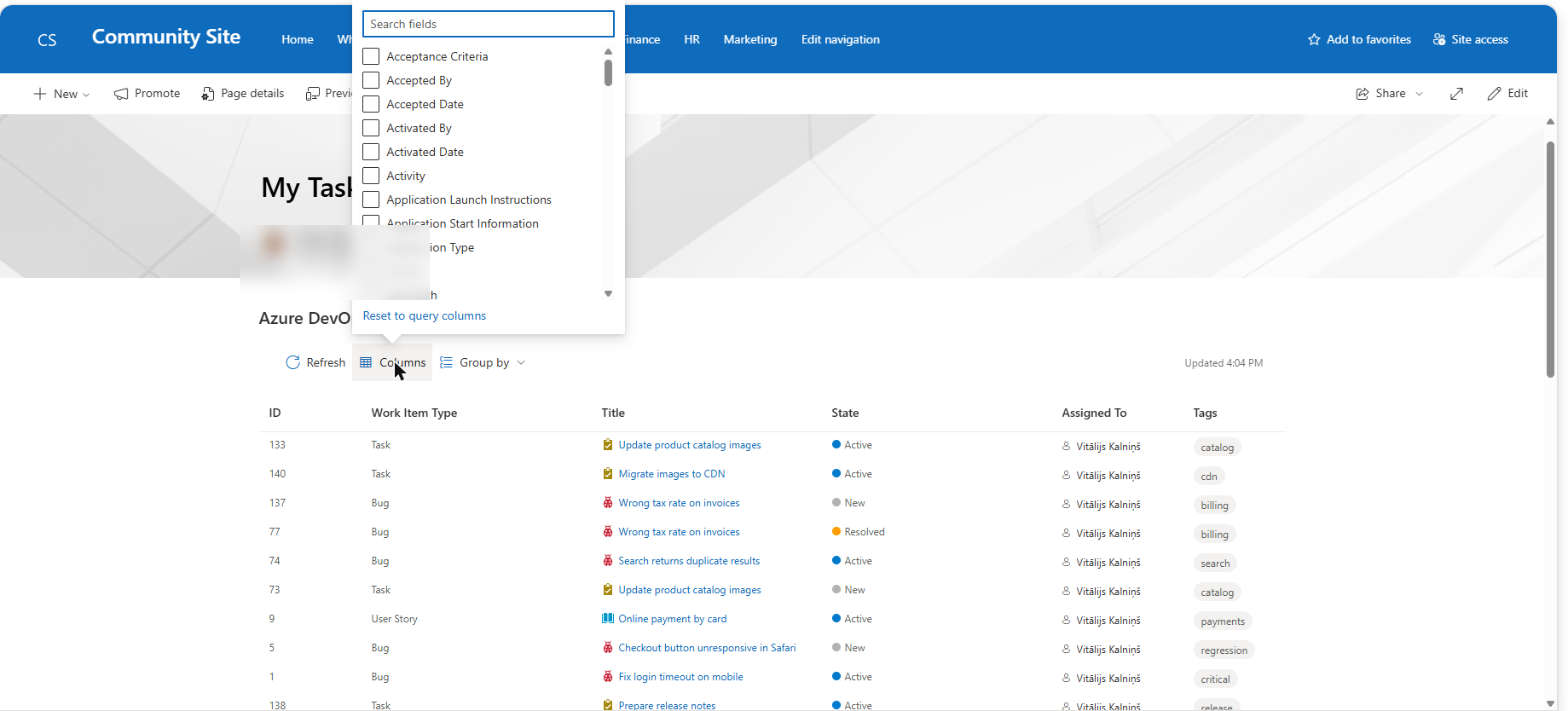
| Columns | Opens the list of fields to choose the columns (see the next section). |
| Group by | Groups the rows by a column. Available for flat queries only. |
| Updated | On the right: the time of the last data load, for example Updated 10:42. It changes after Refresh, after an automatic refresh and after the columns are changed. |
If the command bar is turned off, the users cannot choose columns or grouping, but they can still sort by clicking a column header.
Choosing columns and the field search box
By default, the list shows the columns that are defined in the query in Azure DevOps. Every user can change the columns for himself or herself:
- Click Columns. A callout opens with the search box Search fields and a list of check boxes.
- Tick the fields that you want to see and clear the ones you do not need. The list is sorted by field name and contains the fields of the whole project (all work item types), except fields of the history type. The list cannot be emptied: the last visible column cannot be cleared.
- Click outside the callout to close it. The data of newly added columns is loaded automatically a moment later.
- To return to the columns of the query, click Reset to query columns at the bottom of the callout.
📝 Note
The Search fields box only filters the list of fields inside the callout (by part of the field name, ignoring case). It is not a search over the work items: it does not look for words in the titles or the descriptions of the tasks shown in the list. To find a work item, use the query itself in Azure DevOps or sort and group the list.
Grouping
The Group by menu offers No grouping and every visible column except ID and Title (columns with rich text are not offered). After you choose a column, the rows are divided into groups with a header that can be collapsed and expanded. Rows with an empty value fall into the group (None). For people fields, the group is named after the display name.
Grouping is applied to the rows of the current page: if paging is on, the groups are built page by page. The sort order within a group follows the column sort, if any. See KB10304. Azure DevOps Query Viewer: Setup and Connecting a Query for the paging settings.
Sorting
For flat queries, click a column header to sort: the first click sorts in ascending order, the second one in descending order, and the third one removes the sort and returns the order of the query. Sorting is applied to all loaded rows, not only to the current page, and returns to the first page. The sort is not remembered: it is reset when you switch the tab or reload the page. Double-click a row (or select it and press Enter) to open the work item in Azure DevOps in a new tab.
Tree and one-hop queries
Tree queries and queries of work items and direct links are shown as an expandable hierarchy: children are indented under their parents, and a button expands or collapses a node. In these queries sorting and Group by are turned off, because they would break the hierarchy; the Group by item is not shown in the command bar. The order of the query is preserved.
❗ Important
At most 1000 work items are loaded per query. If the query returns more, an information bar says Item limit reached. Only the first 1000 items are loaded. The first 1000 items, in the order of the query, are shown. Narrow the query in Azure DevOps (for example by area path, iteration or state) so that everything you need fits in the limit. The paging setting Row Limit (5 to 100) is a different setting: it only defines how many rows are shown at once.
What is remembered for you
The chosen columns and the grouping are remembered in the browser (localStorage) for each user, for each web part on the page and for each query separately. This means that every tab keeps its own columns and grouping, and another user of the same page does not see your choices. The preferences are bound to the browser and the device: they are not synchronized between devices and disappear when the browser data is cleared. If the browser does not allow storage (for example in a private window), the choices work only until the page is reloaded.
Reset to query columns removes the saved columns of the current query; the grouping is changed separately in the Group by menu.
💡 Tip
Use tabs to give the team several ready-made views on one page, for example My open bugs, Sprint backlog and Blocked items, each with its own query. The queries are maintained in Azure DevOps, and the viewers only adjust the columns and grouping for themselves. Quick changes of the state, the assignee and the due date directly from the rows are described in KB10306. Azure DevOps Query Viewer: Quick Actions (Change State, Assign, Set Due Date, Add Comment); for the older description of the web part, see KB10209. How to Install and Configure the Azure DevOps Query Viewer Web Part.
If a tab shows Oops! something went wrong., click Refresh in the message; the possible causes are listed in KB10307. Why Are My Tasks Missing or Not Loading?.