Absence & Coverage
 Overview
Vitextra Absence & Coverage brings the everyday absence process into Microsoft 365. Employees request time off, managers approve or reject the requests, everybody sees who is away, and colleagues take over duties while a person is out — all on a SharePoint page or in Microsoft Teams, without a separate HR system and without sending data to an external service.
The solution consists of three web parts that work together on one shared site: My Absences, Team Absence Calendar and Substitutions. This article explains what each web part does, who works with it, where the data lives, what you need before you start and what this version of the product intentionally does not do.
The three web parts
| Web part | What it does | Typical users |
|---|---|---|
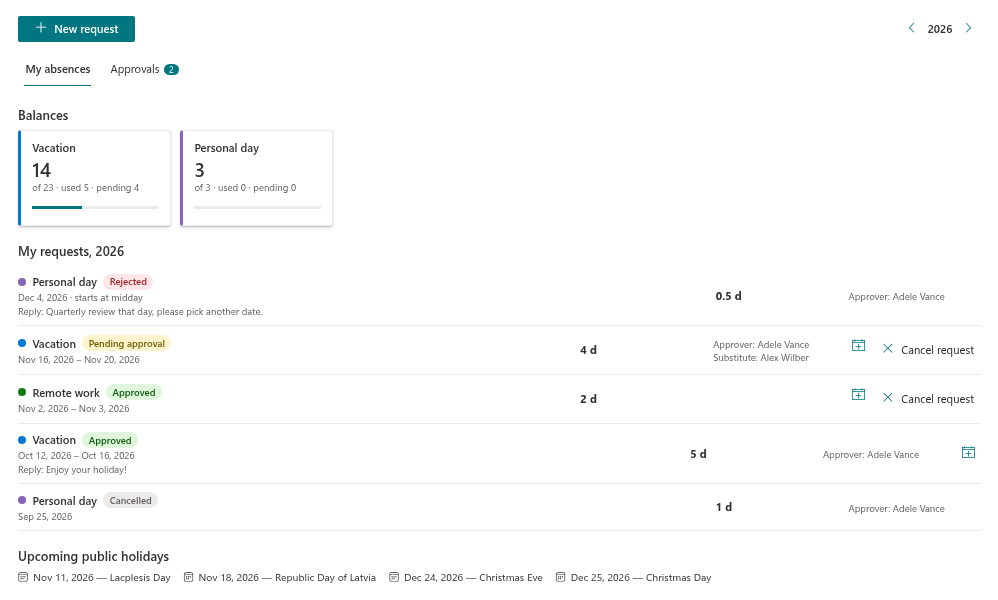
| My Absences | A personal page: balance cards per absence type, the list of your requests with their statuses, the New request panel (working days, half days, overlap and balance checks, a substitute), public holidays and an .ics file for your calendar. Managers get an Approvals tab with the requests waiting for their decision. | Every employee; managers and approvers |
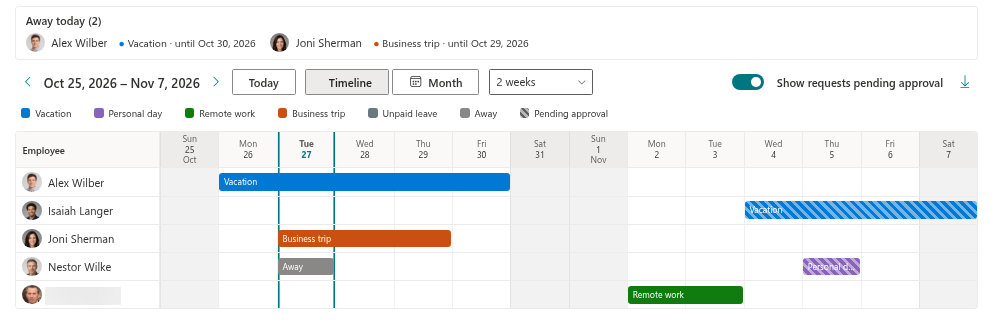
| Team Absence Calendar | A timeline (people by days) and a month view of who is away, an Away today (2) block with the substitutes, filtering by absence type, pending requests shown hatched, public holidays and weekends shaded, and an export to CSV. | Employees, managers, HR |
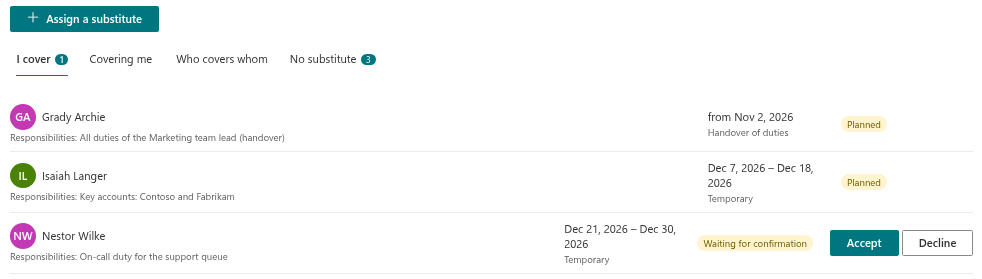
| Substitutions | Tabs I cover, Covering me and Who covers whom, and — for managers — No substitute. Colleagues accept or decline a substitution; managers assign substitutes and see absences nobody covers. | Substitutes, absent employees, managers |
Who uses what
| Role | What the person does | Where |
|---|---|---|
| Employee | Requests time off, follows the status, checks balances, cancels a request, adds an absence to a personal calendar | My Absences |
| Manager / approver | Approves or rejects requests, checks who else is away in the same period, assigns substitutes, finds absences without a substitute | My Absences (Approvals), Substitutions (No substitute), Team Absence Calendar |
| Colleagues | See who is away today and who covers them | Team Absence Calendar |
| Substitute | Accepts or declines a substitution and sees what has to be covered | Substitutions (I cover) |
| HR / site owner | Maintains absence types, yearly entitlements, public holidays and settings directly in the lists of the product site | SharePoint lists |
| IT administrator | Installs the package, approves the Microsoft Graph permission, makes sure employees can reach the site | SharePoint admin center |
How the data is stored
All data is kept in six SharePoint lists on one site of your own tenant. The first web part you add to a page asks you to pick this site and creates the lists there; the other web parts use the same site. Requests, substitutions, absence types, yearly entitlements, public holidays and settings therefore stay under your existing SharePoint governance, backup and retention rules. The only external call made by the web parts is the license check.
The web parts read and write the lists with the rights of the signed-in user. Employee names, managers, direct reports, departments and photos come from Microsoft Entra ID through Microsoft Graph.
The Substitutions list is also the data source for People Connector: it answers the question "who covers X", and a hand-over of duties without an end date stays active until it is ended.
Requirements
- Installation. The package is installed in the tenant App Catalog like any other Vitextra product — see KB10035. How to Install a Vitextra Product in SharePoint Online.
- Access to the product site. Every employee who uses the web parts needs Member (edit) access to the product site, because the lists are read and written with the user's own rights.
- Microsoft Graph permission. The package requests the User.Read.All permission (profile, manager, direct reports, department, people search, photos). A tenant administrator approves it in the SharePoint admin center under API access.
- Directory data. Approval routing and the calendar scopes rely on Microsoft Entra ID: a manager for each employee (otherwise a fallback approver is needed) and a department for the department scope.
- First setup. The person who selects the site for the first time must be a site owner of that site, because the lists are created at that moment.
Where it runs
The web parts run on modern SharePoint Online pages (including full-page apps) and in Microsoft Teams as a personal app and as a channel tab. The interface is available in 50 languages; dates, month and weekday names follow the culture of the page, and the first day of the week follows the culture too. Right-to-left languages are supported and the web parts follow the SharePoint site theme.
What is not included in this version
📝 Note
This version does not send e-mail or Microsoft Teams notifications: new requests, decisions and substitution requests are shown only inside the web parts (counters and badges on the tabs). It also does not write to Outlook calendars or set automatic replies — a request can be downloaded as a one-time .ics file instead. Accrual rules, blackout periods, a limit on simultaneous absences, delegation of approval (apart from a single fallback approver), item-level security on the lists, an administration web part for the reference lists and an import of public holidays by country are not part of this version either.
❗ Important
The privacy of an absence type is a display rule: colleagues see a grey "Away" instead of the type. Anyone who has access to the Absences list itself can still read the requests there. If strict confidentiality is required, restrict access to the product site accordingly.