Absence & Coverage
 Overview
After the product is installed in your tenant, each of its three web parts — My Absences, Team Absence Calendar and Substitutions — is added to a page like any other SharePoint web part. All three work on one product site that stores the absence lists. You select that site once, in the first web part you configure; the lists are created for you. The other web parts only need to point to the same site.
This article walks you through adding the first web part, selecting the site, what is created on it, how to connect the remaining web parts, and which settings each web part offers in its property pane.
💡 Tip
The product must be installed first. For the installation steps, see KB10035. How to Install a Vitextra Product in SharePoint Online.
Before you start
- You can edit the page where the web part will be placed.
- You know the site that will hold the absence lists. Every employee who uses the web parts needs Member (edit) access to it. Because the lists contain absence data, a dedicated site is easier to manage than a busy team site.
- You are a site owner of that site. Creating the lists requires it; with lower rights the creation fails (see Troubleshooting).
Add the first web part and select the site
- Open the page and click Edit.
- Click + where the web part should appear, find My Absences (or Team Absence Calendar, or Substitutions) in the toolbox and add it.
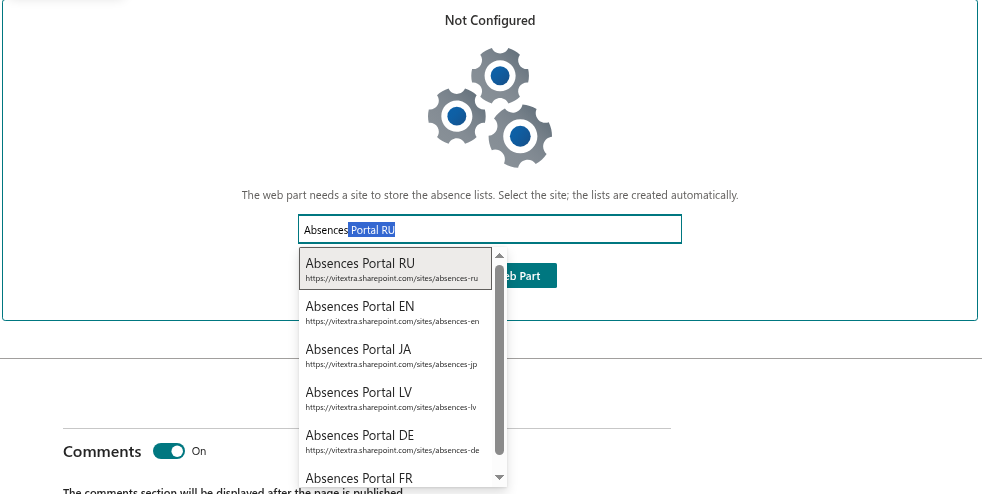
- The web part shows the Not Configured screen with the text "The web part needs a site to store the absence lists. Select the site; the lists are created automatically." and, in edit mode, a site picker with the placeholder "Type a site name or address".
- Type the name or the address of the site in the field and select the site in the list of suggestions.
- The web part shows Creating the lists, please wait... and, when it is done, switches to its normal view.
- Give the web part a title if you like (the title field in edit mode shows "Web Part Title"), then click Publish to make the page available to everybody.
📝 Note
The site picker is shown in edit mode only. A visitor who opens a page whose web part is not configured sees just the message and the explanation. The Configure Web Part button, also shown in edit mode only, opens the property pane.
What is created on the site
When you select a site, the web part creates six lists there. If the lists already exist (for example, because another web part created them earlier), they are reused and nothing is overwritten.
| List | Purpose |
|---|---|
AbsenceTypes | The catalogue of absence types |
Absences | Absence requests |
Substitutions | Substitutions |
Balances | Yearly entitlements and carry-over per person and type (optional) |
Holidays | Public holidays (optional) |
Settings | Key/value settings: working week, fallback approver, negative balances (optional, created empty) |
The Balances, Holidays and Settings lists are optional: if one of them is empty, the web parts use defaults and keep working. The full column reference is in KB10351. Absence & Coverage Lists: What Is Stored Where.
The AbsenceTypes list is filled once with seven default absence types, named in the language of the person who sets the site up:
| Type | Approval | Half days | Private | Days per year |
|---|---|---|---|---|
| Vacation | Yes | Yes | No | 20 |
| Sick leave | No | Yes | Yes | no limit |
| Personal day | Yes | Yes | No | 3 |
| Remote work | No | Yes | No | no limit |
| Business trip | Yes | No | No | no limit |
| Unpaid leave | Yes | Yes | No | no limit |
| Parental leave | Yes | No | Yes | no limit |
You can change these types or add your own — see KB10352. How to Add and Configure Absence Types.
Connect the other web parts to the same site
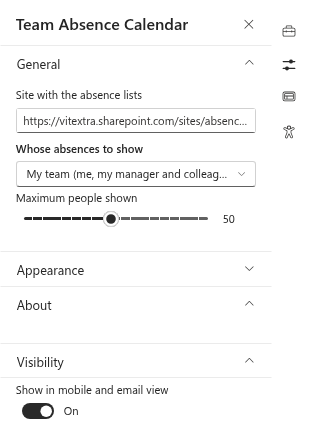
Add the second and third web part to the same page or to other pages. Each web part that has no site yet shows the same Not Configured screen. Select the same site again: because the lists exist, they are only reused. Alternatively, open the property pane of the web part (for example with the Configure Web Part button) and enter the site address in the field Site with the absence lists.
❗ Important
All web parts of a tenant that should show the same absences must point to the same site. A web part pointed to a different site works with the lists of that site. If the site no longer contains the lists, the web part shows a message asking you to open the page in edit mode and select the site again.
Property pane settings
The property pane has the groups General, Appearance (not in Substitutions) and About (license information). The groups open as an accordion. These are the settings and their default values:
| Web part | Group | Setting | Default |
|---|---|---|---|
| My Absences | General | Site with the absence lists | — |
| My Absences | Appearance | Show balances | On |
| My Absences | Appearance | Show public holidays | On |
| Team Absence Calendar | General | Site with the absence lists | — |
| Team Absence Calendar | General | Whose absences to show | My team (me, my manager and colleagues) |
| Team Absence Calendar | General | Maximum people shown | 50 (slider 5–100, step 5) |
| Team Absence Calendar | Appearance | Default view | Timeline |
| Team Absence Calendar | Appearance | Default timeline range | 2 weeks |
| Team Absence Calendar | Appearance | Show requests pending approval | On |
| Team Absence Calendar | Appearance | Show weekends (timeline) | On |
| Team Absence Calendar | Appearance | Show public holidays | On |
| Substitutions | General | Site with the absence lists | — |
| Substitutions | General | Default tab | I cover |
| Substitutions | General | Show absences without a substitute (for managers) | On |
The meaning of the calendar settings is explained in KB10339. Team Absence Calendar: Timeline and Month Views.
Microsoft Teams
The same web parts run in Microsoft Teams as a personal app and as a channel tab. The site is selected in the same way. In the personal app, the configuration saved for the app is applied over the local web part properties; channel tabs use the properties of the tab itself.
Troubleshooting
| Message | Cause | Solution |
|---|---|---|
| The lists could not be created on this site. Make sure you are a site owner and try again. | The lists could not be created on the site — most often because the person who selected it is not a site owner. The selection is reverted. | Ask a site owner of the target site to select it, or make yourself a site owner, and try again. |
| The absence lists were not found on the configured site. Open the page in edit mode and select the site again. | The configured site no longer contains the absence lists. | Open the page in edit mode and select the site again. |
| No absence types are configured. Add them to the AbsenceTypes list of the site. | The AbsenceTypes list has no active types (shown in My Absences, where the New request button is disabled). | Add or reactivate a type — see KB10352. How to Add and Configure Absence Types. |