Absence & Coverage
 Overview
An absence request does not count calendar days — it counts working days. A vacation from Monday to the following Monday spans eight calendar days but only six working days, and a week that contains a public holiday is not five days long. The number of working days decides how much of your balance a request uses, what the approver sees and what appears in the calendar tooltip and in the CSV export.
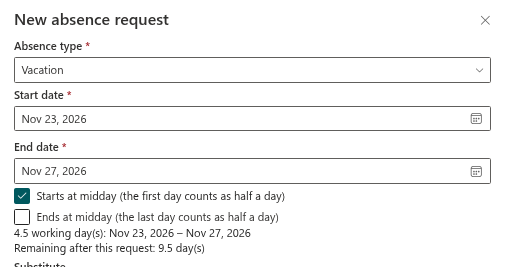
This article explains the rules the My Absences web part applies when you fill in the New absence request panel, shows worked examples and clarifies what happens to the number after the request has been sent.
The rules
The web part goes through every calendar day from the start date to the end date, inclusive, and adds up the days that count:
- A day counts as 1 if its weekday belongs to the working week and the date is not a public holiday.
- A day that is not a working weekday, or that is listed as a public holiday, counts as 0.
- If Starts at midday (the first day counts as half a day) is selected, the first day counts as 0.5 instead of 1.
- If Ends at midday (the last day counts as half a day) is selected, the last day counts as 0.5 instead of 1. This option exists only for periods of more than one day.
- For a single day, only Starts at midday (the first day counts as half a day) is available, and the day counts as 0.5.
- The two half-day options are ignored for absence types that do not allow half days.
The working week comes from the WorkDays row of the Settings list. By default it is Monday to Friday; the administrator can change it — see KB10355. How to Set the Working Week. Public holidays come from the Holidays list — see KB10354. How to Add Public Holidays. If either list is empty or missing, the defaults apply: Monday to Friday and no holidays.
Examples
The examples use the default working week (Monday to Friday) unless stated otherwise.
| Request | Period (2026) | Result |
|---|---|---|
| Monday to Friday | 5 Oct – 9 Oct | 5 |
| Two weeks; the weekend is skipped | 5 Oct – 16 Oct | 10 |
| Wednesday 7 Oct is a public holiday | 5 Oct – 9 Oct | 4 |
| Starts at midday (the first day counts as half a day) selected | 5 Oct – 9 Oct | 4.5 |
| Both half-day options selected | 5 Oct – 9 Oct | 4 |
| One day, Starts at midday (the first day counts as half a day) selected | Tuesday 6 Oct | 0.5 |
| Friday to Monday, Ends at midday (the last day counts as half a day) selected | 9 Oct – 12 Oct | 1.5 (Friday 1 + Monday 0.5) |
| Saturday to Monday, Starts at midday (the first day counts as half a day) selected | 10 Oct – 12 Oct | 1 (the half day falls on a Saturday, which does not count; Monday counts in full) |
| Saturday and Sunday only | 10 Oct – 11 Oct | 0 — the request cannot be submitted |
| Working week Sunday to Thursday | 5 Oct – 11 Oct | 5 (Monday to Thursday and Sunday) |
📝 Note
A weekend or a holiday in the middle of a period is simply not counted — you do not need to split the request. A period that consists only of non-working days has 0 working days: the panel shows the warning "The selected period contains no working days." and the request cannot be sent.
Where the number is stored and used
When the request is submitted, the calculated number is saved with it in the WorkingDays column of the Absences list (a number with one decimal place). From then on, every part of the product reads this stored value and does not calculate it again:
- the balance cards in My Absences — approved and pending requests are added up from the stored days (KB10328. How to Read Your Absence Balances);
- the number of days in the request row and in the approver's queue;
- the tooltip and the CSV export of the Team Absence Calendar.
The calendar's shaded columns for non-working days and holidays, in contrast, are drawn from the settings that are current when the page is opened.
❗ Important
Changing the working week or adding a public holiday affects only requests submitted afterwards. Requests that are already stored keep their number of days. If an old request has to be counted differently, cancel it and submit a new one — see KB10330. How to Cancel an Absence Request.
Where to change the rules
| What | Where | Article |
|---|---|---|
| Working week | Settings list, key WorkDays | KB10355. How to Set the Working Week |
| Public holidays | Holidays list | KB10354. How to Add Public Holidays |
| Half days allowed for a type | AbsenceTypes list | KB10352. How to Add and Configure Absence Types |
💡 Tip
Before you submit a request that borders a weekend or a public holiday, check the summary line in the panel: it shows the exact number of working days and, for types with a balance, how many days remain afterwards. How half days work is described in KB10327. How to Request Half a Day Off.