Absence & Coverage
 Overview
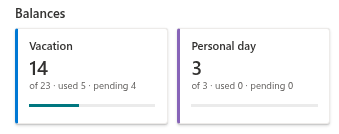
At the top of the My Absences web part, the Balances section shows one card for every absence type that has a limit, for example Vacation or Personal day. Each card answers the question "How many days do I have left this year?" at a glance and also tells you how many days are already taken and how many are waiting for approval.
This article explains every element of a card, the formulas behind it and the rules that decide which requests count. The examples use fictional data for the employee Anna Berzina.
Anatomy of a balance card
| Element | What it shows |
|---|---|
| Colour edge and title | The absence type and the colour defined for it |
| Big number | The remaining days of the year |
| Caption | of 20 · used 5 · pending 3 |
| Progress bar | The share of the entitlement that is used or pending |
Half days appear with one decimal, for example 7.5.
How the numbers are calculated
- Entitlement — the total number of days you may take in the year.
- Used — the days of your Approved requests.
- Pending — the days of your Pending requests, which are waiting for a decision.
- Remaining = entitlement − used − pending.
- Progress bar = (used + pending) ÷ entitlement. The bar never goes beyond 100%.
Pending days are subtracted at once, so the number you see is the balance you would have if all your pending requests were approved. Requests that are Rejected or Cancelled are not counted and their days are released. See KB10329. Absence Request Statuses: Pending, Approved, Rejected and Cancelled.
❗ Important
A request is booked completely to the year in which it starts. A request from 28 December 2026 to 6 January 2027 reduces the 2026 balance in full and does not touch the 2027 balance, although it is shown in the request list of both years.
Where the entitlement comes from
The entitlement is taken from one of two places:
- If your administrator has entered a row for you, the absence type and the year in the Balances list, the entitlement is that row's Entitlement plus its CarryOver. This is how personal entitlements and days carried over from the previous year are handled.
- Otherwise the entitlement is the yearly allowance (AnnualAllowance) of the absence type, the same for every employee. In the default configuration Vacation has 20 days and Personal day has 3 days.
Rows are matched by your e-mail address, the absence type and the year shown in the web part. Administrators find the setup steps in KB10353. How to Set Yearly Entitlements and Carry-Over Days.
Which absence types get a card
A card is shown for an active absence type when its yearly allowance is greater than 0, or when a Balances row exists for you, that type and the year. Types with allowance 0 and no Balances row have no limit and therefore no card. In the default configuration, Sick leave, Remote work, Business trip, Unpaid leave and Parental leave have no card.
Two further rules:
- Inactive absence types are not shown.
- Your administrator can hide the whole section with the Show balances option in the web part properties.
Use the year arrows at the top of the web part to look at another year. The balances and the list of requests change together.
Remaining days while you create a request
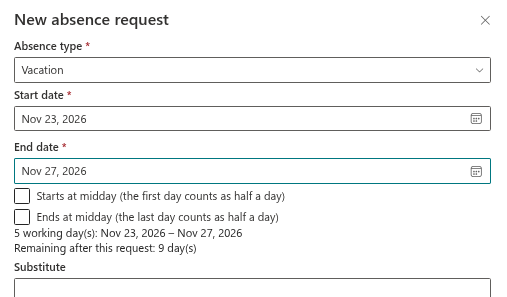
When you fill in the New absence request panel, the summary shows Remaining after this request for types that have a balance. The value is the current remaining days minus the days of the new request. It is shown only when the start date is in the year currently shown in the web part, so switch to the right year before you create a request for another year.
If the new request would exceed your remaining days, the message The request exceeds your remaining balance for this absence type. is shown and the request cannot be submitted. If your administrator allows negative balances, the same text appears as a warning and you can still submit. In that case the card shows a negative remaining number and a full progress bar. See KB10357. How to Allow Negative Balances.
Worked examples
The examples use Vacation with the default allowance of 20 days, unless stated otherwise.
| Situation | Entitlement | Used | Pending | Remaining |
|---|---|---|---|---|
| No requests yet | 20 | 0 | 0 | 20 |
| Approved: 5 days in November. Pending: 3 days in December | 20 | 5 | 3 | 12 |
| Same as above, and a rejected request of 4 days | 20 | 5 | 3 | 12 |
| Balances row: Entitlement 22, CarryOver 3 | 25 | 0 | 0 | 25 |
| Approved: 12 days and one half day (12.5 days) | 20 | 12.5 | 0 | 7.5 |
| Approved: 21 days (negative balances allowed) | 20 | 21 | 0 | −1 |
📝 Note
The balance is calculated from your requests when the web part loads. After you submit, approve or cancel a request, the cards are refreshed automatically.