Absence & Coverage
 Overview
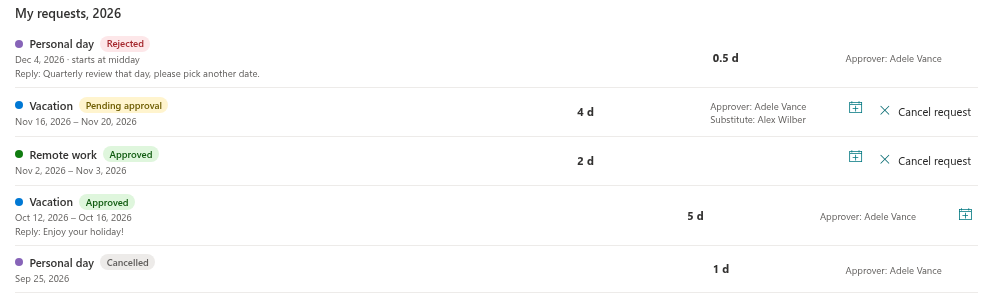
Every absence request in Vitextra Absence & Coverage has exactly one status. The status is shown as a coloured pill next to the request in the My Absences web part and decides how the request counts: in your balance, in the Team Absence Calendar and for your substitute.
This article explains the four statuses, what changes a status, and what each status means for the rest of the product.
The four statuses
| Status | Pill text | Meaning |
|---|---|---|
| Pending | Pending approval | The request is waiting for the decision of the approver |
| Approved | Approved | The absence is confirmed. This is also the status of requests that need no approval |
| Rejected | Rejected | The approver declined the request. The status is final |
| Cancelled | Cancelled | The request was withdrawn by the employee. The status is final |
What sets a status
At submission the status depends on the absence type and the approver:
- If the absence type does not require approval (by default Sick leave and Remote work), the request is saved as Approved at once. The panel tells you this in advance: This absence type does not need approval: the request is approved immediately.
- If the type requires approval and the approver is you (for example, you have no manager and you are the fallback approver), the request is also Approved at once, with the message The request was approved automatically.
- In all other cases the request is saved as Pending approval and you see The request was sent for approval.
After submission only two things change a status:
- The approver selects Approve or Reject in the Approvals tab. The employee then sees the pill change and the optional reply.
- The employee selects Cancel request on a Pending or Approved request.
📝 Note
The product does not send e-mail or Teams notifications. Employees see the new status when they open My Absences, and approvers see new requests in the Approvals tab, whose badge shows the number of pending requests.
Transitions
| From | To | Triggered by |
|---|---|---|
| (new request) | Approved | Submission of a type without approval, or of a request that the employee approves themselves |
| (new request) | Pending | Submission of a type that requires approval |
| Pending | Approved | The approver selects Approve |
| Pending | Rejected | The approver selects Reject (a comment is required) |
| Pending | Cancelled | The employee selects Cancel request |
| Approved | Cancelled | The employee selects Cancel request before the end date has passed |
| Rejected, Cancelled | — | No further change in the web parts |
There is no action that reopens a rejected or cancelled request. The employee submits a new request instead. An approved request cannot be turned into a rejected one in the web parts; it can only be cancelled by the employee.
What each status means for the rest of the product
| Pending | Approved | Rejected | Cancelled | |
|---|---|---|---|---|
| Balance card | Counted as pending, already subtracted from the remaining days | Counted as used | Not counted | Not counted |
| Overlap check for new requests | Blocks overlapping requests | Blocks overlapping requests | Ignored | Ignored |
| Team Absence Calendar | Shown hatched, if pending requests are shown | Shown in the type colour | Never shown | Never shown |
| Away today | Not listed | Listed | Not listed | Not listed |
| Substitute named in the request | No substitution yet | A substitution is created and waits for the substitute's confirmation | Linked substitutions are cancelled | Linked substitutions are cancelled |
| Absences without a substitute (Substitutions) | Not considered | Considered | Not considered | Not considered |
| .ics file | Available | Available | Not offered | Not offered |
For a request that was approved automatically, the substitution is created immediately after submission.
Where you can see the status
- My Absences, My absences tab. The pill next to every request of the selected year, including Rejected and Cancelled requests.
- My Absences, Approvals tab. The approver sees only Pending requests that are assigned to them.
- Team Absence Calendar. Only Pending and Approved absences. The toggle Show requests pending approval controls the hatched pending entries. See KB10341. How to Read the Team Absence Calendar: Colors, Hatching and Marks.
- CSV export. The Status column contains the raw values Pending or Approved, which are not translated.
The reply comment
When the approver decides, they can add a comment. For Reject the comment is required, for Approve it is optional. The employee sees it in the request row as Reply: …, for Approved and Rejected requests alike. The approver is also shown in the row as Approver: …. The approver of a request is fixed at the time of submission, so a later change of the manager does not move existing requests (see KB10336. Who Approves Absence Requests: Manager, Fallback Approver and Self-Approval).
💡 Tip
If a request was rejected, read the reply, then submit a new request with other dates. To withdraw a request yourself, see KB10330. How to Cancel an Absence Request.