Absence & Coverage
 Overview
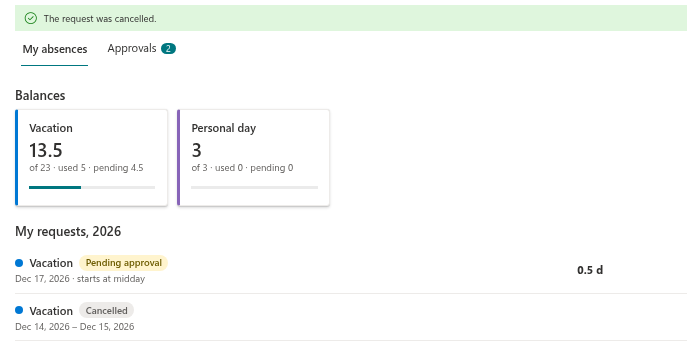
Plans change. In the My Absences web part of Vitextra Absence & Coverage you can withdraw a request yourself, whether it is still waiting for approval or has already been approved. The request stays in your list with the status Cancelled, your days are released, and the absence disappears from the Team Absence Calendar.
This article explains who can cancel which requests, how to do it and what the cancellation changes.
Who can cancel a request and when
The Cancel request action is shown in the row of a request when both conditions are met:
- the status is Pending approval or Approved, and
- the end date of the request has not passed, which means the end date is today or later.
This means you can also cancel a request that has already started, for example when you return to work earlier than planned.
| Request | Cancel request shown? |
|---|---|
| Pending approval, end date today or later | Yes |
| Approved, end date today or later | Yes |
| Approved, end date in the past | No |
| Rejected or Cancelled | No |
Only the employee who submitted a request can cancel it in the web parts. The approver and the manager do not have a cancel action; an approver can only approve or reject requests that are pending.
How to cancel a request
- Open the page with the My Absences web part.
- If the request is in another year, use the year arrows at the top of the web part until the My requests section shows the right year.
- Find the request in the list.
- Select Cancel request at the right end of the row.

The request is cancelled immediately and the message The request was cancelled. appears.
❗ Important
There is no confirmation dialog. As soon as you select Cancel request, the request is cancelled and the action cannot be undone in the web part. To get the days back after a mistaken cancellation, you have to submit a new request, which for a type with approval goes through the approver again.
What happens after you cancel
| Area | Effect |
|---|---|
| Status | The request changes to Cancelled and stays in the list of the year. It has no actions any more |
| Balance | The days of the request no longer count as used or pending, so the remaining days increase accordingly |
| Team Absence Calendar | The absence is no longer shown, including in the Away today block and the CSV export |
| Approver | A pending request disappears from the Approvals tab of the approver |
| Substitute | Substitutions created for this request are set to Cancelled and disappear from the I cover and Covering me tabs of the substitute and the absent person |
| Calendar file | The Add to my calendar icon is no longer offered for the request |
The calendar file is a one-time snapshot. If you have already imported the absence into Outlook or Google Calendar, delete that event there yourself; the cancellation is not synchronised to it. See KB10333. How to Add an Absence to Your Outlook or Google Calendar (.ics File).
📝 Note
The product sends no e-mail or Teams messages. Your approver, your substitute and your colleagues are not notified of the cancellation. If they are expecting you to be away, tell them yourself.
Requests in the past
When the end date of a request has passed, the Cancel request action is no longer available, even if the status is still Approved. The web part cannot change such a request. If a past request was entered by mistake, or an absence did not take place, contact your HR department or the administrator of the site, who can correct the record.
If your absence is still running and you only want to change the dates, cancel the request, then submit a new one with the correct dates. Make sure the new period does not overlap with a request that is still active, because overlapping requests are not accepted.
💡 Tip
If you only want to change the substitute, you do not need to cancel the request. A substitution can be cancelled separately by the absent person in the Substitutions web part. See KB10350. How Absence Requests and Substitutions Work Together.