Absence & Coverage
 Overview
When you click Submit request in the New absence request panel of the My Absences web part, the web part checks the request and either saves it or shows a red message at the top of the panel. This article lists every message that can stop you, explains why it appears and tells you what to do — both as an employee and as the person who administers the product site.
Some problems are also shown while you are still filling in the form, before you click Submit request: a warning about missing working days, a red message about an overlap and a message about the balance. The panel does not disable the button; it simply refuses to save and shows the first problem it finds, in the order of the table below.
| Order | Message | Section |
|---|---|---|
| 1 | No absence types are configured. Add them to the AbsenceTypes list of the site. | No absence types |
| 2 | Select the absence type. / Select the start and end dates. | Type and dates |
| 3 | The end date cannot be earlier than the start date. | End date before start date |
| 4 | The selected period contains no working days. | No working days |
| 5 | The period overlaps with another request of yours. | Overlap |
| 6 | The request exceeds your remaining balance for this absence type. | Insufficient balance |
| 7 | You cannot be your own substitute. | Substitute is yourself |
| 8 | No approver was found: … | No approver |
| 9 | The absence lists were not found on the configured site. … | Lists not found |
| 10 | Sorry, something went wrong. … | General error |
No absence types
What you see. The New request button is disabled and a yellow bar says No absence types are configured. Add them to the AbsenceTypes list of the site.
Cause. The web part offers only active absence types. The list is empty, or every type has been switched off.
Solution for the employee. Contact the person who administers the product site; you cannot add types from the web part.
Solution for the administrator. Open the AbsenceTypes list of the product site and add a type, or set Active to Yes on an existing one. A new site gets seven default types when the lists are created, so an empty list usually means that they were deleted. See KB10352. How to Add and Configure Absence Types.
Type and dates are missing
What you see. Select the absence type. or Select the start and end dates.
Cause. The Absence type, Start date or End date field is empty. The first type in the list is preselected, so the first message is rare; the second one appears when you submit without choosing dates.
Solution. Pick the dates. When you choose a Start date, the End date is filled with the same day if it is empty or earlier. Nothing needs to be changed by the administrator.
End date before start date
What you see. The end date cannot be earlier than the start date.
Cause. The end date is earlier than the start date. The End date calendar does not offer earlier days, so you only get this message if the dates were changed in an unusual order.
Solution. Set the end date to the start date or later.
No working days in the period
What you see. A yellow warning while you fill in the form and, on submit, a red The selected period contains no working days.
Cause. A request needs at least part of a working day. Weekends and public holidays are not counted, and the working week is defined in the product settings. A period such as Saturday to Sunday, or a single public holiday, counts as zero days.
Solution for the employee. Include at least one working day, or check the number in the summary line under the dates (N working day(s): period). How the days are counted is explained in KB10326. How Working Days Are Calculated in Absence Requests.
Solution for the administrator. If a normal working day is counted as non-working, check the WorkDays row in the Settings list and the Holidays list (KB10355. How to Set the Working Week, KB10354. How to Add Public Holidays).
The request overlaps another request
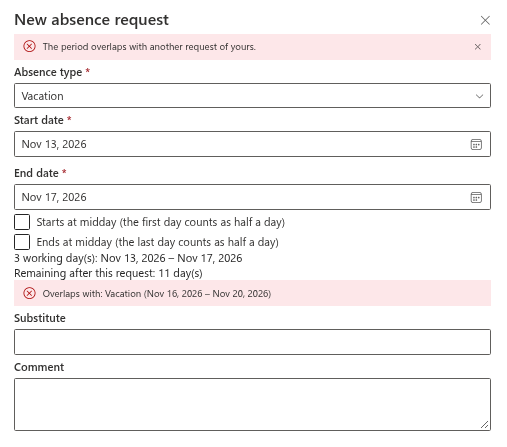
What you see. A red message under the dates: Overlaps with: …, naming the type and the period of your other request, and on submit The period overlaps with another request of yours.
Cause. The new period overlaps one of your own requests that is Pending approval or Approved. Rejected and cancelled requests are ignored.
Solution for the employee. Shorten the new request, or cancel the old one first (KB10330. How to Cancel an Absence Request). If you want to take the morning of one day under one request and the afternoon under another, use half days: the first request must end at midday and the second must start at midday on the same day. This only works when both are multi-day requests; a single-day request always collides. See KB10327. How to Request Half a Day Off.
Solution for the administrator. The rule cannot be switched off. If the old request is in the past and can no longer be cancelled in the web part, an administrator can change its status in the Absences list.
Insufficient balance
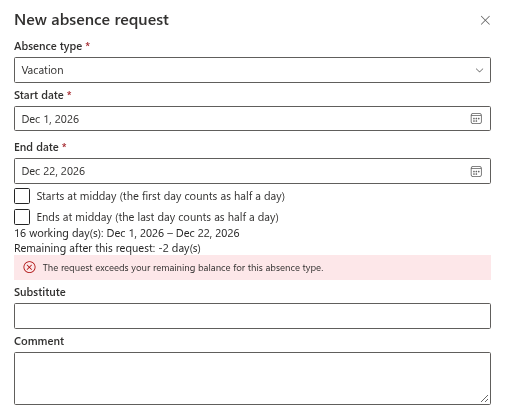
What you see. A red message The request exceeds your remaining balance for this absence type. The line Remaining after this request shows a negative number.
Cause. The working days of the request are more than the remaining entitlement of this type. Pending requests are counted as well as approved ones, and a request is booked to the year in which it starts. The check runs when the request starts in the year shown in the web part.
Solution for the employee. Shorten the request, choose another type, or ask for more days. Your current entitlement is on the balance cards (KB10328. How to Read Your Absence Balances).
Solution for the administrator. Adjust the entitlement or carry-over days in the Balances list (KB10353. How to Set Yearly Entitlements and Carry-Over Days), or allow negative balances for the whole site; the error then becomes a warning and the request can be submitted (KB10357. How to Allow Negative Balances).
You named yourself as the substitute
What you see. You cannot be your own substitute.
Cause. The person selected in the Substitute field is you.
Solution. Select a colleague, or clear the field; naming a substitute is optional (KB10332. How to Name a Substitute When You Request Time Off).
No approver was found
What you see. No approver was found: you have no manager in the directory and no fallback approver is configured. Please contact HR.
Cause. The type needs approval. The web part takes your manager from Microsoft Entra ID, and when you have none it uses the fallback approver from the product settings. Neither exists. Types that do not need approval are never affected.
Solution for the employee. Ask HR to fill in your manager in Microsoft Entra ID.
Solution for the administrator. Fill in the manager in Microsoft Entra ID, or set the FallbackApprover row in the Settings list (KB10356. How to Set the Fallback Approver). The rules for choosing the approver are in KB10336. Who Approves Absence Requests: Manager, Fallback Approver and Self-Approval.
The absence lists were not found
What you see. Instead of the web part, an error text: The absence lists were not found on the configured site. Open the page in edit mode and select the site again.
Cause. The site chosen in the web part does not contain the absence lists.
Solution for the administrator. Edit the page, open the property pane and select the correct site in Site with the absence lists. See KB10324. How to Add the Absence & Coverage Web Parts to a Page and Select the Site. The person who selects the site must be its owner so that missing lists can be created.
A general error
What you see. Sorry, something went wrong. Please refresh the page and try again.
Cause. The request could not be saved or loaded for a reason the web part cannot name, such as a lost connection or missing permissions.
Solution for the employee. Refresh the page and submit the request again. Check the My requests, 2026 section first: if the request is already there, do not submit it a second time.
Solution for the administrator. Check that the employee has Member (edit) access to the product site, because the web parts read and write the lists with the signed-in user's permissions.
❗ Important
No e-mail or Teams message is sent when a request is submitted. If the request is saved with the status Pending approval, tell your approver; the approver sees it in the Approvals tab.
📝 Note
The warnings about working days, overlaps and the balance are shown while you fill in the form. Change the dates or the type and they disappear, so you can fix the request before you click Submit request.