Absence & Coverage
 Overview
When you go on leave, someone usually has to pick up your work. The New absence request panel of the My Absences web part lets you name that person while you request the time off. You choose one colleague in the Substitute field; the web part then creates a substitution for the same dates, and your colleague confirms it in the Substitutions web part.
Naming a substitute is optional. You can also leave the field empty and let your manager assign a substitute later, or assign one yourself in the Substitutions web part.
Choose a substitute in the request
- In My Absences, click New request.
- Select the Absence type and the dates as usual (KB10325. How to Request Time Off in My Absences).
- In the Substitute field, start typing a name and pick the colleague from the suggestions. The field accepts one person only.
- Add a Comment if the approver or the substitute needs context, and click Submit request.
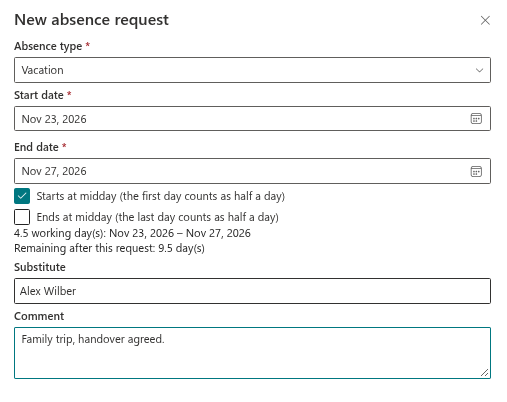
You cannot name yourself: the panel shows You cannot be your own substitute. and does not save the request (KB10331. Why You Cannot Submit an Absence Request: Messages and Solutions).
When the substitution is created
The substitute is stored on your request. The substitution itself, a Temporary substitution for the dates of the request, is created at the moment your request is approved:
| Your request | When the substitution appears | Its status |
|---|---|---|
| The absence type needs approval | When the approver clicks Approve | Waiting for confirmation |
| The type needs no approval, or you are your own approver | Immediately, when you submit | Waiting for confirmation |
Until then, the request is Pending approval and the substitution does not exist. The approver sees your choice in the Approvals tab, in the line Substitute: …, and can approve or reject the request with that in mind (KB10334. How to Approve or Reject an Absence Request).
The substitute has to confirm
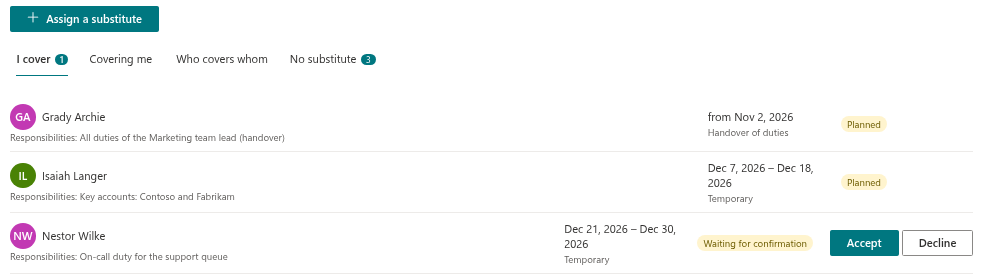
A substitution is not active until the colleague accepts it. In the Substitutions web part the colleague sees the new row on the I cover tab, with a number in the tab badge, and the buttons Accept and Decline. No e-mail or Teams message is sent, so tell your colleague that the request is waiting for them (KB10347. How to Accept or Decline a Substitution).
| What the colleague does | What happens |
|---|---|
| Clicks Accept | The status becomes Accepted. Before the first day it is shown as Planned, during the absence as In progress. |
| Clicks Decline | The status becomes Declined. Your absence stays approved, but it has no confirmed substitute. |
| Does nothing | The substitution stays Waiting for confirmation. |
❗ Important
An unconfirmed substitute is still shown as covering you in the Covered by line of the Away today block of the Team Absence Calendar. Make sure that your colleague really accepts.
If the request is rejected or cancelled
The substitution is tied to your request. If the approver clicks Reject, the request ends and no substitution is created, because it would only have been created at approval. If you use Cancel request, every substitution tied to the request gets the status Cancelled, including one that has already been accepted. The colleague no longer sees it in the I cover tab. See KB10330. How to Cancel an Absence Request.
Who sees the substitute
| Who | Where |
|---|---|
| You | In the row of your request: Substitute: …; on the Covering me tab of the Substitutions web part once the substitution exists |
| The approver | In the Approvals tab: Substitute: … |
| The substitute | On the I cover tab of the Substitutions web part |
| Your manager | On the No substitute tab, an absence of a direct report shows the pill Waiting for or declined until a substitute accepts |
| Colleagues | In the Team Absence Calendar: Substitute: … in the tooltip and Covered by in the Away today block |
Naming a substitute in the request and assigning one separately
You can also create a substitution without a request, with the Assign a substitute button in the Substitutions web part (KB10337. How to Assign a Substitute to Your Direct Report). The two ways differ:
| In the absence request | Assign a substitute | |
|---|---|---|
| Dates | Taken from the request | Entered by you |
| Kind | Temporary | Temporary or Handover of duties |
| Responsibilities text | Not available in the request panel | Available |
| Link to the request | Tied to the request: rejected or cancelled together with it | Independent, unless started from the No substitute tab with Assign |
| Who can create it | The employee who requests the time off | Anyone, for any absent person |
📝 Note
If your colleague declines, or you forgot to name a substitute, your manager sees the absence on the No substitute tab and can use Assign there (KB10338. How to Find Absences Without a Substitute).