Absence & Coverage
 Overview
When an employee submits an absence request for a type that needs approval, the request gets the status Pending approval and appears in the Approvals tab of the My Absences web part of the approver. This article shows how to find the requests that are waiting for your decision, how to approve or reject them, and what happens afterwards.
The approver of a request is normally the employee's manager, or the fallback approver if the employee has no manager in Microsoft Entra ID (KB10336. Who Approves Absence Requests: Manager, Fallback Approver and Self-Approval). The approver is fixed when the request is submitted.
Open the Approvals tab
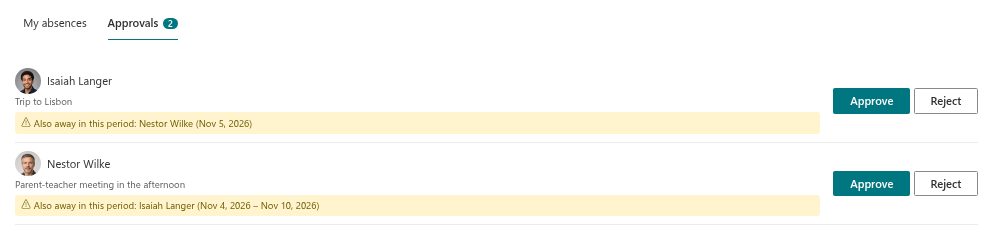
The web part shows two tabs, My absences and Approvals, to a person who has requests to decide or who has direct reports in Microsoft Entra ID. Employees without direct reports see only their own requests. A badge on the Approvals tab shows how many requests are waiting for you.
If nothing is waiting, the tab says There are no requests waiting for your decision.
Review a request
Each request in the list shows:
| Element | Meaning |
|---|---|
| Photo and name | The employee who asks for time off |
| Type · period · days | For example Vacation · 9 Nov 2026 – 13 Nov 2026 · 5 d; half days are included in the number |
| Comment | The text the employee typed in the Comment field, if any |
| Substitute: … | The colleague the employee named, if any |
| Also away in this period: … | Warning with colleagues who have overlapping absences |
Look at the warning line before you decide. It lists people with pending or approved absences in the same period; how to use it is described in KB10335. How to Check Team Conflicts Before Approving a Request.
Approve a request
- Click Approve in the row of the request.
- In the dialog Approve the request, enter a Comment if you want to tell the employee something. For an approval the comment is optional.
- Click Approve in the dialog.
The web part shows The request was approved. and the request disappears from the Approvals tab. Its status becomes Approved, the days are counted as used in the balance of the employee, and the absence appears in the Team Absence Calendar as a solid, not hatched, bar.
Reject a request
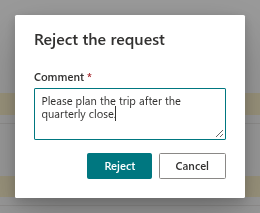
- Click Reject in the row of the request.
- In the dialog Reject the request, enter the reason in the Comment field. A rejection requires a comment: without it the dialog shows Please enter the reason. and does not continue.
- Click Reject in the dialog.
The web part shows The request was rejected. The status becomes Rejected and the days are released, so they no longer count against the balance of the employee.
What the employee and others see
| Who | After approval | After rejection |
|---|---|---|
| The employee | Status Approved; the comment appears in the row as Reply: … | Status Rejected; the comment appears as Reply: … |
| The substitute | A substitution for the dates of the request is created with the status Waiting for confirmation, if the employee named a substitute | Nothing is created |
| The calendar | The absence is shown as approved | The absence disappears |
The employee does not receive an e-mail or a Teams message, so tell them that the decision has been made. They see the result in the My requests, 2026 section the next time they open the web part.
📝 Note
The web parts do not send notifications in this version. The badge on the Approvals tab is the only signal an approver gets, so open the tab regularly.
After the decision
There is no button for reopening a request or changing your decision. An approved request can be cancelled by the employee while its end date has not passed, which releases the days and cancels the substitution (KB10330. How to Cancel an Absence Request). A rejected request stays rejected; the employee can submit a new one.
❗ Important
Think before you click Approve or Reject: the decision and the comment are saved at once, and the web part has no undo button. If a decision was a mistake, ask the employee to submit a new request, or ask the administrator to correct the request in the list.