Absence & Coverage
 Overview
When you decide on a time-off request, the key question is rarely whether the employee has enough days left. More often it is who else on the team is away at the same time. The Approvals tab of the My Absences web part answers this directly: below every request that waits for your decision it shows a warning line with the colleagues whose absences overlap the requested period.
This article explains what the line shows, which people it covers, how to use it together with the Team Absence Calendar, and what it cannot tell you.
Where the conflict line appears
Open the page with the My Absences web part. If you have requests to decide, or if you have direct reports in Microsoft Entra ID, the web part shows two tabs: My absences and Approvals. Employees without direct reports and without pending decisions see only their own requests.
Each request on the Approvals tab shows the employee, the absence type, the period and the number of days, the employee's comment and the named substitute. If other absences overlap the period, a warning line follows, for example: Also away in this period: Maria Lopez (10 Nov – 12 Nov), Jonas Kalns (13 Nov – 14 Nov). If there is no warning line, none of the people covered by the check is absent in that period.

What the line lists and what it leaves out
| Aspect | Included | Not included |
|---|---|---|
| People | Your direct reports in Microsoft Entra ID, and other employees who currently have a request waiting for your decision | Your own manager, peers who are not your direct reports, other departments; the employee whose request you are reading |
| Status | Pending and Approved absences | Rejected and Cancelled absences |
| Period | Any absence that overlaps the requested period by at least one day | Absences outside the period |
| Absence type | All types, including Remote work | The type itself is never shown |
| Details shown | Name and period of the other absence | Type, status (pending or approved), half days, number of days, substitute |
The check reads the absences when the web part loads and again after each action you take in it, such as approving a request. Because it also includes everyone with a request in your queue, two overlapping requests that are both waiting for you show each other: if Anna Berzina and Jonas Kalns both ask for days in the same week, Anna's request lists Jonas and Jonas's request lists Anna.
❗ Important
The line is a prompt, not a full team report. It covers only your direct reports and the people who have a request in your queue. A colleague from the same department who reports to someone else is not listed.
How to check for conflicts before you decide
- Open the page with My Absences and select the Approvals tab. The number on the tab is the count of requests waiting for you.
- Read the request: the type, the period, the number of days, the employee's comment and the substitute.
- Look under the request for the warning line Also away in this period. No line means that nobody in the checked group is away in that period.
- For every name in the line, check the dates against the requested period. A one-day overlap is treated like a full week: the line lists the colleague either way.
- If the overlap matters, open the Team Absence Calendar (see the next section) to see how many people are away on each day and which absences are still pending.
- Click Approve or Reject. If you reject because of the overlap, write that in the Comment field: the employee sees your text as the reply to the request.
Combine the line with the Team Absence Calendar
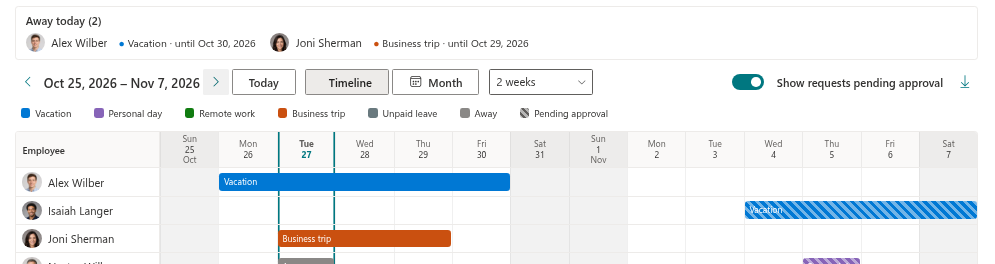
The warning line tells you that there is an overlap; the Team Absence Calendar shows what it looks like. On the same site, open a page with the Team Absence Calendar web part and set its scope to My direct reports or My team (me, my manager and colleagues). In the Timeline view, move to the requested weeks: every person is a row, absences are coloured bars, and absences that are still pending are hatched. Together with the legend this lets you see at a glance how many people are away on each day.
💡 Tip
The calendar shows the absence type of your colleagues (except private types, which appear as Away), while the warning line never does. For the full picture, read the team calendar as described in KB10339. Team Absence Calendar: Timeline and Month Views.
Limitations to keep in mind
- Group of people. Only your direct reports (as stored in Microsoft Entra ID) and the employees who have a request in your queue are checked. If a manager or department is not maintained in Entra ID, the line cannot list those colleagues.
- Minimal details. The line gives a name and dates only. It does not say whether the other absence is already approved or still pending, and it does not show half days or the number of days.
- Private types. Colleagues with a private absence type are listed by name and dates like everyone else; the type is not shown either way.
- No automatic rule. The product does not block a decision or limit how many people may be away at once. The line informs your decision; the decision is yours.
📝 Note
The product does not send e-mail or Teams notifications. If the overlap is a problem, tell the employee through the reply comment when you reject the request, or talk to them directly.