Absence & Coverage
 Overview
The Team Absence Calendar is one of the three web parts of Vitextra Absence & Coverage. It answers a single question for everyone who looks at the page: who is away, and when? It reads the approved and pending absence requests that employees submit in My Absences and shows them for your team, your direct reports, your department or the whole organization, as a Timeline (people in rows, days in columns) or as a classic Month grid.
This article describes every element of the web part and how to read the two views. For the meaning of colors, hatching and marks, see KB10341. How to Read the Team Absence Calendar: Colors, Hatching and Marks.
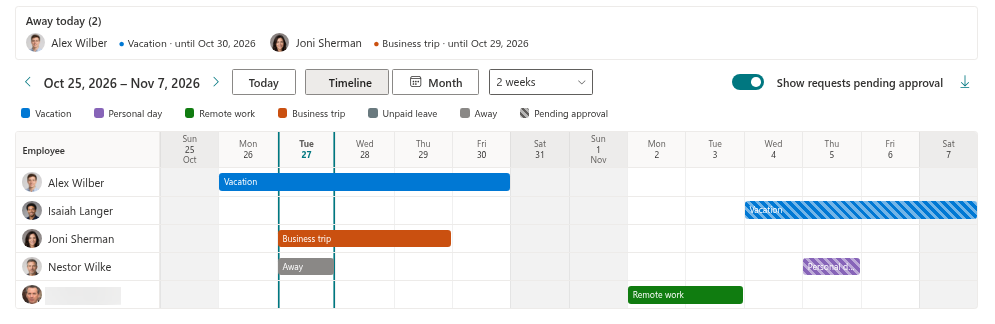
What is on the web part
From top to bottom the web part consists of four areas.
| Area | What it shows |
|---|---|
| Away today | The people who are away today, with the absence type, the end date and the substitute. See KB10342. How to See Who Is Away Today and Who Covers Them. |
| Toolbar | Period navigation, the Today button, the view switch, the range list, the pending-requests toggle and the CSV export. |
| Legend | One button for every absence type; a click hides or shows that type. See KB10343. How to Filter the Calendar by Absence Type and Show or Hide Pending Requests. |
| Calendar | The Timeline or the Month view. |
The toolbar
| Control | What it does |
|---|---|
| Previous period / Next period arrows | Move the calendar back or forward. The step is one week, two weeks or one month, depending on the range; in the Month view it is always one month. |
| Period label | Shows the visible period: a date range in the Timeline view, or the month and year when the Month view or the Month range is active. |
| Today | Returns to the period that contains today. |
| Timeline / Month | Switches the view. The web part opens in the view chosen by the page editor. |
| Range list | Visible only in the Timeline view: Week, 2 weeks or Month. |
| Show requests pending approval | Shows or hides requests that are still waiting for a decision. |
| Export to CSV (download icon) | Saves the visible absences as a file. See KB10344. How to Export the Team Absence Calendar to CSV. |
Timeline view
The Timeline shows people in rows and days in columns. The first column, Employee, holds each person's photo and name. Every day has a header with the weekday, the day number and, at the start of the period and on the first of every month, the month name.
An absence is drawn as a colored bar across the days it covers, labeled with the absence type. If the period has to be cut because some days are hidden, the bar spans only the visible columns. Non-working days, public holidays and the current day are marked in the background, and the bars of requests that are not yet approved are hatched (see KB10341).
The Range list sets how many days are visible:
| Range | Visible days |
|---|---|
| Week | Seven days, starting on the first day of the week of your regional settings |
| 2 weeks | Fourteen days, starting the same way (the default) |
| Month | The whole calendar month |
Hover over a bar to see a tooltip with the employee, the absence type, the period, the number of days, the approval state and the substitute.
Month view
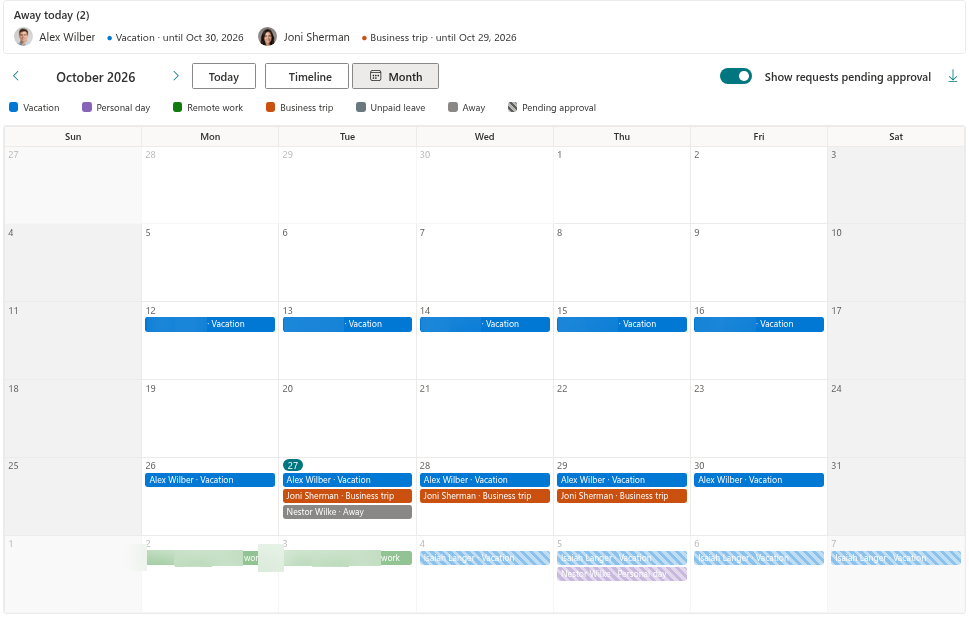
The Month view is a classic grid of six weeks, starting on the first day of the week of your regional settings. It always shows the month you navigate to, plus the days of the neighboring months, which are dimmed.
Inside each day cell the web part lists the people who are away as small chips, in the form Name · absence type, sorted by name. A cell shows up to three chips; any further people are summarized as +N more, and a tooltip on that line lists them. Non-working days, public holidays and today are marked, and the name of a public holiday is written in the cell.
📝 Note
The Month view shows every day of the week and does not use the Show weekends (timeline) setting. That setting, as the name says, affects the Timeline only.
What the calendar includes
- Only absences with the status Pending approval or Approved are loaded. Rejected and cancelled requests never appear.
- The scope decides the people. For the scopes My team, My direct reports and My department every listed person gets a row, even if nobody is absent; you are always first. For Everyone with absences the rows are the people who have absences in the visible period. See KB10340. How to Choose Whose Absences the Team Absence Calendar Shows.
- Private absence types of other people appear as a grey Away, without the type and the number of days. See KB10345. Private Absence Types: What Colleagues See in the Calendar.
- Non-working days and holidays come from the working week and the holiday list of the product site (KB10355. How to Set the Working Week, KB10354. How to Add Public Holidays).
- If nothing can be shown for the visible period, the Timeline displays the message There is nobody to show for the selected period.
❗ Important
The calendar is read-only. To change or cancel an absence, the employee uses the My Absences web part. Your filters (the legend and the pending-requests toggle) are not saved: they are reset when the page is reloaded.