Absence & Coverage
 Overview
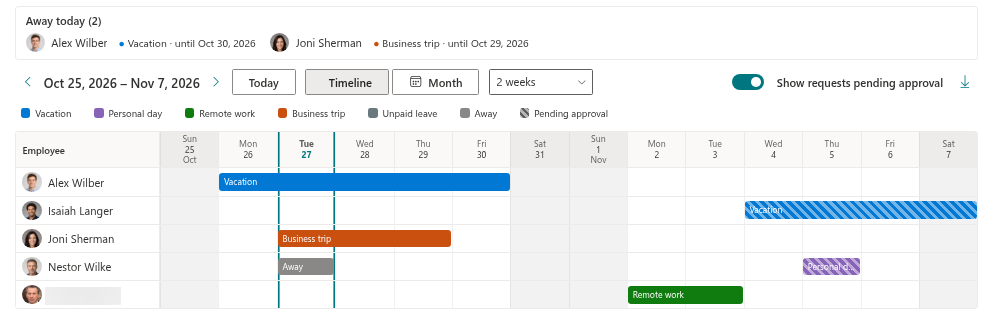
The Team Absence Calendar packs a lot of information into a small area, and it does so with a handful of visual rules: color tells you the type of absence, a hatched pattern tells you that a request is not approved yet, grey hides a private type, and a few marks and background tints show half days, non-working days, holidays and today. This article is a reference for all of them.
Colors of absence types
Every absence type has its own color, stored in the Color column of the AbsenceTypes list. The calendar uses the same color for the bar in the Timeline, for the chip in the Month view and for the swatch in the legend. The default types of a new installation are:
| Absence type | Color |
|---|---|
| Vacation | Blue (#0078d4) |
| Sick leave | Red (#d13438) |
| Personal day | Purple (#8764b8) |
| Remote work | Green (#107c10) |
| Business trip | Orange (#ca5010) |
| Unpaid leave | Grey (#69797e) |
| Parental leave | Pink (#e3008c) |
You can change the colors and add your own types; see KB10352. How to Add and Configure Absence Types.
Pending requests are hatched
A request that is still waiting for the manager's decision is drawn in the color of its type, overlaid with diagonal stripes, in the Timeline and in the Month view. An approved absence is a solid color. The same pattern marks the Pending approval entry in the legend. The tooltip of a pending bar also contains the line Pending approval.
Rejected and cancelled requests are never drawn. Pending requests can be hidden with the Show requests pending approval toggle (KB10343. How to Filter the Calendar by Absence Type and Show or Hide Pending Requests).
Grey Away entries
When the type of an absence is marked as private, the colleagues of the absent person see a grey bar or chip with the word Away instead of the type name, and no number of days in the tooltip. The absent person and the approver of that request still see the real type and color. A single grey Away entry in the legend represents all private types. See KB10345. Private Absence Types: What Colleagues See in the Calendar.
The half-day mark
In the Timeline, a ½ follows the label of a bar when the first or the last day of the absence is a half day. The mark does not say which end is the half day; to find out, open My Absences and read the request (starts at midday or ends at midday). The Month view does not show the mark.
Background tints and highlights
| What you see | What it means |
|---|---|
| Light grey day column or cell | A non-working day. It follows the working week of the site, not only Saturday and Sunday (KB10355. How to Set the Working Week). |
| Light tinted day | A public holiday from the Holidays list, when Show public holidays is on. The name is in the tooltip of the day header in the Timeline and written in the day cell in the Month view (KB10354. How to Add Public Holidays). |
| Column outlined in the theme color, with a bold date | Today, in the Timeline. |
| Day number in a filled circle | Today, in the Month view. |
| Dimmed day cell | A day that belongs to the previous or the next month, in the Month view. |
Tooltips
Hover over a bar or a chip to see a tooltip with one item per line:
- the name of the employee;
- the absence type, or Away for a private type;
- the period;
- the number of days, for example 5 d (hidden for private types of other people);
- Pending approval, only for pending requests;
- Substitute: and the name, only if the request names a substitute.
Several people on one day: +N more
A day cell in the Month view shows up to three chips. When more people are away on that day, the cell ends with +N more (for example +2 more). Hover over it to see the names and types of the remaining people. In the Timeline every person has a row of their own, so there is no such limit.
📝 Note
The legend lists only active, non-private absence types. An absence of an inactive type is still drawn in the calendar, but it cannot be hidden with the legend.
💡 Tip
To see exactly who is away right now, use the Away today block at the top of the web part (KB10342. How to See Who Is Away Today and Who Covers Them). The general layout of both views is described in KB10339. Team Absence Calendar: Timeline and Month Views.