Absence & Coverage
 Overview
Not every absence ends. When an employee leaves the company, changes the role or goes on a long leave with an uncertain return date, someone has to take over their tasks, approvals and shared mailboxes until further notice. In Vitextra Absence & Coverage this is a substitution of the kind Handover of duties. Unlike a Temporary substitution, it does not need an end date and stays active until it is cancelled.
This article shows how to create such a handover in the Substitutions web part, what the substitute has to do, how the handover looks afterwards and how to end it.
Temporary substitution or handover of duties
| Temporary | Handover of duties | |
|---|---|---|
| Typical case | Vacation, sick leave, business trip | Employee leaves, role changes, long leave without a return date |
| End date | Required | Optional |
| How the period is shown | A date range | "from" and the start date, when there is no end date |
| When it ends | After the end date | After the end date, if you set one; otherwise only when it is cancelled |
If you already know the last day of the cover, you can set an end date for a handover as well. It then behaves like a temporary substitution that is labelled as a handover.
Before you start
- You need Member (edit) access to the site that holds the absence lists, and the page with the Substitutions web part.
- The substitute needs the same access, because the substitute must open the Substitutions web part to confirm the handover.
- Decide what exactly is handed over. A clear text in the Responsibilities field saves many questions later.
Create the handover
- Open the page with the Substitutions web part.
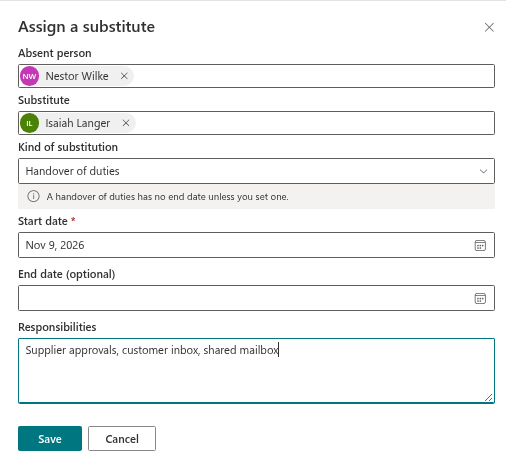
- Select Assign a substitute. The panel Assign a substitute opens.
- In Absent person, select the employee who is leaving. The field starts with your own name, so replace it. You can pick any person.
- In Substitute, select the colleague who takes over the duties.
- In Kind of substitution, select Handover of duties. The message "A handover of duties has no end date unless you set one." appears.
- In Start date, select the first day of the handover, usually the day after the last working day of the employee.
- Leave End date (optional) empty to create an open-ended handover.
- In Responsibilities, describe what the substitute takes over, for example "Supplier approvals, customer inbox, shared mailbox".
- Select Save.
The panel closes and the message "The substitution was created. The substitute has to confirm it." appears. If a required value is missing, the panel shows one of these messages instead: "Select the person who is absent.", "Select the substitute.", "The substitute cannot be the absent person.", "Select the start and end dates." (for a missing start date) or "The end date cannot be earlier than the start date."
The substitute confirms
The handover starts with the status Waiting for confirmation, like every substitution. The substitute opens the I cover tab, checks the Responsibilities and selects Accept or Decline. Details are in KB10347. How to Accept or Decline a Substitution.
The product does not send e-mail or Teams messages, so tell the substitute personally that a handover is waiting.
📝 Note
A substitution created in the toolbar is not tied to any absence request. It stays independent of the requests, and it does not remove an absence from the No substitute tab. See KB10350. How Absence Requests and Substitutions Work Together.
How the handover looks
After the confirmation, the handover is visible in three places:
- On the I cover tab of the substitute, with the caption "You cover this person" and the text Responsibilities.
- On the Covering me tab of the employee, as long as the employee can use the web part.
- On the Who covers whom tab for everyone who works with the site, so colleagues can find the right contact. See KB10348. How to Find Out Who Covers Whom.
The period is written as "from" and the start date, the kind is Handover of duties, and the pill shows Planned before the start date and In progress afterwards. Without an end date the pill never changes to Ended.

End the handover
An open-ended handover has no automatic end. It stays In progress until it is cancelled.
If the employee can still sign in (role change, long leave): the employee opens the Substitutions web part and selects Cancel substitution on the row. The web part shows "The substitution was cancelled." and the row disappears from every list.
If the employee has left: the web part allows only the absent person to cancel a substitution, and a manager cannot cancel it on behalf of the employee. In this case a site administrator opens the Substitutions list on the site, finds the item and changes only the column SubstitutionStatus to Cancelled. Do not change other columns.
❗ Important
A cancelled handover cannot be restored in the web part. If the duties go to another person later, create a new handover. Cancel the old one first; otherwise Who covers whom shows two active substitutes for the same person.
Use the data in other solutions
📝 Note
The Substitutions list is a data source for Vitextra People Connector ("who covers X") and for hand-over steps of an offboarding process. A handover without an end date stays active in this data, which is why it is a convenient way to keep the answer to "who covers X?" correct after an employee leaves. The fields used are AbsentUser, Substitute, StartDate, EndDate, Kind and SubstitutionStatus.