Absence & Coverage
 Overview
Every absence request in Vitextra Absence & Coverage has a type: Vacation, Sick leave, Remote work and so on. The types are not hard-coded. They are rows of the AbsenceTypes list on the product site, and that list decides which types employees can pick, which color each type has in the calendar, whether a request needs approval, whether colleagues see the type name, whether half days are allowed and how many days per year an employee is entitled to.
The product has no administration web part in this version, so you manage types directly in the list. This article explains every column, lists the seven types that are created by default and shows how to add, change and switch off a type.
📝 Note
You need edit access to the product site. Changes apply as soon as users reload the page; nothing has to be published or deployed.
Open the AbsenceTypes list
- Open the product site — the site you selected for the web parts (see KB10324. How to Add the Absence & Coverage Web Parts to a Page and Select the Site).
- Go to Site contents and open the
AbsenceTypeslist.
The list is filled with seven types when it is created. The names are written in the language of the person who selected the site first and are stored as plain text; they are not translated later for other users.
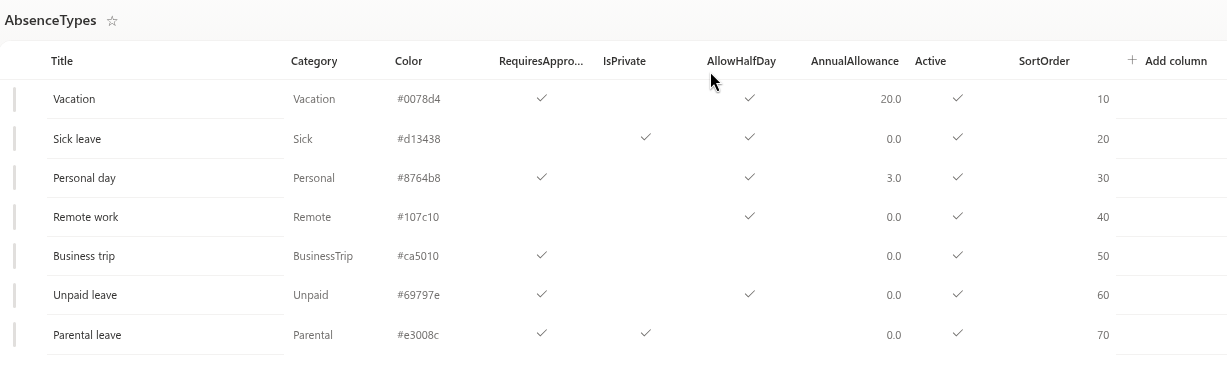
Columns of the AbsenceTypes list
| Column | Meaning | Default for a new row |
|---|---|---|
Title | The name of the type shown in the request form, in the calendar and in the balance cards | — |
Category | Vacation, Sick, Personal, Remote, BusinessTrip, Unpaid, Parental or Other | Other |
Color | A hex color such as #0078d4, used for the type in the calendar, in the legend and in My Absences | Blue #0078d4 is used when the cell is empty |
RequiresApproval | Yes: the request waits for the approver. No: the request is approved at once | Yes |
IsPrivate | Yes: colleagues see only "Away" instead of the type name | No |
AllowHalfDay | Yes: the request form offers the half-day check boxes | Yes |
AnnualAllowance | Days per year, one decimal. 0 means no limit and no balance card | 0 |
Active | Yes: the type can be selected in new requests | Yes |
SortOrder | The order of types in the request form; equal values are sorted by name | 0 |
The default types
| Type | Color | Approval | Private | Half days | Days per year |
|---|---|---|---|---|---|
| Vacation | #0078d4 | Yes | No | Yes | 20 |
| Sick leave | #d13438 | No | Yes | Yes | no limit |
| Personal day | #8764b8 | Yes | No | Yes | 3 |
| Remote work | #107c10 | No | No | Yes | no limit |
| Business trip | #ca5010 | Yes | No | No | no limit |
| Unpaid leave | #69797e | Yes | No | Yes | no limit |
| Parental leave | #e3008c | Yes | Yes | No | no limit |
The sort order of the default types is 10, 20, 30 and so on, which leaves room to insert your own types between them.
Add an absence type
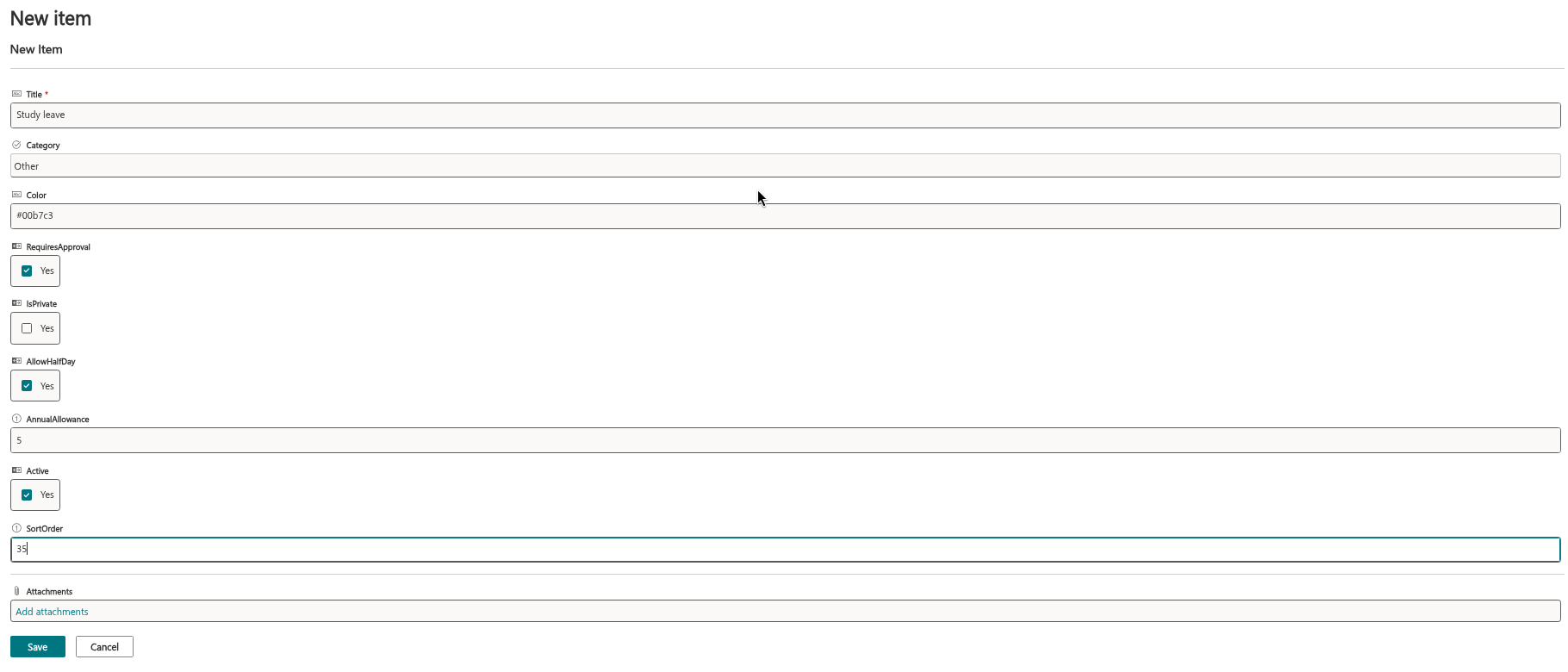
- In the
AbsenceTypeslist, add a new item. - Enter the
Title, for example "Study leave". - Choose the
Categorythat fits best. - Enter a
Coloras a hex value, for example#00b7c3. - Set
RequiresApproval,IsPrivateandAllowHalfDayas needed. - Enter
AnnualAllowanceif the type has a yearly limit; leave0otherwise. - Enter a
SortOrderthat places the type where you want it in the list. - Keep
Activeswitched on and save the item.
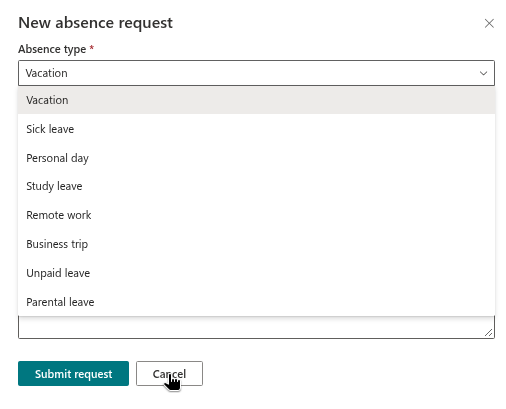
Employees see the type in the Absence type drop-down of the request form the next time they open the panel.
Choosing the settings
- Approval. A type without approval (Sick leave and Remote work by default) is approved when the employee submits it. Employees see a note about this in the request form. For the rules that decide who approves a request, see KB10336. Who Approves Absence Requests: Manager, Fallback Approver and Self-Approval.
- Private types. Use
IsPrivatefor absences that colleagues should not read in the calendar, for example sickness. Details are in KB10345. Private Absence Types: What Colleagues See in the Calendar. - Half days. Switch
AllowHalfDayoff for types that are booked in full days only; the half-day check boxes are then hidden. See KB10327. How to Request Half a Day Off. - Yearly allowance. With a value above
0, My Absences shows a balance card for the type. The value is the default for every employee; individual entitlements and carry-over days are set in theBalanceslist (KB10353. How to Set Yearly Entitlements and Carry-Over Days). - Category. In this version the category matters in one place only: absences of the
Remotecategory are not reported as missing a substitute in the Substitutions web part. The other values only classify the type. - Color. Pick colors that stay distinguishable next to each other, because the calendar uses them for the bars and for the legend.
Change, switch off or delete a type
What happens to requests that already exist depends on the change.
| Change | Effect on existing requests |
|---|---|
New Color or new IsPrivate value | Applies to all requests of the type at once, past and future, because the web parts look both up by the type ID when they draw the calendar |
New Title | New requests carry the new name. Older requests keep the name they were submitted with, in My Absences, the calendar tooltips and the CSV export; the legend shows the new name |
New RequiresApproval, AllowHalfDay or AnnualAllowance | Only new requests follow the new rule. Balance cards recalculate with the new allowance |
Active switched off | The type disappears from the request form and from the calendar legend. Existing requests stay visible in the calendar. In My Absences the balance card of the type is hidden and the colored dot of its requests turns gray |
| Item deleted | Not recommended, see below |
❗ Important
Do not delete a type that has requests. Requests refer to the type by its item ID, so after deletion they lose their color, their balance and their privacy rule: an old absence of a private type is then shown with its real name, and it is no longer reported as an absence without a substitute. Switch the type off with Active instead.
💡 Tip
If no type is active, the New request button is disabled and My Absences asks you to add types to the AbsenceTypes list. To see how the settings show up for employees, read KB10325. How to Request Time Off in My Absences.