Absence & Coverage
 Overview
By default every employee gets the same number of days for a type: the AnnualAllowance of the absence type, for example 20 days of Vacation. In real life the numbers differ: a long-serving employee has extra days, a new colleague has a pro-rata amount, and unused days may be carried over from last year.
For these cases Vitextra Absence & Coverage has the optional Balances list. A row in this list says: "this person has this entitlement of this type in this year". The row replaces the default allowance for exactly that combination, and the employee's balance card in My Absences uses it. This article shows how to fill the list.
📝 Note
The Balances list is optional. Without a row the allowance of the absence type applies, and without any allowance (0) the type has no limit and no balance card. The product does not calculate accruals or carry-over by itself: you enter the numbers.
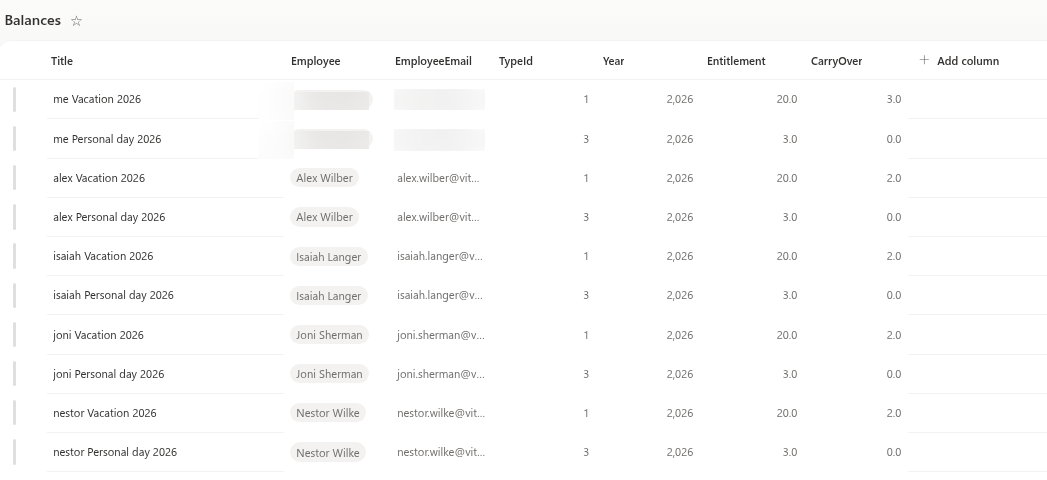
Columns of the Balances list
| Column | What to enter |
|---|---|
Title | Any label for people reading the list, for example "Anna Berzina — Vacation — 2026" |
Employee | The employee as a person. Useful when reading the list; the web parts do not match on it |
EmployeeEmail | The employee's e-mail address as text. The web parts match on this column |
TypeId | The item ID of the absence type in the AbsenceTypes list |
Year | The calendar year, for example 2026 |
Entitlement | The days the person is entitled to in that year (one decimal) |
CarryOver | The days carried over from the previous year (one decimal) |
How a row is matched
My Absences looks for the row of the signed-in person and of the year it shows, and then takes the row of each absence type by TypeId. The entitlement shown is Entitlement plus CarryOver.
❗ Important
A row is found only if all three values agree: the e-mail address in EmployeeEmail, the TypeId and the Year. A typo in the address or a wrong ID means that the row is silently ignored and the default allowance of the type is used instead. Use the primary e-mail address of the account, the one shown in the user's profile.
Keep exactly one row per person, absence type and year. If there are two, only one of them is used and you cannot control which.
Find the TypeId
TypeId is the number that SharePoint gives to the row of the type in the AbsenceTypes list:
- Open the
AbsenceTypeslist on the product site. - Show the
IDcolumn in the list view, or open the item and read the number afterID=in the address bar. - Write this number into
TypeIdof the balance row.
In a list that was created by the product and not changed since, the seven default types normally have the IDs 1 to 7 in the order of the table in KB10352. How to Add and Configure Absence Types. Check the IDs in your list before you rely on that.
Add a row
- Open the
Balanceslist on the product site and add a new item. - Fill in
EmployeeandEmployeeEmailfor the same person. - Enter the
TypeIdand theYear. - Enter
Entitlement, andCarryOverif there are days from the previous year. - Save the item.
Examples
The examples assume the default Vacation type with AnnualAllowance 20.
Row in Balances | Entitlement on the card | Comment |
|---|---|---|
| None | 20 | The type allowance applies |
Entitlement 25, CarryOver 0 | 25 | The row replaces the allowance; it is not added to it |
Entitlement 20, CarryOver 3.5 | 23.5 | Carry-over is added to the entitlement |
Entitlement 0, CarryOver 0 | 0 | The row exists, so the allowance of 20 is no longer used |
| Row for 2026 only | 20 for 2027 | Rows are per year: add the next year's row in time |
For a type without an allowance, such as Sick leave, a row with Entitlement 30 creates a card with 30 days and a limit where there was none.
What employees see
In the Balances section of My Absences each type with an allowance or a row gets a card. The large number is the days that remain; the caption reads "of 24 · used 5 · pending 2" in the language of the page. The progress bar shows used plus pending days in relation to the entitlement.
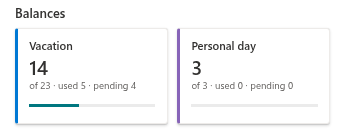
Used days are those of approved requests that start in the year shown; a request is booked completely to the year of its start date. Pending days belong to requests waiting for a decision. Rejected and cancelled requests are not counted. The panel for a new request also shows the days that would remain after it. How the numbers are read is explained in KB10328. How to Read Your Absence Balances.
💡 Tip
At the end of each year, copy the rows to the next year and update Year, Entitlement and CarryOver. If you want to let people request more days than the balance, see KB10357. How to Allow Negative Balances.