Absence & Coverage
 Overview
A public holiday is not a day off that an employee has to request. If a vacation from Monday 9 to Friday 13 November 2026 contains a holiday on Wednesday 11 November, the employee should use four days of the balance, not five. Vitextra Absence & Coverage handles this with the optional Holidays list on the product site. Every row is a day that is not counted as a working day.
Holidays have three effects:
- they are left out when the working days of a new request are counted;
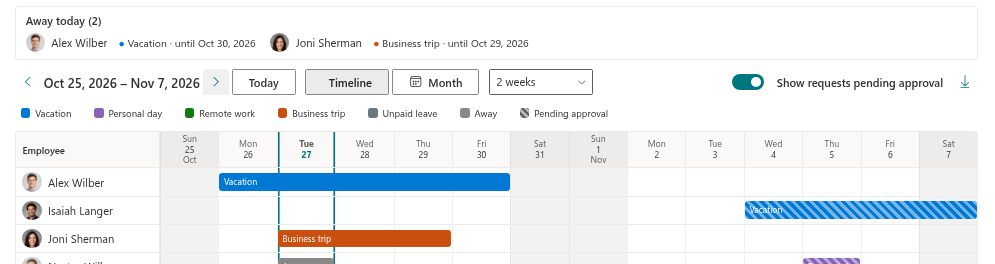
- they are shaded in the Team Absence Calendar, with the holiday name in the tooltip or in the day cell;
- they appear in the Upcoming public holidays block of My Absences.
There is no import of national holiday calendars in this version, so HR enters the days once a year.
Columns of the Holidays list
| Column | What to enter |
|---|---|
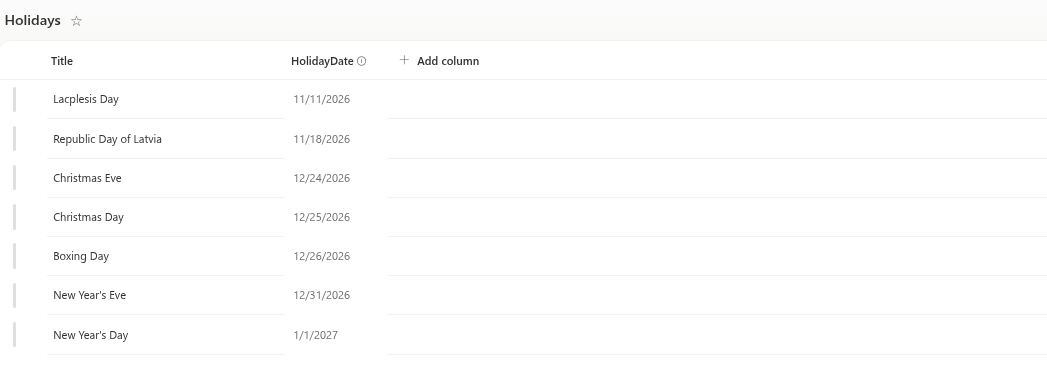
Title | The name of the holiday, for example "Independence Day" |
HolidayDate | The day (date only) |
Add holidays
- Open the product site and go to Site contents.
- Open the
Holidayslist. - Add a new item for each holiday: type the name in
Titleand pick the date inHolidayDate. - Repeat for every day of the year that should not count as a working day.
One row stands for one day. A holiday that lasts three days needs three rows. A holiday is always a full day; there are no half-day holidays.
❗ Important
Enter each date only once. Two rows for the same day do not change the counting, but the day may appear twice in the Upcoming public holidays block.
Effect on working days
When an employee fills in a request, every day of the period counts as a working day if its weekday belongs to the working week and the date is not in the Holidays list. A holiday inside a vacation is therefore not deducted, and a request that consists only of holidays and weekends has no working days and cannot be submitted. The working week itself is defined in the Settings list (KB10355. How to Set the Working Week); the full counting rules and worked examples are in KB10326. How Working Days Are Calculated in Absence Requests.
| Request (Vacation) | Holidays list | Working days |
|---|---|---|
| Mon 9 Nov – Fri 13 Nov 2026 | none | 5 |
| Mon 9 Nov – Fri 13 Nov 2026 | Wed 11 Nov | 4 |
| Tue 24 Nov – Mon 30 Nov 2026 | none | 5 (the weekend is not counted) |
| Sat 14 Nov – Sun 15 Nov 2026 | none | 0, the request cannot be submitted |
The number is calculated when the request is submitted and stored with it. Adding a holiday later does not change the days of requests that already exist, and the balance of the employee stays as it was. If a request has to be corrected, cancel it and submit it again — see KB10358. Why You Should Edit Absences in the Web Parts and Not in the List View.
📝 Note
When the New absence request panel counts days, it knows the holidays from 1 January of the year shown in My Absences to 31 December of the following year. Keep at least the current and the next year in the list.
Where holidays are shown
Team Absence Calendar. On the timeline the column of a holiday is shaded and the holiday name is in the tooltip of the day; in the month view the name is written in the day cell. The shading is controlled by the Show public holidays option in the property pane of the web part, which is on by default. Turning it off changes only the display; holidays are still left out of the working days.
My Absences. The Upcoming public holidays block lists the next four holidays from today. It is controlled by the Show public holidays option of the My Absences web part and is hidden when there is nothing to show.

Regional and company days, yearly maintenance
- Company days. A day off that applies to the whole company, such as a company anniversary, is entered like any other holiday.
- Several countries. The list belongs to the product site, and one site has one set of holidays and one working week. If your locations have different holidays, use a separate product site for each of them and select the matching site in the web parts of that location's pages.
- Once a year. Add next year's days before December, so that requests for January are counted correctly. Past rows may stay in the list.
- Many rows. Adding a long list is no different from any SharePoint list; use the list features you know for entering many items at once.
💡 Tip
To see how the shaded days look in the calendar, read KB10341. How to Read the Team Absence Calendar: Colors, Hatching and Marks. For all lists of the product, see KB10351. Absence & Coverage Lists: What Is Stored Where.