Overview
Out of the box, Vitextra Absence & Coverage treats Monday to Friday as the working week. Every calendar day of an absence request that falls on another weekday is not counted against the employee's balance. If your company works a different week — for example Sunday to Thursday, or Monday to Saturday — you change this with a single setting, WorkDays.
The setting is stored as one row in the Settings list of the product site. It applies to all employees who use that site: there is one working week per site, not one per person or per department. Public holidays are a separate matter and are kept in the Holidays list.
📝 Note
The Settings list is created empty together with the other lists, so until you add the row the default working week Monday to Friday is used. Nothing is broken when the row is missing.
Add the WorkDays setting
- Open the product site — the site that you selected in the web parts — and open the
Settingslist from Site contents. - Select New and fill in the item:
Title—WorkDays(the key; write it exactly like this, with capital W and D);Value— the weekday numbers separated by commas, for example1,2,3,4,5.
- Save the item and reload the page with the web parts. The setting is read every time a web part loads, so no further action is needed.

To change the working week later, edit the Value of the same item. Keep only one row with the key WorkDays.
Weekday numbers
Each weekday has a number from 0 to 6. List the numbers of the days that are working days.
| Number | Weekday |
|---|---|
| 0 | Sunday |
| 1 | Monday |
| 2 | Tuesday |
| 3 | Wednesday |
| 4 | Thursday |
| 5 | Friday |
| 6 | Saturday |
The order of the numbers does not matter, and spaces around the commas are ignored. Typical values:
| Working week | Value |
|---|---|
| Monday to Friday (default) | 1,2,3,4,5 |
| Sunday to Thursday | 0,1,2,3,4 |
| Monday to Saturday | 1,2,3,4,5,6 |
❗ Important
Numbers outside 0–6 and entries that are not numbers are ignored. If nothing valid remains — or the Value is empty — the default 1,2,3,4,5 is used again. The key WorkDays is case-sensitive: a row called workdays is not recognised.
What changes in the web parts
Working-day count of a request. When an employee fills in a request in My Absences, every day from the start date to the end date counts as one day if its weekday is in WorkDays and it is not in the Holidays list. The panel shows the result in the summary line and uses it for the balance check. Half-day options reduce the first or last day to 0.5, but only if that day is a working day.
The count is calculated when the request is submitted and stored with it in the WorkingDays column. If you change WorkDays later, requests that were already submitted keep the number of days they were saved with.
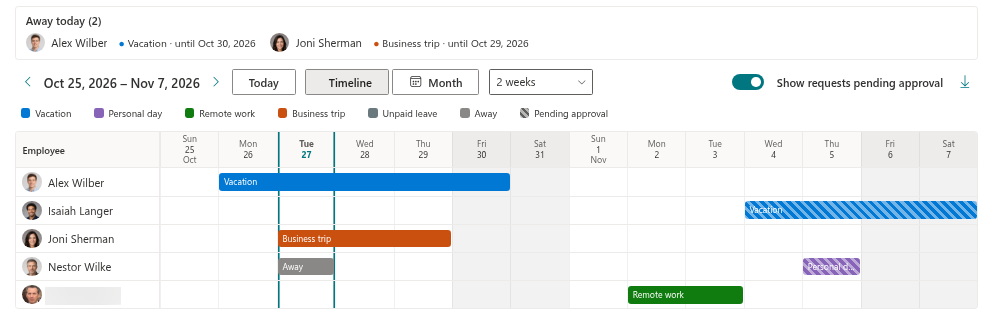
Team Absence Calendar. Days that are not working days are shaded in the timeline and in the month view. If the property pane option Show weekends (timeline) is switched off, the timeline hides exactly these days — so with 0,1,2,3,4 it hides Friday and Saturday, not Saturday and Sunday.
Worked examples. The table shows how many days two requests count for under three different working weeks (no public holidays in these dates).
| Request | Monday to Friday | Sunday to Thursday | Monday to Saturday |
|---|---|---|---|
| Sun 8 Nov – Thu 12 Nov 2026 | 4 | 5 | 4 |
| Fri 6 Nov – Mon 9 Nov 2026 | 2 | 2 | 3 |
Good to know
- A request that consists only of non-working days has zero working days and cannot be submitted.
- The first day of the week in the calendar follows the culture of the page and is independent of
WorkDays. - Anyone who can edit the
Settingslist can change the working week for the whole site. Because all employees have Member access to the site, consider restricting edit rights on this list to administrators; the web parts still need read access to it.
💡 Tip
After changing WorkDays, check the result with a test request: select a period that contains one of your non-working days and compare the days shown in the summary line with what you expect.