Absence & Coverage
 Overview
In Vitextra Absence & Coverage the approver of an absence request is the employee's manager as it is entered in Microsoft Entra ID. Not every employee has one: the owner of the company, a new hire whose profile is not complete yet, or a guest account may have no manager in the directory. For these people the request cannot be routed anywhere — unless you define a fallback approver.
The fallback approver is a single e-mail address stored in the Settings list under the key FallbackApprover. It is used only when the employee has no manager, and it applies to every absence type that requires approval.
❗ Important
Without a manager in Microsoft Entra ID and without a fallback approver, an employee cannot submit a request for any absence type that requires approval. The panel shows an error and nothing is saved. Types that do not require approval, such as Sick leave and Remote work in the default configuration, are not affected.
How the approver is chosen
When an employee selects Submit request, the web part works through these steps in order:
- If the absence type does not require approval, the request is approved immediately and no approver is needed.
- Otherwise the manager from Microsoft Entra ID becomes the approver.
- If there is no manager, the address in
FallbackApproverbecomes the approver. - If that is empty too, the request is not saved and the panel shows the error No approver was found: you have no manager in the directory and no fallback approver is configured. Please contact HR.
If the chosen approver is the employee, the request is approved at once. This is the case, for example, when the fallback approver submits their own request.
Set the fallback approver
- Open the product site — the site selected in the web parts — and open the
Settingslist from Site contents. - Select New and fill in the item:
Title—FallbackApprover(write the key exactly like this; it is case-sensitive);Value— the e-mail address of the approver, for examplehr.approvals@contoso.com.
- Save the item and reload the page with the web parts.

Spaces before and after the address are removed. To change the fallback approver later, edit the Value of the same item; to switch the feature off, clear the Value.
Whom to choose
The address must belong to a user of your Microsoft 365 tenant. Use the primary e-mail address of the person — the same one that appears in their profile. When the first request is routed to this person, they are added to the user list of the product site automatically.
The fallback approver works with the Approvals tab of My Absences, so they need the same access as every other employee: Member (edit) access to the product site. The tab appears for a user as soon as at least one request is waiting for their decision.
Typical choices are an HR manager, the head of the company's office or a deputy managing director. Only a single address is possible: there is no approval delegation and no list of approvers in this version.
📝 Note
The setting names a person, not a mailbox group. Choose a real user, and agree in advance who takes over when this person is on leave — the product does not forward requests automatically.
What employees and approvers see
Nothing in the employee's workflow changes. The request is created with status Pending approval, and the row in My requests shows Approver: with the display name of the fallback approver. The fallback approver finds the request in the Approvals tab and decides it as described in KB10334. How to Approve or Reject an Absence Request.
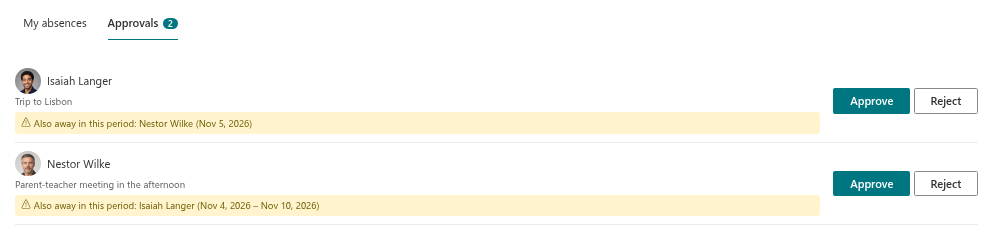
Two rules are worth remembering:
- The approver is fixed at submission. The name is saved with the request. If you later change
FallbackApprover, or the employee gets a manager in Microsoft Entra ID, requests that are already pending stay with the original approver. - The setting is read on every page load. After you save the item, ask users to refresh the page.
Troubleshooting
| Symptom | Cause | Solution |
|---|---|---|
| The panel shows the "No approver was found" error | The employee has no manager and FallbackApprover is empty or missing | Add the manager in Microsoft Entra ID or create the FallbackApprover row |
| A general error appears when submitting for an employee without a manager | The address in Value cannot be resolved to a user of the tenant | Check the spelling and use the primary e-mail address |
| The approver does not see the request | The address differs from the one the person signs in with, or the person has no access to the site | Use the primary address and grant Member access |