Absence & Coverage
 Overview
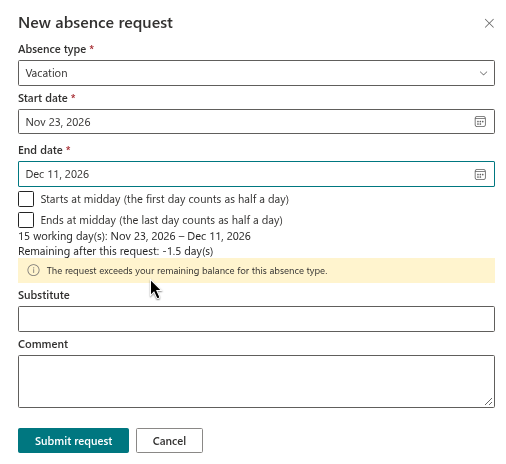
By default, Vitextra Absence & Coverage protects the yearly entitlement: an employee cannot submit a request for more days than they have left of a given absence type. The panel shows the error The request exceeds your remaining balance for this absence type. and the Submit request button does not save the request.
Some companies deliberately allow employees to take vacation in advance or to go slightly over their entitlement and settle the difference later. For this case there is the setting AllowNegativeBalance. When it is switched on, the same message stays visible but only as a warning: the employee can still submit the request, and the balance of that absence type becomes negative.
📝 Note
The setting is off by default and applies to the whole product site — to all employees and all absence types that have a balance. Absence types without a limit are never checked.
Turn the setting on
- Open the product site — the site selected in the web parts — and open the
Settingslist from Site contents. - Select New and fill in the item:
Title—AllowNegativeBalance(write the key exactly like this; it is case-sensitive);Value—true.
- Save the item and ask users to reload the page with the web parts.

The letter case of the value does not matter: true, True and TRUE all switch the setting on. Any other value — including yes, 1 or on — leaves it off. To switch the setting off again, set the Value to false or delete the row.
What changes for the employee
The balance check happens in the New absence request panel while the employee chooses the dates. The summary line shows Remaining after this request: with the number of days left. Without the setting a negative number comes together with a red error. With AllowNegativeBalance set to true:
- the message The request exceeds your remaining balance for this absence type. appears as a yellow warning;
- the Submit request button saves the request normally — it becomes Pending approval, or is approved at once if the type needs no approval;
- the request counts against the balance in full, so the remaining value drops below zero.
Example for the type Vacation with an entitlement of 20 days:
| Item | Days |
|---|---|
| Entitlement | 20 |
| Used (approved requests) | 18 |
| Pending | 0 |
| New request | 4 |
| Remaining after this request | −2 |
After submission the Balances section of My Absences shows the negative figure on the card of the absence type, for example −2, and the progress bar is full. The approver sees the request as usual; the Approvals tab does not show the employee's balance, so tell approvers about your policy.
Which requests are checked
The balance check — with or without the setting — applies only when all of the following is true:
- the absence type has a limit: either an
AnnualAllowanceabove zero in theAbsenceTypeslist or a row for the person, type and year in theBalanceslist; - the start date of the request is in the year currently shown in the My Absences web part, because the balances loaded are those of that year;
- the request would take the remaining value below zero.
❗ Important
A request is booked fully to the year of its start date, even if it continues into the next year. The balance of the next year is not reduced. Switching on negative balances is therefore a policy decision: nobody blocks employees from exceeding their entitlement any more, so review the cards in the Balances section regularly.
When to use the setting
Use AllowNegativeBalance when:
- the company allows employees to take vacation in advance and deducts it from next year's entitlement;
- HR prefers to decide on exceptions at the approval stage rather than prevent the request;
- the entitlement is entered per person later in the year and employees should not be blocked in the meantime.
If you only need to give a particular person more days, do not turn the setting on for everyone. Increase their entitlement or add carry-over days in the Balances list instead, as described in KB10353. How to Set Yearly Entitlements and Carry-Over Days.
💡 Tip
Existing requests are not changed when you switch the setting off again. Employees who are already below zero keep their negative balance, but they cannot submit further requests of that type until the balance is positive.