Overview
Every Vitextra product for SharePoint Online is delivered as a SharePoint Framework package (.sppkg) that has to be uploaded to an App Catalog. SharePoint Online offers two kinds of catalog: the tenant App Catalog, which serves the whole organization, and site collection app catalogs, which serve one site collection each. Which one you choose determines who can deploy the package, where the web parts appear, how API permissions and Microsoft Teams are handled, and how many places you have to update later.
This article compares the two catalogs from the point of view of a Vitextra deployment and gives a recommendation. The actual upload steps are described in KB10035. How to Install a Vitextra Product in SharePoint Online.
The two catalogs at a glance
| Tenant App Catalog | Site collection app catalog | |
|---|---|---|
| Number per tenant | One (one per geo location in a Multi-Geo tenant) | Any number, one per site collection |
| Created by | SharePoint Administrator, in the SharePoint admin center | SharePoint Administrator, with the SharePoint Online Management Shell |
| Who can upload packages | App Catalog site owners (usually SharePoint Administrators) | Site collection administrators of that site collection |
| Where the web parts can be used | Any site in the tenant | Only in that site collection |
| Enable this app and add it to all sites (tenant-wide deployment) | Web parts appear in the toolbox of every site without adding the app | Applies to the sites of that site collection only |
| API permission requests (Microsoft Graph, Azure DevOps) | Appear on the API access page and are approved tenant-wide | Must already be approved in the tenant |
| Add to Teams | Available | Not available |
| Updates | Upload the new package once | Upload the new package to every site collection app catalog separately |
| Vitextra license | One license per tenant | The same license: licensing does not depend on the catalog |
The tenant App Catalog
The tenant App Catalog is a special site collection that a SharePoint Administrator creates once from More features → Apps in the SharePoint admin center. Its Manage apps page is where packages are uploaded, enabled, updated, added to Teams and deleted.
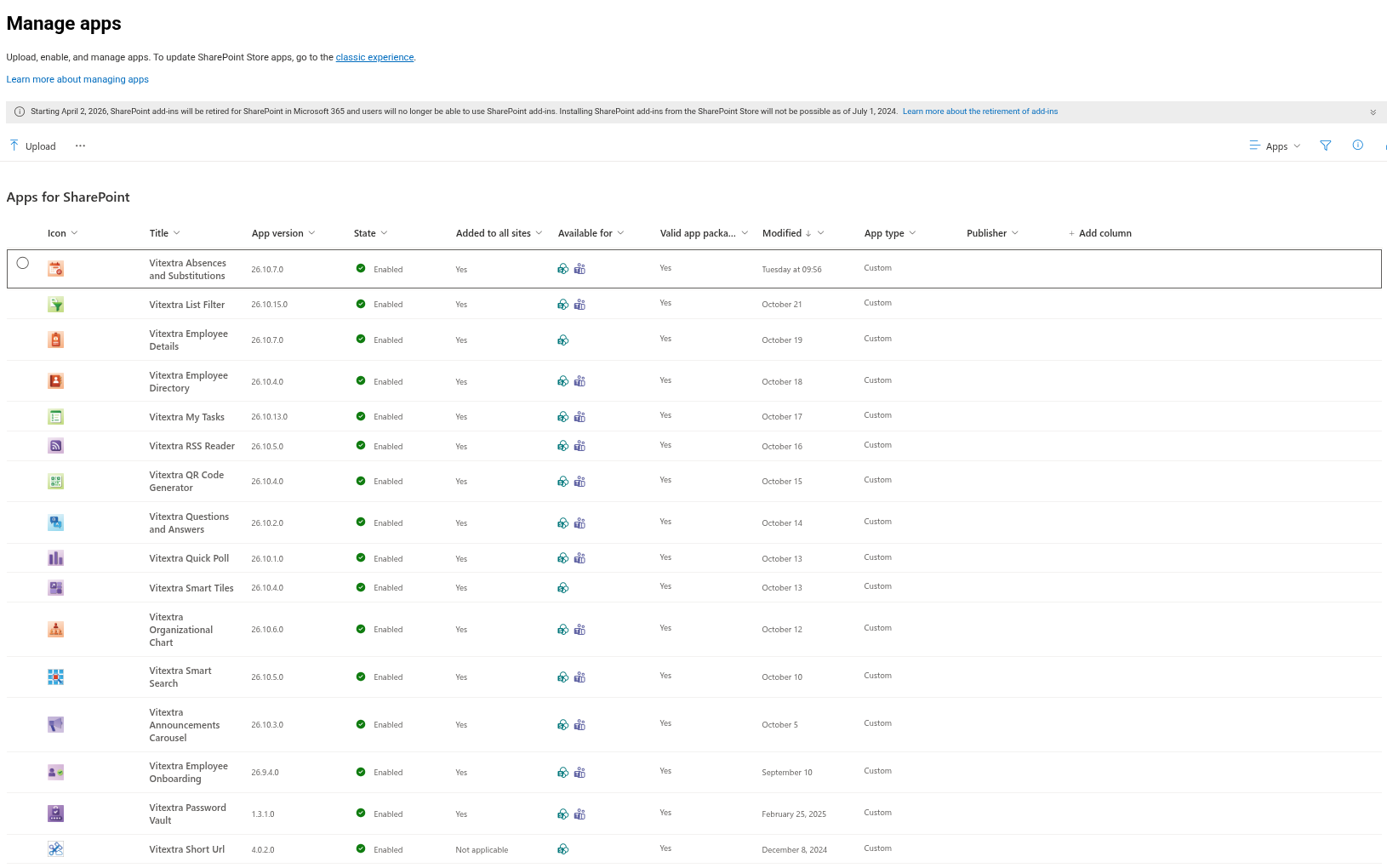
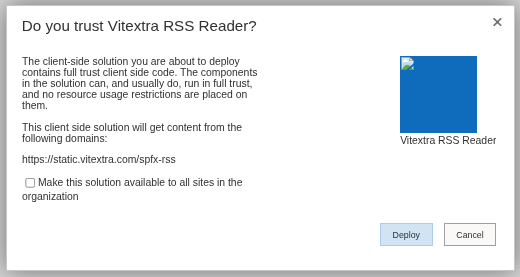
When you upload a Vitextra package, the Enable app panel offers the option Enable this app and add it to all sites. All Vitextra products support this tenant-wide deployment:
- Selected — the web parts of the product appear in the web part toolbox of every site in the tenant immediately. Site owners do not have to add the app to their sites, and the product is not listed in Site contents → New → App.
- Not selected — the product is available to be added, and the owner of each site that needs it adds it once from Site contents → New → App (or From your organization in the app picker). The web parts appear in the toolbox of that site only.
The decision is not final: on the Manage apps page you can later select the package and use Add to all sites or Stop adding to new sites.
Two things are available only from the tenant App Catalog:
- API permission requests. Products that read Microsoft Graph — Employee Directory, Employee Details, Organizational Chart, Absence & Coverage, My Tasks, Password Vault — declare the permissions they need, and SharePoint creates the matching requests on the API access page when the package is deployed here. See KB10360. How to Approve Microsoft Graph API Permissions for Vitextra Solutions in the SharePoint Admin Center.
- Add to Teams. The Teams app catalog is tenant-wide, so a Vitextra web part can be published as a Microsoft Teams tab or personal app only from the tenant App Catalog.
💡 Tip
For Vitextra products, select Enable this app and add it to all sites. The web parts become available everywhere at once, and each site owner decides whether to place them on a page. The web parts do not change anything on a site until somebody adds them to a page.
A site collection app catalog
A site collection app catalog is an Apps for SharePoint library inside an ordinary site collection. A SharePoint Administrator enables it for a specific site collection with the SharePoint Online Management Shell:
Connect-SPOService -Url https://contoso-admin.sharepoint.com
Add-SPOSiteCollectionAppCatalog -Site https://contoso.sharepoint.com/sites/marketing
After that, the site collection administrators of that site collection can upload packages to Site contents → Apps for SharePoint without any role in the tenant, and the solutions deployed there can be used only inside that site collection. A tenant App Catalog must already exist: the cmdlet fails without one.

What changes for a Vitextra deployment:
- Scope. The web parts are available in the sites of this site collection only. If you select Enable this app and add it to all sites here, "all sites" means the sites of the same site collection.
- API permissions. A site collection app catalog does not put requests on the API access page. For a product that needs Microsoft Graph permissions, deploy the package to the tenant App Catalog first, approve the requests, and only then use the site collection app catalog; the grants are tenant-wide and are shared by both copies. A product without API permissions (List Filter Online, Smart Tiles, Quick Poll, QR Code Generator and others) works from a site collection app catalog without extra steps.
- Microsoft Teams. Add to Teams is not offered; the product can be used in Teams only when it is deployed from the tenant App Catalog.
- Updates. Each site collection app catalog is updated separately: a new version uploaded to the tenant App Catalog does not reach packages deployed in site collection catalogs, and vice versa.
- Governance. The list of site collections with an app catalog is kept in the tenant App Catalog at
/Lists/SiteCollectionAppCatalogs.Remove-SPOSiteCollectionAppCatalogdisables a site collection app catalog: the library stays, but the solutions in it stop working.
❗ Important
A solution deployed from a site collection app catalog still runs in the browser of the user with the permissions of that user and can call any API the tenant has approved. The smaller scope limits where the web parts can be placed, not what they can access. Review third-party packages for a site collection app catalog as carefully as for the tenant App Catalog.
Licensing and trial
Vitextra licenses are issued per Microsoft 365 tenant, regardless of the catalog, the number of sites or the number of users. The free 14-day trial starts automatically when the product is deployed and first opened in the tenant, and the license is assigned to the Tenant ID — see KB10206. Vitextra Licensing and Account: How to Buy and Activate a License. Deploying the same product from the tenant App Catalog and from one or more site collection app catalogs needs one license.
Which catalog to choose
Use the tenant App Catalog when:
- the product is meant for the intranet as a whole or for several site collections (Employee Directory, Organizational Chart, Smart Tiles on hub and department sites);
- the product needs Microsoft Graph permissions or will be used in Microsoft Teams;
- you want a single place for updates and a single version in the tenant.
Use a site collection app catalog when:
- a department or project team runs a pilot, or needs a product that the rest of the organization will not get;
- your governance rules require that nothing is deployed tenant-wide without a separate review, and you want to delegate the deployment to the site collection administrators;
- the product does not need API permissions and will not be used in Teams.
Most Vitextra customers deploy from the tenant App Catalog with Enable this app and add it to all sites and use site collection app catalogs, if at all, for pilots.