Overview
A SharePoint Framework (SPFx) product is installed in layers: the package in the App Catalog, the app on the sites that use it, the web parts on pages, optionally a Teams app, and the API permissions approved for it. Uninstalling means walking back through these layers. SharePoint does not do it for you — deleting the package from the App Catalog is one click, but it leaves broken web parts on pages, an orphaned Teams app and approved permissions behind.
This article describes the complete removal of a Vitextra product from a Microsoft 365 tenant, in the order that avoids broken pages, and what to do with the data the product created and with the license. The steps are the same for every Vitextra product for SharePoint Online; the SharePoint Server products are uninstalled differently, see KB10022. How to Uninstall a Vitextra Product from SharePoint Server.
📝 Note
You do not need to uninstall a product to stop paying for it: cancel the subscription in your Vitextra account, and the web parts stop working when the paid period ends. Uninstall when you want the product out of the tenant.
Before you start
- Find out where the product is used. SharePoint has no report of the pages on which a web part is used; ask site owners, or search the site pages of the intranet for the product name. Tenant-wide deployed web parts may sit on any page of any site.
- Decide what happens to the data. Some products keep data in SharePoint lists or in OneDrive (see Data created by the product below). Export what you need before you delete it.
- Required roles. Removing web parts and apps from a site needs site owner rights; deleting the package, revoking permissions and removing the Teams app need the SharePoint Administrator role (for Teams, also the Teams Administrator role or Global Administrator).
Step 1. Remove the web parts from pages
Start with the pages. If the package is deleted first, every page that still contains the web part shows an error placeholder instead of the content, and page editors see the same placeholder in edit mode.
- Open the page and click Edit.
- Select the Vitextra web part and click the Delete web part (trash) icon in its toolbar.
- Republish the page.

Repeat for every page. The settings of a web part are stored in the page, so deleting the web part removes its configuration as well.
Step 2. Remove the app from sites
This step applies only to products that were added to sites individually (from Site contents → New → App). Products deployed with Enable this app and add it to all sites are not listed in site contents and skip this step.
- On the site, open Settings → Site contents.
- Find the Vitextra app, open its menu (…) and click Remove.
- Confirm.

The removed app goes to the site recycle bin and can be restored from there.
Step 3. Remove the app from Microsoft Teams
If the product was published to Teams with Add to Teams, it exists in the Teams app catalog of your organization as a custom app, independently of SharePoint.
- Open the Microsoft Teams admin center and go to Teams apps → Manage apps.
- Search for the Vitextra product by name and open it.
- Click Delete and confirm.
The tabs and personal apps that users created from the app stop working and disappear from Teams. If the app was pinned by an app setup policy, remove it from the policy as well (Teams apps → Setup policies).
📝 Note
The Teams personal-app configuration that an administrator saved from the Personal app (Microsoft Teams) group of the property pane (Employee Directory, Organizational Chart, RSS Reader) is stored by the Vitextra license service for your tenant. It is not used after the app is removed and is overwritten the next time the product is configured.
Step 4. Delete the package from the App Catalog
- In the SharePoint admin center, open More features → Apps → Open to get to the Manage apps page.
- Select the Vitextra package and click Delete. Confirm.
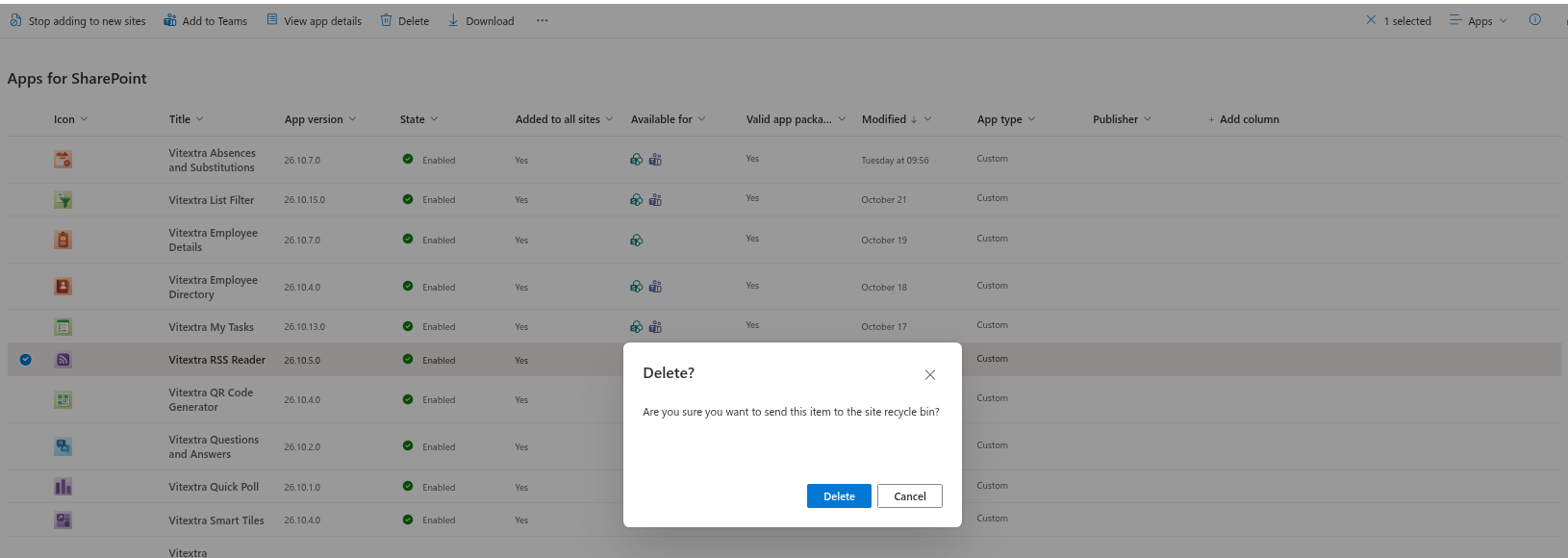
3. The package is moved to the recycle bin of the App Catalog site. To remove it completely, open the App Catalog site (its address is shown on the Manage apps page), go to Site contents → Recycle bin, delete the package there and then once more from the Second-stage recycle bin. Until then the package can be restored.
❗ Important
As soon as the package is deleted, every remaining instance of its web parts stops working — on pages you missed in step 1 and on sites where the app was not removed. The package has to be restored from the recycle bin to make them work again. If the product was used widely, consider disabling it first: select the package, open Properties, clear Enabled, and wait for feedback from site owners before deleting.
If the product was also deployed from site collection app catalogs, delete it from the Apps for SharePoint library of each of those site collections in the same way.
Step 5. Revoke the API permissions
Deleting a package does not revoke the Microsoft Graph or Azure DevOps permissions that were approved for it. The grants are tenant-wide and are shared by all SPFx solutions, so revoke them only if no other solution needs them.
- In the SharePoint admin center, expand Advanced and open API access.
- On the Approved requests tab, select the permission and click Remove. Repeat for each permission that only the removed product used.
The permissions of each product and the shared nature of the grants are described in KB10360. How to Approve Microsoft Graph API Permissions for Vitextra Solutions in the SharePoint Admin Center. Products without API permissions (List Filter Online, Smart Tiles, Quick Poll, QR Code Generator, Announcements Carousel, Questions & Answers, RSS Reader, Smart Search) skip this step.
Data created by the product
Removing a web part or a package never deletes the data it worked with. Decide for each product what to keep:
| Product | Where the data is | What to do |
|---|---|---|
| Absence & Coverage | Six SharePoint lists on the selected site: AbsenceTypes, Absences, Substitutions, Balances, Holidays, Settings | Export to Excel or CSV if needed, then delete the lists |
| Quick Poll | The lists Vitextra Quick Poll Questions and Vitextra Quick Poll Responses on the site | Keep as ordinary lists or delete them |
| Questions & Answers, Announcements Carousel | The custom list or Announcements list that was selected or created for the web part | Keep as ordinary lists or delete them |
| Password Vault | The encrypted file vitextra-password-vault.json in the application folder of each user's OneDrive (Apps folder) | Users export their entries before the removal and can delete the file themselves |
| Employee Details | Profile fields that users edited are stored in their Microsoft Entra ID profile, not in the web part | Nothing to clean up; the data remains part of the user profiles |
| Employee Directory, Organizational Chart, My Tasks, Smart Search, RSS Reader | Read data from Microsoft 365 or external feeds; nothing is created in SharePoint beyond the web part settings on pages | Nothing to clean up |
| Smart Tiles, QR Code Generator, List Filter Online | Settings in the web part properties on the page | Removed with the web part in step 1 |
Data that some products keep in the browser — the directory cache of Employee Directory and Organizational Chart, the personal view settings of My Tasks, the saved filters of List Filter Online and the saved searches of Smart Search — stays on the users' devices until the browser data of the site is cleared. For a complete inventory, see KB10363. Where Vitextra Products Store Your Data: Privacy, Data Residency and GDPR.
Step 6. Release the license
Uninstalling does not change your subscription. Sign in at vitextra.com, open Account → My Subscriptions, select the subscription and either Remove the license assignment of the tenant (if you plan to use the license in another tenant) or Cancel Subscription. The steps are described in KB10037. How to Manage Your Vitextra Subscription. If the product was only in trial, there is nothing to do.
📝 Note
If you install the product again later, the trial does not start over: the trial period is tied to the tenant and the product. A product whose trial has already ended needs a license immediately after the reinstallation.
Checklist
- Web parts deleted from all pages, pages republished.
- App removed from every site where it was added individually.
- Custom app deleted in the Teams admin center and removed from setup policies.
- Package deleted from the tenant App Catalog (and from site collection app catalogs) and from both recycle bins.
- API permissions that only this product used removed on the API access page.
- Data exported or deleted deliberately.
- License assignment removed or subscription cancelled.