Overview
Every Vitextra product for SharePoint Online and Microsoft Teams is licensed per Microsoft 365 tenant and starts with a free 14-day trial. Sooner or later every administrator asks the same questions: what exactly stops working when the trial ends, is anything deleted, what do users see, and how quickly can access be restored. This article answers them for the trial and for a paid subscription that is cancelled or not renewed.
The short version: nothing is deleted and nothing is uninstalled. The web parts of the product show a license message instead of their content until a valid license is assigned to the tenant; your pages, settings, lists and data stay where they are.
How the trial works
When does the trial start? Automatically, when the product is deployed in your tenant and a web part of it is opened for the first time. No purchase, registration or key is needed. The trial is tied to the tenant and the product: each Vitextra product has its own 14-day trial, and the trial of one product does not affect another.
What is included? Everything. The trial version has the full functionality of the paid version, for all users and all sites of the tenant, in SharePoint Online and in Microsoft Teams.
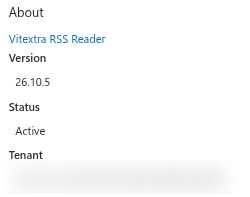
How do I see how many days are left? Open the page with the web part in edit mode, open the property pane and scroll to the About group. The Status field shows Trial version and, below it, the message You have N day(s) remaining on your trial subscription.
Can the trial be extended or restarted? Reinstalling the package, deleting and re-adding the web part or installing from AppSource instead of the Download Center does not restart the trial: the trial period belongs to the tenant. If 14 days were not enough for your evaluation, contact Vitextra support and explain the situation.
What users see when the trial ends
On the day after the trial ends, the license status of the product changes to Expired. From that moment every instance of its web parts — on every page of every site, and in Teams — shows a red message bar instead of the content:
We hope you enjoyed your free trial. Buy it now to keep it working. Buy It
The Buy It link opens the product page on vitextra.com. The message is shown to all users, including those who cannot edit the page; page editors additionally see the Expired status in the About group of the property pane.
What does not change:
- The package stays in the App Catalog, the app stays on the sites and the web parts stay on the pages.
- The settings of every web part are kept. When a license is assigned, the web parts come back exactly as they were configured.
- Data created by the product — absence requests and balances, polls and votes, questions and answers, announcements, vault entries — stays in your SharePoint lists and OneDrive. Lists remain accessible as ordinary SharePoint lists.
❗ Important
Plan the purchase before the trial ends if the product is already on a live page. The license message replaces the web part for everybody, and a home page that depends on Smart Tiles or Employee Directory looks broken to employees from the first day after the trial.
What happens when a paid subscription ends
A subscription renews automatically at the end of each monthly or annual period until it is cancelled. Two situations end it:
You cancel the subscription. When you cancel in Account → My Subscriptions, the subscription moves to the inactive state immediately and billing stops; the subscription is not kept until the end of the paid period. The license status of the tenant becomes Expired, and the web parts show the license message described above. A cancelled subscription cannot be reactivated: to use the product again, create a new subscription and assign its license to the tenant. See KB10037. How to Manage Your Vitextra Subscription.
The renewal payment fails. If the payment method on file cannot be charged, the subscription cannot renew. Update the payment details in your account; if the status of the product changes to Suspended or Expired, the web parts stop showing content until the payment goes through.
In both cases the same rule applies as for the trial: packages, pages, settings and data are untouched, only the web parts are blocked.
The license statuses
The Status field of the About group shows one of these values:
| Status | Meaning | Web parts |
|---|---|---|
| Trial version | The free trial is running; the remaining days are shown below the status | Work |
| Active | A paid license is assigned to the tenant | Work |
| Expired | The trial has ended, or the subscription was cancelled or not renewed | Show the license message |
| Suspended | The subscription is on hold on the Vitextra side, for example because of a payment problem | Check your account or contact support |
📝 Note
The status is checked when a web part loads, by a request from the user's browser to the Vitextra license service. If the service cannot be reached — for example, because vitextra.com is blocked by a proxy — the web part keeps working with its content and the About group shows no license information. The web parts never block because of a network problem, only because of an expired or missing license.
Restoring access
- Purchase the product (or a new subscription) at vitextra.com: choose the product, the billing period and the currency, and complete the checkout.
- Sign in, open Account → My Subscriptions, select the subscription and assign the license to your tenant by entering the Tenant ID. The Tenant ID is shown in the About group of any Vitextra web part and can be looked up with the free Tenant ID Lookup tool.
- Reload a page with the web part. The status changes to Active within a few minutes; if it does not, wait 5–10 minutes and reload again.
The complete purchase and activation procedure is in KB10206. Vitextra Licensing and Account: How to Buy and Activate a License; finding the Tenant ID is described in KB10034. How to Find Your Microsoft 365 Tenant ID for Vitextra Licensing.
💡 Tip
One license covers the whole tenant — all sites, all users and Microsoft Teams. You never need a second license for the same product in the same tenant, whatever the number of pages it is used on.
Frequently asked questions
Will my data be deleted when the trial ends? No. Vitextra products store data in your SharePoint lists, OneDrive and web part settings, and none of it is touched by the license status.
Do I have to reinstall or reconfigure anything after buying? No. Assign the license to the tenant and reload the pages; the web parts resume with their existing settings.
Does the trial run separately in SharePoint and in Teams? No. The product has one license status per tenant, and it applies in SharePoint Online and in Microsoft Teams alike.
I bought the license, but the web part still shows the message. Make sure the license is assigned to the correct Tenant ID (compare it with the Tenant field in the About group) and wait 5–10 minutes. The common causes are described in KB10365. Why Does a Vitextra Web Part Show "We Hope You Enjoyed Your Free Trial"? License Messages and Fixes.
Can I move the license to another tenant? Yes. Remove the license assignment from the old tenant in My Subscriptions and assign it to the new Tenant ID; see KB10037. How to Manage Your Vitextra Subscription.
I want to remove the product completely after the trial. Follow KB10362. How to Remove a Vitextra Solution from SharePoint Online and Microsoft Teams.