RSS Reader
 Introduction
Industry news, regulator announcements, the blog of a key supplier, the company's own press releases on the public website — much of what employees should keep an eye on is published as RSS feeds outside the intranet. Modern SharePoint Online has no web part to show such feeds, so they end up in personal readers, in e-mail or nowhere.
RSS Reader is a SharePoint Framework web part that brings any number of RSS feeds onto a SharePoint page or into Microsoft Teams. It merges the feeds into one list of items, lets readers switch between sources, filter by category and search, and refreshes itself while the page is open. This article is an overview of what the web part does and how it works; the configuration steps are in KB10367. How to Add and Configure the RSS Reader Web Part.
Key capabilities
Several feeds in one web part. The editor adds any number of feeds, each with its address and a display name, and arranges their order. The items of all feeds are merged into a single stream.
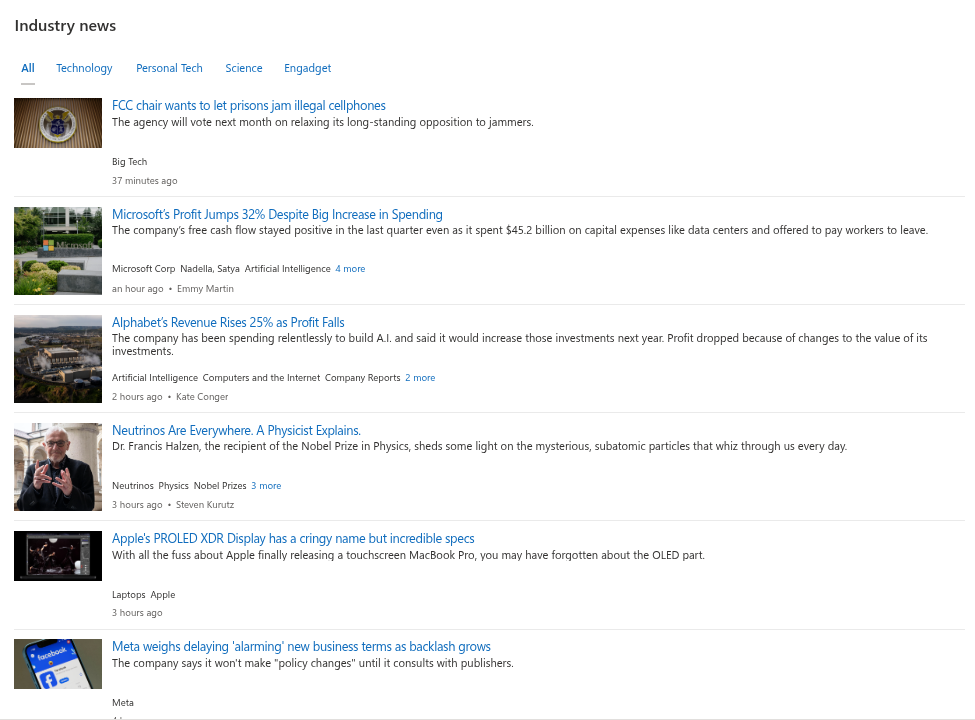
Three layouts. Newsletter shows an image, the title, a description, categories, the date and the author of each item; Cards arranges items as tiles with a large image; Compact lists titles with a short description and the date, for sidebars and narrow columns.
Source tabs. With the Filters option on, a row of tabs appears above the items: All and one tab per feed. Readers switch between sources without leaving the page.
Category filter. Feed items often carry categories (tags). With the Category option on, the tags are shown under each item; clicking a tag filters the stream to items with that category, and several tags can be combined.
Search. The optional Search box filters the loaded items by title, description, author and source name as the reader types.
Sorting. Items are sorted newest first, oldest first or grouped by source (newest first within each source).
Automatic refresh. The web part reloads the feeds in the background every 1 to 7 minutes without flicker, so a page that stays open on a screen in the lobby or in a team room always shows the latest items.
Images. Images are taken from the feed items and shown in the Newsletter and Cards layouts; they can be hidden with one switch.
Microsoft Teams. The web part works as a tab in a channel and as a personal app. For the personal app, the administrator saves a default configuration once, and every employee gets the same feeds in Teams.
Theme and language. The web part follows the theme of the site, including section backgrounds and dark themes in Teams, uses the site's font and is translated into the languages of SharePoint; dates are shown relative to now ("3 hours ago") in the user's language.
How the web part shows items
Every item is a link that opens the original article in a new tab. Depending on the layout, the item also shows:
| Element | Compact | Newsletter | Cards |
|---|---|---|---|
| Title | Yes | Yes | Yes |
| Description (plain text from the feed) | One line | Yes | Yes |
| Image | — | Left of the text | On top of the card |
| Relative date | Yes | Yes | Yes |
| Author | — | Yes | Yes |
| Category tags | — | Up to three, with a N more link | — |
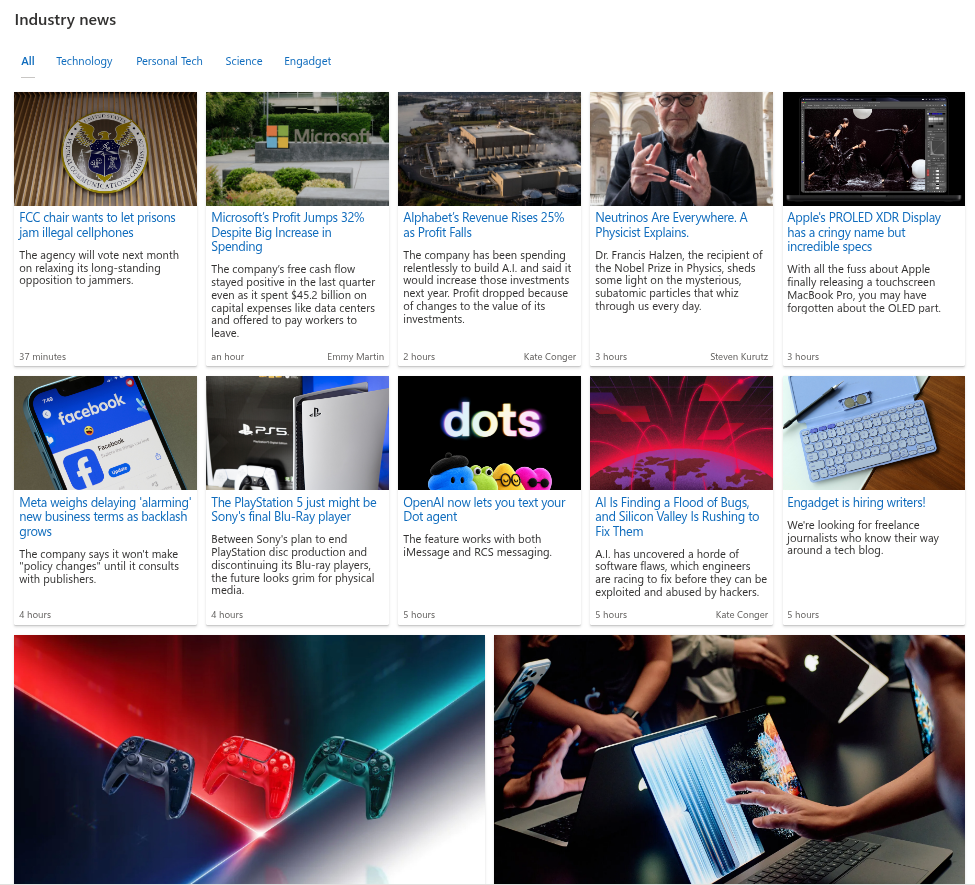
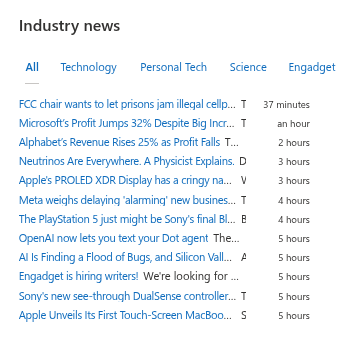
The Items Shown setting (1 to 40) limits how many items are displayed after the source, category and search filters have been applied. While the feeds are loading, the web part shows placeholder shapes in the selected layout.
How feeds are loaded
A browser is not allowed to download an RSS feed from another website directly: almost no feed host sends the cross-origin headers that would permit it. RSS Reader therefore asks the Vitextra feed service to download the configured feeds. The service fetches the feeds, parses them and returns the items to the browser; the browser never connects to the feed hosts.
Three consequences for administrators:
- The feeds must be reachable from the internet. A feed that is available only inside your corporate network cannot be shown.
- The request to the feed service contains the feed addresses and the technical identifiers that every Vitextra web part sends for the license check (Tenant ID, the object ID of the user, the site address, the product and its version). No data from your tenant is sent.
- Users' browsers need access to
vitextra.com. Without it, the web part shows an error instead of the items.
Loaded items are kept in the session storage of the browser for up to 30 minutes, so that a page opened again shows the items instantly and refreshes them in the background. A feed that cannot be downloaded is left out silently: its tab disappears from the source row and the other feeds are shown as usual.
📝 Note
RSS Reader requests no API permissions and reads nothing from SharePoint or Microsoft Graph. Its only data are the feed addresses in the web part properties. For the complete picture of what Vitextra products send and store, see KB10363. Where Vitextra Products Store Your Data: Privacy, Data Residency and GDPR.
Typical uses
- Industry news on the intranet home page — three or four trade publications in the Newsletter layout, with source tabs so that readers pick their sector.
- Regulatory watch for a department — the feeds of the relevant authorities in a Compact column next to the department's documents, refreshed automatically.
- The company in the press — the news feed of the public corporate website or of a media-monitoring service, in the Cards layout on the communication site.
- A news tab in Teams — the same feeds as a channel tab for a project team, or as a personal app with a configuration set by the administrator.
Requirements
- Microsoft 365 with SharePoint Online; modern pages. The web part is not available on classic pages and is not offered for SharePoint Server.
- The package is deployed from the App Catalog like any Vitextra product; see KB10035. How to Install a Vitextra Product in SharePoint Online.
- No API permissions to approve.
- Licensing per tenant with a free 14-day trial; see KB10206. Vitextra Licensing and Account: How to Buy and Activate a License.