RSS Reader
 Overview
"Where is the RSS web part?" is one of the first questions from teams that move a classic intranet to modern SharePoint Online pages. Classic pages had the RSS Viewer; modern pages have no equivalent, and the toolbox search for RSS returns nothing. This article explains why, looks at what the classic web part did, and compares the four practical ways to show an external feed on a modern page — including the Vitextra RSS Reader — so that you can pick the one that fits your case.
📝 Note
The statements about Microsoft's web parts reflect the Microsoft documentation and Tech Community discussions as of 2026. Microsoft changes the modern page toolbox regularly; check the current documentation for the latest state.
What the classic RSS Viewer did
The classic RSS Viewer web part downloaded a feed on the server and rendered the items with an XSL template. It belonged to the Enterprise feature set of classic publishing pages, showed one feed per web part, and could be styled only by editing XSLT. Because the server fetched the feed, intranet-only feeds worked and the browser never contacted the feed host.
The classic web part still exists on classic pages in SharePoint Online, but it cannot be placed on a modern page, and classic pages do not render in Microsoft Teams or on mobile the way modern pages do.
Why modern pages have no RSS web part
Modern web parts run in the browser, not on the server. A script on a SharePoint page may download data from another website only if that website explicitly allows it with cross-origin (CORS) headers, and feed publishers almost never send them. A browser-only RSS web part would therefore fail for the majority of feeds. Microsoft chose not to build a proxy for third-party content into SharePoint Online, so the modern toolbox has no RSS web part.
The web parts that look related do something else:
- News shows SharePoint news posts from the current site, hub or selected sites — not external feeds.
- Embed inserts an
<iframe>or embed code from a website that your administrator has allowed in the HTML Field Security settings of the site collection; it cannot render an XML feed by itself. - Highlighted content and Events roll up SharePoint content.
- The Feed for Viva Connections web part, which aggregated SharePoint news and Viva Engage posts, has been retired by Microsoft and never read RSS.
The options compared
| Power Automate flow into a list | Embed web part with a third-party widget | Custom SPFx web part | Vitextra RSS Reader | |
|---|---|---|---|---|
| How it works | A flow copies new feed items into a SharePoint list; a List or News web part shows the list | An external service converts the feed to HTML; the Embed web part shows it in an iframe | Your own web part downloads the feed through a proxy you build (for example, an Azure Function) | A web part downloads feeds through the Vitextra feed service and renders them |
| Several feeds in one view | Yes, one flow per feed into the same list | Depends on the widget | Yes, if you build it | Yes, with source tabs |
| Up to date | Delayed by the flow interval (minutes to hours) | Live | Live | Live, with automatic refresh every 1–7 minutes |
| Images, categories, search | What you build in the list view | Depends on the widget; branding of the service is often shown | What you build | Yes: images, category tags, search box, three layouts |
| Look and feel | SharePoint list or news styling | Foreign styling inside an iframe, no theme support | As designed | Follows the SharePoint theme, section backgrounds and dark mode |
| Microsoft Teams | List web part in a tab | Iframe in a tab, often blocked | If you add Teams support | Channel tab and personal app |
| Where feed data goes | Into a SharePoint list (stored permanently) | To the widget provider | Through your proxy | Through the Vitextra feed service; nothing stored |
| Set-up effort | A flow per feed, a list, a view | Account with the provider, allow the domain in HTML Field Security | Development, hosting, maintenance | Deploy the package, add the web part, enter the feed addresses |
| Ongoing cost | Power Automate connector limits and run quotas | Subscription of the widget provider | Hosting and developer time | Vitextra subscription per tenant |
Option 1. A Power Automate flow into a list
Power Automate has a trigger When a feed item is published for RSS. A flow creates a SharePoint list item for every new feed item — title, link, summary, publication date — and a List web part shows the list on the page; some teams even create news posts from the items.
This is a good fit when you want the items kept in SharePoint (searchable, retained, commentable) or when only one or two feeds matter. The drawbacks are the delay between publication and the flow run, one flow per feed, the maintenance of the flows under a personal account, and the list view as the only presentation: no images from the feed unless you parse them, no source tabs, and the list grows without limit unless you clean it up.
Option 2. The Embed web part with a third-party widget
Services such as RSS-to-HTML widget generators produce an embed code that the Embed web part can show. The result is live and needs no development, but the feed content is rendered by an external company inside an iframe: it does not follow the SharePoint theme, usually carries the provider's branding or requires a paid plan to remove it, needs the provider's domain to be allowed in the HTML Field Security settings of every site collection, and often does not display in Microsoft Teams, where iframes from arbitrary hosts are restricted.
Option 3. A custom SPFx web part
A developer can build an RSS web part with the SharePoint Framework. The web part itself is a small amount of code; the real work is the proxy that downloads the feeds server-side to get around CORS — an Azure Function or an API in Azure API Management — plus hosting, authentication, monitoring, and keeping the web part compatible with SPFx releases. This is the right path when the feed is available only inside your network and must not pass through any external service, or when the requirements are far from a standard news list.
Option 4. Vitextra RSS Reader
RSS Reader is a ready-made SPFx web part that follows the same architecture as a custom one — the feeds are downloaded by a server-side service and rendered in the browser — without the development and hosting. The editor enters the feed addresses and display names, chooses the Compact, Newsletter or Cards layout, turns source tabs, category tags, images and a search box on or off and sets the sort order and the refresh interval. The web part follows the theme of the site and works as a channel tab and personal app in Microsoft Teams. It needs no API permissions and stores nothing in your tenant beyond the web part properties.
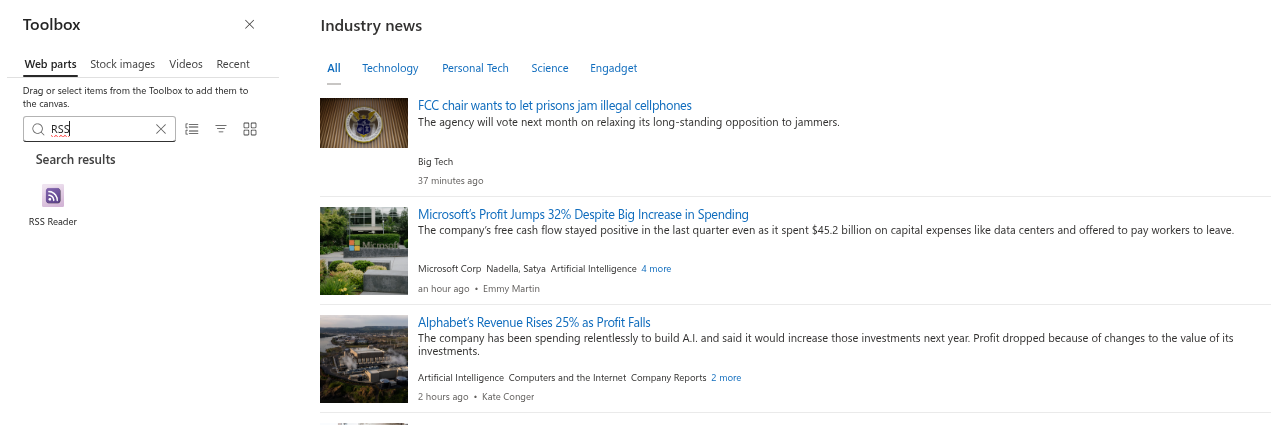
What it does not do: feeds that are reachable only inside your corporate network cannot be shown, because the feed service downloads them from the internet; and the items are not stored in SharePoint — if you want an archive of the items, combine the web part with a Power Automate flow.
💡 Tip
The setup takes a few minutes; see KB10367. How to Add and Configure the RSS Reader Web Part. All features are available during the free 14-day trial.
Which option to choose
- The feed items must be archived and searchable in SharePoint → a Power Automate flow into a list.
- The feed is internal only or compliance forbids any external service → a custom SPFx web part with your own proxy.
- You need a quick, themed, multi-feed news block on pages and in Teams, with filters and automatic refresh → Vitextra RSS Reader.
- You need to show one feed on one page for a short time and do not mind external branding → the Embed web part with a widget.