Introduction
If a page of your intranet or a tab in Microsoft Teams shows a block of news from outside the company — trade publications, the blog of a supplier, press mentions — it is probably the RSS Reader web part. This guide explains what you can do with it as a reader. You do not need any permissions beyond access to the page, and nothing you do in the web part changes it for other people.
Which feeds are shown, how the items look and which controls are available is decided by the page editor; some of the controls described below may therefore be absent on your page.
What an item shows
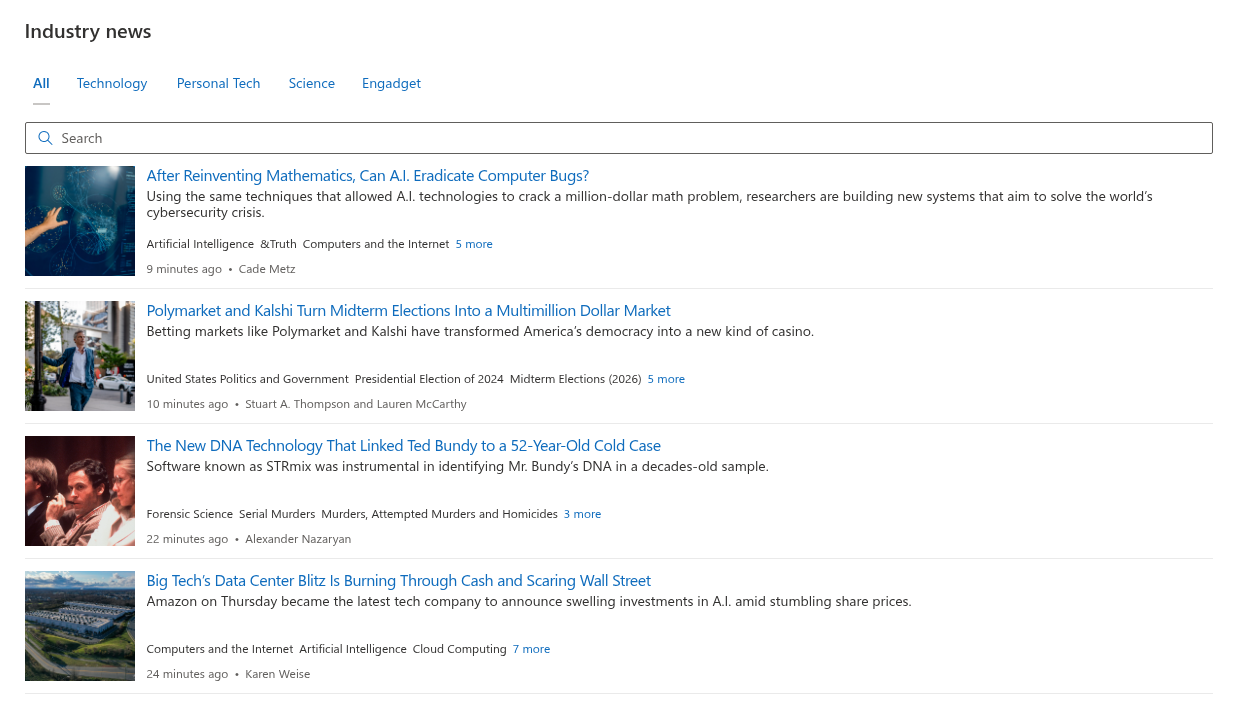
Every entry in the list is one article from one of the configured feeds:
- Title — a link to the original article. Clicking it opens the article in a new browser tab, on the website that published it; the intranet page stays open.
- Description — the beginning of the article as plain text, taken from the feed.
- Image — the picture that the publisher attached to the article (in the Newsletter and Cards layouts). An item without a picture in the feed is shown without one.
- Date — how long ago the article was published: 3 hours ago, 2 days ago. Hover over it to see the exact date and time.
- Author — the author or the source credit, when the feed provides one.
- Category tags — the topics the publisher assigned to the article (in the Newsletter layout, when the editor has turned them on).
Titles of articles you have already opened are shown slightly dimmed, so you can see at a glance what is new. This works through the visited-links memory of your browser; the web part does not record what you read.
Switching between sources
When several feeds are shown together, a row of tabs sits above the list: All and one tab for each source, named by the editor (Reuters, Microsoft 365 Blog, FDA).
- All shows the merged list of every source.
- Click a source tab to see the items of that feed only. Click All to go back.
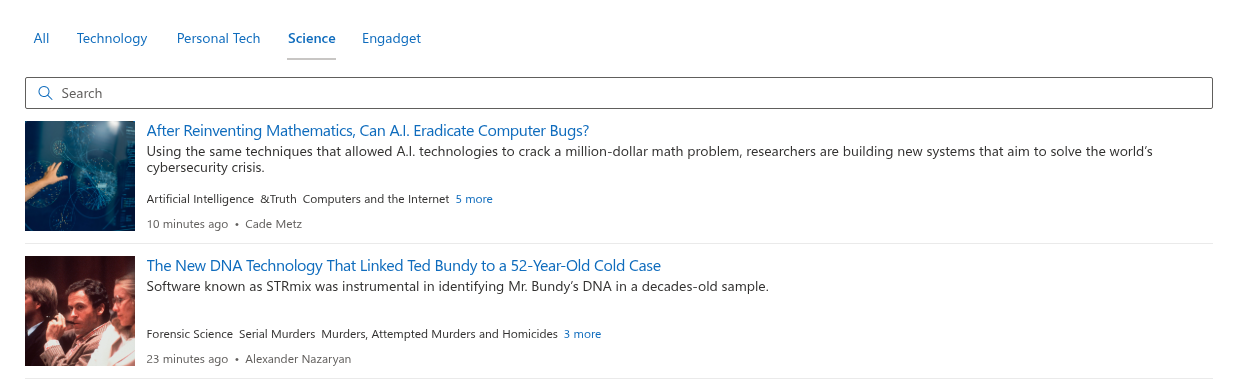
The selection is not remembered: the next time the page is opened, the web part starts with All again.
Filtering by category
Many publishers tag their articles with topics (Security, Cloud, Regulation). If the editor has turned the category tags on, they appear under each item's description. Up to three tags are shown; a N more link reveals the rest.
- Click a tag to show only the items that carry this category. The selected tag is highlighted, and a chip with the category name appears above the list.
- Click another tag to add a second category — items that carry any of the selected categories are shown.
- Click the ✖ on a chip, or click the highlighted tag again, to remove the category from the filter.
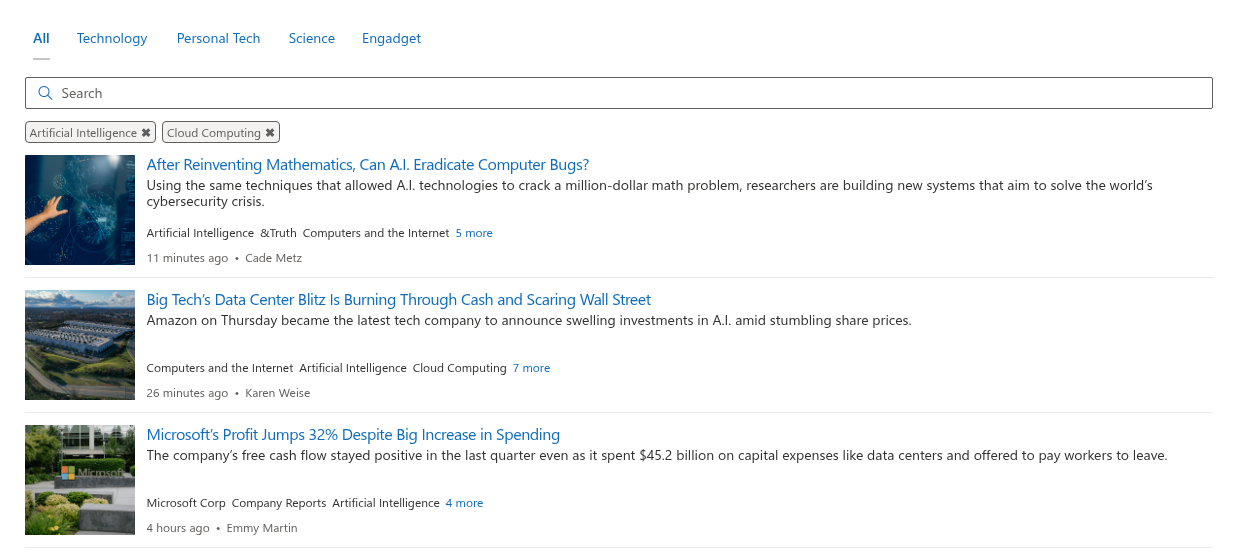
Categories come from the feeds themselves. A source whose publisher does not tag articles shows no tags, and its items disappear from the list while a category filter is active.
Searching
If a search box is shown above the list, type a word or part of a word. The list narrows as you type to the items whose title, description, author or source name contains the text. The search looks only through the items that are already loaded, so it is instant; it does not search the publishers' websites. Clear the box (the ✖ inside it) to see everything again.
Source tabs, category filters and the search can be combined: the list shows the items that satisfy all three.
Order of the items
The editor chooses one of three orders:
- Newest first — the usual news order; the latest articles from all sources at the top.
- Oldest first — chronological reading from the earliest item.
- By source — the items are grouped by feed in the order of the tabs, newest first inside each group.
The list shows a fixed maximum number of items (set by the editor, up to 40). With a filter or a search applied, the maximum applies to the filtered result.
Refreshing
The web part may be configured to reload the feeds every few minutes while the page is open; new articles then appear without reloading the page. When you return to the page, the last loaded items are shown immediately and are replaced by fresh ones a moment later. To force a reload, refresh the browser page.
Messages you may see
| Message | Meaning |
|---|---|
| No items found. | The source tab, the categories or the search text you selected match nothing. Switch to All, remove the chips or clear the search box. |
| There are no items to show | The editor has not added any feeds yet. Nothing to do on your side. |
| Sorry, something went wrong. Please refresh the page and try again. | The feeds could not be loaded, usually because of a network problem. Reload the page; if the message stays, tell the page owner. |
| A source tab you saw yesterday is missing | That feed could not be downloaded right now. It comes back automatically when the publisher's site is reachable again. |
In Microsoft Teams
RSS Reader may also be available to you in Microsoft Teams, as a tab in a channel or as an app in the left rail. The reading controls — source tabs, category tags, search and the links to the articles — are the same as on a SharePoint page; the articles open in your browser. If the app in the left rail shows feeds you did not choose, that is intended: its configuration is set by the administrator for everybody in the organization.
💡 Tip
Want a feed added to the page — your industry newsletter or the blog of a tool your team uses? Send the feed address (the link marked with the RSS icon on the publisher's website) to the owner of the page; adding a source takes a minute and is described in KB10367. How to Add and Configure the RSS Reader Web Part.