RSS Reader
 Overview
The Appearance group of the RSS Reader property pane decides how the aggregated items look: the layout, the number of items, and which of the optional elements — images, source tabs, category tags, search box — are shown. This article describes each option and the behaviour behind it, so that you can match the web part to the place on the page where it lives. The step-by-step setup is in KB10367. How to Add and Configure the RSS Reader Web Part.
The three layouts
The Layout option offers Compact, Newsletter and Cards. All three show the same items in the same order; they differ in density and in which parts of an item are visible.
| Compact | Newsletter (default) | Cards | |
|---|---|---|---|
| Arrangement | One line per item | One row per item, image left, text right | Tiles in a flowing grid, image on top |
| Title | Yes, one line, truncated with an ellipsis | Yes | Yes |
| Description | One line, truncated; the full text as a tooltip | Yes | Yes |
| Image | — | 110 × 110 px thumbnail | Wide image (aspect ratio 1.6), full card width |
| Date | Yes, short form (3 hours) | Yes (3 hours ago) | Yes, short form |
| Author | — | Yes | Yes |
| Category tags | — | Yes, when Category is on | — |
| Best for | Sidebars, one-third columns, dashboards with many web parts | A news stream in a one-half or two-thirds column | Full-width sections, landing pages, communication sites |
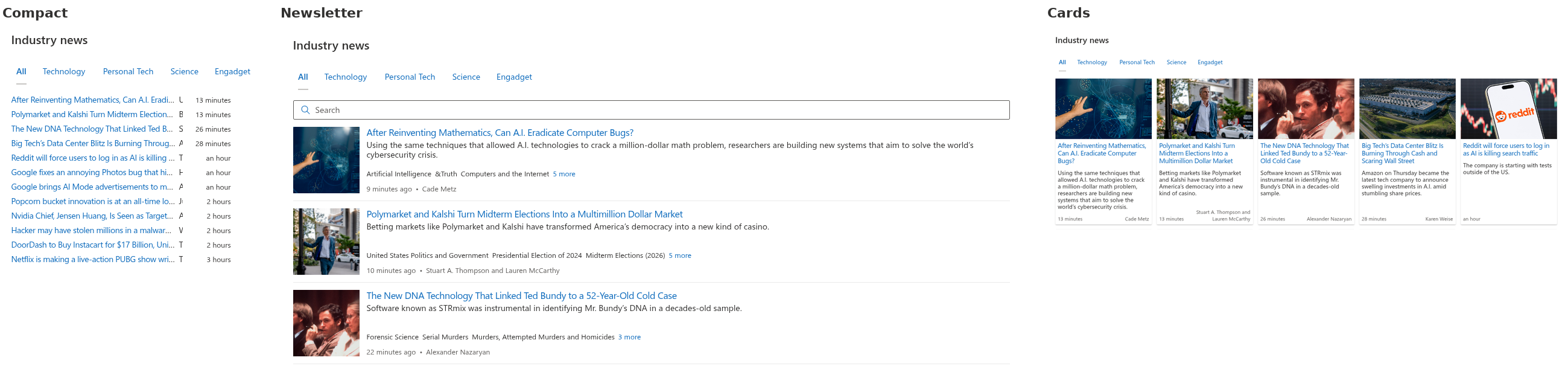
Compact is a list of titles. Each item takes one line: the title in a medium weight, the description truncated with an ellipsis, and the date. Hovering over the description shows the full text. The layout has no images, authors or tags, so twenty items fit into the height that five Newsletter items would take.
Newsletter is the classic news row: a square thumbnail on the left, and on the right the title, the description, and a footer with the category tags, the relative date and the author. Items are separated by thin lines.
Cards arranges the items as tiles. Each tile has a wide image on top, then the title and the description, and a footer with the date and the author. The tiles are at least 200 px wide and grow to fill the row, so the number of columns follows the width of the section: three or four cards in a full-width section, two in a half column. A card without an image shows a neutral placeholder area of the same proportions so that the grid stays even. Cards take the card background, border and shadow of the site theme, and the border is highlighted on hover.
💡 Tip
Choose the layout by the column: Compact for one-third columns, Newsletter for one-half and two-thirds columns, Cards for full-width sections. In a vertical section on the right of the page, Compact is almost always the right choice.
Items Shown
The Items Shown slider (1–40) sets the maximum number of items displayed. The limit is applied after the source, category and search filters, so the web part always shows up to the chosen number of matching items. The limit does not reduce what is downloaded: all items of all feeds are loaded, and a reader who selects a source tab or a category sees the first items of that selection.
Choose the number by the layout and the place: 5–8 for a Compact sidebar, 6–12 for Newsletter, a multiple of the column count for Cards (6, 8, 9 or 12) so that the last row is full.
Images
The Image switch (Show / Hide) controls the pictures in the Newsletter and Cards layouts. The web part does not generate or crop images itself; it takes the picture that the publisher attached to the item, in this order of preference:
- the Media RSS
media:contentelement (with its declared size), - the Media RSS
media:thumbnailelement, - the iTunes artwork of podcast feeds,
- the first image inside the item's HTML description — images with a declared width or height of one pixel (tracking pixels and spacers) are skipped.
An item with none of these is shown without an image. Pictures are loaded by the browser from the publisher's servers and scaled to fill the thumbnail or the card header (cover fit), so the proportions of the original do not matter.
Hide the images when the feeds have none or when the publisher's pictures are low-quality stock photos — the Newsletter layout without images is a tidy text list.
Source tabs, category tags and the search box
Three switches add reader controls above and inside the list; they are described from the reader's side in KB10369. RSS Reader: A Quick Guide for End Users.
- Filters — a row of tabs above the items: All and one tab per source with its Display Name. Turn it off for a single feed or when the web part is narrow; the tabs do not wrap gracefully with many long names.
- Category — the tags of each item in the Newsletter layout, clickable to filter. Useful only when the publishers tag their articles; with untagged feeds the switch has no visible effect.
- Search box — a search field that filters the loaded items by title, description, author and source. Worth it from about ten items upwards.
The web part title
The title is typed directly on the page in edit mode (Web Part Title placeholder) and is shown above the controls in the heading style of the section. Leave it empty for a web part placed under a heading of its own.
Theme, dark mode and fonts
RSS Reader draws its colors from the theme of the site: link color for titles, body text color, the card background, borders and shadows for the Cards layout, dividers for the Newsletter rows. When the web part is placed in a section with a background (neutral, soft or strong), it adapts to the section's variant of the theme. In Microsoft Teams the web part follows the light and dark themes of the Teams client.
The text uses the font of the site: when a custom font is configured for the site, the web part inherits it; otherwise it uses Segoe UI like the rest of the page.
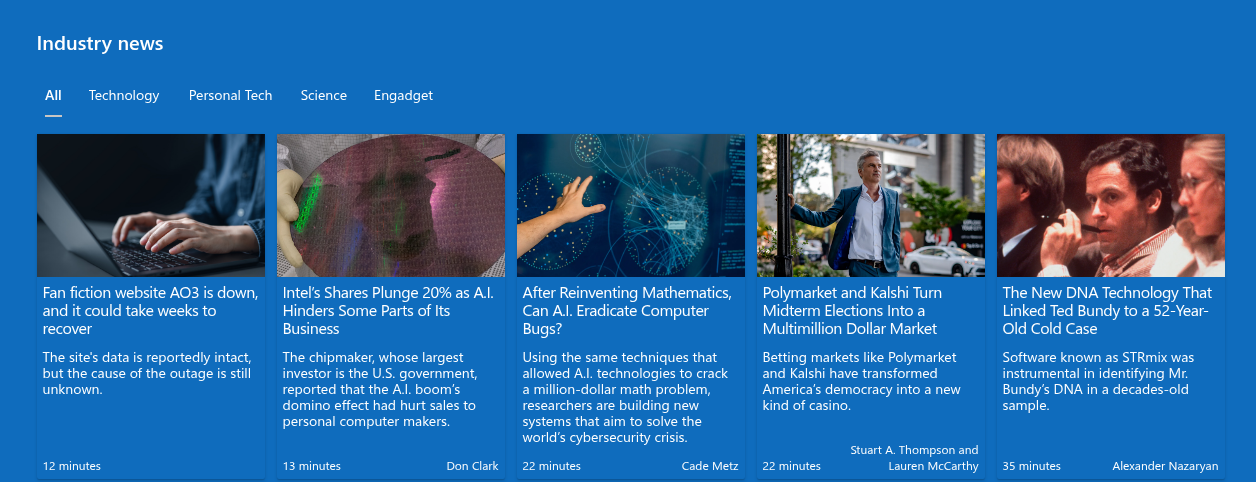
Full-width sections
The web part supports full-width sections, available on communication sites. In a full-width section the Cards layout shows the most columns and makes the best use of the space; the Newsletter and Compact layouts stretch their rows across the whole width, which works for short titles but makes long descriptions hard to read — prefer a normal section for those.
Loading state
While the feeds are loading for the first time, the web part shows placeholder shapes in the selected layout — grey blocks where the image, the title and the description will be — so the page does not jump when the items arrive. On later visits the last loaded items appear immediately from the browser cache and are refreshed in the background; see KB10371. Feed Sources, Sorting, Automatic Refresh and Caching in RSS Reader.