RSS Reader
 Overview
When RSS Reader does not show what you expect, the symptom tells you where to look: a single source that is missing points to that feed; a message in place of the whole list points to the configuration or the network; a message about the trial points to the license. This article lists the symptoms in that order, each with a quick check and the fix. It is written for the page editor and the administrator; readers of the page can only reload it.
It helps to know how the web part gets its data: the browser sends the addresses of the configured feeds to the Vitextra feed service, which downloads and parses them and returns the items. The browser itself never contacts the publishers' servers for the feed — only for the images. Details: KB10371. Feed Sources, Sorting, Automatic Refresh and Caching in RSS Reader.
Start here: what does the web part show?
| What you see | Go to |
|---|---|
| Items from the other feeds, but one source has no tab and no items | A source is missing |
| No items found. | No items found |
| There are no items to show | No sources configured |
| Sorry, something went wrong. Please refresh the page and try again. | The feed service cannot be reached |
| Items appear, but without pictures | Images are not shown |
| Items appear, but they are old | The items look stale |
| The red message We hope you enjoyed your free trial… | The license message |
| Grey placeholders that never turn into items | Placeholders never finish |
A source is missing
Symptom. The web part shows items, but one of the configured sources has no tab in the source row and none of its items appear. No error is shown.
Cause. The feed service could not download or parse that feed and left it out; the web part hides such sources silently. The usual reasons, from the most common:
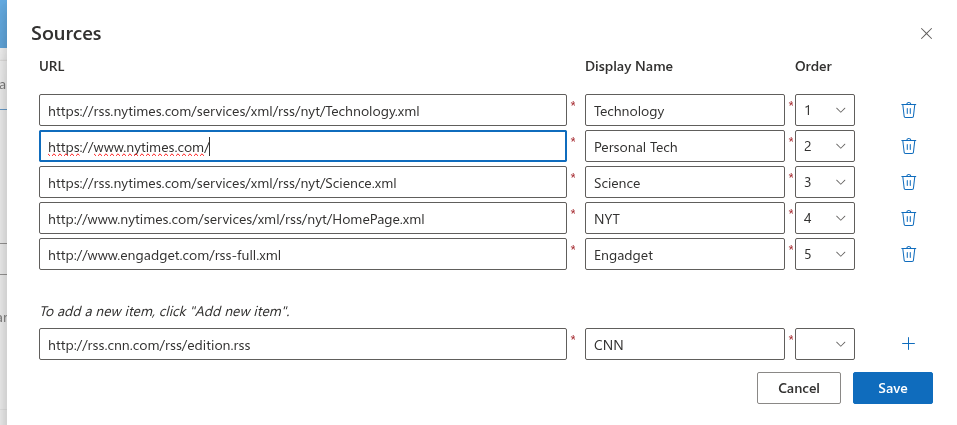
- The address is a web page, not a feed.
https://example.com/newsreturns HTML; the feed is usually athttps://example.com/news/rss,/feed,/rss.xmlor similar. Look for the RSS icon on the website or in its page footer, or view the page source and search forapplication/rss+xml. - The feed is reachable only inside your network. An intranet server, a system behind a VPN or a site that allows only your office IP addresses cannot be downloaded by the feed service, which fetches feeds from the internet.
- The feed needs a login or an API key. Feeds that require authentication are not supported; the service downloads feeds anonymously.
- The XML is broken. A feed with unescaped characters, a truncated document or a wrong encoding fails to parse. Paste the address into an online feed validator to see the error.
- The publisher blocks automated requests. Some sites refuse requests that do not come from a browser, or limit the request rate. Nothing can be changed on the Vitextra side; ask the publisher for a feed address meant for aggregators, or pick another source.
- The publisher's server is down or slow at the moment. The source comes back automatically when the feed is available again.
Check. Open the feed address in a browser in a private window (so that no login of yours is used). You should see XML, or a formatted feed page with items. If you see a website, a login form, an error or nothing, the feed service sees the same.
Fix. Correct the address in the Sources panel (property pane → Newsfeed → Configure) and click Save; for an internal feed, use a copy that is published on the internet, or a Power Automate flow that copies the items into a SharePoint list.
💡 Tip
After changing the sources, reload the page once. The web part keeps the last loaded items in the browser session for up to 30 minutes, keyed by the set of addresses; a changed set is loaded fresh, but the old cached list is shown until the new one arrives.
No items found
Symptom. The message No items found. with an illustration, instead of the list.
Cause. The feeds were loaded, but nothing passes the current selection — a source tab, category chips or a search text — or every configured feed is unavailable (see above) or the feeds are valid but contain no items.
Check and fix.
- As a reader: select the All tab, remove the category chips (✖) and clear the search box.
- As an editor: if the message appears with no selection, every source is failing. Check each address as described in A source is missing.
- If the addresses are correct, open one of the feeds: a feed that is valid but empty (a blog that has not published yet, a search feed with no results) produces this message too.
No sources configured
Symptom. The message There are no items to show.
Cause. The list of sources is empty. This happens on a fresh web part when the sample feeds were removed without adding others, or when the saved configuration of the Teams personal app contains no sources.
Fix. Add at least one feed in the Sources panel. For the personal app in Teams, configure the web part on a page and click Save Settings in the Personal app (Microsoft Teams) group; see KB10372. How to Add RSS Reader to Microsoft Teams.
The feed service cannot be reached
Symptom. The message Sorry, something went wrong. Please refresh the page and try again., with no items. Other Vitextra web parts on the page may show an empty About group in their property pane.
Cause. The browser could not reach vitextra.com, where the feed service runs. Typically a corporate proxy, a firewall rule, a content filter or a browser extension blocks the host; occasionally the user is offline or the service is temporarily unavailable. The feeds themselves are not the problem — the request never left the browser.
Check. Open https://vitextra.com in a new tab on the same computer. If it does not open or shows a proxy page, the network blocks it. If it opens, reload the SharePoint page; a short outage is over as soon as the message disappears.
Fix. Allow outbound HTTPS to vitextra.com (feed service and license check) and to static.vitextra.com and vitextra-storage.azureedge.net (scripts and icons of the web part) for the users' network. In Microsoft Teams the same hosts must be reachable from the Teams client.
Images are not shown
Symptom. The items are listed with titles and descriptions, but without pictures, or some items have pictures and others do not.
Causes and fixes.
- The Image switch is off — in the property pane, Appearance → Image must be Show. The Compact layout never shows images.
- The feed has no images — the web part takes the picture from the item (
media:content,media:thumbnail, podcast artwork or the first image in the description). A feed that does not include pictures produces items without them. Open the feed XML and look for<media:or<imginside an item. - The picture address is
http://— SharePoint pages are served over HTTPS, and browsers block insecure images on them. Items whose picture is only available over HTTP are shown without it. Nothing to fix on the SharePoint side; the publisher would have to serve the images over HTTPS. - The publisher blocks hotlinking — some sites refuse to serve their images to other websites. The browser requests the picture directly from the publisher; if the publisher refuses, the image area stays empty.
The items look stale
Symptom. The publisher's website shows a new article, but the web part does not.
Causes and fixes.
- Auto refresh is off and the page has been open for a while. Reload the page, or turn Auto Refresh on in Behavior and set the Refresh frequency.
- The cached list was shown first. On a repeat visit the web part shows the items of the previous load and refreshes them in the background within a second or two. If the fresh request fails, the cached list stays; see The feed service cannot be reached.
- The feed itself is behind. Many publishers update their feed on a schedule, and news sites often show an article on the home page minutes before it appears in the feed. Open the feed address: if the article is not in the XML, the web part cannot show it.
- The item has no valid date. Items without a publication date are placed last with Newest first; they are not missing, only at the end of the list.
The license message
Symptom. A red message bar We hope you enjoyed your free trial. Buy it now to keep it working. with a Buy It link, instead of the items.
Cause. The free 14-day trial of RSS Reader has ended, or the subscription is not assigned to this tenant.
Fix. Assign a license to the tenant or check the assignment in your Vitextra account; the complete list of causes is in KB10365. Why Does a Vitextra Web Part Show "We Hope You Enjoyed Your Free Trial"? License Messages and Fixes. Nothing in the web part configuration causes this message.
Placeholders never finish
Symptom. The grey loading shapes stay on screen and never turn into items or into a message.
Cause. Usually a script error on the page caused by another web part or a browser extension, or a very slow network where the request has not completed yet.
Check and fix. Reload the page; try a private window without extensions; try another browser. If the problem is reproducible on a page that contains only RSS Reader, contact Vitextra support with the product version from the About group of the property pane, the browser and a screenshot.
Still not solved
Write to Vitextra support with: the feed address(es) that fail, the message or symptom, the Version and Tenant values from the About group of the property pane, and whether the problem occurs in SharePoint, in Teams or in both. With the feed address the support team can reproduce the request of the feed service directly.