Questions & Answers
 Overview
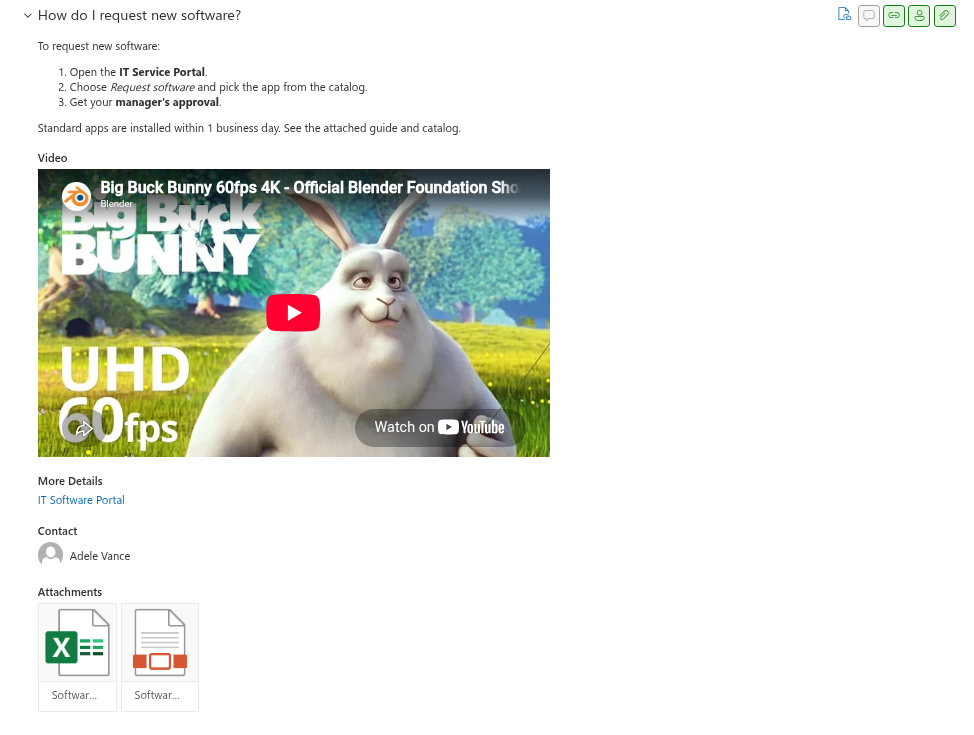
An answer in Questions and Answers is more than a paragraph. The expanded question can show formatted text, a video, attached files, a link to a fuller resource and the person responsible for the topic — each in its own block, each switched on or off for the whole web part. This article explains how an editor fills these blocks in the SharePoint list and how they appear to readers. The basics of the list and the publishing workflow are in KB10219. Creating, Editing and Publishing Questions.
The answer text: Markdown
The Answer column is rendered as Markdown. Type the markup as plain text in the field:
| You type | Readers see |
|---|---|
**Important:** submit the form by Friday. | Important: submit the form by Friday. |
*italic* | italic |
- first point / - second point (one per line) | A bulleted list |
1. open Settings / 2. choose Account | A numbered list |
[the travel policy](https://intranet/policies/travel) | A link with the text the travel policy |
## Before you start | A sub-heading inside the answer |
| An empty line | A paragraph break |
Keep answers short and direct — the first lines are what a reader scans — and move depth into the More Details link or a video. Headings inside an answer are useful for step-by-step instructions with several stages.
❗ Important
Write the Markdown as plain text and do not use the formatting toolbar of the SharePoint item form: formatting applied with the toolbar is stored as HTML, which the web part does not render — the tags are removed and only the text remains. If Markdown lists or paragraphs do not come out as expected, open List settings → Answer and set the column to Plain text; the web part needs no rich text.
Video answers
A short screen recording often explains a procedure better than text. Put the address of the video into the Video URL column and switch Video to Show in the Show/Hide group. The web part decides how to render the address:
| Address | Rendered as |
|---|---|
YouTube — youtube.com/watch?v=…, youtu.be/…, youtube.com/shorts/…, youtube.com/embed/…, youtube-nocookie.com/embed/… | Embedded YouTube player |
Vimeo — vimeo.com/<number> | Embedded Vimeo player |
A direct video file — .mp4, .webm, .ogg, .ogv, .m4v, for example a file in a SharePoint document library | The browser's own video player (HTML5), with controls |
| Any other address — Microsoft Stream, a video page of the intranet, a learning platform | A hyperlink under the Video heading, opened in a new tab |
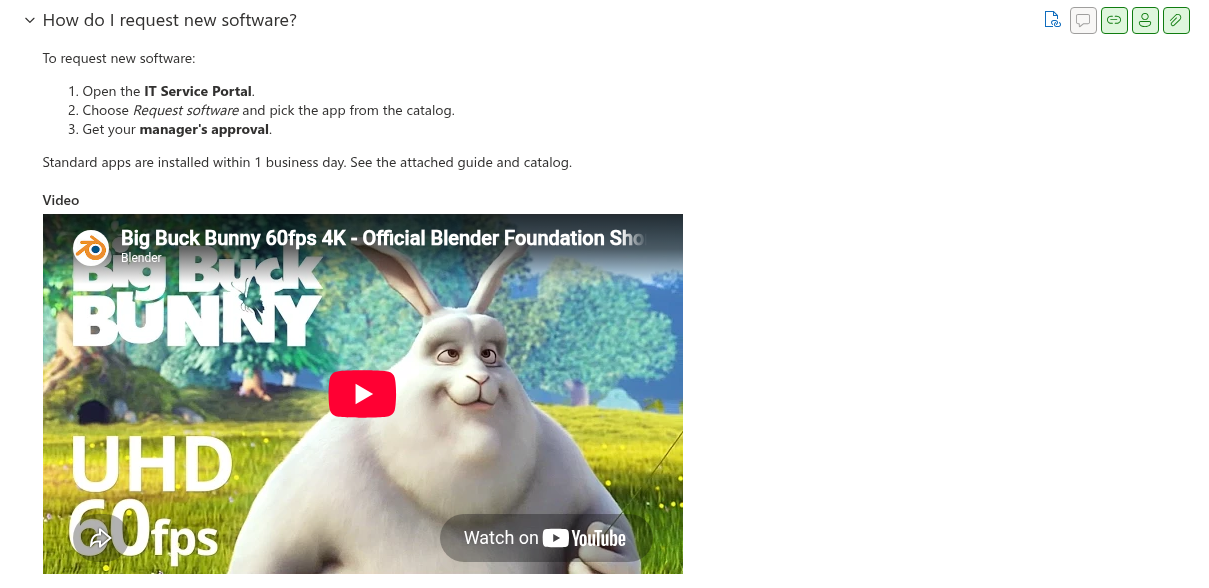
Videos stored in SharePoint (a document library, Microsoft Stream on SharePoint) are the right choice for internal recordings: access follows the permissions of the file. When the link is a Stream page, it is shown as a hyperlink — copy the direct link to the .mp4 file if you want the player inside the answer. YouTube and Vimeo players load from the respective services; if your network blocks them, readers see an empty player.
Attachments
Files attached to the list item — a form to fill in, a checklist, a policy PDF — appear under the Attachments heading as cards with the file-type icon and the file name. A click opens the file; documents open in the browser like any file in SharePoint.
To attach a file, open the question in the list, use Attach file in the item form (or drag the file onto the form) and save. There is no limit specific to the web part; the SharePoint limits for list item attachments apply. The Attachments switch in Show/Hide controls the block for all questions.
💡 Tip
For files that change often — the current price list, this year's holiday calendar — store the file in a document library and point to it with More Details or a Markdown link instead of attaching a copy. A link always shows the latest version; an attachment is a snapshot.
The detail link
The Link column holds one address shown under the More Details heading — the full policy, the manual, the request form. Enter the address and, optionally, a description in the two fields of the hyperlink column; the description is not shown by the web part, the heading is always More Details. The block is controlled by the Detail Link switch.
Use it to keep answers short: the answer gives the two-sentence version, More Details leads to the authoritative document.
The contact person
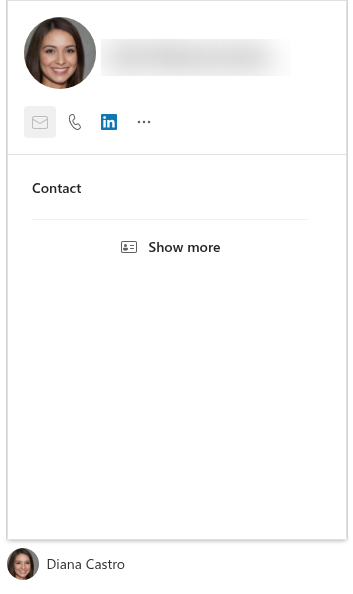
The Contact column names the person responsible for the topic — the HR partner for leave questions, the service desk lead for accounts. Readers see the name under the Contact heading; hovering over it opens the Microsoft 365 live profile card with the job title, department, e-mail, phone and the buttons to start a chat or a call. The Contact switch controls the block.
Pick one person per question (the column accepts a single user). Where a team is responsible, create a shared mailbox or a group with a mail address and name it in the answer text instead; the Contact column accepts people only.
The Show/Hide switches
Each block is switched on or off for the whole web part in the Show/Hide group of the property pane: Attachments, Contact, Detail Link, Video and Show Comments. A block that is switched on appears only for the questions that have content for it — an empty Link column produces no More Details heading. The badges in the question header follow the same rule: the paper clip, link and person badges are colored when the question has the content, grey when it does not.
Switch a block off when the knowledge base does not use it, so that readers are not shown empty badges, or when a page should stay minimal — a short policy FAQ on the home page might show text and the contact only.
Checklist for a good answer
- The question is phrased the way people ask it, not the way the policy names it.
- The answer gives the direct answer in the first sentence and the steps as a list.
- The authoritative document is linked under More Details, not pasted into the answer.
- A procedure that is hard to describe has a video.
- A form or template that the reader needs is attached — or linked, if it changes.
- The Contact is the person who can actually help, and knows that they are named.
- Published is set to Yes only when all of the above is in place.