Discussions
Overview
A topic or a reply in Discussions can carry files: a PDF with the specification you are asking about, the spreadsheet with the figures, a log file, an archive. Attachments are separate from the pictures you place in the text - an attachment is listed under the post as a downloadable chip, while an inline image is part of the text itself (see KB10401. Formatting Posts: The Rich Text Editor, Images and Code Blocks).
Attachments are ordinary SharePoint list item attachments of the Discussions Topics and Discussions Posts lists on your site. They inherit the permissions of the item, are covered by the retention and backup of the tenant and are deleted together with the item.
Attaching files before you post
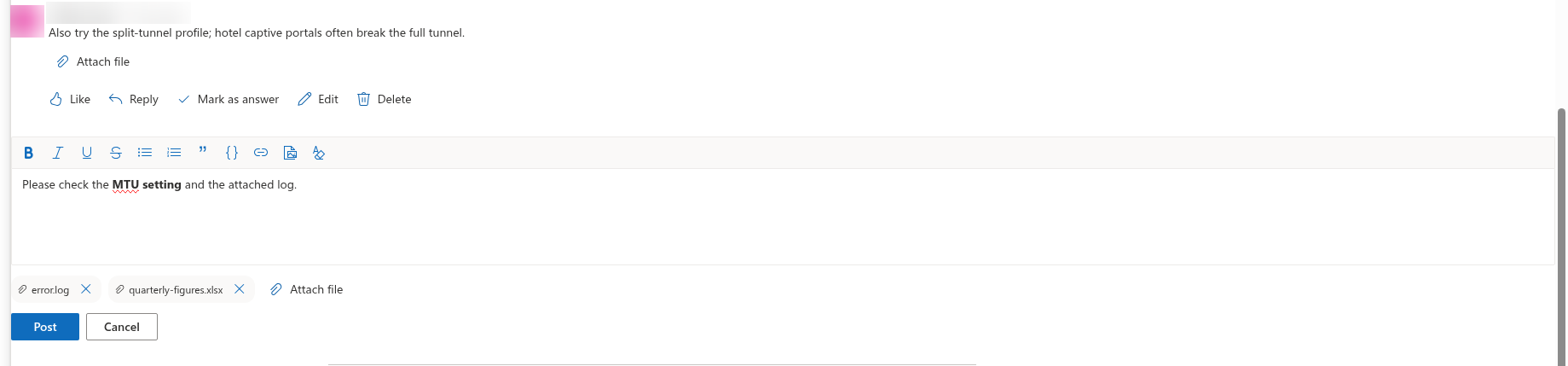
The Attach file button sits under the text editor in every place where you write:
- in the New topic form,
- in the reply box at the bottom of a topic,
- under a reply after you click Reply.
- Click Attach file and pick one or more files in the file dialog. You can click the button again to add more.
- Each selected file is shown as a chip with a paper-clip icon and its name. Click the Remove (×) icon on a chip to drop a file you picked by mistake.
- Click Post. The topic or reply is created first; the files are then uploaded to it one by one.
If one of the files cannot be uploaded - for example because its type is blocked in your tenant or it exceeds the size allowed by SharePoint - the post itself is still published and an error message names the problem. Add the missing file again from the published post as described below.
📝 Note
The Post button of a reply becomes active only when the reply has text or an inline image; a reply consisting of attachments alone cannot be sent. Write at least a short sentence that tells readers what the file is. A topic, in contrast, needs only a title.
Adding and removing attachments on a published post
Under a published topic or reply, the attachments are listed as chips with the file name. Click a name to open or download the file. If you are the author of the post, or a moderator of the board, the same row also shows:
- Attach file - uploads one or more additional files to the post;
- Remove (×) on each chip - deletes that attachment from the post.
There is no separate "edit attachments" mode: the buttons are available directly under the post as long as you have the right to manage it. While a reply is being edited (Edit), its attachments are hidden; finish or cancel the edit to see them again.

In the topic list, a paper-clip icon next to a topic title shows that the topic itself has attachments. Attachments of replies are not counted there.
Who can do what
| Action | Who |
|---|---|
| Open or download an attachment | Everyone who can read the board (the Read permission on the site) |
| Attach files to a new topic or reply | Users who can post - the Add items permission (Contribute or Edit on the site) |
| Add or remove attachments on an existing post | The author of the post and moderators (users with Manage Lists) |
The web part shows the management buttons according to these rules, and SharePoint enforces the same rules on the server: every upload and deletion is performed in the name of the signed-in user through the SharePoint REST API, so a user cannot do through the web part what the list permissions do not allow. Guests follow the same rules according to the permissions they were given on the site. The full permission model is described in KB10408. Permissions in Discussions: Who Can Read, Post and Moderate.
❗ Important
If a board requires approval, a topic or reply that is waiting for a moderator is visible only to its author and to moderators, and so are its attachments. Approval does not re-check the files; a moderator who wants to inspect them opens the pending item from the Moderation queue. Rejected posts keep their attachments until the post is deleted.
File names and limits
- Characters that SharePoint does not accept in attachment names -
\ / : * ? " < > | # % & { } ~- are replaced by an underscore before upload, and repeated spaces are collapsed. The chip shows the resulting name. - Very long names are shortened to the last 120 characters.
- SharePoint does not allow two attachments with the same name on one item. Rename the file before adding a second version, or remove the old one first.
- The web part sets no size limit of its own for attachments; the limits of SharePoint Online and the file types blocked by your tenant administrators apply. Inline images, in contrast, are limited to 10 MB each.
- Attachments are not shown as previews or thumbnails; the chip opens the file in a new tab or downloads it, depending on the file type and the browser.
Where the files are stored
Each attachment is stored with its list item in the Attachments folder of the Discussions Topics list (for topics) or the Discussions Posts list (for replies), exactly like attachments of any SharePoint list. This has practical consequences:
- deleting a topic or reply deletes its attachments;
- the files are included in search, eDiscovery, retention policies and backups of the site like other list content;
- Attachments to list items must remain enabled in the advanced settings of the two lists - it is enabled by default when the web part creates them;
- nothing is stored outside your tenant, and the web part needs no API permissions for any of this.
When a classic SharePoint Discussion Board is imported, the Copy attachments option of the importer copies the files of the original messages to the new items in the same way.
💡 Tip
For a document that will be edited further - a draft to review, a template to fill in - upload it to a document library of the site and paste the link into the post instead of attaching a copy. The link always opens the current version, and co-authoring works as usual. Where every Discussions list and library lives is described in KB10411. Where Discussions Stores Your Data: Lists, Columns and Privacy; the platform-wide picture is in KB10363. Where Vitextra Products Store Your Data: Privacy, Data Residency and GDPR.