Password Vault
Introduction
Passwords that people invent themselves tend to be short and predictable: a word, a year, an exclamation mark. Since Password Vault remembers the password for you, there is no reason to keep it memorable. The built-in generator creates a random password of the length and character set you choose and puts it straight into the entry.
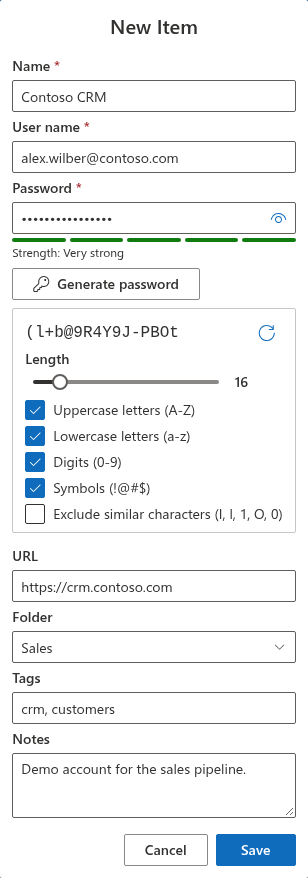
The generator is part of the New Item and Edit Properties dialogs, so you use it while creating or editing an entry (see KB10443. How to Add, Edit and Delete Entries in Password Vault). These dialogs are available only while the vault is unlocked.
Opening the generator
- Click New Item, or expand an existing entry and click Edit.
- Under the Password field, click Generate password.
The generator panel opens below the button and a new password is generated immediately: it appears in the panel and is put into the Password field at the same time. The strength meter under the field shows its estimated strength.
Click Generate password again to close the panel. The last generated password stays in the Password field.
❗ Important
In the Edit Properties dialog, opening the generator replaces the current password in the Password field right away, and every change in the panel replaces it again. If you only wanted to look at the generator, click Cancel: the entry keeps its old password. If you click Save, the new password is stored - change it on the site or service as well.
Generator options
| Option | Default | Description |
|---|---|---|
| Preview and Generate again | - | The generated password in plain text. The Generate again button (circular arrow) creates a new password with the same settings. |
| Length | 16 | A slider from 8 to 64 characters. |
| Uppercase letters (A-Z) | On | Include capital letters. |
| Lowercase letters (a-z) | On | Include small letters. |
| Digits (0-9) | On | Include digits. |
| Symbols (!@#$) | On | Include the symbols ! @ # $ % ^ & * ( ) - _ = + [ ] { } ; : , . ? |
| Exclude similar characters (I, l, 1, O, 0, o) | Off | Leave out characters that are easy to confuse when a password is read or typed by hand: I, l, 1, O, 0 and also the lowercase o. |
Every change - moving the slider, selecting or clearing a check box - generates a new password at once and puts it into the Password field. You do not need a separate confirmation; the field always contains the password shown in the preview.
📝 Note
The preview shows the generated password as plain text, while the Password field keeps it masked. Make sure nobody is looking at your screen while the panel is open.
How the password is generated
- Every selected character class is guaranteed. The password always contains at least one character from each class you have selected - for example at least one digit when Digits (0-9) is on. The remaining characters are picked from all selected classes together.
- The characters are shuffled. After the password is assembled, its characters are shuffled randomly, so the guaranteed characters do not always sit at the beginning.
- If you clear all four classes, the generator does not stop: it uses lowercase letters.
- The random source is cryptographic. Characters are chosen with the browser's cryptographic random number generator (
crypto.getRandomValues), not with an ordinary pseudo-random function, and in a way that gives every character of the set the same probability (no modulo bias). - Everything happens in your browser. The password is generated on your device and travels only as part of your encrypted vault file, between your browser and your OneDrive, when you save the entry. Vitextra receives no vault data (see KB10363. Where Vitextra Products Store Your Data: Privacy, Data Residency and GDPR).
Recommendations
- Keep the default length of 16 or more. With all four classes on, a generated 16-character password is practically always rated Very strong by the strength meter. A password of the minimum length of 8 characters is rated Fair at best, even with all four classes.
- Use all four classes when the service allows it. If a site does not accept some symbols, clear Symbols (!@#$) and increase the length instead - length adds more strength than a larger character set.
- Exclude similar characters only when needed - for a password that someone will read aloud or type from a printout. It slightly reduces the number of possible characters.
- Use a different password for every account. With the generator and the vault, there is no extra effort in doing so.
- Save the entry first, then set the password on the service. After saving, expand the entry and use Copy to Clipboard to paste the password into the service's "change password" form (see KB10444. How to View and Copy a Password or User Name in Password Vault). Keep the old password in a safe, approved place until the service confirms the change, and check that the password saved in the vault matches the one accepted by the service.
💡 Tip
What the strength levels mean and how they are calculated is described in KB10446. Password Strength Meter in Password Vault: What the Levels Mean. For a short introduction to all everyday tasks, see KB10441. Password Vault: A Quick Guide for End Users.