Password Vault
Where the meter appears
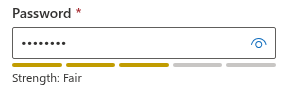
In the New Item and Edit Properties dialogs of Password Vault, a strength meter is shown directly under the Password field as soon as the field is not empty. It consists of a bar of five segments and the label Strength, for example Strength: Fair. The meter is updated with every character you type, and also when the password generator puts a new password into the field.
The five levels
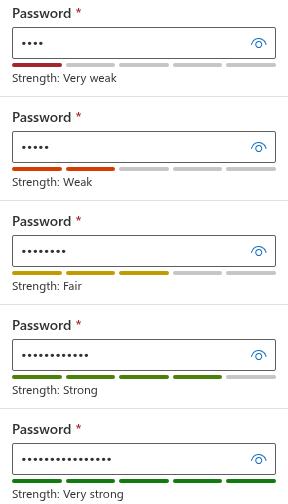
The meter uses a rough entropy estimate expressed in bits. In the mathematical model, one extra bit doubles the search space; this heuristic does not predict the actual number of guesses or the time needed to crack a password. The estimate is mapped to five levels:
| Level | Filled segments | Colour | Estimated strength |
|---|---|---|---|
| Very weak | 1 of 5 | Dark red | less than 28 bits |
| Weak | 2 of 5 | Orange | 28 to less than 40 bits |
| Fair | 3 of 5 | Yellow | 40 to less than 60 bits |
| Strong | 4 of 5 | Light green | 60 to less than 80 bits |
| Very strong | 5 of 5 | Green | 80 bits or more |
How the estimate is calculated
The calculation is done in your browser and takes four factors into account.
- Character pool. The meter checks which kinds of characters the password contains and adds up their number: lowercase letters (
a-z) count as 26, uppercase letters (A-Z) as 26, digits as 10, and any other character (symbols, spaces, letters with diacritics and so on) as 32. A password with all four kinds therefore has a pool of 94 characters, which gives about 6.55 bits per character; a password of lowercase letters only gives about 4.7 bits per character. - Effective length. First, the password length is capped at twice the number of different characters. Then every character that repeats the previous one (
aa) or continues an ascending or descending sequence (ab,21) is subtracted, with a minimum result of zero. A long password built from a few characters therefore gains little. - Bits. The estimate is the effective length multiplied by the bits per character of the pool.
- Common words. If the password contains one of the well-known weak words -
password,passw0rd,qwerty,admin,welcome,letmein,123456,abc123,iloveyou,11111- in any letter case, the estimate is capped at 20 bits, which is always Very weak, however long the rest of the password is.
Examples
The following examples show the level the meter displays for some passwords:
| Password | Level | Why |
|---|---|---|
Password123! | Very weak | Contains the common word password. |
qwerty2024! | Very weak | Contains the common word qwerty. |
abcdefgh | Very weak | One long sequence; almost every character is predictable. |
48271935 | Very weak | Digits only: a small pool of 10 characters. |
contosocrm | Fair | Lowercase letters only. |
Contoso2026 | Fair | Three kinds of characters, but only 10 characters long. |
7Vq!x2Lp | Fair | All four kinds, but only 8 characters long. |
7Vq!x2Lp#9 | Strong | All four kinds, 10 characters. |
7Vq!x2Lp#9Dk4 | Very strong | All four kinds, 13 characters without patterns. |
Do not use any of these example passwords.
The meter does not block saving
The meter is indicative only. You can save an entry with a Very weak password - for example when a service dictates the password or you are recording an existing one. Password Vault does not reject or change it; the decision is yours.
📝 Note
The estimate is a quick, local calculation. Apart from the short list of common words above, it does not compare the password with dictionaries or with lists of leaked passwords, and it does not know whether you use the same password elsewhere. A password rated Very strong can still be unsafe if it has been reused on another site that was breached.
Tips for a stronger password
- Make it longer. Length is the most effective factor: every additional random character adds up to 6.55 bits.
- Mix all four kinds of characters - uppercase and lowercase letters, digits and symbols - where the service allows it.
- Avoid patterns: repeated characters, keyboard or alphabet sequences, years and the common words listed above.
- Remember the limits of a small character set. A password made only of digits never reaches Very strong, because it has at most 10 different characters.
- Let the generator do it. A generated password of 16 characters with all four classes is practically always Very strong - see KB10445. How to Generate a Strong Password with the Password Vault Generator.
💡 Tip
After you have improved a weak password in the vault, change it on the site or service as well. Editing entries is described in KB10443. How to Add, Edit and Delete Entries in Password Vault.