Password Vault
Overview
A vault with a dozen entries is easy to scan; a vault with a hundred is not. Password Vault offers two complementary ways to group entries: a folder places an entry in one group, and tags attach multiple labels to it. Both are optional, both are set in the entry dialog, and both become choices in the filter drop-down above the list. This article explains how folders and tags work, how to change them, and how to use them together.
Folders and tags at a glance
| Folder | Tags | |
|---|---|---|
| Per entry | At most one | Within the 200-character field limit |
| Structure | Flat list, no subfolders | Flat list of labels |
| Where it is set | Folder combo box in the entry dialog | Tags text box in the entry dialog |
| Shown in the entry | Folder line with the folder name | Tags line with one chip per tag |
| In the filter drop-down | Section Folders, with No folder and each folder | Section Tags, with each tag as #tag |
| Exists as long as | At least one entry uses it | At least one entry uses it |
Folders and tags are stored encrypted together with the other fields of the entry, in your vault file in OneDrive. There is no separate list of folders or tags to maintain: the web part builds both lists from the entries every time it shows the vault.
Putting an entry in a folder
- Click New Item to create an entry, or expand an existing entry and click Edit. Both are available only while the vault is unlocked.
- In the Folder field (placeholder Select or type a folder name), either open the drop-down and pick an existing folder, or type the name of a new folder.
- Click Save.
The new folder appears in the drop-down of the Folder field and in the filter as soon as the entry is saved. Leading and trailing spaces are removed from the name. To take an entry out of its folder, clear the Folder field and save; the entry then belongs to No folder.
Folder names are not case-sensitive: Finance and finance are one folder. If you type the name of an existing folder in another capitalisation - for example finance while the folder Finance exists - the entry is saved into the existing folder, with its spelling Finance. For the same reason, the capitalisation of an existing folder cannot be changed by retyping its name.
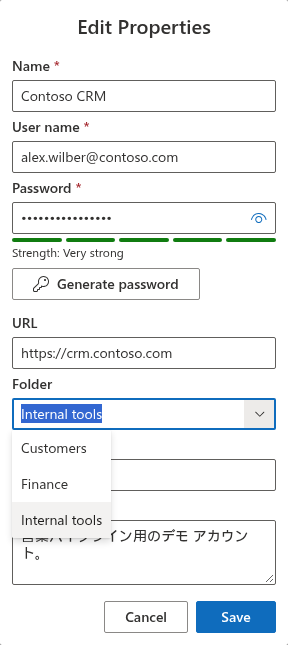
Folders are flat: one entry has one folder, and a folder cannot contain other folders. If you need a second dimension - for example the system and the environment - use tags for it, as described in A simple organizing scheme below.
Adding tags to an entry
Type the tags in the Tags field of the New Item or Edit Properties dialog, separated by commas or semicolons (placeholder Separate tags with commas). For example, sales; weekly, partner portal gives three tags: sales, weekly and partner portal - a tag may contain spaces.
When you click Save, the web part cleans the list:
- spaces before and after each tag are removed;
- empty tags (for example from
sales,,weeklyor a trailing comma) are dropped; - a tag that repeats an earlier one in the same entry, ignoring capitalisation, is dropped -
VPN, vpnkeeps only VPN.
The tags keep the order in which you typed them. The Tags field accepts up to 200 characters in total. When you open the entry again with Edit, the field shows the cleaned tags separated by commas.
Tags are not case-sensitive across entries either: CRM on one entry and crm on another are listed once in the filter and both entries match it.
How folders and tags appear
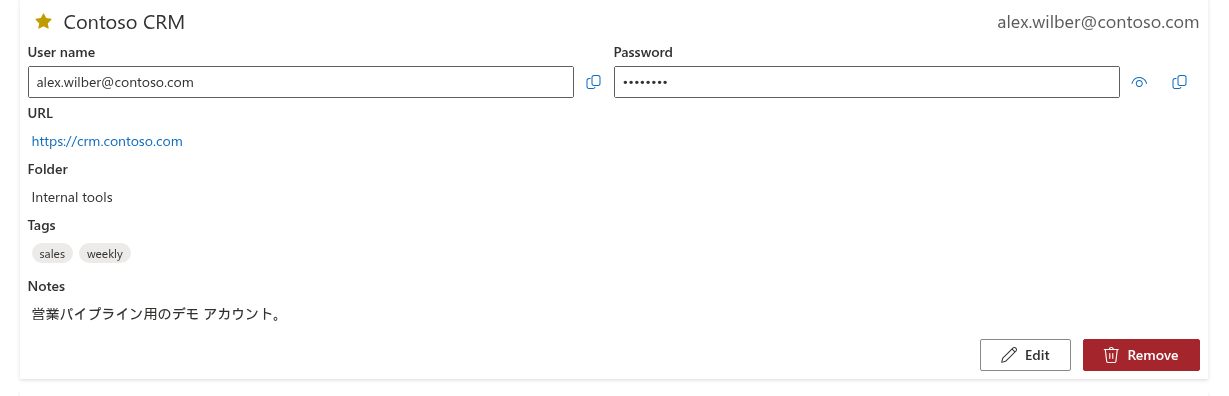
In the list, a collapsed entry shows only its name and user name. Click the entry to expand it: below User name, Password and URL, the expanded entry shows a Folder line with the folder name and a Tags line with one chip per tag. Each line appears only when the entry has a folder or at least one tag. Like the whole list, folders and tags are shown only while the vault is unlocked.
Filtering by folder or tag
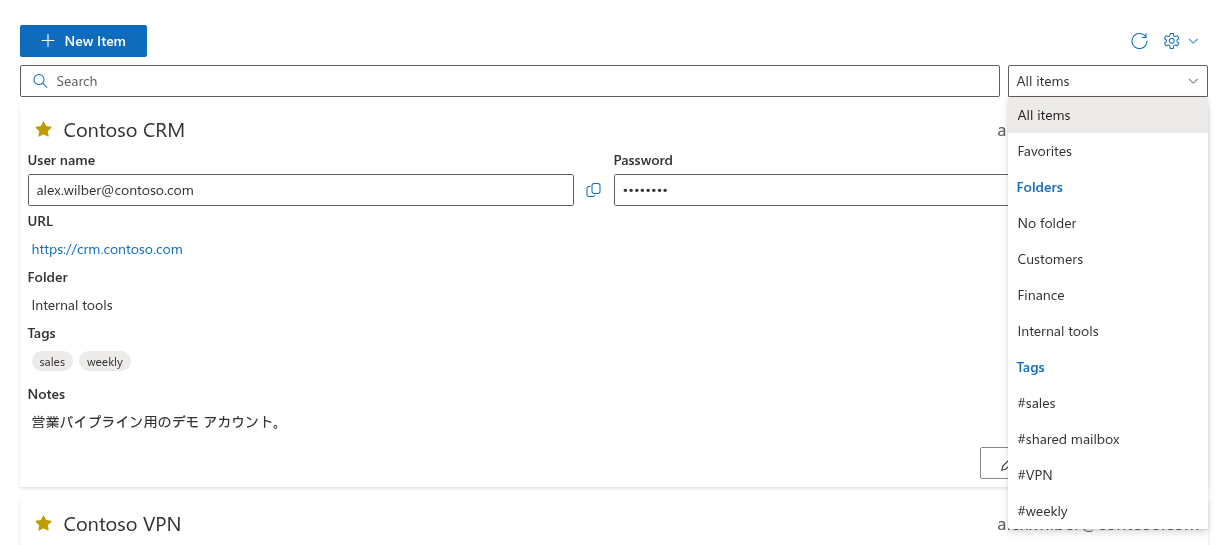
The filter drop-down next to the Search box lists, after All items and Favorites:
- a Folders section - shown when at least one entry has a folder - with No folder (entries without a folder) followed by every folder in alphabetical order; folders that differ only in capitalisation are listed once;
- a Tags section - shown when at least one entry has a tag - with every tag in alphabetical order, written as
#tag; tags that differ only in capitalisation are listed once and match each other.
Select a folder or a tag to show only the matching entries. The filter works together with the Search box, so you can, for example, select a folder and then type part of a name. All filter options, and how they combine with search, are described in KB10449. Searching and Filtering Entries in Password Vault.
Renaming or removing a folder or tag
Clear the search box before selecting the old folder to include all its entries.
Because folders and tags exist only as values of the entries, there is no command to rename or delete them centrally:
- To rename a folder, open each entry of the folder with Edit, pick or type the new name in Folder, and click Save. Selecting the old folder in the filter first gives you exactly the entries to change. After the first entry is saved, the new name is offered in the Folder drop-down for the others.
- To remove a folder, clear the Folder field of each of its entries, or move them to another folder. A folder disappears from the drop-down and from the filter as soon as no entry uses it.
- Tags are renamed and removed in the same way, by editing the Tags field of each entry.
If the folder or tag selected in the filter disappears - for example after you moved its last entry - the filter returns to All items.
📝 Note
Deleting an entry with Remove never affects other entries in the same folder. A folder or tag simply stops being listed when its last entry is deleted or changed.
A simple organizing scheme
Folders and tags work best when each has its own job:
- Folders for the main area, one per entry - for example Customers, Finance, Internal tools, Suppliers, Personal. Five to ten folders are usually enough; a long folder list is no easier to scan than the entries themselves.
- Tags for cross-cutting attributes - the environment (test, production), the kind of account (admin, partner portal), a project or a renewal cycle (quarterly). An entry can carry several of them.
- Favorites for daily use - mark the entries you open every day with the star instead of creating a folder such as Daily; see KB10448. Favorites in Password Vault: Keeping Frequently Used Entries at the Top.
- Lower-case, short tags - vpn rather than VPN access account - are quick to type and less likely to diverge in spelling.
Because the Search box also searches folder names and tags, a consistent scheme makes typing a single word, such as finance, enough to find the right group of entries.
💡 Tip
Folder names and tags are shown in plain text to anyone who can see your screen while the vault is unlocked. Use them to describe an entry, never to store a secret such as a security answer or a recovery code. How Password Vault protects each field is explained in KB10452. How Password Vault Protects Your Data: Encryption, PIN and Storage. Creating and editing entries is described step by step in KB10443. How to Add, Edit and Delete Entries in Password Vault.