Password Vault
Overview
Most people use a handful of their credentials every day and the rest only occasionally. Password Vault lets you mark those few entries as favorites: they move to the top of the list and can be shown on their own with the Favorites filter. This article explains how to add and remove favorites and how they affect the order of the list.
Marking an entry as a favorite
Every entry in the list has a star button to the left of its name. The list, and with it the star, is shown only while the vault is unlocked, so enter your PIN first.
- Click the empty star next to the entry. Its tooltip reads Add to favorites.
- The star becomes filled, and the entry moves to the top of the list.
To remove the entry from favorites, click the filled star again (tooltip Remove from favorites). The entry returns to its alphabetical place among the other entries.
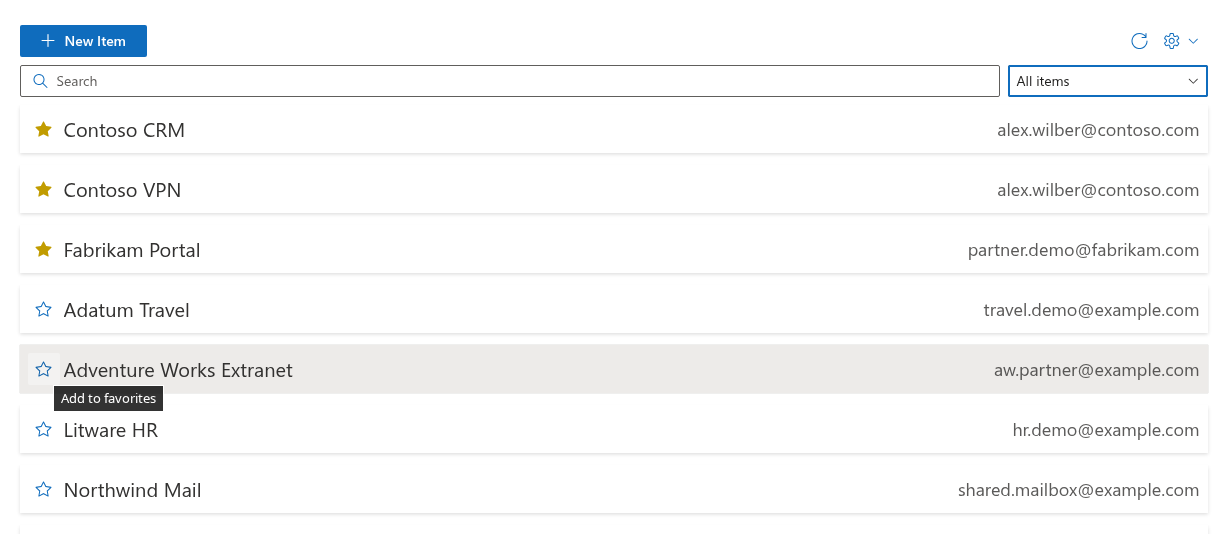
The change is saved to your vault file in OneDrive immediately; there is no separate Save step. If the save fails, the web part shows the message Sorry, something went wrong. Please refresh the page and try again. and the star keeps its previous state.
📝 Note
The star is available only while the vault is unlocked: while it is locked, the web part hides the list and shows the PIN prompt instead. The favorite flag itself is not a secret: changing it neither reveals nor changes the password, the user name or any other field of the entry. For that reason, the favorite flag is one of the few values that is stored in the vault file without encryption - see KB10452. How Password Vault Protects Your Data: Encryption, PIN and Storage.
How favorites are sorted
The list is always divided into two groups:
- Favorites first;
- all other entries after them.
Inside each group, entries are sorted by name, alphabetically and without regard to capitalisation. There is no manual ordering: to change the position of a favorite, change its name (for example, Contoso CRM sorts before Fabrikam Portal).
The same order applies while you search or filter: if the matching entries include favorites, they are shown first.
Showing only favorites
To see only your favorites, open the filter drop-down next to the Search box and select Favorites. The list then shows only the starred entries; you can still type in the Search box to narrow them further. Select All items to return to the full list. If you remove the star from an entry while the Favorites filter is active, the entry disappears from the filtered list at once. Clear the search box too if you want to see every entry. Clear the search box too to see every entry.
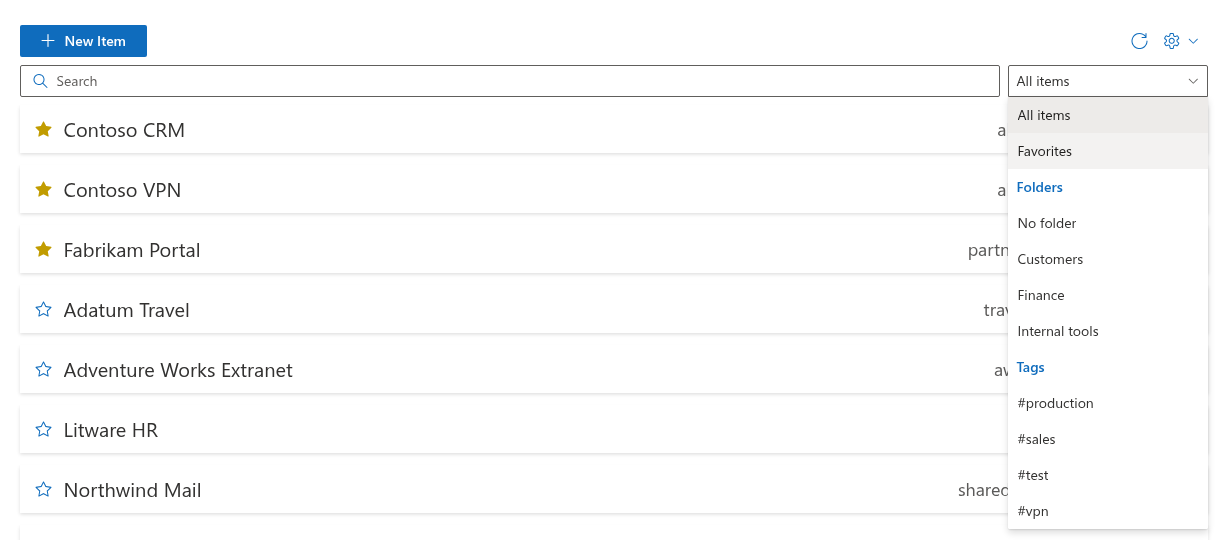
The filter drop-down and the Search box appear only while the vault is unlocked and contains at least one entry. The filter is not remembered: after the page is reloaded, the list opens on All items again. All filter options are described in KB10449. Searching and Filtering Entries in Password Vault.
Favorites on other pages, devices and in Teams
The favorite flag is stored with the entry in your own vault file in OneDrive, not in the page. Your favorites are therefore the same on every SharePoint page and every Microsoft Teams tab or personal app where the Password Vault web part is placed, and they are personal: other users who open the same page see their own vault and their own favorites.
📝 Note
A page that is already open shows a star set on another device or in another browser tab after you click Refresh (the icon button at the top right of the web part), after the next save or after unlocking. Changes to different entries saved on different pages are preserved: if the vault was saved elsewhere in the meantime, the web part applies your change to the latest vault file. If the same entry is edited concurrently, the last saved draft of that entry takes precedence.
Tips
- Keep the list of favorites short. Five to ten entries fit on the screen without scrolling; when everything is a favorite, nothing stands out.
- Use favorites for frequency, folders for subject. A favorite says I use this often; a folder says what it belongs to. An entry can be both - see KB10447. Organizing Entries with Folders and Tags in Password Vault.
- Review favorites when your work changes. When a project ends, remove the star from its entries so that the current ones stay at the top.
💡 Tip
Expand the entry, copy the user name with Copy to Clipboard and paste it into the sign-in form. Then copy and paste the password. While the vault is unlocked, neither action requires the PIN again. KB10444. How to View and Copy a Password or User Name in Password Vault. Paste the user name into the sign-in form before copying the password.