Password Vault
Overview
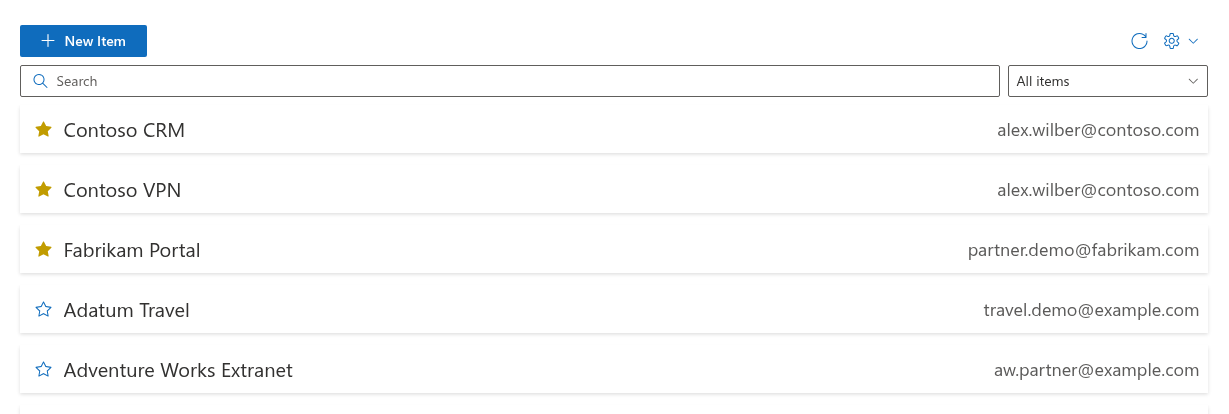
Above the list of entries, Password Vault shows two controls for finding an entry quickly: the Search box and a filter drop-down. The search narrows the list to entries containing the text you type; the filter narrows it to favorites, a folder or a tag. Both are available while the vault is unlocked, work instantly and can be used together.
📝 Note
The Search box and the filter drop-down appear only while the vault is unlocked and contains at least one entry. While the vault is locked, the web part shows the PIN prompt instead of the list. A new, empty vault shows There are no items in this list. instead; create your first entry with New Item - see KB10443. How to Add, Edit and Delete Entries in Password Vault.
Searching
Type any part of a word in the Search box. The list is filtered as you type and shows the entries in which the text occurs in at least one of these fields:
| Field | Example: searching for contoso finds… |
|---|---|
| Name | Contoso CRM |
| User name | alex.wilber@contoso.com |
| URL | https://portal.contoso.com |
| Folder | entries in the folder Contoso projects |
| Notes | an entry whose notes say Shared with the Contoso support team |
| Tags | entries tagged contoso |
Matching is case-insensitive and finds the text anywhere in a field, not only at the beginning: crm finds Contoso CRM, and wilber finds alex.wilber@contoso.com. Spaces before and after the search text are ignored.
To clear the search, delete the text or click the clear button (×) at the right of the box.
❗ Important
The search never looks in passwords. You cannot find an entry by typing its password, and the search does not reveal passwords. It does, however, look in Notes - one more reason to keep secrets out of the notes, because notes are displayed in plain text as soon as an entry is expanded.
Filtering
The filter drop-down next to the Search box narrows the list to one group of entries. It always contains two options, followed by up to two sections:
| Option | Shows |
|---|---|
| All items | All entries (the default) |
| Favorites | Entries marked with the star |
| Folders section → No folder | Entries without a folder |
| Folders section → a folder name | Entries in that folder |
| Tags section → #tag | Entries that carry that tag |
The Folders section appears only when at least one entry has a folder, and the Tags section only when at least one entry has a tag. Folders and tags are listed alphabetically; tags are written with a leading #. Capitalisation does not matter: folders or tags that differ only in capitalisation are listed once and match each other. A folder or tag is listed as long as at least one entry uses it. If the one you have selected disappears - because you moved or deleted its last entry - the filter switches back to All items.
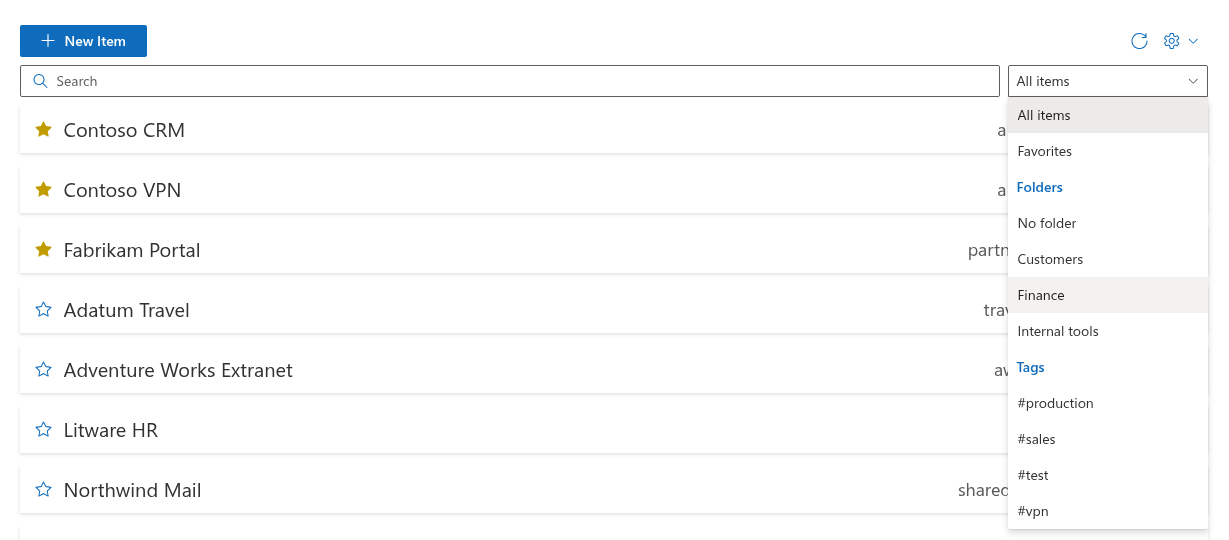
Only one option can be selected at a time: you can filter by one folder or one tag, not by a folder and a tag together. For that, combine the filter with the search, as described below. How folders and tags are assigned is described in KB10447. Organizing Entries with Folders and Tags in Password Vault, and favorites in KB10448. Favorites in Password Vault: Keeping Frequently Used Entries at the Top.
Combining search and filter
When both are used, the list shows only the entries that match the filter and contain the search text. For example:
- Favorites + vpn - your favorite entries that mention vpn in the name, URL, notes, folder or tags.
- folder Finance + bank - the entries of the Finance folder whose fields contain bank.
- tag #production + Customers - production entries that are also in the Customers folder, because the search covers folder names too.
Search also checks the other listed fields, so a match for a folder or tag name does not prove that the entry belongs to that folder or has that tag. This combination is not an exact two-field filter.
Within the result, the usual order is kept: favorites first, then the other entries, each group sorted by name.
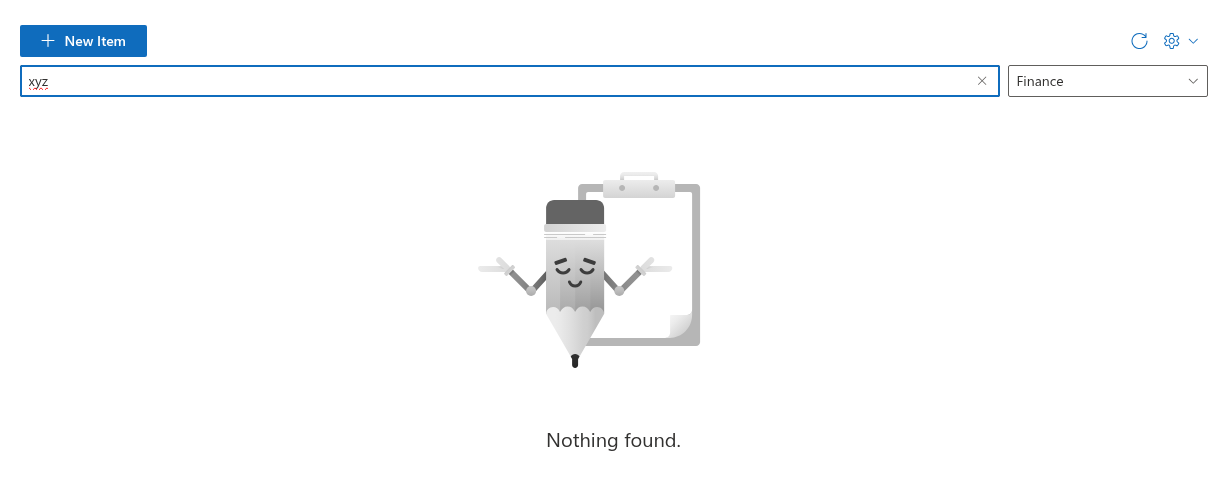
When no entry matches, the list shows Nothing found. Clear the Search box and select All items to see the entries again.
What is remembered and what is not
- The search text and the selected filter apply only to the page that is open. They are not saved: after the page is reloaded, the Search box is empty and the filter shows All items.
- Clicking Refresh reloads the entries from your vault file but keeps the current search and filter.
- Searching and filtering are available only while the vault is unlocked. When the vault locks, the Search box, the filter and the list are hidden until you enter the PIN again; the search text and the selected filter are kept and apply again after unlocking - see KB10451. Automatic Lock: When Password Vault Asks for the PIN Again.
💡 Tip
A consistent naming scheme makes the search far more useful. Start names with the organisation or system (Contoso CRM, Contoso VPN), keep one spelling per tag, and give folders short, distinct names - then one word in the Search box is usually enough. Suggestions are in KB10447. Organizing Entries with Folders and Tags in Password Vault.